

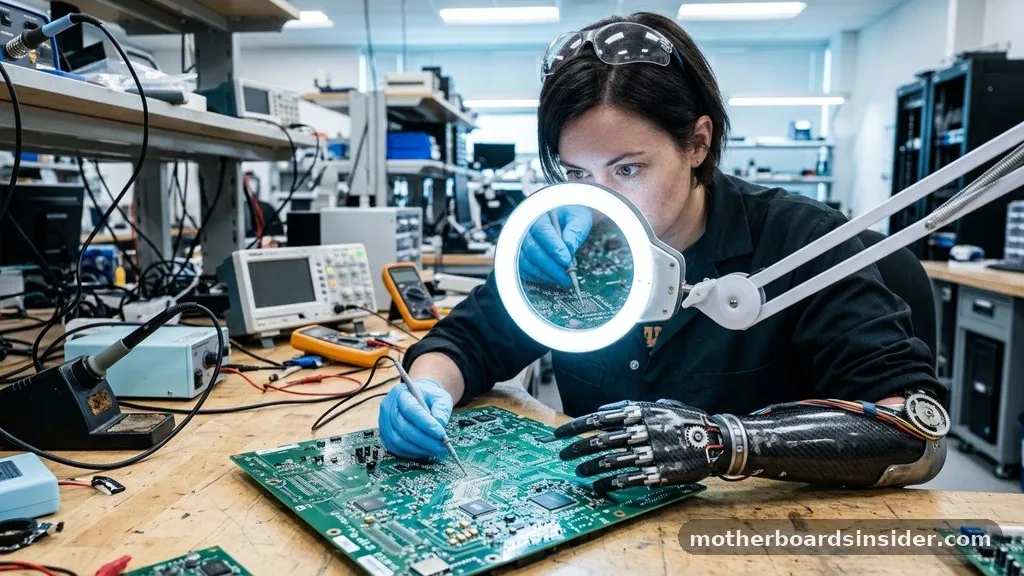
The motherboard serves as the central nervous system of any computing device, acting as the primary printed circuit board (PCB) that connects every vital piece of hardware. When people ask what is a motherboard in a computer, they are essentially inquiring about the foundation of the machine itself. It is the complex platform that facilitates communication between the processor, memory, and various peripheral devices.
Without this critical piece of hardware, the internal components would be isolated, unable to exchange the electrical signals necessary to perform even the simplest tasks. By providing the physical pathways and electrical distribution channels, the motherboard ensures that the system functions as a cohesive unit.
The Architecture and Physical Layout of a Motherboard
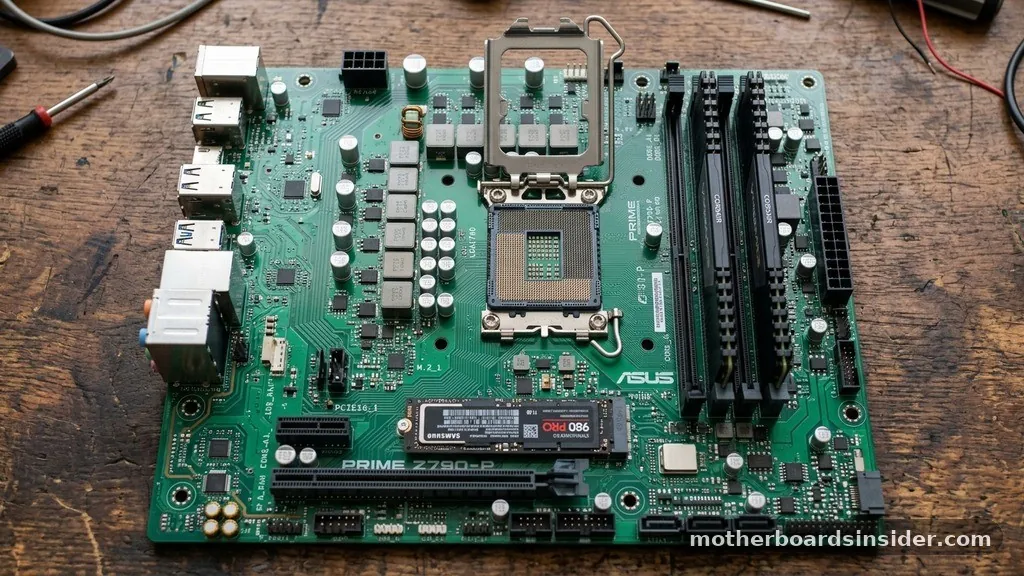
At its core, a motherboard is a complex multi-layered board designed to route electrical signals and power throughout the computer. It is constructed from a non-conductive material, typically fiberglass, with layers of copper foil etched to create the circuits or “traces” that allow data to flow.
These traces act as the digital highways for the components connected to the board. The layout is not random; engineers carefully design the physical placement of the CPU socket, RAM slots, and chipset controllers to minimize signal interference and heat buildup.
One of the most defining characteristics of modern motherboards is the form factor. This refers to the physical dimensions, mounting hole locations, and power connector placement. The most common standard used today is ATX (Advanced Technology eXtended), which has been the industry standard for desktop PCs for decades.
Other variations, such as Micro-ATX or Mini-ITX, offer smaller footprints for compact builds. Understanding the form factor is essential for any user looking to upgrade or build a custom PC, as it dictates whether the board will fit inside a specific computer case. If the board does not match the case’s mounting points, the entire build process will come to a halt.
The CPU Socket and Processor Integration
The CPU socket is perhaps the most significant feature on the motherboard. This is the physical interface where the central processing unit is installed. The socket is designed with specific pin configurations that must be perfectly compatible with the processor being used.
You cannot simply place any processor into any motherboard; the socket type and the chipset must match the architecture of the CPU. This relationship is governed by the manufacturer’s design, which often limits the lifespan of a motherboard to a few generations of chips.
When a processor is seated in the socket, it gains direct access to the system bus and memory controllers. Modern motherboards utilize a Land Grid Array (LGA) or Pin Grid Array (PGA) design to ensure thousands of microscopic connections are made between the chip and the board.
This connection is critical; if even a single pin is bent or misaligned, the entire system may fail to boot. The motherboard also provides the necessary power regulation through a series of capacitors and chokes, known as the Voltage Regulator Module (VRM), which converts the power from the power supply unit into a stable voltage that the CPU can safely use.
Memory Slots and Data Throughput
The RAM (Random Access Memory) slots are another fundamental component found on every motherboard. These slots allow users to expand the system’s volatile memory, which is where data is held temporarily while the computer is active.
The motherboard acts as the intermediary between the CPU and the RAM, utilizing high-speed communication channels to move data at incredible rates. The number of slots available often dictates the maximum memory capacity, which is a key performance metric for professional workflows like video editing or data analysis.
Most modern motherboards support dual-channel or even quad-channel memory configurations. By installing memory modules in specific pairs, the motherboard can effectively double the bandwidth between the RAM and the processor. This is why it is often recommended to populate memory slots in matched sets.
Furthermore, the motherboard’s BIOS or UEFI firmware manages the timing and voltage settings for the RAM, ensuring that the memory runs at its rated speed. If the memory is not configured correctly within the BIOS, the system might default to a slower, safer speed, leaving performance on the table.
Expansion Slots and PCIe Connectivity
Beyond the essential components, motherboards provide PCIe (Peripheral Component Interconnect Express) slots for adding functionality. These slots are the gateway for high-performance expansion cards, such as dedicated graphics cards, network interface cards, or high-speed storage controllers. The PCIe bus is highly scalable, with different slot lengths—such as x1, x4, x8, and x16—providing varying amounts of bandwidth to the connected devices.
A high-end graphics card, for instance, typically requires a full-length x16 slot to handle the massive amounts of data required for modern gaming or professional rendering. The motherboard’s chipset manages these lanes, determining how much traffic can move between the CPU and the expansion cards at any given time.
As technology evolves, motherboards have moved to newer generations of PCIe, such as PCIe 4.0 or 5.0, which offer significantly faster data transfer rates compared to their predecessors. This modularity is what makes the personal computer so versatile, allowing users to upgrade specific parts of the machine over time without replacing the entire system.
The Role of the Chipset and Controllers
If the CPU is the brain, the chipset is the traffic controller of the motherboard. The chipset is a set of electronic components integrated into the board that manages the data flow between the processor, memory, and various peripheral devices.
It is usually divided into two main sections: the Northbridge (often integrated into the CPU itself in modern designs) and the Southbridge. The Southbridge handles input/output functions, including USB ports, SATA connections for hard drives, and audio integration.
The chipset also determines which features a motherboard supports, such as overclocking capabilities, the number of supported USB ports, and RAID configurations. When selecting a motherboard, users often look at the chipset series to decide if the board meets their needs for connectivity and performance.
For instance, a enthusiast-grade chipset might offer more PCIe lanes and better power delivery for overclocking, whereas an entry-level chipset is designed for basic office tasks and lower power consumption. You can learn more about how these hardware standards are defined by visiting the International Organization for Standardization to see how technical specifications are established.
Storage Interfaces and Data Management
Modern motherboards offer multiple ways to connect storage devices, ranging from traditional SATA ports to high-speed M.2 NVMe slots. SATA (Serial ATA) has been the standard for hard drives and SSDs for many years, providing a reliable interface for data storage.
However, the rise of M.2 slots has revolutionized storage speed. These slots allow solid-state drives to connect directly to the PCIe lanes, bypassing the bottleneck of the older SATA interface.
The motherboard manages these connections through a storage controller that ensures data is read from and written to the drives accurately. In many cases, the board also supports advanced features like RAID (Redundant Array of Independent Disks), which allows users to combine multiple physical drives into a single logical unit for better performance or data redundancy. The configuration of these drives is handled through the BIOS/UEFI, where the user can define boot orders and storage priorities.
BIOS and UEFI: The Foundation of Startup
The BIOS (Basic Input/Output System) or the more modern UEFI (Unified Extensible Firmware Interface) is the software layer that resides on a small flash memory chip on the motherboard. This firmware is the first thing that runs when you press the power button. It performs the Power-On Self-Test (POST) to verify that all critical components, such as the CPU, RAM, and graphics card, are detected and functioning correctly.
The UEFI provides a user-friendly interface that allows users to configure hardware settings, manage boot devices, and monitor system health, such as fan speeds and temperatures. Without this firmware, the hardware would have no instructions on how to initialize itself or how to load the operating system.
The CMOS battery, a small coin-shaped cell on the motherboard, is responsible for keeping the BIOS settings and the internal clock powered even when the computer is unplugged from the wall. If the battery dies, the BIOS settings revert to factory defaults, and the system clock may lose track of time.
Technical Comparison of Motherboard Components
To better understand the hierarchy and function of these parts, the following table summarizes the primary roles of the motherboard’s key subsystems.
| Component | Primary Function |
|---|---|
| CPU Socket | Provides the electrical interface and mounting for the processor. |
| RAM Slots | Houses memory modules for temporary data storage and processing. |
| PCIe Slots | Connects expansion cards like GPUs and high-speed network adapters. |
| Chipset | Manages data traffic between the CPU, memory, and peripherals. |
| BIOS/UEFI | Initializes hardware and manages the boot sequence during startup. |
Common Troubleshooting and Maintenance
When a computer fails to turn on, the motherboard is often the first suspect. Because it is the central hub for all power and data, a failure here usually results in a completely unresponsive machine. Common signs of a failing motherboard include random system reboots, failure to recognize connected peripherals, or “Blue Screen of Death” errors that point toward hardware communication issues.
Maintenance is relatively straightforward but requires caution. Dust buildup can trap heat, which is the enemy of electronic components. Using compressed air to clean the board and its heatsinks periodically can significantly extend its lifespan.
Furthermore, ensuring that all power cables are seated firmly prevents arcing or intermittent power delivery, which can damage the sensitive circuitry over time. If you suspect a motherboard issue, checking the status LEDs or using a motherboard speaker to listen for “beep codes” can provide clues about which specific component is failing the POST process.
Why the Motherboard Matters for Upgradability
The choice of motherboard is the most critical decision in a PC build because it determines the ceiling for future upgrades. A board with a robust power delivery system and plenty of expansion slots allows a user to start with a modest processor and upgrade to a high-end chip later, or add more memory and faster storage as their needs grow. Conversely, an entry-level board might lack the necessary cooling or connectivity to support high-performance upgrades, effectively locking the user into their initial configuration.
When selecting a board, consider the following checklist to ensure long-term utility:
- Verify the socket type is compatible with your intended CPU generation.
- Ensure the form factor fits your chosen case.
- Check for a sufficient number of RAM slots to allow for future memory expansion.
- Look for high-speed M.2 slots for modern, fast storage options.
- Confirm that the onboard audio and networking capabilities meet your current and future requirements.
- Examine the quality of the heatsinks on the power delivery modules to ensure stable performance under load.
Frequently Asked Questions
Is it worth replacing a motherboard on a computer?
Replacing a motherboard is often a complex task that requires nearly disassembling the entire computer. It is generally only worth it if the board is faulty and you have an identical or compatible replacement, or if you are performing a significant platform upgrade that requires a new chipset.
What is another name for a motherboard?
The motherboard is frequently referred to by several other names, including the mainboard, system board, logic board (commonly used by Apple), or planar board. Regardless of the terminology used, all these terms describe the same central printed circuit board that hosts the computer’s primary components.
Can a computer run without a motherboard?
No, a computer cannot function without a motherboard. The motherboard is the essential physical interface that links the power supply, processor, memory, and storage. Without it, there is no way for these components to receive power or communicate with one another to execute software instructions.
What happens if your motherboard is bad?
If a motherboard fails, the computer will typically fail to boot entirely, or it may exhibit intermittent crashes and hardware errors. In many cases, the system will not pass the initial Power-On Self-Test (POST), resulting in a black screen and a non-responsive machine despite the power being on.
The motherboard is the backbone of the digital experience. By understanding its role as the central hub for all components, data, and power, users can make more informed decisions about their hardware. Whether you are building a custom gaming rig or maintaining a professional workstation, recognizing the importance of this foundational piece of hardware is the first step toward mastering computer technology.


