Updating the firmware on your motherboard is one of the most critical maintenance tasks for any PC builder or enthusiast. The Basic Input/Output System, or BIOS, acts as the foundational layer of software that initializes your hardware components before the operating system takes control.
When you learn how to update BIOS on motherboard hardware, you aren’t just performing a routine task; you are ensuring that your system remains compatible with newer processors, memory modules, and security patches. While the process has become significantly safer over the last decade, it still requires a methodical approach to avoid rendering your computer unbootable.
Identifying Your Current BIOS Version and Necessity
To determine if you need a BIOS update, you must first check your current version. A BIOS update is not always mandatory unless you are experiencing specific hardware incompatibilities or security vulnerabilities.
If your computer runs perfectly, you might not need to touch the firmware. However, if you have recently upgraded your CPU to a newer generation, a firmware update is often the only way to get the system to post.
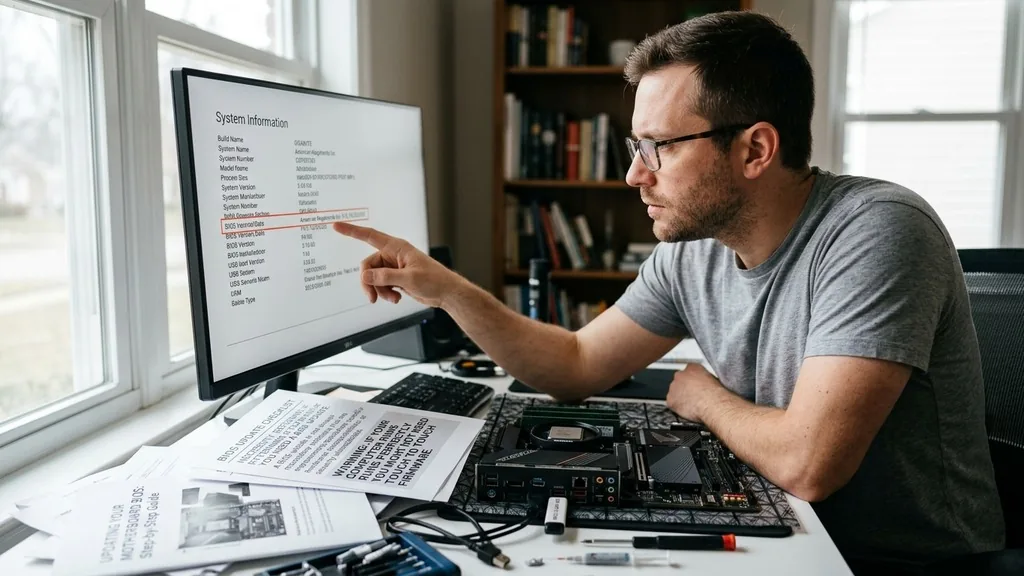
You can check your existing firmware version by opening the System Information utility in Windows. Press the Windows key, type “msinfo32,” and hit Enter. Look for the “BIOS Version/Date” field in the summary list.
Write this down. Next, visit the official support website for your specific motherboard manufacturer. Whether you are using Intel motherboard documentation or a brand-specific site like ASUS, MSI, or Gigabyte, navigate to the support page for your exact model.
Compare your current version with the latest one listed on the manufacturer’s site. If there is a newer release that addresses performance issues, improves memory stability, or adds support for your specific CPU, it is time to prepare for the update.
Preparing the Necessary Tools and Hardware
The preparation stage is where most errors occur, so take your time. You will need a reliable USB flash drive, preferably formatted to FAT32, to store the firmware file.
Avoid using high-capacity drives that require specialized partition schemes, as older BIOS interfaces often struggle to read them. A standard 8GB or 16GB USB 2.0 or 3.0 drive is usually the most stable choice for this process.
Once you have your drive, download the correct BIOS file from the manufacturer. These files are typically compressed in a ZIP archive. Extract the file to the root directory of your USB drive.
Do not place it inside a subfolder, as the flashing utility inside the BIOS needs to find the file quickly. Some manufacturers require you to rename the file using a specific utility provided in the download package.
Always read the included “ReadMe” or “Instructions” text file provided by the manufacturer. Ignoring these specific naming conventions is a common reason why the BIOS flashing utility fails to detect the firmware file during the update process.
Using the Built-in BIOS Flash Utility
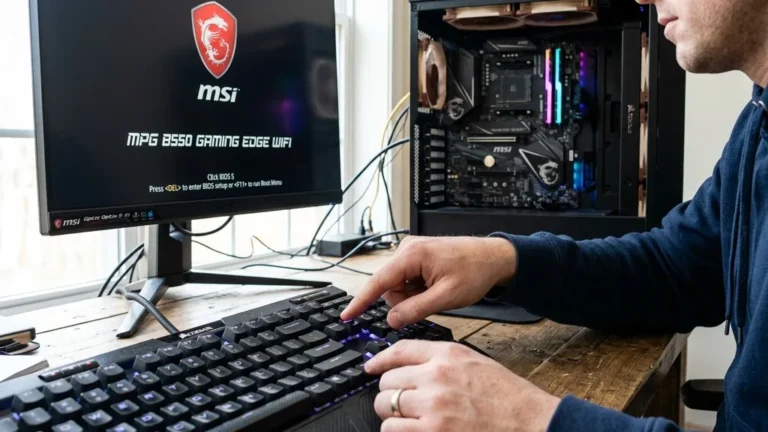
The safest and most recommended way to update your firmware is through the motherboard’s built-in flashing tool, commonly referred to as EZ-Flash, M-Flash, or Q-Flash, depending on your brand. This method operates outside of the Windows environment, which prevents background applications or driver crashes from interrupting the update. To start, restart your computer and repeatedly press the key designated for entering the BIOS—usually Delete, F2, or F12.
Once inside the interface, look for a tab labeled “Tool,” “Advanced,” or “Utilities.” Select the flashing utility. The system will prompt you to select the storage device where you saved the update file.
Navigate to your USB drive, select the file, and confirm your choice. The system will verify the file to ensure it matches your motherboard model. If the verification succeeds, the update will begin.
Do not touch your computer during this stage. Even if the screen appears frozen or the progress bar seems to stall, let it run until the system restarts automatically. Interrupting this process is the fastest way to corrupt the motherboard firmware.
Performing Updates via Windows-Based Utilities
Some manufacturers offer software that allows you to update your motherboard firmware directly from within the Windows operating system. While this is significantly more convenient than entering the BIOS, it carries a higher risk. If a background process, such as an antivirus scan or a Windows update, tries to write to the system files while the BIOS utility is flashing the chip, the result can be a bricked motherboard.
If you choose this route, you must disable all unnecessary background programs. Close your browser, shut down monitoring software like HWMonitor or RGB controllers, and disconnect any non-essential peripherals. Launch the manufacturer’s utility as an administrator.
It will typically check for updates automatically, but you can usually point it to a file you downloaded manually. Follow the on-screen prompts carefully.
Once the utility starts the flashing process, do not use your mouse or keyboard, and under no circumstances should you shut down or restart the computer manually. The application will trigger a system reboot once the task is complete.
Addressing Advanced Flashback Features
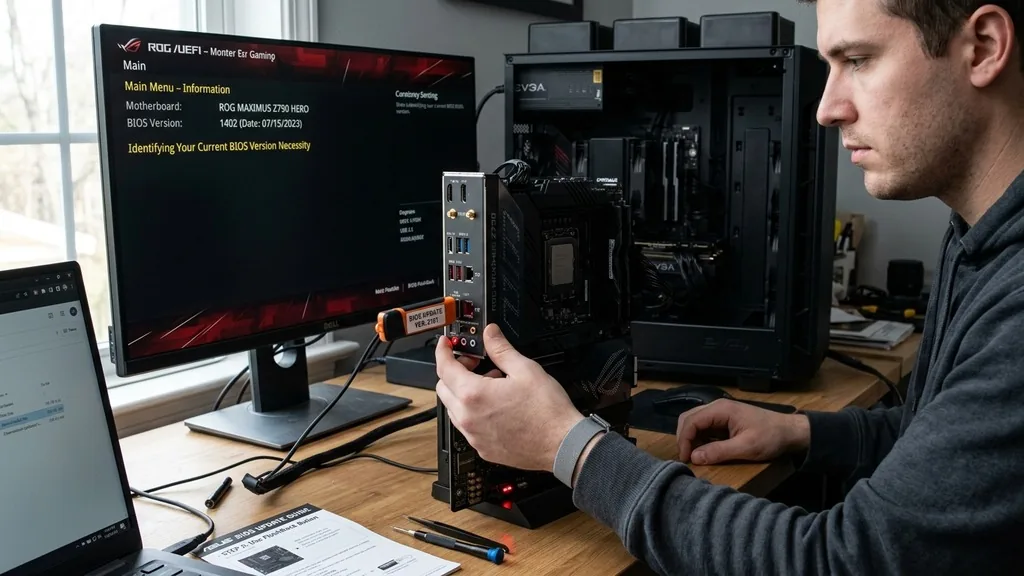
Modern high-end motherboards often feature a technology known as BIOS Flashback. This is a lifesaver for builders who have purchased a new motherboard that does not support their CPU out of the box.
With this feature, you do not need a processor, RAM, or a graphics card installed to perform the update. You only need the motherboard and a power supply unit connected to the 24-pin and 8-pin power headers.
To use this, you usually need to rename the BIOS file to a very specific filename specified in your motherboard manual—for example, “MSI.ROM” or “ASUS.CAP.” Insert the USB drive into the specific port labeled “BIOS” or “Flashback” on the rear I/O panel. Press the Flashback button and wait for the LED indicator to blink.
The blinking light signals that the system is reading the file and writing it to the chip. This can take several minutes.
Once the light stops blinking or turns solid, the update is finished. This is the most robust method available because it bypasses the operating system and the primary BIOS interface entirely.
Common Risks and How to Mitigate Them
The primary risk associated with updating your system firmware is power failure. If the power cuts out while the chip is being rewritten, the motherboard will not be able to boot, as the instruction set required to start the machine will be incomplete.
To mitigate this, always perform the update when you are certain your local power grid is stable. If you are using a desktop PC, ensure it is plugged into a reliable power strip or, ideally, a UPS (Uninterruptible Power Supply).
Another risk involves using the wrong file. Motherboard manufacturers often release different revisions of the same board model. A Revision 1.0 board may not be compatible with a BIOS meant for a Revision 2.0 board.
Always double-check your motherboard’s revision number, which is usually printed on the PCB near the model name. Using an incorrect file can lead to a failed flash, though most modern boards have safety checks that prevent you from flashing an incompatible file. If the system warns you that the file is invalid, stop immediately and re-verify your model and revision.
Comparing Update Methods
Choosing the right method depends on your technical comfort level and the hardware features available on your specific motherboard. The following table summarizes the primary ways to update your firmware:
| Method | Risk Level | Requirements | Best For |
|---|---|---|---|
| BIOS Built-in Utility | Low | USB Drive, BIOS Access | General users, stability |
| Windows Utility | Medium | Windows OS, Software | Convenience, non-technical users |
| Hardware Flashback | Lowest | USB Drive, PSU | New builds, CPU incompatibility |
Each method has its place in the lifecycle of a computer. While the built-in utility is the standard for most, the Hardware Flashback feature is a modern convenience that makes building PCs with the latest hardware significantly less stressful.
Solving Common Troubleshooting Issues
If you find that your system fails to boot after an update, don’t panic. The most common solution is to clear the CMOS (Complementary Metal-Oxide-Semiconductor). This resets the motherboard settings to their factory defaults.
You can usually do this by locating the two-pin jumper on the motherboard labeled “JBAT1” or “CLR_CMOS” and shorting it with a screwdriver for a few seconds while the power is off. Alternatively, you can remove the round CR2032 battery from the motherboard for about 60 seconds.
If that does not resolve the issue, check your RAM. Sometimes a BIOS update resets memory training parameters, and your system might need a few extra seconds to boot as it detects the memory modules. Let the system run for at least five minutes on a black screen before assuming the flash failed.
If you still have no signal, check your display output. Occasionally, an update will switch the default display output from your dedicated graphics card back to the integrated graphics on the CPU. Move your monitor cable to the motherboard’s HDMI or DisplayPort output to verify if the screen returns.
Topical Gaps and Advanced Considerations
Many guides fail to mention the importance of BIOS settings after an update. When you flash a new version, all your previous settings—including XMP/DOCP memory profiles, fan curves, and overclocking settings—will be wiped.
You must re-enter the interface after the update to re-enable your memory profiles. If you skip this, your RAM will run at the default JEDEC speed (often 2133MHz or 2666MHz), which can significantly bottleneck your system performance.
Furthermore, some newer BIOS versions introduce “Secure Boot” or “TPM 2.0” requirements by default. If you are running an older installation of Windows, you may need to toggle these settings to ensure your system remains bootable. Always document your custom settings before starting the update process.
Take photos of your BIOS screens with your phone. This makes the restoration process much faster once the update is complete. By maintaining a record of your configuration, you turn a potentially tedious troubleshooting session into a quick five-minute task.
Frequently Asked Questions
- Do I need to update my BIOS if my computer is working fine? No, if your system is stable and you are not experiencing hardware compatibility issues, there is no pressing need to update. BIOS updates are generally recommended only when you need new feature support or critical security patches.
- What happens if the power goes out during a BIOS update? A power failure during the flashing process can corrupt the firmware, potentially rendering the motherboard unbootable. If this happens, you may need to use a motherboard with a “Dual BIOS” feature or perform a recovery flash if supported by your specific model.
- Can I skip versions when updating my BIOS? In most cases, you can flash directly to the latest version available on the manufacturer’s website. However, always check the release notes. Some manufacturers require you to install a “bridge” BIOS version first if you are coming from a very old firmware release.
- How do I know if my motherboard uses a specific file format? Check the manufacturer’s support page for your motherboard. They will specify the file extension, such as .CAP, .ROM, or .BIN. Always use the exact file provided for your specific model revision to ensure the update succeeds without errors.
Updating your system firmware is a manageable process when you follow the manufacturer’s specific guidance. By choosing the right tool for your hardware—whether that is the internal utility or the dedicated flashback button—you can ensure your system remains current and compatible with the latest components.
Remember that patience is your best friend during this procedure; let the process finish naturally, and always keep a record of your custom settings so you can restore your preferred performance profile immediately after the reboot. With these steps, you are well-equipped to maintain your hardware for years to come.