

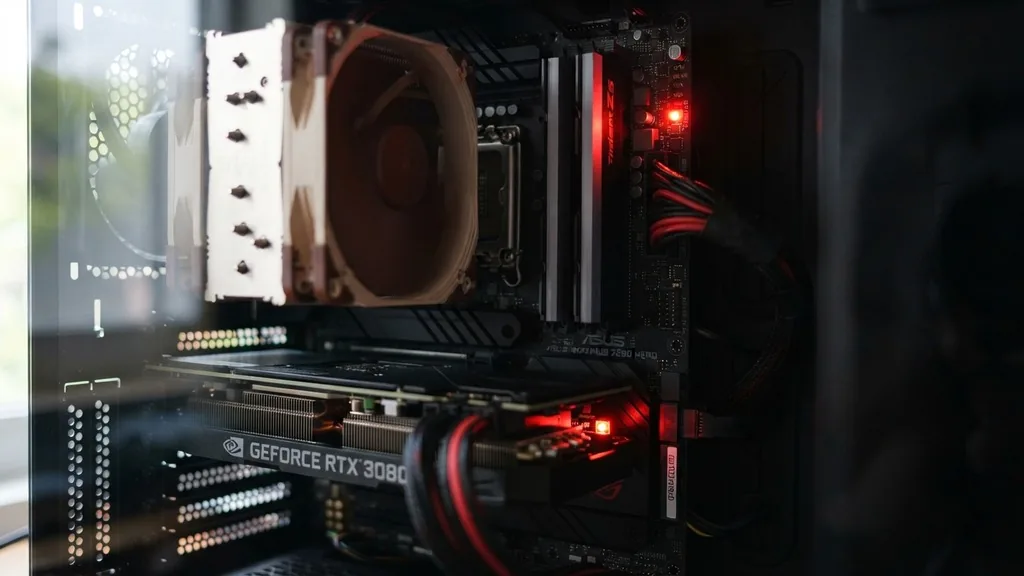
Seeing a persistent or blinking red light on your motherboard is one of the most stressful moments for any PC builder or enthusiast. It usually signals that something has gone wrong during the POST (Power-On Self-Test) process.
When you press the power button, your computer runs a series of checks to ensure the CPU, memory, and graphics hardware are functional before handing control over to the operating system. If one of these checks fails, the motherboard’s Debug LED system triggers a visual alert, which is almost always a bright red light.
Understanding the Debug LED System
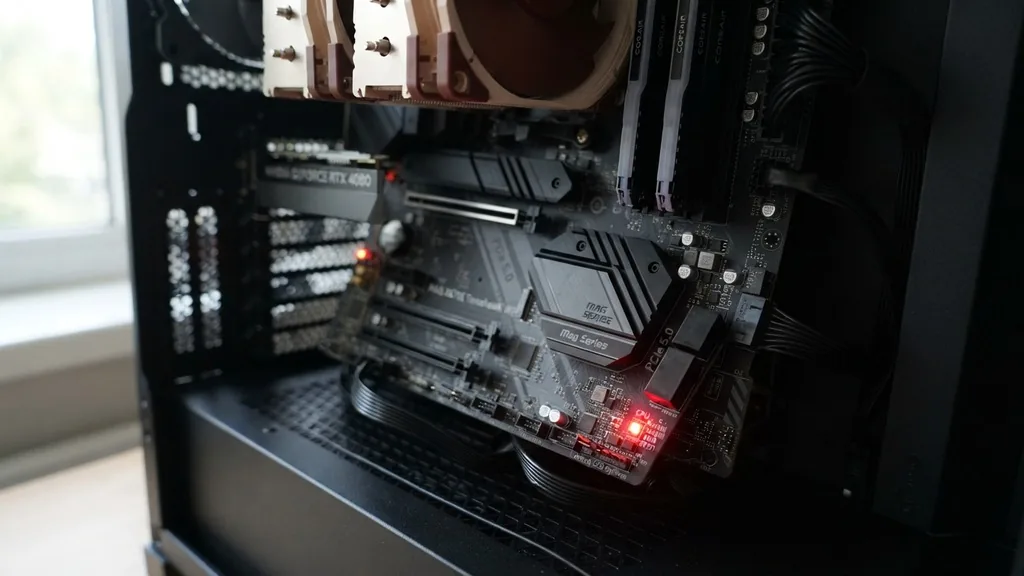
A Debug LED is a diagnostic feature built into most modern motherboards to help users identify specific hardware failures without needing complex diagnostic tools. When a component fails to initialize, the motherboard illuminates a specific LED corresponding to the faulty part. These lights are essential because they turn a “black screen” problem into a solvable technical puzzle.
If you see a red light, don’t panic. It is rarely a sign that your motherboard is permanently destroyed. Instead, it is a communication tool.
The board is literally telling you which part of the hardware initialization sequence failed. Most high-end and mid-range boards feature four distinct LEDs labeled CPU, DRAM, VGA, and BOOT.
By observing which one stays lit, you can narrow down your troubleshooting to a single subsystem rather than tearing the entire build apart. Always check your motherboard manual to confirm exactly what the specific light layout signifies for your model, as manufacturers sometimes vary their diagnostic indicators.
Identifying CPU Initialization Failures
A red light labeled CPU usually indicates that the processor is either not detected, improperly seated, or suffering from a power delivery issue. This is the first step in the hardware initialization phase.
If the motherboard cannot communicate with the processor, it cannot initiate any other tasks. This might happen if the CPU power cable (the 8-pin connector near the top of the board) is loose or unplugged.
Another common cause for a CPU-related red light is an outdated BIOS update. If you are using a newer processor on an older motherboard chipset, the board may not recognize the CPU until the BIOS is flashed to a compatible version.
Before assuming the processor is dead, ensure the pins are not bent—especially if you are using an Intel LGA socket where the pins are on the motherboard rather than the CPU. If you have recently upgraded your cooler, ensure the mounting pressure isn’t too tight, as excessive pressure can occasionally cause micro-fractures or poor pin contact.
Troubleshooting DRAM and Memory Issues
The DRAM light is perhaps the most common reason for a red light on a motherboard. This indicates that the system is failing to initialize your memory modules. This often happens after moving a PC, adding new RAM, or simply due to a slight oxidation of the contact points.
The first thing you should do is check your RAM seating. Memory sticks require a firm click to lock into the DIMM slots; if they are even slightly askew, the system will hang during the POST process.
If reseating the RAM doesn’t work, try testing with only one stick in the primary slot (usually the second slot from the CPU, though check your manual). If the PC boots with one stick but not the other, you have identified a faulty module. Sometimes, the issue is related to XMP or EXPO profiles being unstable.
Clearing the CMOS battery can reset these memory profiles to their default, safe speeds, which often resolves boot loops caused by aggressive memory overclocking. If the light persists, the issue might be a faulty memory controller on the CPU or a damaged DIMM slot on the motherboard itself.
VGA Errors and Graphics Hardware
When the VGA light stays red, the motherboard is telling you that it cannot initialize the graphics card. This means the system has passed the CPU and memory checks but hit a wall when trying to talk to the GPU.
Ensure your graphics card is fully inserted into the top PCIe slot, which is usually wired directly to the CPU for the best performance. Check that the power cables from the Power Supply Unit (PSU) are firmly pushed into the GPU’s power connectors.
If you are using a riser cable for a vertical GPU mount, these are notorious for failing or being incompatible with PCIe 4.0 speeds. Try plugging the GPU directly into the motherboard to rule out the riser cable as the culprit. If your CPU has integrated graphics, remove the dedicated GPU entirely and plug your monitor into the motherboard’s HDMI or DisplayPort.
If the PC boots, the issue is almost certainly with the graphics card or its power supply cables. For a deeper look at hardware standards, you can review technical specifications at the PCI-SIG website to understand how these interfaces communicate.
Addressing Boot Errors and Storage
A BOOT error light usually appears after the system has successfully initialized the CPU, RAM, and GPU. Unlike the other lights, this one signifies that the motherboard reached the end of the POST sequence but could not find a bootable device, such as an SSD or HDD containing an operating system. This is often less of a hardware failure and more of a configuration issue.
Check your storage drive cables if you are using SATA drives. If you are using an M.2 NVMe drive, ensure it is properly screwed down and fully inserted into the slot. Sometimes, the BIOS settings for the storage controller—such as switching between AHCI and RAID or toggling CSM (Compatibility Support Module) on or off—can prevent the drive from being recognized.
If you recently installed a new drive, ensure that the boot order in the BIOS is correctly pointing to your primary OS drive. If the boot partition on your drive has become corrupted, you may need to use a Windows installation media USB to repair the startup files.
The Role of the Power Supply Unit
Sometimes the red light isn’t a direct indicator of a specific component, but rather a symptom of an unstable Power Supply Unit (PSU). If your power supply is failing to provide consistent voltage to the motherboard, the system might trigger a red light as a safety mechanism. This often happens under load, but it can also prevent a successful boot if the 5V or 12V rails are dipping below acceptable thresholds during start-up.
Inspect all power connections inside your chassis. Ensure the 24-pin motherboard cable is fully seated and the locking clip is engaged. If you are using custom cable extensions, remove them and connect the stock PSU cables directly to the components.
These extensions can sometimes introduce resistance or poor contact that leads to voltage drops. If you have access to a spare power supply, swapping it out is the most definitive way to rule out the PSU as the cause of your diagnostic LED issues.
Environmental Factors and Static Discharge
While we often blame specific components, environmental factors can cause mysterious motherboard behavior. Static discharge is a silent killer of electronics. If you were working on your PC while wearing socks on a carpeted floor without a grounding strap, you may have inadvertently damaged a component. Even if you don’t feel a shock, a tiny discharge can fry a sensitive trace on the motherboard or a pin on the CPU.
Another factor is the physical environment inside your case. Loose screws floating behind the motherboard can cause short circuits, triggering the protective red light.
Always perform a “bench test” if you cannot identify the error—this involves taking the motherboard out of the case and placing it on a non-conductive surface (like the cardboard box it came in) to test components in isolation. This eliminates the possibility that the case standoffs are shorting out the board or that a chassis-mounted button is stuck in a closed position.
Motherboard Diagnostic Table
The following table summarizes the most common diagnostic LEDs found on modern motherboards and the typical steps to resolve the associated issues. Keep in mind that while these labels are standard, specific manufacturer implementations may differ slightly in their behavior.
| LED Indicator | Meaning | Primary Troubleshooting Step |
|---|---|---|
| CPU | Processor failure or power issue | Check 8-pin power cable and CPU seating |
| DRAM | Memory initialization failure | Reseat RAM sticks and clear CMOS |
| VGA | Graphics card communication failure | Verify PCIe slot and GPU power cables |
| BOOT | No bootable OS drive detected | Check BIOS boot priority and cable connections |
Filling the Gap: When the Light Stays On but the PC Works
A common point of confusion for users is what it means when a red light stays on, yet the computer boots into Windows perfectly fine. In some motherboard designs, the Q-LED or diagnostic lights are designed to remain lit if they detect a minor discrepancy in the hardware configuration that doesn’t actually prevent the system from starting. For example, some boards will keep the DRAM light on if you are running memory at a speed that exceeds the CPU’s officially supported JEDEC frequency, even if the system is perfectly stable.
Additionally, some high-end boards have “status LEDs” that are meant to stay on to indicate that a specific feature—like an XMP profile or a specific power phase—is currently active. Always check the silkscreen printing on your motherboard. If the light is labeled “DEBUG” or is located near the standard POST sequence area, it is likely an error.
If the light is located near the power phases or is a different color than the standard error LEDs, it might simply be an aesthetic or status indicator. When in doubt, consult the digital version of your motherboard manual, which often contains a specific section detailing the behavior of every individual LED on the board.
Final Troubleshooting Steps and Summary
If you have exhausted all the steps above and the red light persists, it is time to look at the motherboard itself. Motherboards are complex multi-layer PCBs (Printed Circuit Boards).
If a capacitor has blown or a trace has been damaged, the board may be unable to complete the power-on sequence. Inspect the board under bright light for any signs of burned components, bulging capacitors, or physical damage.
If the board is relatively new, do not hesitate to use your warranty. Most manufacturers provide a three-year warranty on motherboards. If you have performed a CMOS reset, reseated all components, verified your power supply, and the red light remains for a specific component (like the CPU), it is highly likely that either the motherboard or that specific component has reached the end of its life.
Remember, the red light is not a death sentence; it is a diagnostic tool meant to save you time. By methodically isolating each component, you can determine exactly what needs to be replaced, saving yourself the cost of buying an entirely new system when only one part has failed.
Frequently Asked Questions
- Is a motherboard red light always a sign of a broken component? No, it is often a sign of a configuration error, such as a loose cable, improperly seated RAM, or a BIOS setting that needs to be reset. It is a diagnostic indicator that helps you identify where the boot process is hanging.
- How do I fix a red light on my motherboard? Start by checking the specific label near the light (CPU, DRAM, VGA, BOOT). Reseat the corresponding component, check its power cables, and clear the CMOS battery. If the issue persists, try testing with minimal hardware to isolate the faulty part.
- Why is there a red light on my motherboard when my PC is off? Some motherboards feature standby power LEDs that remain on as long as the PSU is plugged into the wall. If it is a small, constant light, it usually just indicates the board is receiving power and is not necessarily an error code.
- Can a bad power supply cause a red light? Yes, if the power supply is failing to provide stable voltage to the CPU or other components, the motherboard may trigger a red light as a safety feature. If you have tried everything else, testing with a known-good power supply is a crucial diagnostic step.


