

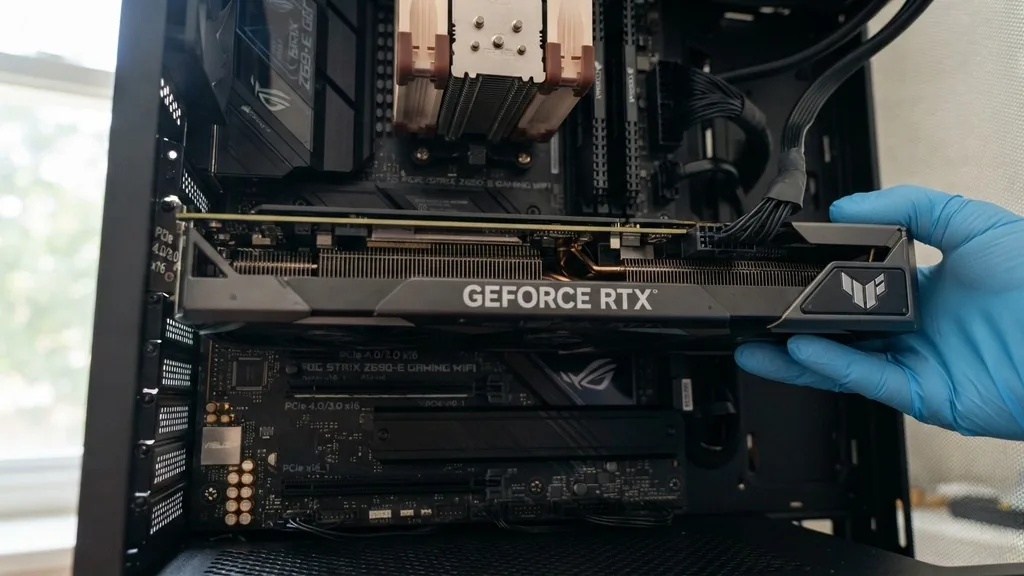
Wondering if your motherboard is compatible with your GPU is a common hurdle for anyone building or upgrading a custom PC. The good news is that for the vast majority of modern computers, the answer is almost always yes.
Graphics cards rely on a standardized interface that has remained remarkably consistent over the last two decades. While physical constraints and power delivery are valid concerns, you rarely have to worry about the fundamental “language” that your motherboard and graphics card use to communicate.
The Universal Nature of the PCIe Slot
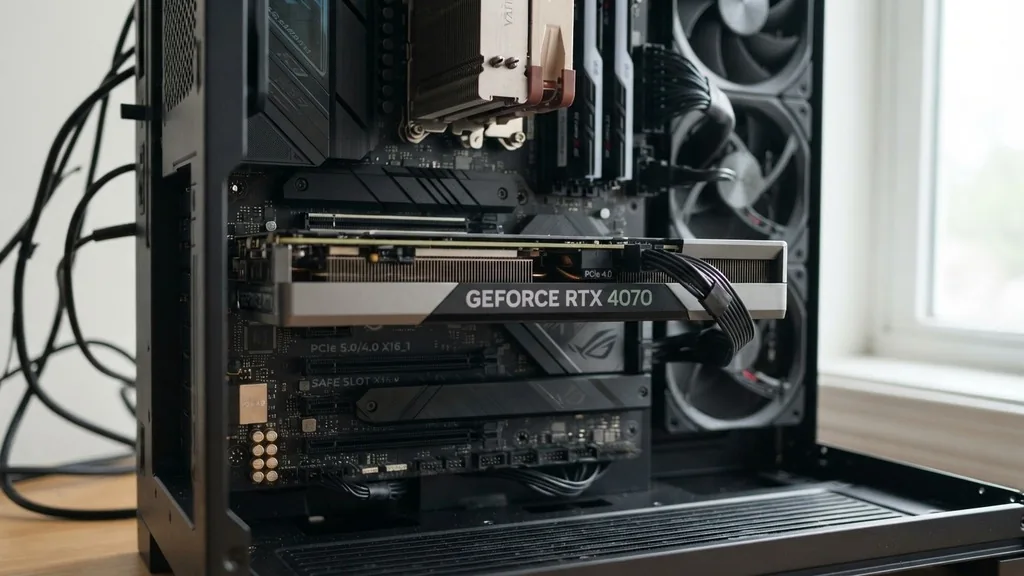
The primary reason you can usually install any modern graphics card into any modern motherboard is the PCI Express (PCIe) interface. PCIe is the standardized expansion bus that allows your graphics card to talk to the CPU and the rest of your system.
Because this standard is backward and forward compatible, a PCIe 4.0 card will work in a PCIe 3.0 slot, and vice-versa. You don’t need to hunt for a “Nvidia-compatible” or “AMD-compatible” motherboard, as the slot itself is agnostic.
This standardization means the physical connector on your motherboard—the x16 slot—is designed to accept any standard graphics card. Whether you are installing a budget-friendly entry-level card or a massive, top-tier flagship model, the physical interface remains the same.
When checking if your motherboard supports a specific GPU, you are essentially confirming that your board has at least one full-length PCIe x16 slot. Most motherboards, even those in the micro-ATX or ITX form factors, include at least one of these slots precisely for this purpose.
Physical Dimensions and Case Clearance
While the electrical connection might be compatible, physical size is often where the real conflict arises. If you are asking, “is my motherboard compatible with GPU,” you should actually be asking if your motherboard and case can accommodate the physical footprint of the card. Modern high-end GPUs have grown significantly in size, often occupying three or more expansion slots and stretching over 300 millimeters in length.
A card might technically fit into the PCIe slot on your motherboard, but if the cooling shroud or the fans collide with other components, you have a problem. Pay close attention to the width of the card.
If your motherboard has other components, such as SATA ports or front panel headers located right below the PCIe slot, a thick “triple-slot” GPU might block access to those headers. Always check the GPU manufacturer’s specifications for length and height, then compare those numbers against the internal dimensions of your PC case and the layout of your motherboard.
Power Supply Requirements and Connector Types
A graphics card needs more power than the PCIe slot can provide, which is why external power cables are necessary. Compatibility here isn’t about the motherboard, but rather your power supply unit (PSU).
Most modern GPUs require 6-pin, 8-pin, or the newer 12VHPWR connectors. If your current PSU doesn’t have the required cables, or if it doesn’t provide enough wattage to handle the GPU under load, your system will likely crash or fail to boot.
The motherboard acts as a bridge for power, but the heavy lifting is done directly by the PSU. It is vital to calculate your total system power draw. If you are upgrading from an integrated graphics solution to a dedicated card, your power needs will jump significantly.
Ensure your PSU has the “headroom” to support the card’s peak power consumption. If you are unsure about your specific hardware requirements, you can visit the PCI-SIG official website to learn more about the technical specifications of the interface standards that define these power and data requirements.
Bottlenecking and CPU Compatibility
While your motherboard might technically accept a powerful GPU, your system performance depends on the balance between your processor and your graphics card. If you pair a bleeding-edge, high-performance GPU with an ancient, entry-level CPU, you will encounter a performance bottleneck. The CPU will struggle to prepare frames fast enough for the GPU to render, leading to underutilized hardware and stuttering performance in demanding applications.
This isn’t a strict “incompatibility,” but it is a functional mismatch. When considering a GPU upgrade, look at your CPU’s generation and core count. If your motherboard is several years old, it likely uses an older CPU socket, which limits your ability to upgrade to a faster processor later.
If you are planning to keep your existing motherboard and CPU, research whether that specific CPU can keep up with the GPU you have in mind. You want a balanced system where the CPU and GPU are roughly from the same era of technology.
The Role of BIOS and UEFI Updates
In rare cases, an older motherboard might need a firmware update to recognize a newer graphics card. This is particularly relevant if you are moving from a very old system to a modern GPU.
Motherboard manufacturers release BIOS updates that improve stability and compatibility with newer hardware components. If you install a new card and your system fails to post or gives you a display output error, check the manufacturer’s website for your specific motherboard model.
Updating the BIOS is a straightforward process, but it requires caution. Ensure your system has a stable power supply during the update, as a failure here can result in a bricked motherboard. Once the BIOS is updated to the latest version, the motherboard’s ability to initialize the PCIe bus is often improved, clearing up communication issues between the board and the newer generation of GPU.
Identifying PCIe Generations
You might see terms like PCIe 3.0, 4.0, or 5.0 when looking at motherboard specs. These numbers refer to the bandwidth speed of the connection. A higher generation means more data can be transferred between the CPU and the GPU per second.
Fortunately, this is entirely backward compatible. A PCIe 4.0 GPU will work perfectly fine in a PCIe 3.0 slot, though it might suffer a very minor performance hit in extremely demanding scenarios.
For most users, the performance difference between PCIe generations is negligible. You do not need to replace your motherboard just because it has an older PCIe slot version.
The bottleneck created by an older slot is almost never the primary limiting factor in gaming or professional rendering. Focus on the physical fit and the power requirements before worrying about the PCIe generation, as that is where 99% of compatibility issues reside.
Comparison of PCIe Interface Capabilities
To help visualize how different generations interact, the following table breaks down the theoretical bandwidth and compatibility expectations for standard consumer hardware.
| PCIe Generation | Max Bandwidth (x16) | Compatibility |
|---|---|---|
| PCIe 3.0 | ~16 GB/s | Backward compatible with 2.0/1.0 |
| PCIe 4.0 | ~32 GB/s | Backward compatible with 3.0/2.0 |
| PCIe 5.0 | ~64 GB/s | Backward compatible with 4.0/3.0 |
As shown, while the bandwidth doubles with each generation, the physical and logical structure remains consistent. This ensures that you can move components across different systems without fear of total incompatibility.
Troubleshooting Common Compatibility Myths
There is a lot of misinformation regarding GPU compatibility. A common myth is that you must match the brand of your motherboard to the brand of your GPU. This is completely false.
You can safely use an NVIDIA GeForce card on a motherboard with an AMD chipset, or an AMD Radeon card on an Intel-based motherboard. These components communicate via the industry-standard PCIe protocol, which cares nothing for the brand names printed on the boxes.
Another common misconception is that “gaming” motherboards have special slots that non-gaming boards lack. In reality, a PCIe x16 slot is a PCIe x16 slot.
While higher-end boards might feature reinforced metal shielding (often called “armor”) to support the weight of heavy, high-end graphics cards, the functionality is identical to the slot on a budget-tier board. If your motherboard has a full-length slot, it can handle any modern consumer graphics card currently on the market.
Checklist for a Successful GPU Upgrade
Before you commit to a purchase, use this checklist to ensure everything will go smoothly. It covers the essential factors that determine if your system is ready for a new graphics card.
- Measure the length of the space inside your PC case to ensure the card fits physically.
- Confirm your power supply has the necessary 6-pin or 8-pin power connectors.
- Calculate your total power consumption to ensure your PSU wattage is sufficient.
- Verify that your motherboard has at least one PCIe x16 slot available.
- Check if your CPU will act as a significant bottleneck for the new GPU.
- Look up your motherboard’s support page to see if a BIOS update is recommended.
By following these steps, you eliminate the guesswork. Most compatibility issues are solved by simply checking the physical dimensions of the card against the interior of your case, rather than worrying about the motherboard’s technical specifications.
Addressing Topical Gaps: Form Factors and Specialized Hardware
A gap often found in general advice is the distinction between ATX, Micro-ATX, and Mini-ITX motherboards. While the PCIe slot is the same, the proximity of other headers can be an issue on smaller boards. If you have a Mini-ITX motherboard, you have very little room for error.
You must ensure the GPU does not interfere with the RAM slots or the CPU cooler. In some cases, a very large GPU might even block the airflow to your CPU or chipset heatsink, leading to thermal issues.
Furthermore, remember that some older pre-built office PCs use proprietary motherboards that may not follow standard ATX dimensions. These boards might have “shorter” PCIe slots or limited power delivery through the motherboard itself.
If you are upgrading a machine that was not originally designed for gaming, please take a moment to look at the motherboard’s layout. If the PCIe slot is positioned right at the edge of the case or too close to the front panel, you might need a smaller, “low-profile” or “single-fan” card rather than a full-sized gaming model.
FAQ Section
- Does my motherboard have to be the same brand as my GPU? No, motherboard and GPU brands do not need to match. You can mix and match any combination of brands, such as an NVIDIA card on an ASUS motherboard or an AMD card on a Gigabyte motherboard, as they all use the universal PCIe standard.
- How do I know if my PSU is strong enough for a new GPU? Check the “Recommended PSU” section on the GPU manufacturer’s website. If your current power supply wattage is equal to or higher than that recommendation, you are usually safe. If you are near the limit, it is safer to upgrade the power supply alongside the GPU.
- Will a high-end GPU work in an older PCIe 3.0 slot? Yes, a modern graphics card will work perfectly in an older PCIe 3.0 slot. While you might lose a tiny fraction of peak performance in specific high-bandwidth scenarios, the difference is rarely noticeable in daily use or standard gaming, making it a very viable upgrade path.
- What happens if the GPU is too big for my motherboard? If the card is physically too large, it may block SATA ports, front panel headers, or prevent the case from closing. In extreme cases, it might not seat correctly in the PCIe slot. Always measure your case and motherboard layout before buying a large, multi-fan graphics card.
Ensuring your motherboard is compatible with your GPU is rarely about complex technical specs and almost always about physical space and power delivery. As long as you have a standard PCIe x16 slot and a power supply capable of feeding the card, you are ready to enjoy your upgrade. Take your time measuring your components, verify your power requirements, and you will have no trouble getting your system up and running with a new, powerful graphics card.


