

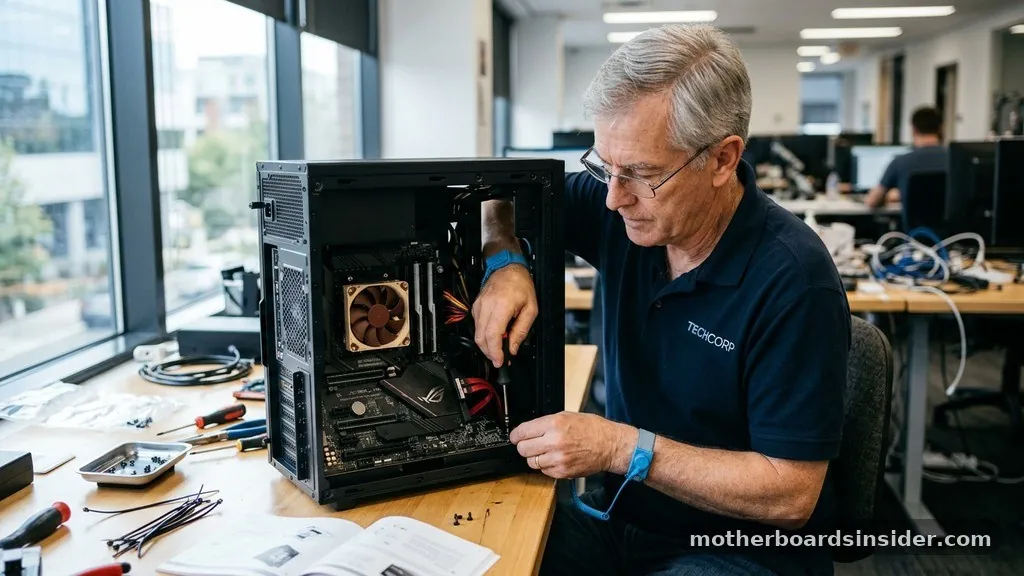
Maintaining the health of your computer requires more than just keeping your software applications current. While most users focus on graphics cards or operating system patches, the foundation of your hardware performance relies heavily on the motherboard drivers. These essential pieces of software act as a translator between your hardware components—such as the CPU, RAM, storage controllers, and USB ports—and your operating system.
When these drivers become outdated, you may experience system instability, performance bottlenecks, or even compatibility issues with newer hardware peripherals. Learning how to update motherboard drivers is a fundamental skill for any PC enthusiast or professional looking to ensure their machine runs at peak efficiency.
Why Motherboard Drivers Are Critical for System Stability
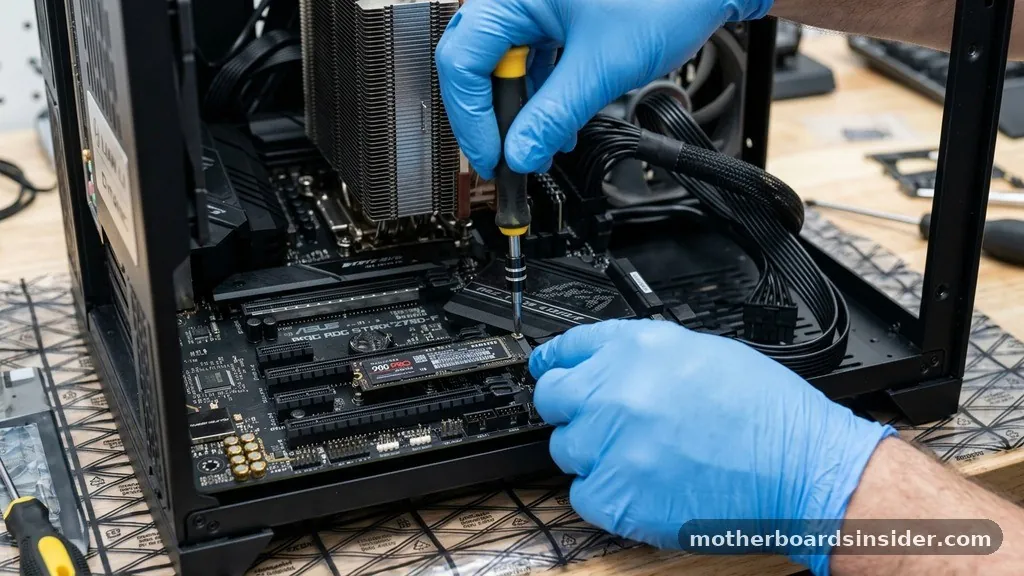
The motherboard serves as the central nervous system of your PC. Every piece of hardware, from your high-speed NVMe SSD to your integrated audio chipset, communicates through the motherboard.
The drivers are the specific files that allow Windows to understand how to interact with these integrated components. When you install drivers that are current, you are essentially providing the operating system with the most efficient instructions for hardware management.
Outdated drivers often lead to “ghost” issues—problems that are difficult to diagnose because they manifest as intermittent freezing, slow boot times, or connectivity drops. For instance, an old chipset driver might prevent your processor from entering its lowest power-saving state, leading to unnecessary heat, or it might fail to properly manage the communication between your RAM and the CPU, leading to system crashes. By keeping these components updated, you improve the longevity of your hardware and ensure that your system can handle modern software demands without unnecessary friction.
Identifying Your Current Motherboard Model
Before you can begin the process of updating, you must first identify the exact make and model of your motherboard. This information is critical because installing the wrong driver can lead to system instability or, in rare cases, boot failures. There are several ways to retrieve this data without opening your computer case.
One of the most reliable methods is using the System Information tool built into Windows. By pressing the Windows key and typing “msinfo32,” you can open a comprehensive dashboard that displays your system manufacturer and baseboard product name. Alternatively, you can use the command prompt to pull this information quickly.
By typing “wmic baseboard get product,Manufacturer” into the terminal, you get a clean, text-based output of your hardware details. Once you have this information, you can proceed to the manufacturer’s website with confidence, knowing exactly which product page to visit. It is always better to double-check this model number, as minor revisions of the same board often require different drivers.
Utilizing Device Manager for Driver Management
The Device Manager is the primary interface for managing hardware components in Windows. While it is not always the best place to find the absolute latest version of a driver, it is an excellent first step for checking the current status of your system. To access it, you can right-click the Start button and select the Device Manager from the menu select list.
Inside the Device Manager, you will see a list of categories such as “System devices,” “Universal Serial Bus controllers,” and “IDE ATA/ATAPI controllers.” These are the areas most closely tied to your motherboard. If you notice a yellow exclamation mark next to any of these entries, it indicates a driver error or a missing driver.
You can right-click any device and select “Update driver” to let Windows search for an updated version. However, be aware that Windows sometimes defaults to a generic driver that may not offer the full range of features provided by the motherboard manufacturer’s specific software. Therefore, while this tool is helpful for basic troubleshooting, manual updates are often preferred for optimal performance.
The Manual Process: Downloading from Manufacturer Websites
For the most reliable and performance-oriented results, you should always go directly to the official manufacturer’s site. Whether you own an ASUS, Gigabyte, MSI, or ASRock board, each company maintains a dedicated support page where they host the official driver packages. When you arrive at the manufacturer’s website, navigate to the “Support” or “Download” section and enter your specific motherboard model.
Once you are on the correct page, you will usually see a list of categories like Chipset, Audio, LAN, and SATA/RAID. It is generally recommended to update the Chipset drivers first, as these are the most critical for overall system communication. After downloading the installer, run the executable file and follow the on-screen prompts.
Most modern installers are automated, but you may need to restart your computer to finalize the installation. Always ensure you are downloading drivers designed for your specific operating system version, as a driver for Windows 10 might not function correctly on Windows 11, and vice versa.
Comparing Update Methods: Manual vs. Automated Tools
There are various ways to manage your system files, and each comes with its own set of trade-offs. The following table illustrates the differences between common methods for updating your drivers.
| Method | Pros | Cons |
|---|---|---|
| Manual Download | Guaranteed compatibility and latest version | Time-consuming, requires technical knowledge |
| Device Manager | Quick, built-in to Windows | Often provides outdated or generic drivers |
| Manufacturer Software | Automated, easy to use | Can introduce bloatware to the system |
| Windows Update | Fully hands-off, very safe | Sometimes delayed by Microsoft’s testing cycle |
Addressing Topical Gaps: When Should You Actually Update?
A common question that arises is whether you need to update drivers if your computer is already working perfectly. The answer is nuanced.
Unlike graphics card drivers, which are frequently updated to boost frame rates in new games, motherboard drivers are generally more stable and require less frequent intervention. However, there are specific scenarios where an update is highly recommended.
You should consider an update if:
- You are experiencing random system crashes or “Blue Screen of Death” errors.
- You have recently upgraded your CPU or RAM and the system is not recognizing the full potential of these components.
- You are noticing connectivity issues with USB ports, Ethernet, or Wi-Fi.
- You have recently performed a clean installation of your operating system.
- The manufacturer has released a critical security patch for the chipset.
If your system is stable and you aren’t experiencing any hardware-related issues, there is no urgent need to hunt down the latest drivers every week. Over-updating can occasionally lead to conflicts if a new driver version contains bugs, so a balanced approach is best.
The Role of Windows Update in Driver Management
Many users rely entirely on Windows Update to manage their drivers, and for the vast majority of consumer use cases, this is a perfectly acceptable strategy. Microsoft works closely with hardware manufacturers to ensure that WHQL (Windows Hardware Quality Labs) certified drivers are pushed through the update channel. This ensures that the drivers are stable and have been tested for compatibility with the current OS build.
To ensure you are getting the most out of this service, navigate to your Settings, select “Windows Update,” and click “Check for updates.” Sometimes, drivers are hidden under “Advanced options” in the “Optional updates” section. If you are having trouble with a specific piece of hardware, check this section to see if a manufacturer-provided driver is waiting to be installed.
While this method is the most convenient, it is not always the fastest. If you need a specific feature or a fix for a known bug released by the motherboard manufacturer, manually downloading from their site is still the superior path.
Safety Precautions During the Installation Process
Updating your motherboard drivers is generally a safe process, but because it involves the core logic of your machine, you should take simple precautions to prevent data loss or system corruption. First, ensure your computer is connected to a reliable power source.
If you are using a laptop, keep it plugged into the wall outlet throughout the entire process. A sudden shutdown during a driver update—especially if it involves firmware or BIOS-level components—can lead to a bricked system.
It is also a good practice to create a System Restore point before initiating any major driver updates. This allows you to revert your system to a known good state if the new driver causes instability. You can find this by searching for “Create a restore point” in the Windows search bar.
By taking these minor steps, you protect your content and your hardware, ensuring that the process of updating your system is smooth and stress-free. For more technical guidance on hardware maintenance, you can reference the official Microsoft Support documentation to understand how Windows handles hardware interactions at a deeper level.
Conclusion and Best Practices
Learning how to update motherboard drivers is an essential aspect of PC maintenance that ensures your machine remains stable, secure, and performant. While the process can seem daunting, it is essentially a matter of identifying your hardware, visiting the correct manufacturer resources, and installing the necessary files.
Whether you prefer the convenience of automated tools or the precision of manual updates, the goal remains the same: ensuring your hardware and software communicate flawlessly. By following the steps outlined in this guide, you can confidently manage your system’s health, troubleshoot common issues, and keep your computer running at its peak potential for years to come.
Frequently Asked Questions
Do I need to update my motherboard drivers if my PC is running fine?
Generally, no. If your system is stable and all hardware is functioning as expected, you do not need to update. Updates are most beneficial when addressing specific performance issues, compatibility bugs, or after installing new hardware components.
How do I check if my motherboard drivers are already up to date?
You can check the version numbers in the Device Manager by right-clicking a device and selecting “Properties,” then the “Driver” tab. Compare these version numbers against the latest releases available on your motherboard manufacturer’s official support website for your specific model.
Is it safe to use third-party driver update software?
It is generally discouraged. Many third-party “driver updater” tools are unreliable, contain bloatware, or may install incorrect drivers. It is always safer and more effective to download drivers directly from the official manufacturer’s website or use the built-in Windows Update service.
What should I do if a driver update causes my system to crash?
If a new driver causes instability, immediately boot into Safe Mode and uninstall the problematic driver through the Device Manager. Alternatively, use the System Restore point you created before the update to revert your system to its previous, stable configuration.


