

Identifying the specific hardware components inside your computer is a vital skill for any user looking to upgrade their system, troubleshoot performance issues, or simply keep drivers current. When you need to know how to find out motherboard model, you are essentially looking for the backbone of your PC. The motherboard, often referred to as the mainboard or system board, connects your CPU, RAM, storage, and graphics card.
Knowing its exact manufacturer and model number ensures that you download the correct BIOS updates and compatibility-checked hardware. Whether you are using a pre-built machine from a major brand or a custom-built desktop, several reliable methods exist to retrieve this information without needing to crack open the computer case.
Using Windows System Information for Quick Identification

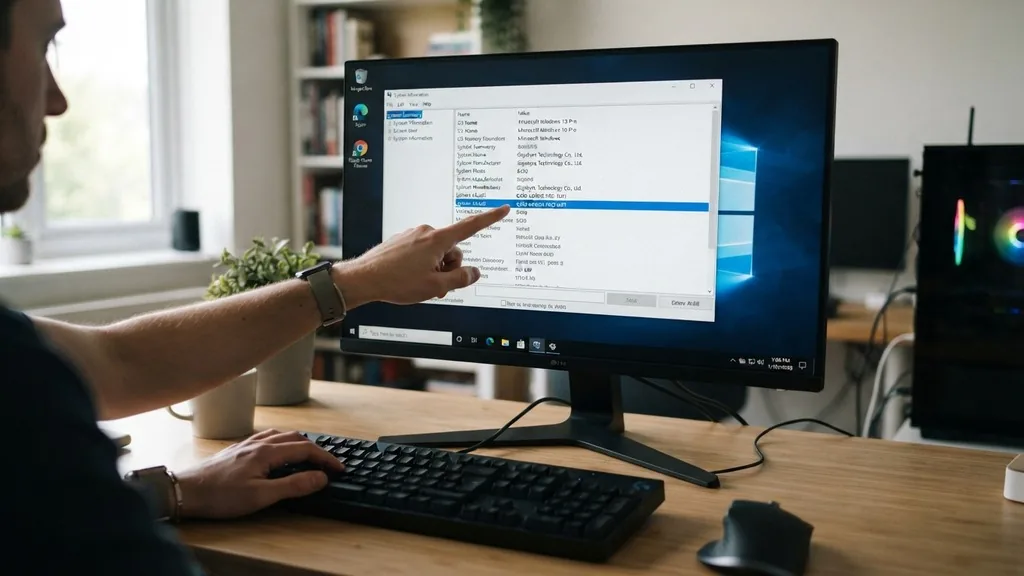
The most direct way to check your motherboard model on a Windows system is through the built-in System Information utility. This tool provides a comprehensive snapshot of your hardware configuration, including the baseboard manufacturer and product name. To access it, simply press the Windows key, type “msinfo32” into the search bar, and press Enter.
Once the window opens, ensure “System Summary” is selected in the left-hand pane. In the right-hand pane, scroll down until you find the entries labeled “BaseBoard Manufacturer,” “BaseBoard Product,” and “BaseBoard Version.” These fields will explicitly state the information you need.
This method is highly effective because it pulls data directly from the BIOS and the operating system’s hardware abstraction layer. If you are preparing to install new RAM or a dedicated GPU, checking these fields first can prevent compatibility headaches. For example, knowing your board supports only a specific generation of DDR memory is critical before making a purchase.
If the System Information window shows “Not Available” for the baseboard product, it usually indicates that the manufacturer did not provide enough metadata to the Windows installer, which is common with some proprietary OEM systems. In such cases, you will need to utilize command-line tools or third-party diagnostic software.
Leveraging the Command Prompt for Detailed Hardware Data
If you prefer a faster, more technical approach, the Command Prompt (CMD) allows you to query your system directly for its motherboard information. This method is particularly useful if you are managing multiple machines or if the graphical interface of Windows feels sluggish. To use it, type “cmd” in the Windows search bar, right-click the result, and select “Run as Administrator.”
Once the black window appears, copy and paste the following command: wmic baseboard get product,Manufacturer,version,serialnumber. Press Enter, and the system will display the exact model name and manufacturer in a clean text format.
The “wmic” or Windows Management Instrumentation Command-line is a powerful utility that interacts with the system’s management data. By specifying the attributes “product,” “Manufacturer,” “version,” and “serialnumber,” you get a highly specific output.
This is often the most accurate way to find the exact revision of your board, which is essential because manufacturers sometimes release multiple revisions of the same model name with different electrical components. Having the serial number handy is also beneficial if you ever need to contact customer support for an official support request regarding your processor or chipset.
Interpreting UEFI BIOS and System Firmware
When you cannot boot into your operating system, or if you suspect your Windows installation is corrupted, you can still find out motherboard model information through the UEFI BIOS menu. Restart your computer and repeatedly press the key designated to enter the BIOS or UEFI setup—most commonly Delete, F2, F10, or F12, depending on your motherboard manufacturer.
Once you are inside the BIOS interface, you will typically find the system overview or “Main” tab. This screen acts as the primary landing page and almost always displays the motherboard model name and BIOS version prominently.
Modern UEFI interfaces are quite user-friendly compared to the text-heavy BIOS screens of the past. You can often use your mouse to navigate menus, making it much easier to locate hardware details. If you are using an ASUS motherboard, for instance, the model name is usually displayed in large, bold text at the top of the “EZ Mode” screen.
This information is hard-coded into the board’s firmware, meaning it is the most authoritative source of truth. If you are planning to overclock your memory or adjust fan curves, you will already be in the right place to make those changes once you have confirmed your hardware identification.
Physical Inspection of the Motherboard
Sometimes, the digital tools fail, or you are dealing with a machine that simply won’t power on. In these scenarios, you must perform a physical inspection of the motherboard. This requires opening the computer case.
Before you begin, ensure the power cable is disconnected and that you have discharged any static electricity by touching a grounded metal object. Once the side panel is removed, look for the model number printed directly onto the surface of the circuit board. Manufacturers almost always silk-screen the model name in a prominent location, often near the CPU socket, the RAM slots, or along the bottom edge of the board.
If you have a large CPU cooler or a massive graphics card obstructing your view, you might need a flashlight to peek into the tighter gaps. If the board is covered in dust, use a can of compressed air to clean it gently. If you still cannot find the name, check the area around the PCIe slots.
Many manufacturers place the model name in a clearly visible white font against the dark color of the PCB. If you are still struggling to see it, try taking a high-resolution photo with your smartphone and zooming in on the image. This is often easier than trying to read the text in a cramped, dark chassis.
Using Third-Party System Diagnostic Tools
For users who want a simple, one-click solution without digging into menus or opening their PC, third-party software is an excellent alternative. Tools like CPU-Z or Speccy are industry standards for hardware identification. CPU-Z, in particular, is a lightweight, portable application that provides a deep dive into every component of your PC.
Once you download and run the software, navigate to the “Mainboard” tab. It will display the manufacturer, model, chipset, and even the BIOS version and date. This is arguably the most convenient method for most users.
These utilities are highly popular among PC enthusiasts and tech professionals because they pull data from the hardware sensors in real-time. Unlike the built-in Windows tools, which might sometimes provide generic information for pre-built office machines, dedicated diagnostic software can often identify the specific OEM branding and the underlying motherboard architecture.
If you frequently upgrade your parts, keeping a tool like this on a USB drive is a smart move. It saves time and provides peace of mind that you are looking at the exact hardware profile of the machine you are working on.
Identifying Motherboards in OEM Pre-built Systems
One of the most frustrating aspects of finding a motherboard model is dealing with OEM systems from companies like Dell, HP, or Lenovo. These manufacturers often use proprietary motherboards that are not sold in retail stores. Consequently, there is no “model name” like “B550” or “Z690” to look up on the manufacturer’s website.
Instead, the model name might be a long, cryptic string of alphanumeric characters. If you encounter this, the best way to find support is to search for the specific model of your entire desktop computer rather than just the motherboard.
When you search for the model of your pre-built PC on the manufacturer’s support website, you will find a list of drivers and hardware specifications that are tailored specifically to that motherboard. This is much more effective than trying to find a retail manual for a board that doesn’t exist outside of that specific chassis.
You can also use the service tag or serial number found on the back of the case to look up the exact specifications. Manufacturers maintain databases that link these tags to the original component list, ensuring you get the right parts every time.
Comparison of Identification Methods
Choosing the right method depends on your current situation and the state of your computer. The following table breaks down the most effective ways to identify your hardware based on common scenarios.
| Method | Best Used When | Difficulty Level |
|---|---|---|
| System Information (msinfo32) | Windows is running, need quick info | Easy |
| Command Prompt (WMIC) | Troubleshooting, remote management | Moderate |
| UEFI BIOS Menu | System won’t boot, need firmware info | Moderate |
| Physical Inspection | System is dead or components are unknown | Hard |
| Third-Party Tools (CPU-Z) | Need comprehensive, detailed specs | Easy |
Each of these methods serves a different purpose. For example, while the physical inspection is the most reliable because it looks at the hardware itself, it is also the most invasive and potentially risky if you are not comfortable handling internal components.
Conversely, software-based methods are safe and fast but rely on the operating system’s ability to communicate with the hardware properly. If your motherboard has a faulty chipset, software might report incorrect information, making physical verification the final court of appeal.
Addressing Common Topical Gaps and Troubleshooting
Many users find themselves stuck when their computer reports a “To be filled by O.E.M.” message in the system information fields. This happens when the manufacturer fails to program the BIOS properly during the assembly process. If you encounter this, do not panic.
It does not mean your motherboard is broken; it just means the software metadata is missing. In this scenario, you should look for a sticker on the motherboard itself or check the documentation that came with your computer. If you have lost the manual, you can often find the model number by searching for the specific part number printed on the board’s serial sticker.
Another common gap involves identifying laptop motherboards. Laptops rarely use standard ATX or ITX motherboards. They use custom-designed mainboards that are integrated into the chassis design.
If you need to replace a component on a laptop motherboard, you generally need to look for the “Board ID” or “Part Number” printed on the PCB. This number is usually different from the marketing name of the laptop.
Always cross-reference this part number with the manufacturer’s service manual to ensure you are buying a compatible replacement. Never assume that a board from a similar-looking laptop model will work, as internal layouts often change between production runs.
FAQ Section
- Does every motherboard have a model name printed on it? Yes, nearly all motherboards have the model name printed directly on the circuit board, usually in white silk-screened text. However, on proprietary OEM boards from companies like Dell or HP, the model name may be a specific manufacturer part number rather than a retail product name.
- Can I use a motherboard model to find new drivers? Absolutely. Once you have the exact model name, you can visit the manufacturer’s official support website to download the latest chipset, audio, and network drivers. This is the best way to ensure your system remains stable and performs at its peak potential.
- Why does my computer show “To be filled by O.E.M.”? This message appears when the computer manufacturer did not properly program the motherboard’s identification information into the BIOS during production. It is a common occurrence with pre-built systems and does not indicate a hardware defect or a problem with your computer’s functionality.
- Is it safe to open my computer case to check the model? It is perfectly safe as long as you power down the system, unplug the power cord, and ground yourself to prevent static discharge. Avoid touching the pins or gold contacts on the board directly to prevent accidental damage to the delicate electrical pathways.
Finding your motherboard model is a straightforward process once you know which tools to use. Whether you prefer the convenience of a software utility like CPU-Z, the precision of a command-line query, or the reliability of a physical inspection, you have multiple ways to get the data you need. By taking the time to correctly identify your hardware, you ensure that any future upgrades or maintenance tasks are performed with the right information, keeping your computer running smoothly for years to come.
Remember that for pre-built systems, your best resource is the manufacturer’s support site, while for custom builds, the motherboard manufacturer’s website will always have the most up-to-date drivers and BIOS versions available. Always verify your model before performing any firmware updates, as using the wrong file can result in a non-functional system.


