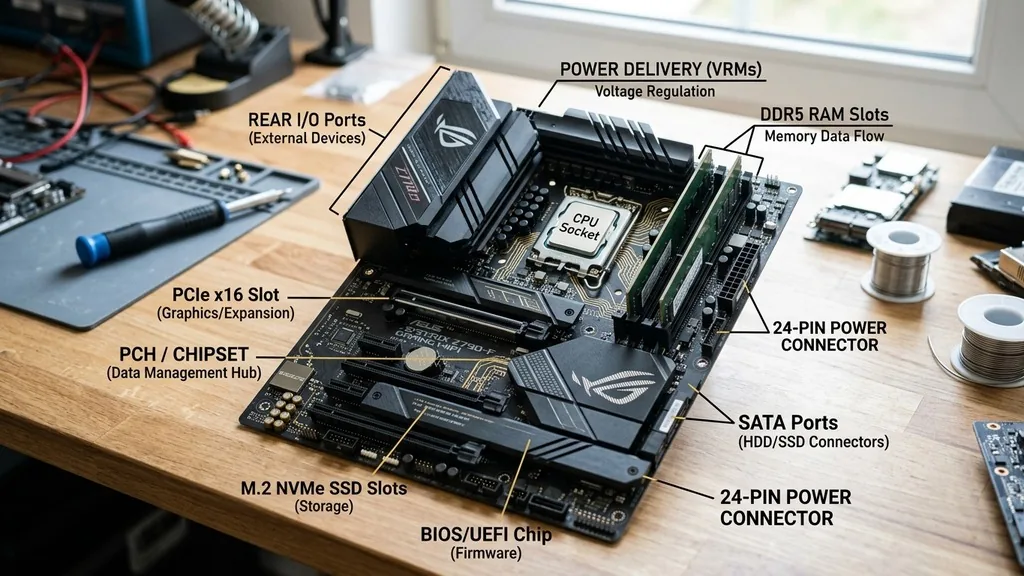
At its core, a motherboard functions as the central nervous system of a computer. It is the primary printed circuit board that connects all the essential components of a system together, allowing them to communicate and function as a cohesive unit.
Without this intricate web of pathways and connectors, your processor, memory, and storage devices would be nothing more than isolated pieces of silicon and metal. Understanding how a motherboard works involves looking past the complex maze of copper traces and seeing it as a highway system designed to move electrical signals at lightning speed.
The Fundamental Architecture of the Motherboard
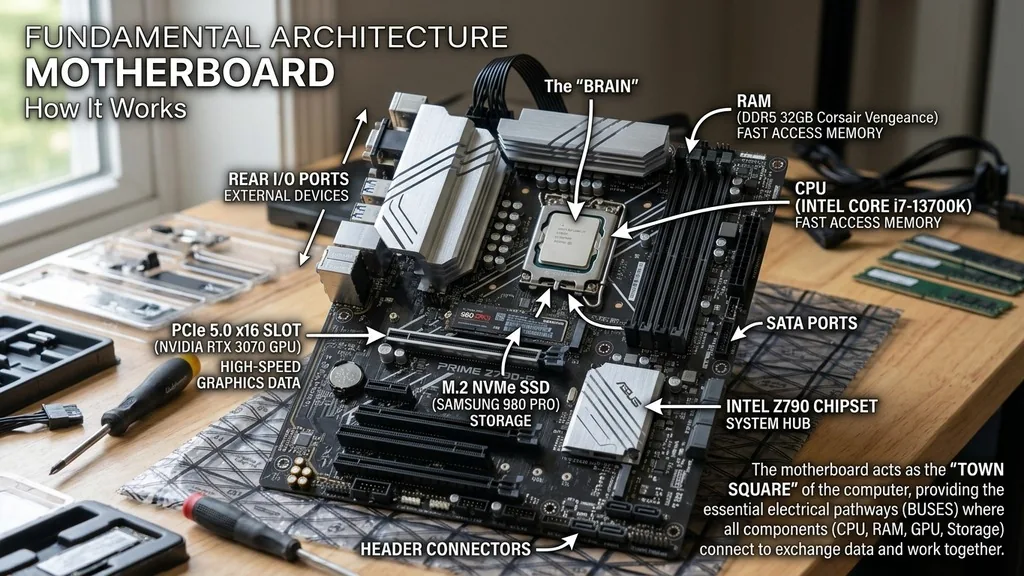
A motherboard works by providing a physical and electrical foundation that facilitates data transfer between the CPU, memory, and various peripheral devices. Think of it as the town square of your computer; every piece of hardware must visit this square to exchange information with other parts of the machine. The board itself is a multi-layered sandwich of fiberglass and copper, with microscopic pathways known as “bus lines” etched into the layers. These lines carry data, address signals, and control information across the entire system.
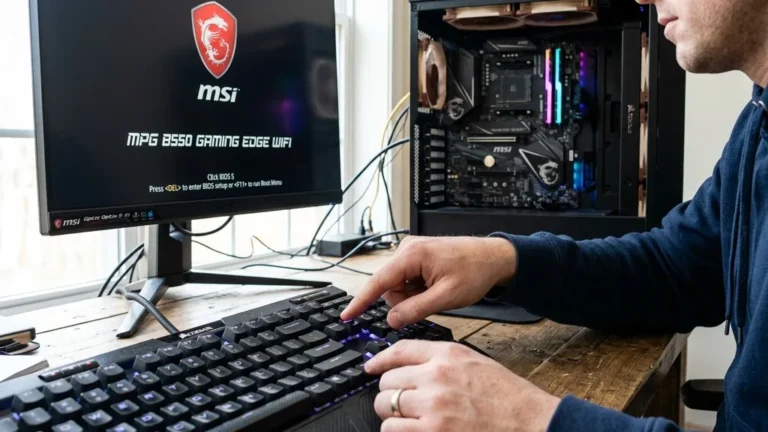
When you press the power button, the motherboard initiates a series of electrical checks. It sends power from the power supply unit to the processor, which then executes the Basic Input/Output System (BIOS) or Unified Extensible Firmware Interface (UEFI).
This low-level software resides on a chip soldered directly to the board and acts as the gatekeeper, verifying that all essential components—like the RAM and storage drives—are present and ready to operate. Once this handshake is successful, the motherboard hands control over to the operating system, allowing your computer to boot into a usable state.
The Role of the Chipset in Data Management
The chipset is the traffic controller of the motherboard, defining exactly how data flows between the processor and the rest of the components. Traditionally, motherboards utilized a two-part architecture consisting of a Northbridge and a Southbridge. The Northbridge handled high-speed communication between the CPU, RAM, and the graphics card, while the Southbridge managed slower input/output tasks like USB ports, SATA storage, and audio. Modern designs have largely integrated the Northbridge functions directly into the CPU, leaving the chipset to handle the remaining heavy lifting.
This integration has significantly reduced latency, as the distance data must travel between the processor and memory has been shortened. When you open an application, the chipset ensures the CPU can pull data from your storage drive, load it into the RAM, and process it without bottlenecking.
If the chipset is outdated or underpowered, it can throttle the performance of even the fastest processor, making the motherboard a critical factor in overall system speed. You can learn more about processor and chipset compatibility to understand how these parts communicate.
Power Distribution and Voltage Regulation
A motherboard works by converting the raw electricity provided by your power supply into stable, usable voltage for every component on the board. This is primarily handled by the Voltage Regulator Module (VRM). The VRM takes the high-voltage current from the power supply and steps it down to the exact levels required by the CPU and other sensitive chips. Precision is everything here; if the power delivery is inconsistent, the computer will crash or, in worst-case scenarios, suffer permanent hardware damage.
The VRM consists of capacitors, inductors, and MOSFETs that work in tandem to filter out electrical noise and ensure a “clean” flow of power. On high-end boards, these components are often covered by heatsinks because they generate significant heat during operation. When you overclock a processor, you are essentially asking the VRM to work harder and deliver more power, which is why premium motherboards feature more robust power delivery stages to maintain stability under extreme electrical loads.
Communication Pathways and Bus Speeds
The speed at which your computer operates is dictated by the bus speeds defined by the motherboard. These buses are the physical pathways that carry electrical signals between components. There are several types of buses, each serving a specific purpose: the front-side bus (or modern equivalents like Intel’s DMI or AMD’s Infinity Fabric), the memory bus, and the I/O bus. Each bus has a specific frequency, measured in gigahertz (GHz), which dictates how much data can be transferred per second.
When you install high-speed RAM, the motherboard must support the corresponding memory bus speed to take advantage of that extra bandwidth. If you place a high-performance memory kit into a motherboard that defaults to a lower speed, the system will downclock the RAM to match the board’s limitations. This is why enthusiasts often look for boards that support XMP or EXPO profiles, which allow the motherboard to automatically adjust its internal timing and voltage to match the requirements of the installed hardware.
Expansion Slots and Hardware Interconnectivity
Expansion slots are the gateways that allow you to customize your computer. The most prominent of these is the PCIe (Peripheral Component Interconnect Express) slot, which is primarily used for graphics cards, network adapters, and high-speed storage devices. A motherboard works by assigning specific “lanes” to these slots. Each lane is a bidirectional serial connection that allows the component to talk directly to the CPU.
When you insert a graphics card into a PCIe x16 slot, the motherboard assigns 16 lanes of data to that card. This provides a massive amount of bandwidth, which is essential for rendering complex 3D graphics or training AI models.
Other slots, like M.2 ports for NVMe SSDs, also use PCIe lanes to bypass the slower SATA interface, allowing for near-instant file access. The layout of these slots is carefully engineered to minimize electromagnetic interference, ensuring that high-speed signals remain clear and error-free.
BIOS and UEFI: The Firmware Foundation
The BIOS (Basic Input/Output System) or its modern successor, UEFI (Unified Extensible Firmware Interface), is the intelligence embedded in the motherboard. It is a small flash memory chip that contains the instructions the computer needs to start up. When you first turn on the system, the motherboard reads these instructions to perform the Power-On Self-Test (POST). This check ensures that the keyboard, monitor, and memory are connected and functioning correctly.
The UEFI environment is much more sophisticated than the old-school text-based BIOS. It allows for graphical interfaces, mouse support, and advanced control over hardware settings.
Through this interface, you can adjust fan curves, monitor temperatures, and update the motherboard’s own firmware to support new CPUs. This ability to update the firmware is crucial, as it allows a motherboard to remain relevant for years, even as new generations of processors are released to the market.
Comparing Motherboard Form Factors
The physical size and layout of a motherboard are defined by its “form factor.” This standardizes where mounting holes and connectors are placed, ensuring that the board fits into a compatible computer case. The choice of form factor dictates how many expansion slots, RAM slots, and connectivity options you have available.
| Form Factor | Typical Size | Best Use Case |
|---|---|---|
| ATX | 12 x 9.6 inches | Standard desktops and gaming PCs |
| Micro-ATX | 9.6 x 9.6 inches | Compact builds with decent expandability |
| Mini-ITX | 6.7 x 6.7 inches | Small form factor (SFF) enthusiasts |
| E-ATX | 12 x 13 inches | Workstations and extreme enthusiast builds |
Each of these form factors serves a different purpose, but they all fundamentally work the same way. The smaller the board, the more densely packed the components must be, which can sometimes lead to thermal challenges if you are pushing high-end hardware in a tiny case.
Addressing Common Misconceptions and Technical Gaps
Many users believe that the motherboard is the “brain” of the computer, but this is a technical inaccuracy. The processor is the brain, while the motherboard is the skeleton and the nervous system. The board doesn’t perform calculations; it merely facilitates them. Another common gap in understanding is whether the motherboard impacts gaming performance. While the board itself doesn’t calculate frame rates, it dictates the stability of the system, the speed of the RAM, and the number of peripherals you can connect.
A high-quality motherboard will have better cooling for the VRMs and more stable signal traces, which can result in better sustained performance during long gaming sessions. Cheap, entry-level boards might throttle the CPU if the VRMs get too hot, causing performance dips that the user might mistake for a GPU issue. Therefore, while the motherboard isn’t the primary driver of raw frame rates, it is the foundation upon which your performance is built.
Lifespan and Troubleshooting
What is the lifespan of a motherboard? Generally, a motherboard will last five to ten years if it is not subjected to extreme environmental conditions like high humidity, dust accumulation, or massive power surges. Most failures in motherboards are actually not the board itself, but the capacitors or the BIOS chip. Because the motherboard is the central hub, it is also the most difficult component to replace.
If your computer fails to boot, the motherboard often provides clues through “POST codes” or diagnostic LEDs. These tiny lights on the board will glow in specific colors or patterns to indicate where the boot process is failing.
For example, a red light might indicate a problem with the CPU, while a yellow light might suggest an issue with the RAM. Learning to interpret these signals is the key to troubleshooting almost any system failure.
Frequently Asked Questions
- Does a motherboard hold any permanent information? Yes, the motherboard contains a non-volatile memory chip that stores the BIOS/UEFI firmware and configuration settings, such as your boot order and hardware profiles. This information remains saved even when the computer is powered off and unplugged from the wall.
- Is it difficult to replace a motherboard? Replacing a motherboard is considered an advanced task because it requires removing almost every other component, including the CPU, RAM, and storage drives. You must also perform a clean installation of your operating system if you switch to a board with a different chipset.
- How does a motherboard work step by step during startup? When you press the power button, the power supply sends a signal to the board. The board then checks the CPU, initializes the BIOS/UEFI, performs a POST to verify hardware integrity, and finally hands control to the bootloader, which initiates your operating system.
- What are the five most important functions of a motherboard? The five primary functions include power distribution, facilitating communication between the CPU and other hardware, hosting the BIOS/UEFI firmware, providing physical expansion slots for upgrades, and managing data traffic through the onboard chipset.