

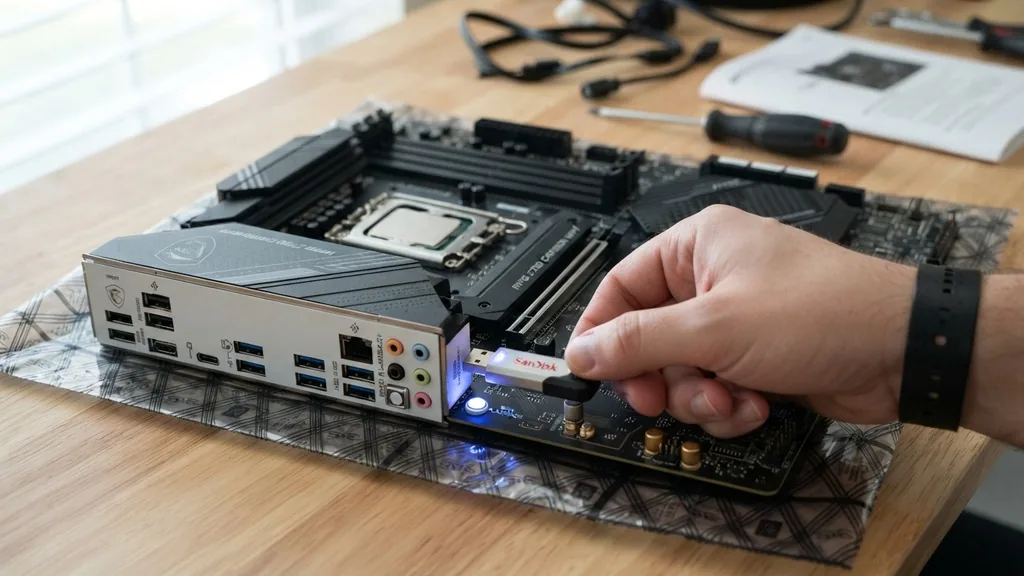
Updating your motherboard’s firmware without a central processor installed is a common requirement when building a new PC with a processor that is newer than the motherboard itself. This process, often referred to as BIOS flashing, allows the motherboard to recognize and support the latest generation of CPUs.
Without this update, your system may fail to boot, leaving you staring at a black screen or a diagnostic LED error. Fortunately, modern motherboard manufacturers have integrated features to bypass the need for a functioning CPU during this critical task.
Understanding the BIOS Flashback Mechanism
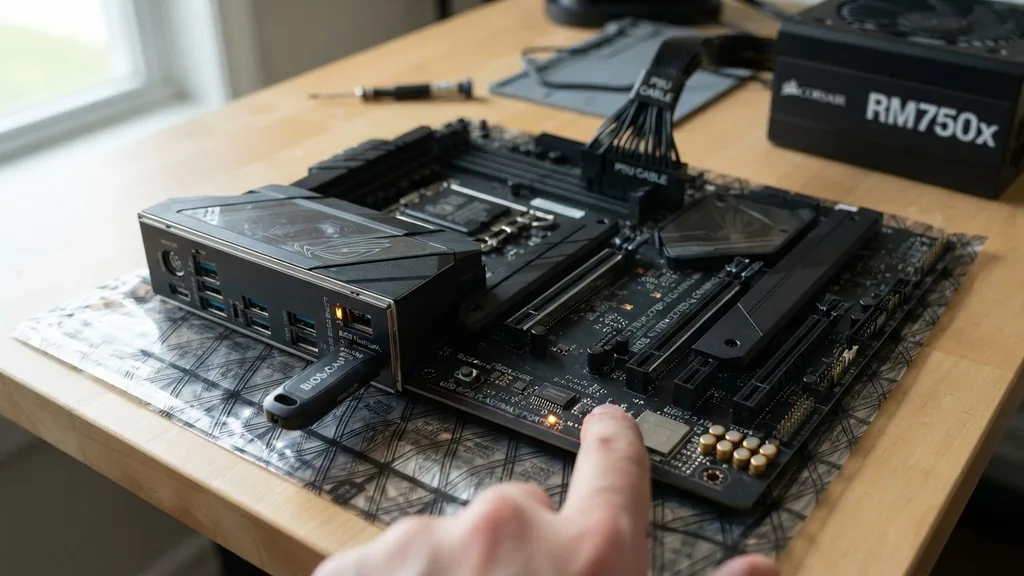
The BIOS Flashback feature is a specialized hardware function that allows a motherboard to update its UEFI firmware using only a power supply unit and a USB drive. This mechanism works by utilizing a dedicated microcontroller on the motherboard that can communicate directly with the non-volatile memory chip where the firmware resides. Because this controller operates independently of the CPU socket, you do not need a processor, RAM, or a graphics card installed to perform the update.
This technology is essential for enthusiasts who purchase a motherboard that was manufactured before a specific CPU series was released. For example, if you buy an older AM4 or LGA1700 motherboard and attempt to pair it with a brand-new, cutting-edge processor, the board will likely remain unresponsive because it lacks the microcode to communicate with that chip.
By using the BIOS Flashback function, you essentially teach the board how to speak the language of your new hardware before you ever install the CPU. It is a safety net for builders, ensuring that a motherboard does not become obsolete simply due to a manufacturing date mismatch.
Preparing the USB Drive for Firmware Flashing
The integrity of your update depends entirely on how you prepare your USB drive. Most motherboards require the drive to be formatted in a FAT32 partition.
This is a legacy file system, but it remains the universal language for motherboard firmware loaders because it is simple and reliable. If your drive is formatted as NTFS or exFAT, the motherboard’s built-in controller will likely fail to read the file, leading to a failed update process.
Once the drive is formatted, you must download the correct BIOS file from the manufacturer’s official support website. This file is often compressed in a ZIP folder, so you will need to extract it first. A crucial step that many users overlook is BIOS file renaming.
Most motherboards require the file to be renamed to a very specific string—such as MSI.ROM or GIGABYTE.BIN—before the system will recognize it. You can find the exact naming requirement in your motherboard manual. If the filename is off by even a single character, the BIOS flash button will not trigger the update process.
Locating the BIOS Flash Button and I/O Panel
To initiate the update, you must identify the correct physical interface on your motherboard. The BIOS flash button is typically located on the rear motherboard I/O panel, often positioned near the USB ports.
It is sometimes labeled as Flash BIOS, Q-Flash, or simply marked with a small icon of a USB port and an arrow. Some high-end boards place this button on the PCB itself, but the rear I/O location is far more common.
When you look at the rear I/O panel, you will notice that one specific USB port is often highlighted or outlined with a different color, such as white or red. This is the only port that the motherboard’s dedicated BIOS controller monitors for updates.
Plugging your USB drive into any other port will result in no activity when you press the button. Always consult your motherboard manual to confirm which port is designated for this purpose, as using the wrong port is one of the most frequent causes of failed updates.
Powering the Motherboard for the Update
Even though you are not installing a CPU, your motherboard still needs power to run the flashing process. You must connect your power supply unit to the motherboard, specifically utilizing the 24-pin ATX connector and, in many cases, the 8-pin CPU power connector at the top of the board. Without these cables securely seated, the motherboard’s internal controller will not have the voltage required to write data to the non-volatile memory chip.
Ensure your power supply is turned on using the toggle switch at the back, but do not press the power button on your PC case. The BIOS Flashback process is designed to be triggered while the system is in a standby state.
The motherboard will detect the power presence, wait for the button press, and then pull the necessary electricity to run the update. Always double-check your connections before proceeding, as an interrupted power supply during a firmware flash can potentially brick the motherboard, rendering it unusable until it is professionally repaired or replaced.
Executing the Flash Process and Monitoring Indicators
Once the USB drive is inserted and the power is connected, the actual flashing process begins when you press the BIOS flash button. You should see a motherboard LED indicator start to blink or flash. This light is your primary feedback mechanism.
If the light remains solid, the system has likely failed to detect the drive or the file. If it blinks rapidly, the motherboard is reading the file and beginning the transfer.
The duration of the update can vary, typically taking between three to seven minutes. During this time, it is imperative that you do not remove the USB drive or cut power to the system. The motherboard is actively erasing the old firmware and writing the new version to the memory chip.
If you interrupt this, the chip will be left in a corrupted state. Once the flashing is complete, the LED indicator will typically stop blinking or turn off completely, signaling that the process has finished successfully. You can then safely remove the power and proceed with installing your CPU, RAM, and other components.
Comparing Manufacturer-Specific Features
Different brands utilize proprietary names for their BIOS update technologies, even though the underlying process is largely the same. Understanding these distinctions helps when you are reading your specific motherboard manual.
| Manufacturer | Feature Name | Common Identifier |
|---|---|---|
| ASUS | USB BIOS FlashBack | Button on rear I/O |
| MSI | Flash BIOS Button | Labeled button near USB |
| Gigabyte | Q-Flash Plus | Icon on the motherboard PCB |
| ASRock | BIOS Flashback | Dedicated button on back |
While the naming conventions differ, the goal remains identical: providing a hardware-level recovery and update path. ASUS, for instance, is well-known for its implementation, which is often very robust and provides clear feedback via the LED.
Gigabyte’s Q-Flash Plus is similarly reliable, though you should always verify if your specific model supports it, as it is often a feature reserved for mid-to-high-tier boards rather than entry-level models. If you are uncertain about your specific board’s capabilities, you can visit the official hardware documentation for more information on how BIOS updates interact with system architecture.
Troubleshooting Common Flashing Failures
If you find that the BIOS update process isn’t starting, don’t panic. The most common culprit is the USB drive itself. Not all USB drives are created equal.
Older, smaller capacity drives—specifically those in the 8GB to 16GB range—are often more reliable for this task than modern, high-speed 128GB+ drives. The motherboard’s basic controller can sometimes struggle to initialize high-capacity or partitioned drives. If your current drive fails, try sourcing a USB 2.0 drive, as these are universally compatible with the legacy standards used by BIOS flashers.
Another frequent issue is the file structure on the drive. Ensure that the BIOS file is the only item on the root directory of the USB drive. If you have other folders or files present, the controller might become confused.
Additionally, double-check that the file extension matches the requirement exactly. Some operating systems hide file extensions by default, so if you renamed a file to “BIOS.BIN” but it was actually “BIOS.BIN.zip,” the motherboard will ignore it. Check your file properties to ensure the extension is correct.
Addressing Topical Gaps and Advanced Considerations
A common question that arises is whether you can damage your CMOS settings by performing this update. The answer is that a BIOS update essentially resets your CMOS to default values anyway, so you should expect to reconfigure your fan curves, XMP/EXPO memory profiles, and boot order once the system is fully assembled. This is a standard procedure and not a cause for concern.
Another gap often overlooked is what happens if the power goes out during the update. While rare, this is the worst-case scenario. Some premium motherboards feature dual-BIOS chips, which allow you to recover from a corrupted flash by switching to a secondary chip.
If your board does not have this, you may need to look into a hardware programmer—a tool that clips directly onto the BIOS chip to re-flash it manually—or seek an RMA from the manufacturer. Always perform the update on a stable power circuit if possible.
Finally, ensure that your motherboard is not currently in a state of “soft-brick” due to a failed previous attempt. If you have already tried and failed, clear the CMOS by removing the coin-cell battery for a few minutes before attempting the process again with a fresh USB drive.
Frequently Asked Questions
- Do I need a monitor connected to update the BIOS without a CPU? No, you do not need a monitor. The process is entirely handled by the motherboard’s onboard controller and the LED indicators on the board itself, so a display is not required to monitor progress.
- Can I use any USB drive for the update? It is highly recommended to use a USB 2.0 drive formatted to FAT32. High-capacity USB 3.0 or 3.1 drives often cause compatibility issues with the motherboard’s pre-boot environment, leading to failed update attempts during the flashing process.
- How do I know if the update was successful? After the LED stops flashing, the motherboard usually performs a quick internal reset. You can then install your CPU and RAM, power on the system, and enter the BIOS setup menu to verify the version number displayed on the home screen.
- Is it safe to update the BIOS if my PC is working fine? If your system is currently stable and compatible with your CPU, there is no urgent need to update. However, if you are upgrading to a newer CPU generation, the update is mandatory for the system to recognize the new hardware.


