

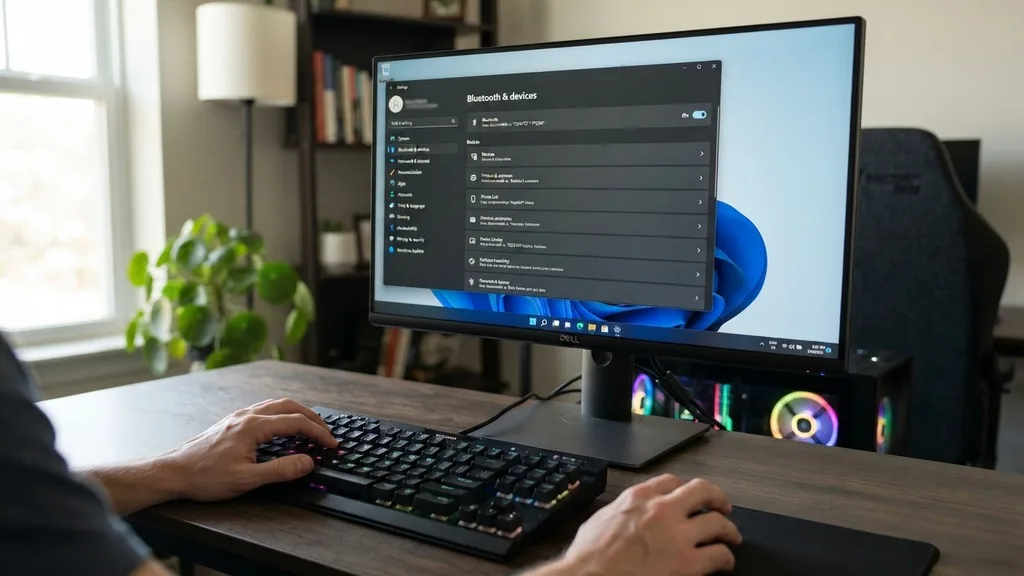
Determining if your computer supports wireless peripherals is a common task when building or upgrading a desktop. Asking yourself, “does my motherboard have bluetooth,” is the first step toward connecting your favorite wireless headset, mouse, or game controller.
Many modern motherboards come equipped with integrated wireless modules, but not every board includes this feature by default. Understanding your specific hardware configuration is essential to avoiding unnecessary purchases or software frustration.
How to Check for Bluetooth in Windows Settings
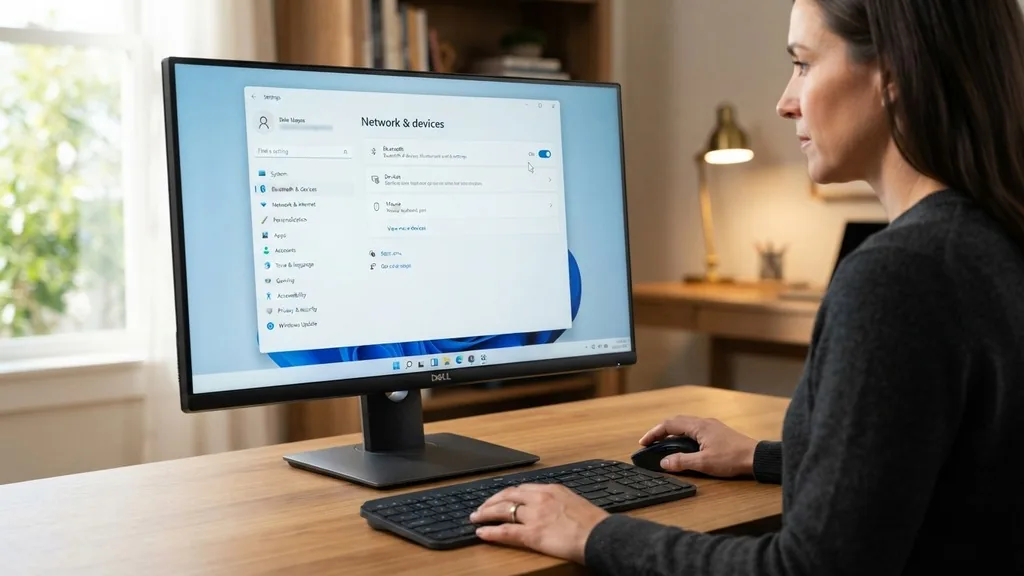
The fastest way to determine if your machine supports wireless connectivity is through the operating system interface. If your system is running a modern version of the software, the settings menu provides a clear indication of available radio hardware.
To check this, click the Start button and select the gear icon to open your system settings. Once the window appears, navigate to the “Bluetooth & devices” tab. If you see a toggle switch for Bluetooth that you can turn on or off, your computer has the necessary hardware.
If the section is missing entirely or displays a message stating that Bluetooth is not available on this device, it is highly likely that your motherboard lacks an integrated module. This method is the most reliable way to confirm functionality without opening your computer case.
Using Device Manager to Confirm Hardware Status
If the settings menu feels ambiguous or you suspect a driver issue, the Device Manager is your next stop. This tool provides a granular look at the physical components recognized by your operating system.
Right-click the Start button and select “Device Manager” from the list of options. Look for a category labeled “Bluetooth.” If this category exists, click the small arrow to expand it.
You should see a list of adapters, such as “Intel Wireless Bluetooth” or “Realtek Bluetooth Adapter.” If you do not see a Bluetooth category at all, or if you see an “Unknown Device” with a yellow warning icon, your system may be missing the required software or simply lacks the physical hardware on the motherboard.
Interpreting Driver Issues
Sometimes the hardware exists, but the software layer is broken. If you see a yellow exclamation mark next to your adapter, it means the Windows environment recognizes the hardware but cannot communicate with it.
In these cases, you should visit the manufacturer’s website to download the latest drivers for your specific motherboard model. Installing these updates often resolves connectivity issues that appear to be hardware failures.
Identifying Your Motherboard Model
Before you can definitively answer whether your board has built-in wireless capabilities, you need to know exactly which model you are using. Users often forget their specific specifications months or years after a custom build.
You can find your motherboard information by opening the System Information app. Press the Windows key, type “msinfo32,” and hit Enter. Look for the “BaseBoard Manufacturer” and “BaseBoard Product” entries.
Once you have these, you can search the manufacturer’s official support page. Many manufacturers offer different versions of the same board—for example, a standard model and a “Wi-Fi” model. The Wi-Fi version almost always includes Bluetooth, while the standard version often omits it to reduce costs.
Why Some Motherboards Lack Bluetooth
Not every motherboard is designed to include wireless features. Manufacturers segment their products into different tiers to meet various price points and use cases. Entry-level motherboards, often intended for budget office builds, frequently omit wireless radios to keep the price as low as possible.
High-end motherboards, particularly those aimed at gamers or content creators, almost always include integrated Wi-Fi and Bluetooth. These boards are usually marketed as “AC,” “AX,” or “Wi-Fi” editions.
If your board does not have an integrated module, it is usually because it was built for a specific environment where a wired Ethernet connection was assumed to be the primary method of data transfer. This design choice helps keep the component footprint smaller and the total cost of the assembly more competitive.
Evaluating Your Wireless Connectivity Options
If you have confirmed that your motherboard does not have Bluetooth, you are not out of luck. You can easily add this functionality to almost any computer using external hardware. These solutions are generally inexpensive and highly effective for standard consumer tasks.
Comparison of Wireless Add-on Methods
There are two primary ways to add wireless capabilities to a desktop computer. The choice between them depends on your comfort level with hardware installation and your specific needs for signal range.
| Method | Installation Difficulty | Performance | Portability |
|---|---|---|---|
| USB Bluetooth Dongle | Very Low | Good for peripherals | High |
| PCIe Expansion Card | Moderate | Excellent/Stable | Low |
The USB dongle is a plug-and-play solution. You simply insert it into an available port, and Windows will generally recognize it immediately. It is perfect for connecting a single pair of headphones or a mouse.
For more demanding tasks, such as high-fidelity audio or multiple simultaneous connections, a PCIe card is the superior choice. These cards plug directly into your motherboard’s expansion slots and usually include external antennas that provide better signal reception than a tiny USB stick.
Troubleshooting Common Bluetooth Connection Problems
Even when your motherboard has Bluetooth, you might encounter issues where devices fail to pair or maintain a stable connection. Troubleshooting involves checking both the physical environment and the software configuration.
First, ensure that your antennas are properly attached if your motherboard uses them. These antennas are often required for both Wi-Fi and Bluetooth performance. If they are loose or disconnected, your signal range will be severely limited.
Second, check your software settings. Sometimes, power-saving features in Windows will turn off the Bluetooth adapter to save energy.
You can adjust this in the Device Manager by right-clicking your Bluetooth adapter, selecting Properties, and navigating to the Power Management tab. Uncheck the box that says “Allow the computer to turn off this device to save power” to see if that stabilizes your connection.
The Importance of Official Drivers
The software that allows your operating system to talk to your hardware is known as a driver. If you are struggling with connectivity, the generic drivers provided by Windows might not be sufficient. You should always aim to use the drivers provided directly by the motherboard manufacturer or the chip manufacturer, such as Intel or MediaTek.
You can find official resources for your hardware at the Intel Driver & Support Assistant page. This tool can scan your system and identify whether you have the latest software installed for your integrated components. Using updated drivers is critical because they often contain patches for security vulnerabilities and improvements for device compatibility, ensuring that your wireless peripherals stay connected without constant dropouts or lag.
Determining if You Need an Upgrade
Perhaps you have discovered your board lacks Bluetooth, and you are debating whether to add a dongle or upgrade the motherboard entirely. For most users, an external adapter is the most logical path forward. It is a cost-effective way to get the features you need without the hassle of rebuilding your entire system.
However, if you are planning a more significant upgrade—such as moving to a new processor or increasing your RAM—it might be worth choosing a new motherboard that includes integrated wireless support. This will save you an expansion slot and keep your build cleaner.
If you are satisfied with your current system performance, stick with an external solution. There is no reason to replace a perfectly functional motherboard just to gain Bluetooth functionality when a small, inexpensive adapter can achieve the same result in seconds.
Frequently Asked Questions
- How do I check if my PC has Bluetooth? The quickest way is to look in the Windows “Bluetooth & devices” settings menu. If you see a toggle switch to turn it on or off, your computer has the hardware. If that menu is missing, your system likely does not have it.
- Can I add Bluetooth to a motherboard that doesn’t have it? Yes, you can easily add this functionality by purchasing a USB Bluetooth adapter or a PCIe expansion card. Both options are simple to install and provide reliable wireless connectivity for your peripherals, including mice, keyboards, and audio devices.
- Why does my Bluetooth device keep disconnecting? This is often caused by outdated drivers, power-saving settings in Windows, or weak signal strength. Try updating your drivers through the manufacturer’s website and ensure your motherboard antennas are securely attached to the rear I/O panel.
- Do all motherboards have Bluetooth? No, not all motherboards include built-in Bluetooth. It is typically found on mid-to-high-end boards or models specifically marketed as “Wi-Fi” editions. Budget-oriented motherboards often exclude these features to keep production costs lower for the end consumer.


