

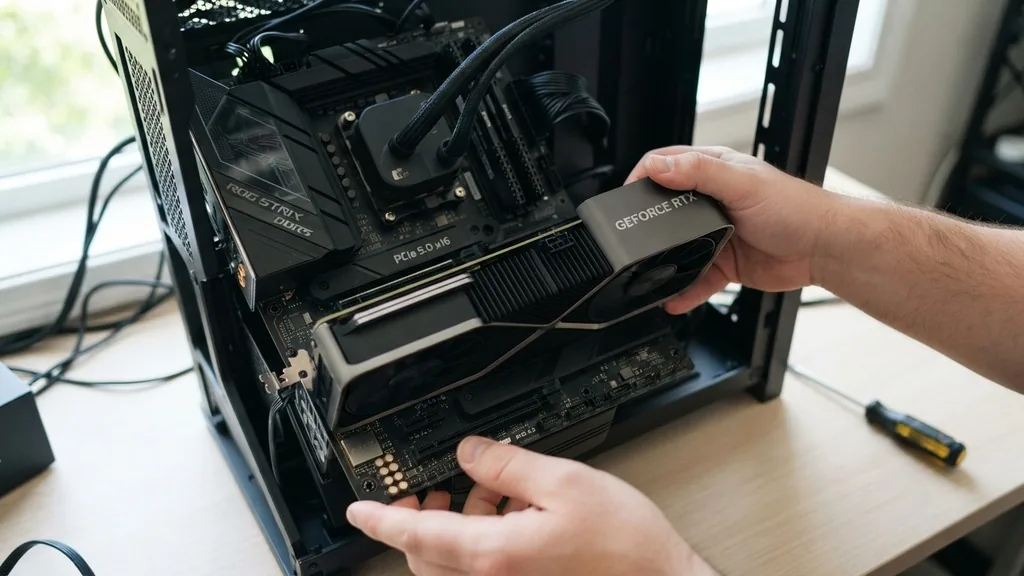
Determining what GPU is compatible with my motherboard is a foundational task for anyone looking to upgrade their gaming PC or workstation. The good news is that the graphics card landscape is far more standardized than it was decades ago, meaning you don’t need to worry about proprietary slots in most modern builds. Almost every consumer-grade graphics card released in the last two decades uses the same physical interface: the PCI Express (PCIe) slot.
However, while the card might physically fit and connect, compatibility extends beyond just the slot. You need to consider power supply requirements, physical case clearance, and potential bottlenecking with your CPU.
Understanding the Physical PCIe Interface
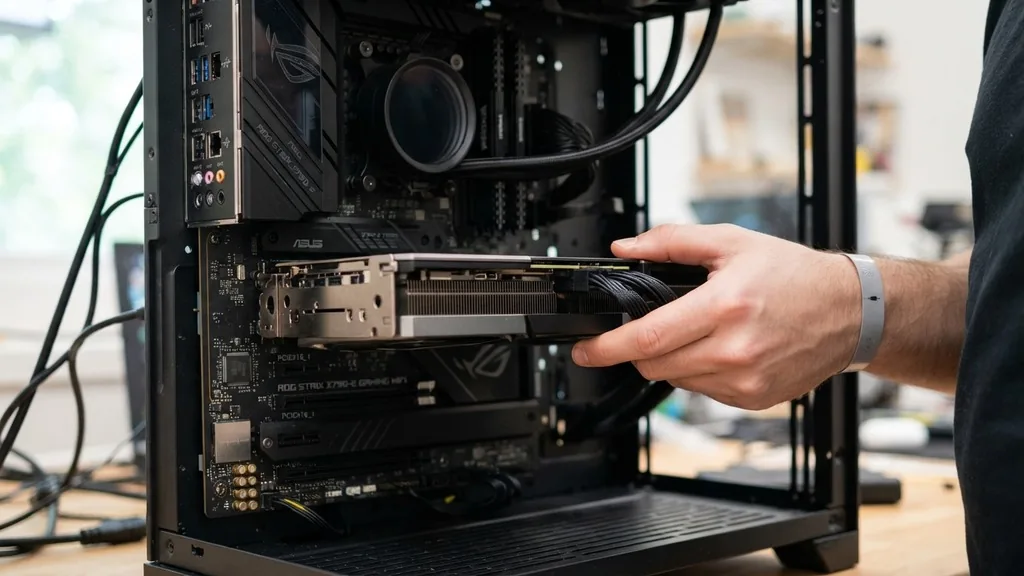
The most direct answer to what GPU is compatible with my motherboard is that if your motherboard has a PCIe x16 slot, it will physically accept almost any modern graphics card. The PCI Express standard is designed to be backward and forward compatible.
This means you can plug a modern PCIe 4.0 or 5.0 graphics card into an older motherboard with a PCIe 3.0 slot, and the system will generally function without issue. The card will simply operate at the speed of the motherboard’s interface, which is rarely a limiting factor for gaming performance unless you are using extremely high-end hardware in a very old system.
When you look at your motherboard, the PCIe x16 slot is the longest slot, typically located closest to the CPU socket. This slot provides both the data communication path and a portion of the power required by the GPU.
Because the physical connector hasn’t changed in years, you don’t need to worry about specialized proprietary ports. Whether you are installing an entry-level card or a flagship powerhouse, the fundamental connection method remains consistent across the industry.
Checking Physical Space and Case Clearance
While the PCIe slot is universal, the physical dimensions of the graphics card are not. A common mistake builders make is assuming that because the card fits the slot, it will fit inside the computer case.
Modern GPUs have grown significantly in size; many high-end models now feature massive cooling solutions that span three or even four expansion slots. Before purchasing a new card, you must measure the available clearance inside your chassis.
Manufacturers provide the dimensions of their cards in millimeters or inches on their official product pages. You should measure the distance from the back of the case (where the PCIe brackets are) to the front of the case or the drive cages. If your card is longer than the available space, you will either need to remove drive bays or look for a more compact model.
Additionally, consider the height of the card. Some cards are wider than others, which can interfere with the side panel of a narrow case or clash with power cables. Always verify your case’s maximum GPU length specification provided by the manufacturer.
The Role of the Power Supply Unit
The power supply unit (PSU) is often the silent barrier to GPU compatibility. Even if your motherboard accepts the card and your case has the room, the system will fail to boot or crash under load if the PSU cannot deliver enough wattage. Graphics cards consume a significant portion of a PC’s power budget, and they require dedicated power cables—usually 6-pin, 8-pin, or the newer 12VHPWR connectors—directly from the power supply.
If your current PSU lacks the necessary cables or does not have enough total wattage to support both your CPU and the new GPU, you will need to upgrade it. A good rule of thumb is to look at the “Recommended PSU” value listed by the GPU manufacturer. This number is usually conservative, but it’s a safe baseline to follow.
If you are unsure about your current hardware specs, you can use the online power supply calculator to estimate the total power draw of your system components. Never attempt to use adapters to force a connection if your PSU doesn’t have the right cables; this can lead to fire hazards or component failure.
Addressing Bottlenecks and CPU Compatibility
Compatibility is not just about whether the computer turns on; it is also about whether the components work well together. A bottleneck occurs when one component—usually the CPU—cannot keep up with the data processing speed of the GPU.
If you pair a top-tier, modern graphics card with a CPU that is ten years old, the CPU will become the limiting factor in your performance. You won’t get the full value of the GPU because the processor is struggling to send frames to it fast enough.
While a mismatched pair will technically “work,” it is often a poor allocation of budget. You want a balanced system where the CPU and GPU are roughly from the same generation.
If you are planning an upgrade, consider the age of your processor. If your CPU platform is several generations behind, you might find that upgrading the motherboard and CPU simultaneously provides a better overall experience than just dropping a high-end card into an ancient system.
PCIe Lane Versions and Performance Impact
You might see terms like PCIe 3.0, 4.0, or 5.0 when researching motherboards and GPUs. These numbers refer to the generation of the PCIe interface, which dictates the bandwidth available to the card.
Higher generations offer double the bandwidth of the previous version. However, for the vast majority of gaming scenarios, the performance difference between PCIe 3.0 and PCIe 4.0 is negligible, often resulting in only a 1-3% difference in frame rates.
The only time PCIe versioning becomes critical is if your motherboard is extremely old (PCIe 2.0 or earlier) or if you are using a specific type of card that uses fewer lanes, such as an x4 or x8 card. Most full-sized GPUs use the full x16 lane configuration.
Even if you run a PCIe 4.0 card on a PCIe 3.0 slot, the impact is minimal. You should not let the PCIe version stop you from choosing a specific card unless you are a professional user working with massive datasets or high-speed storage arrays where bandwidth is the primary constraint.
Differences Between NVIDIA and AMD Compatibility
A frequent question is whether a motherboard that supports an NVIDIA card can also support an AMD card. The answer is a definitive yes. The PCIe slot is an industry-standard interface.
It does not care whether the card is manufactured by NVIDIA, AMD, or Intel. You can swap an NVIDIA card for an AMD card at any time without needing to change your motherboard.
The only considerations when switching brands are software-related. You will need to remove the drivers for the old card and install the drivers for the new one.
Using a tool like Display Driver Uninstaller (DDU) is a recommended practice to ensure that no legacy driver files remain to cause conflicts. Other than the driver installation process, there is no hardware-level lock that prevents you from using any brand of graphics card with your motherboard.
Quick Reference for Compatibility Checks
To simplify the process, use this table to check if your current setup meets the requirements for a new graphics card.
| Component | What to Check | Why it Matters |
|---|---|---|
| PCIe Slot | Is it a PCIe x16 slot? | Ensures physical connectivity. |
| PSU Wattage | Is it above the GPU requirement? | Prevents system crashes under load. |
| Case Dimensions | Is there enough internal length? | Prevents physical installation failure. |
| CPU Speed | Is the CPU modern enough? | Avoids performance bottlenecks. |
When you are ready to upgrade, follow these steps to ensure a smooth transition:
- Confirm your motherboard has a standard PCIe x16 slot (found on almost all boards since 2005).
- Check your power supply label for total wattage and available PCIe power cables.
- Measure the internal length of your PC case to ensure the card fits.
- Use a PSU calculator to verify your total system power draw.
- Uninstall old graphics drivers before installing the new hardware.
- Verify that your CPU is capable of handling the performance of the new GPU.
Addressing Topical Gaps: BIOS and UEFI Settings
One area often overlooked when asking what GPU is compatible with my motherboard is the BIOS/UEFI firmware. While rare, some older motherboards may require a BIOS update to recognize newer graphics cards.
This is particularly true for systems from the transition period between legacy BIOS and modern UEFI. If you install a new card and the system refuses to post or displays a black screen, check the manufacturer’s website for your motherboard to see if there is a firmware update available.
Updating the BIOS can resolve compatibility issues where the motherboard’s initialization process fails to handshake correctly with the newer GPU’s firmware. Always follow the manufacturer’s instructions carefully when updating your BIOS, as a failed update can render your motherboard unusable. In most modern systems (post-2015), this is rarely an issue, but it remains a critical troubleshooting step if you are repurposing an older machine for a modern graphics upgrade.
Frequently Asked Questions
- How do I see if a GPU is compatible with my motherboard? Check your motherboard for a PCIe x16 slot, which is standard on almost all boards. Then, ensure your power supply provides sufficient wattage and the correct power cables for the new card, and verify that the card fits physically within your computer case.
- Does every GPU fit into every motherboard? Virtually all modern graphics cards use the universal PCIe x16 interface, meaning they will physically fit into the slot on almost any motherboard. Compatibility issues are usually related to physical space inside the computer case or power supply limitations rather than the motherboard’s slot itself.
- Can a GPU be incompatible with a motherboard? Incompatibility is extremely rare regarding the connection itself. However, an older motherboard might lack a BIOS update required to communicate with a very new GPU, or the system might suffer from a severe CPU bottleneck where the processor is too slow for the graphics card to function efficiently.
- Do I need to match the motherboard brand to the GPU brand? No, you do not need to match brands. NVIDIA, AMD, and Intel graphics cards are designed to work with any motherboard that has a standard PCIe slot, regardless of the manufacturer of the motherboard or the CPU. The components are fully cross-compatible across all major brands.
In summary, the question of what GPU is compatible with my motherboard is usually answered by looking at the power supply and the physical space available rather than the motherboard itself. As long as you have a PCIe x16 slot, you have a vast array of options. Focus your planning on the power needs of the card and the physical dimensions of your case, and you will ensure a successful upgrade that provides the performance boost you are looking for.
By following these guidelines, you can confidently select a card that integrates perfectly with your existing hardware, providing you with a reliable and high-performing system for your tasks or gaming needs. Remember that the goal is to create a balanced machine where each part contributes to the overall stability and speed of your computer, ensuring that your investment delivers the best possible return in terms of longevity and capability.


