

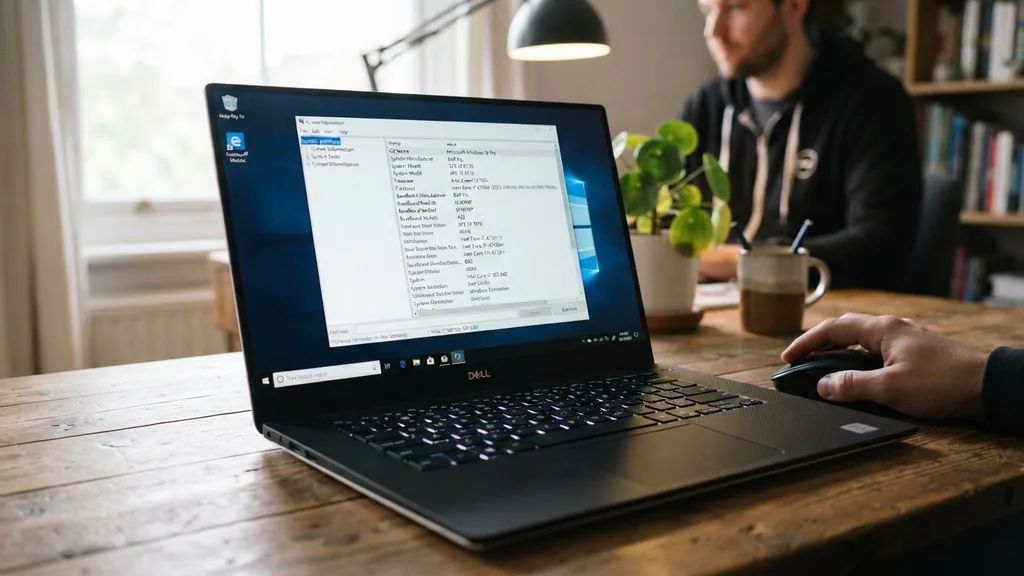
Identifying your computer’s core components is a fundamental step for anyone looking to upgrade their hardware, troubleshoot technical issues, or simply keep their system drivers up to date. If you are wondering how to find out what motherboard I have Windows 10, you are in luck because the operating system provides several built-in utilities that make this process straightforward and quick. You do not need to be a computer engineer or open your PC case to discover the specific model and manufacturer of your baseboard.
Whether you are planning to install a new graphics card, add more RAM, or check if your current board supports a specific CPU upgrade, knowing your hardware specifications is essential. Windows 10 acts as an interface between your physical hardware and the software you run, meaning it keeps a detailed record of every piece of connected equipment. By leveraging these native tools, you can extract precise data without installing third-party software that might clutter your system or introduce unnecessary background processes.
Using System Information for Quick Identification
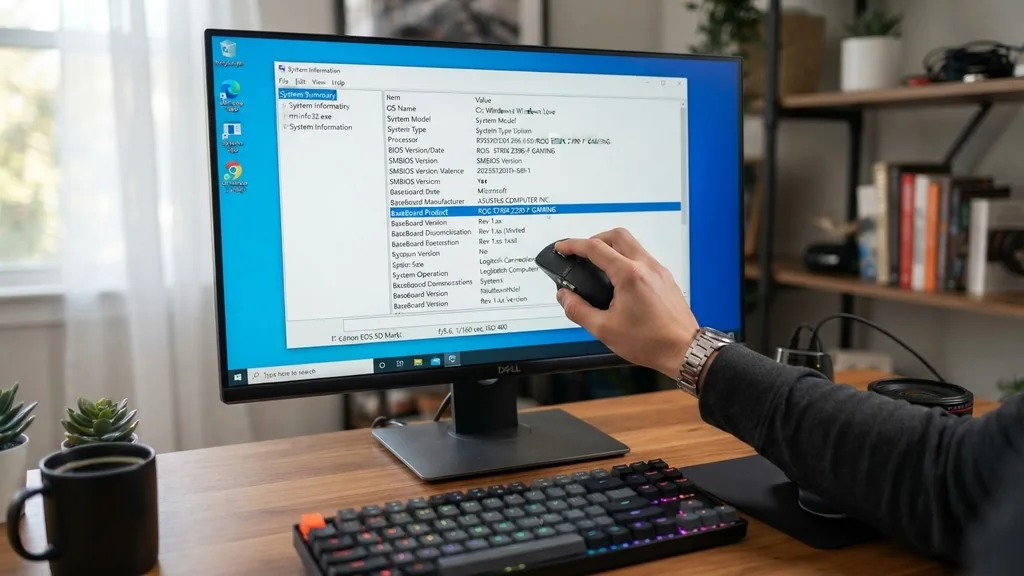
The easiest way to find out what motherboard you have on Windows 10 is by using the built-in System Information tool. This utility displays a comprehensive list of all hardware and software components installed on your machine, including the baseboard manufacturer, product name, and current version.
To access this, press the Windows key on your keyboard, type “msinfo32” into the search bar, and press Enter. The System Information window will appear immediately.
By default, you should be on the “System Summary” page, which is the first item in the left-hand navigation pane. Once there, scroll down through the list in the right-hand pane until you find the rows labeled “BaseBoard Manufacturer,” “BaseBoard Product,” and “BaseBoard Version.”
These three fields provide the exact information you need to identify your motherboard. The “BaseBoard Product” is the specific model name, which is the most critical piece of data if you are searching for drivers or compatibility information on the manufacturer’s website. If you see “Not Available” in these fields, it is often a sign of a custom-built system where the motherboard vendor did not properly flash the DMI (Desktop Management Interface) information into the firmware, though this is rare on modern consumer PCs.
Leveraging the Command Prompt for Instant Data
If you prefer a faster, more text-based approach, the Windows Command Prompt is an incredibly powerful tool for querying system hardware. This method is particularly useful for power users or those who want to copy-paste their hardware specifications into a text file or an online support forum.
Open the Command Prompt by typing “cmd” in the Windows search bar and pressing Enter. Once the black command window opens, you need to use the Windows Management Instrumentation Command-line (WMIC) tool. Type the following command exactly as written and hit Enter:
wmic baseboard get product,Manufacturer,version,serialnumber
After you press Enter, the command line will output the manufacturer, product name, version, and serial number of your motherboard directly beneath the headers. This is a highly efficient way to get the exact data you need without navigating through graphical menus.
If you ever need to provide these details to a technical support agent, simply highlight the text in the terminal, right-click to copy, and paste it wherever you need. It is a clean, no-nonsense way to retrieve deep system information.
Checking Motherboard Details via PowerShell
PowerShell is the more advanced successor to the traditional Command Prompt and offers even more flexibility when managing your Windows 10 environment. If you are already comfortable with scripting or just want to try a different approach, PowerShell can retrieve your motherboard details with a simple command.
To start, right-click the Start button and select “Windows PowerShell.” Once the blue window opens, you can execute a command that queries the same WMI database as the Command Prompt but returns the information in a more structured format. Type the following and press Enter:
Get-CimInstance Win32_BaseBoard | Select-Object Product, Manufacturer, SerialNumber, Version
This command reaches out to the WMI service and requests specific objects related to your motherboard. The output will be neatly arranged, making it very easy to read.
Using PowerShell is often preferred by IT professionals because it can be integrated into larger scripts if they need to audit multiple machines on a network. If you are just checking your own computer, it works just as well and provides the same level of accuracy as the command-line method.
Identifying Hardware Through the BIOS or UEFI
Sometimes, you might find yourself in a situation where Windows 10 won’t boot or you simply want to see the hardware information before the operating system even loads. This is where the BIOS (Basic Input/Output System) or UEFI (Unified Extensible Firmware Interface) comes into play. Every modern computer has this low-level interface, and it is the most reliable way to identify your motherboard model because it reads the data directly from the chip.
To access this, you typically need to restart your computer and press a specific key repeatedly as it boots up. This key is usually displayed on the screen for a brief second—common keys include F2, F12, Del, or Esc. Once you are inside the BIOS interface, look for a tab labeled “System Information,” “Main,” or “About.”
In this menu, you will find the motherboard model and manufacturer listed clearly. Because this is the motherboard’s own environment, the information provided here is the definitive source of truth.
It is immune to any software errors or driver issues within Windows. If you are planning to update your BIOS, this is also where you will see your current firmware version, which is vital for ensuring you download the correct update files from the manufacturer’s support page.
What to Do If Software Methods Fail
There are rare instances where Windows might report the motherboard as “To be filled by O.E.M.” or “Not Available.” This happens when the manufacturer failed to program the board‘s information into the firmware during the assembly process. If you encounter this, software-based solutions will not work, and you will need to take a physical approach to identify the component.
The most straightforward way is to open the computer case and look directly at the board. Most manufacturers print the brand and the specific model number in large, clear text somewhere on the circuit board, often between the PCI-Express slots or near the CPU socket.
If you have a pre-built machine from a company like Dell, HP, or Lenovo, the motherboard might not have a retail model name. Instead, it will have a proprietary part number, which you can type into a search engine to find the exact manual or support documentation.
For those who are not comfortable opening their PC, you can check the original packaging or the receipt from when you purchased the device. If the computer is a laptop, the motherboard is almost always a custom design specific to that laptop model. In that case, searching for the laptop’s specific model number on the manufacturer’s website is the most effective way to find technical specifications.
The Importance of Knowing Your Baseboard Model
Understanding your motherboard model is not just a trivial exercise; it is crucial for system maintenance and future-proofing. Your motherboard dictates which processors you can install, how much RAM you can support, and what type of expansion cards (like high-end GPUs or NVMe drives) you can add. If you decide to upgrade your CPU, you must ensure the new processor is compatible with your current socket type, which is a detail tied strictly to the motherboard.
Furthermore, when you need to update drivers—such as those for your onboard audio, network adapter, or chipset—you need to know the exact board model. Downloading the wrong drivers can lead to system instability, blue screens, or hardware that simply refuses to function.
By identifying your hardware correctly, you ensure that you are pulling the right software from official sources. You can find more details on how hardware components interact by visiting the official Intel support documentation for a better understanding of how processors and motherboards interface.
Comparison of Identification Methods
Choosing the right method depends on your comfort level with technology and your current situation. Below is a breakdown of the different ways you can find your motherboard information and when each is most appropriate.
| Method | Difficulty | Best Used For |
|---|---|---|
| System Information (msinfo32) | Very Easy | Quick checks while inside Windows. |
| Command Prompt (WMIC) | Moderate | Copying data for support requests. |
| PowerShell | Moderate | Advanced users and scripting. |
| BIOS/UEFI | Advanced | When Windows won’t boot or is inaccurate. |
| Physical Inspection | Advanced | When software reports no data. |
Each of these methods has its place. Most users will find that the System Information tool is more than sufficient for their needs, while those who enjoy command-line efficiency will likely stick to the WMIC or PowerShell options.
Common Questions and Troubleshooting
* Does Windows 10 automatically install motherboard drivers? Yes, Windows 10 uses its own internal database to find generic drivers for most motherboards. However, for maximum performance—especially with audio, LAN, and chipset features—it is always better to download the specific drivers from the manufacturer’s website.
* Why does my motherboard show as ‘System Product Name’? This usually happens with custom-built PCs where the motherboard manufacturer didn’t set the DMI strings correctly in the BIOS. This is purely cosmetic and does not affect the performance of your machine.
* Can I change my motherboard without reinstalling Windows? While Windows 10 is quite good at handling hardware changes, swapping a motherboard often involves a different chipset, which can cause driver conflicts.
It is highly recommended to perform a clean installation of Windows if you replace the motherboard to avoid long-term stability issues.
* Is there a way to find this information if I have a Mac? The methods described here are specific to Windows 10. If you are using a Mac, you can find your hardware information by clicking the Apple menu and selecting “About This Mac,” which provides a much more streamlined view of your internal components compared to the Windows environment.
Frequently Asked Questions
- How can I find out which motherboard model I have? You can find this information by using the System Information tool in Windows. Press the Windows key, type “msinfo32,” and look for the “BaseBoard Product” line within the System Summary section to identify your specific model.
- Do I need to turn off my computer to see the motherboard model? No, you do not. Using software tools like Command Prompt or the System Information utility allows you to retrieve all necessary details about your motherboard while the computer is running and fully operational.
- Can I find my motherboard model using the command line? Yes, you can use the command “wmic baseboard get product,Manufacturer” in the Command Prompt. This will return the manufacturer and product name directly, providing a fast and efficient way to identify your hardware without opening any graphical menus.
- Is the motherboard information in Windows always accurate? In most cases, yes. However, if the manufacturer did not flash the DMI information into the BIOS during production, Windows might display generic names or “Not Available.” In such cases, you would need to check the BIOS screen or inspect the board physically.
By following these methods, you should have no trouble identifying your motherboard. Whether you are performing a hardware upgrade or simply curious about what is inside your machine, these techniques provide the reliable data you need to make informed decisions about your system’s future. Always remember to double-check your model number against the manufacturer’s official support page before downloading any firmware updates or drivers to ensure complete compatibility.


