

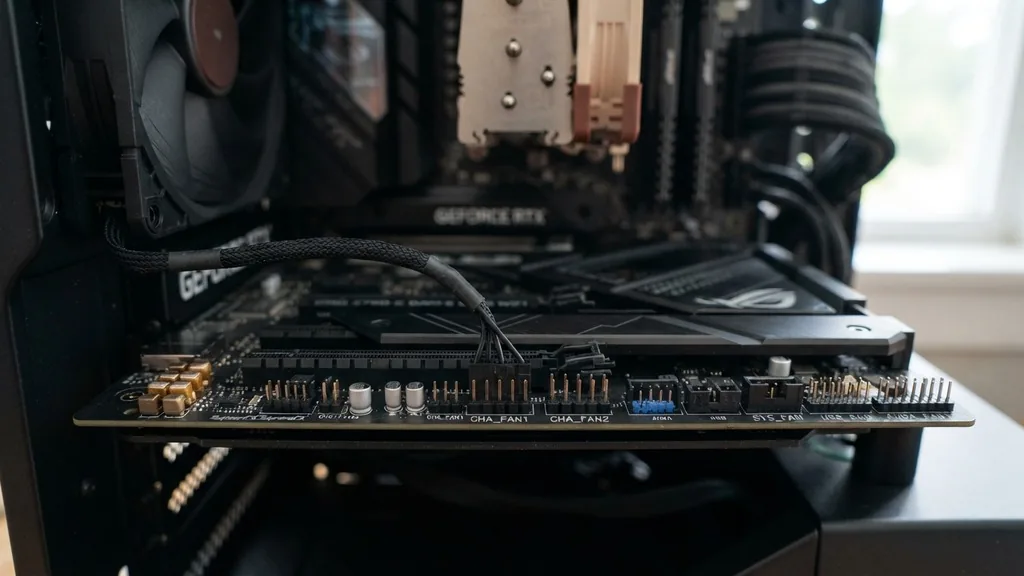
When you look at the surface of your computer’s main circuit board, you’ll see a collection of labels printed directly onto the PCB. Among these markings, the label “CHA_FAN” is one of the most common, yet it often confuses builders who are just getting started with PC assembly. Understanding what is CHA FAN on motherboard architecture is essential for proper thermal management.
In short, these headers are dedicated connection points for your chassis or case fans. They provide the necessary electrical power and control signals required to keep your internal components cool by circulating air through the computer housing.
Unlike the CPU_FAN header, which is strictly reserved for your processor’s cooling solution, the CHA_FAN headers offer flexibility. They are designed to support the auxiliary fans that move air across your hard drives, graphics cards, and other peripheral components.
If you have ever wondered why your system has multiple fan headers scattered around the board, it is because engineers want to ensure you can reach every corner of your case with short, tidy cable runs. By utilizing these specific ports, you ensure that your motherboard can monitor and adjust fan speeds based on real-time temperature data, keeping your machine stable during heavy workloads.
The Core Function of CHA FAN Headers
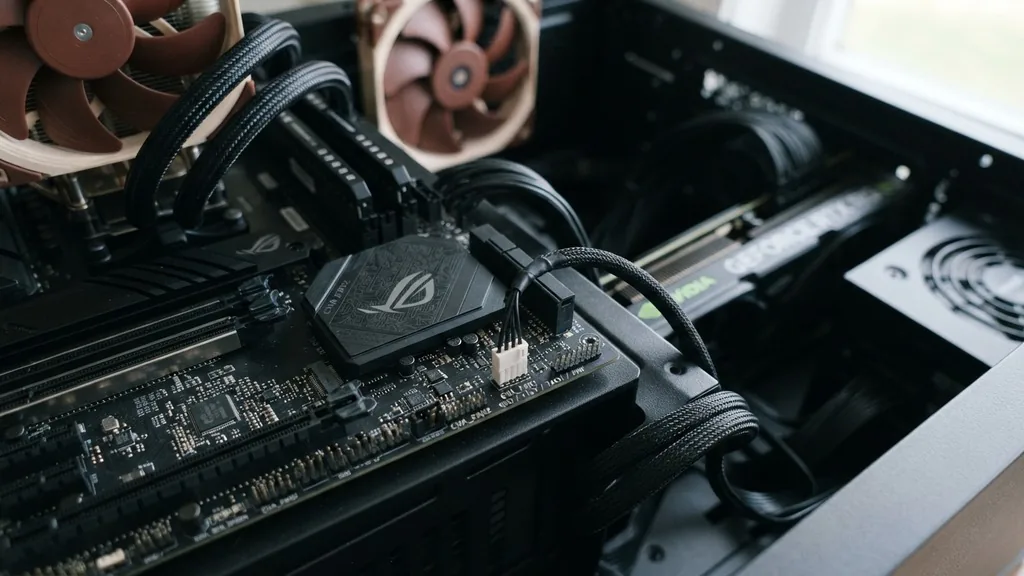
The primary role of a CHA_FAN connector is to provide a regulated power supply and communication link to the cooling fans installed in your computer case. A motherboard uses these headers to distribute power from the power supply unit to the fans while simultaneously monitoring their rotational speed. This feedback loop is crucial; it allows the BIOS or UEFI firmware to see if a fan has stalled or is spinning too slowly, which could lead to localized overheating within the system.
Most modern motherboards include several of these headers, often labeled sequentially like CHA_FAN1, CHA_FAN2, and so on. They typically utilize a 3-pin or 4-pin layout. The 4-pin version is increasingly standard, as it supports Pulse Width Modulation (PWM).
PWM technology allows the motherboard to send a specific signal to the fan, telling it exactly how fast to spin rather than simply lowering the voltage. This results in much quieter operation, as the fans only spin at high speeds when the system sensors detect that the internal ambient temperature is rising. Without these headers, your case fans would likely run at full speed constantly, creating unnecessary noise and potentially wearing out the fan motors prematurely.
Distinguishing CHA FAN from CPU FAN
It is vital to distinguish between the dedicated CPU_FAN header and the standard CHA_FAN headers found on your motherboard. The CPU_FAN port is specifically calibrated for the processor cooler.
In many systems, the BIOS will throw a “CPU Fan Error” if it doesn’t detect a fan spinning on that specific header during boot. This is a safety feature designed to prevent you from running a processor without active cooling, which could lead to catastrophic hardware failure within seconds.
In contrast, CHA_FAN headers are not typically monitored for critical boot-time failures. If you plug a case fan into a CHA_FAN port, the computer will boot normally regardless of whether that fan is working or not. This is why you should never connect your CPU cooler to a CHA_FAN header; if the software doesn’t force a stop upon detecting a lack of fan movement, your CPU could overheat without you realizing it.
Always check your motherboard manual to ensure you are connecting your primary cooling hardware to the correct labeled header. You can find more detailed information on cooling standards and thermal management via the International Organization for Standardization guidelines on hardware interfaces.
Understanding 3-Pin vs 4-Pin Fan Connectors
The physical layout of the connector is a major point of confusion for many users. While both 3-pin and 4-pin connectors look similar, they function differently. A 3-pin connector uses voltage regulation to control fan speed.
The motherboard adjusts the power flow to the fan to make it spin faster or slower. This is effective but less precise than the alternative. A 4-pin connector, on the other hand, utilizes a dedicated wire for the PWM signal.
| Feature | 3-Pin Connector | 4-Pin (PWM) Connector |
|---|---|---|
| Speed Control | Voltage Modulation | Pulse Width Modulation |
| Precision | Lower | High |
| Compatibility | Limited | Universal (Backwards compatible) |
You can safely plug a 3-pin fan into a 4-pin header on your motherboard. The connector is keyed so that it only fits one way. The motherboard will typically detect the 3-pin fan and automatically switch to voltage-based control mode.
However, you cannot plug a 4-pin PWM fan into a header that is exclusively designed for 3-pin operation without losing the ability to use PWM speed control. Always check the pinout in your motherboard manual if you are unsure about the capabilities of a specific header on your board.
Strategic Placement and Cable Management
Where you plug your fans matters for both airflow efficiency and cable management. Most motherboard manufacturers like Asus or MSI distribute CHA_FAN headers near the top, bottom, and side edges of the board.
This is intentional. It allows you to connect a rear exhaust fan to a top-mounted header and intake fans to bottom- or front-mounted headers without stretching cables across the entire motherboard.
Using the closest available header is the best practice for maintaining a clean build. Excess cabling can obstruct airflow, creating “dead zones” where hot air gets trapped. If you find that your cables are too short to reach the nearest header, consider using high-quality fan extension cables.
Avoid daisy-chaining too many fans onto a single header, however. Each header has a maximum power output, typically rated in Amperes.
If you connect too many fans to one CHA_FAN port, you risk blowing a fuse or damaging the motherboard’s fan controller circuitry. Always check the total current draw of your fans before using a splitter.
Troubleshooting Common CHA FAN Issues
If you find that your CHA_FAN is not working as expected, the first step is to check the BIOS settings. Many modern motherboards have a “Monitor” or “Hardware Health” tab where you can see the speed of every fan connected to the board.
If a fan shows 0 RPM, check the physical connection first. It is very common for the connector to be slightly loose, or for it to be plugged in offset by one pin.
- Ensure the fan connector is fully seated on the motherboard pins.
- Check the BIOS/UEFI to see if the header is set to “Manual” or “Auto” control.
- Verify that the fan itself is not obstructed by a stray cable or dust buildup.
- Test the fan on a different CHA_FAN header to rule out a faulty motherboard port.
- Update your motherboard firmware if the fans are acting erratically after a system upgrade.
Sometimes, a fan will not spin because the “silent” profile is active. Many motherboards are programmed to keep case fans at 0 RPM or very low speeds until the system reaches a certain temperature threshold. This is a feature, not a bug.
If your fans aren’t spinning while you are simply browsing the web, it is likely because the internal temperature is low enough that active cooling is not required. Do not panic; run a stress test or a demanding game to see if the fans ramp up as the system heats up.
The Role of BIOS and Fan Curves
The “intelligence” of your cooling system resides in the BIOS. Within the fan control menu, you will see a feature often called a “Fan Curve.”
This graph allows you to map fan speed as a percentage against the temperature of a specific component. For example, you might set your CHA_FAN headers to run at 30% speed when the system is idle, and ramp up to 100% when the component temperature hits 70 degrees Celsius.
Customizing these curves is one of the best ways to balance noise and performance. If you have a high-performance gaming rig, you might want your intake fans to be more aggressive to keep the GPU cool. If you have a media server, you might prioritize silence and keep the fans at a lower, steady speed.
The motherboard uses the data from its onboard sensors to adjust these fans dynamically. By spending time in the BIOS to tune these settings, you effectively gain control over the thermal profile of your entire computer, extending the life of your components by keeping them within optimal temperature ranges.
Addressing Topical Gaps: Headers and Power Limits
A common question that often goes unaddressed in basic guides is the difference between standard CHA_FAN headers and “H_AMP” or “W_PUMP” headers. While they look identical, they are not always the same.
Some high-end motherboards include a header labeled for “High Amp” fans or “Water Pump” usage. These headers are designed to provide significantly more electrical current than a standard CHA_FAN header.
If you are using high-performance industrial fans or a liquid cooling pump, you must check if your motherboard has these specialized headers. Plugging a power-hungry water pump into a standard CHA_FAN header can result in the pump not receiving enough power to operate correctly, or worse, the motherboard header failing due to the excessive load. Always look for the labels on the PCB near the pins.
If you don’t see a specific label for high amperage, assume it is a standard header and stick to using it for standard case fans only. This distinction is critical for users looking to maximize their system’s cooling potential without risking hardware damage.
Why Motherboard Fan Headers Matter for Longevity
Ultimately, the CHA_FAN headers on your motherboard serve as the central nervous system for your computer’s thermal management. By providing the power and the signals necessary to control your case fans, these headers ensure that your expensive components—such as your GPU, RAM, and SSDs—are not subjected to the damaging effects of trapped heat.
Modern computing involves high-density components that generate significant thermal energy. Without active air circulation, the heat would quickly saturate the case, leading to thermal throttling where the computer intentionally slows down its performance to prevent physical damage.
When you take the time to properly connect, label, and configure your CHA_FAN headers, you are not just building a computer; you are building a balanced system. You are ensuring that every fan is working in harmony with the motherboard’s sensors to provide the right amount of airflow exactly when it is needed. This level of attention to detail is what separates a generic PC build from a professional-grade setup.
Whether you are using the default settings or diving into custom fan curves, understanding these headers gives you the power to optimize your system for quiet operation, maximum performance, or a perfect blend of both. Always remember that your motherboard is the brain, but the fans are the lungs; keep them connected correctly, and your system will run smoothly for years to come.
Frequently Asked Questions
- Is CHA_FAN the same as SYS_FAN? Yes, these terms are interchangeable. Manufacturers use different labels, but both refer to headers intended for case fans. They function identically, providing power and speed control for auxiliary fans installed in your computer chassis.
- Can I plug a CPU cooler into a CHA_FAN header? While technically possible, it is not recommended. The CPU_FAN header is specifically designed for processor cooling, and many motherboards will trigger a safety warning or prevent booting if it detects no fan connected to the CPU_FAN header during startup.
- How do I know if my fan is intake or exhaust? Most fans have arrows on the side of the frame indicating airflow direction and blade rotation. If there are no arrows, the side with the plastic support struts is the “exhaust” side, and the open side is the “intake” side.
- What happens if I don’t use the CHA_FAN headers? If you connect your fans directly to the power supply using Molex or SATA adapters, they will run at 100% speed constantly. You will lose the ability to monitor their speed or adjust it based on system temperature, potentially leading to unnecessary noise.


