

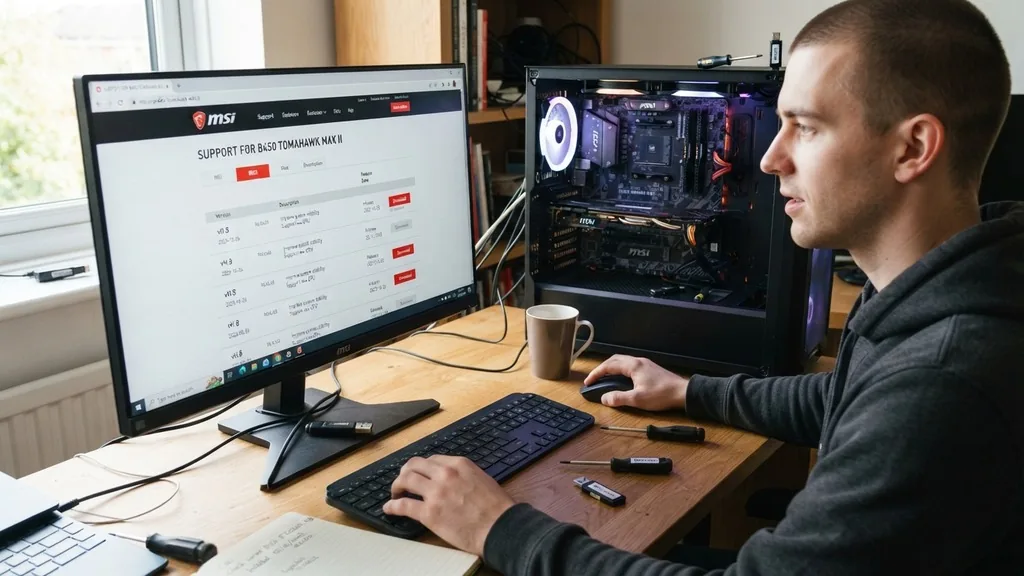
Updating your motherboard is a critical maintenance task that can resolve hardware compatibility issues, improve system stability, and provide support for newer processors. While many users go years without ever touching their motherboard firmware, there are specific scenarios—such as building a new rig or encountering persistent system crashes—where performing a BIOS update becomes essential.
This process involves flashing the non-volatile memory chip on your motherboard with updated code provided by the manufacturer. If you have ever wondered how to update your motherboard effectively and safely, this guide will walk you through the nuances of the procedure, from verification to execution.
Determining if a Motherboard Update is Necessary
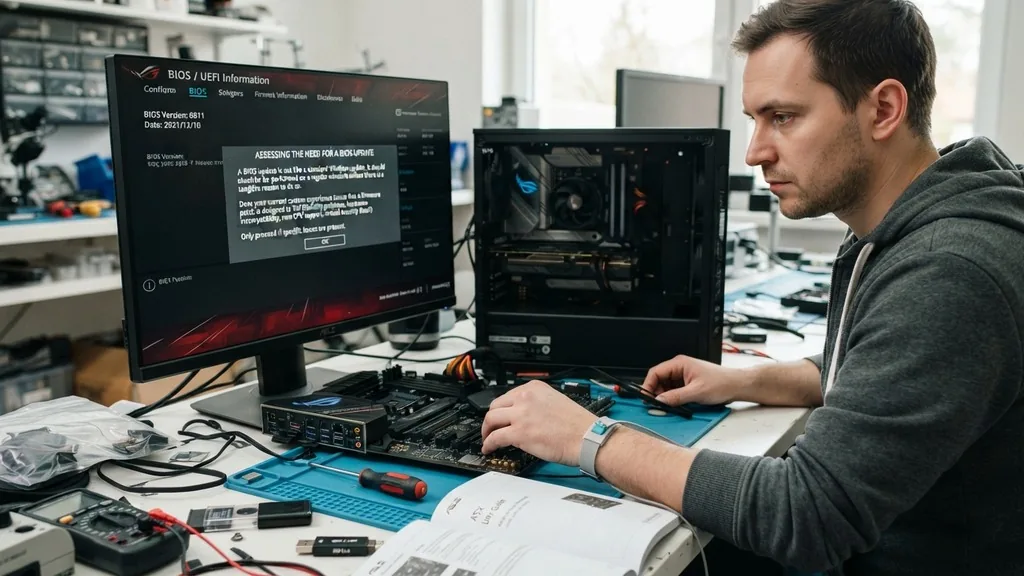
To determine if you should update your motherboard, you must first assess whether your current system is experiencing issues that a firmware patch is designed to fix. A BIOS update is not like a standard Windows update; it is not meant to be performed on a regular schedule unless there is a tangible reason to do so. Generally, you should only consider updating if you are installing a new CPU that requires a newer microcode version, if you are experiencing hardware instability with memory or PCIe devices, or if the manufacturer has released a critical security patch.
Many users fall into the trap of thinking they need the latest version for the sake of having it. However, if your computer is running perfectly and you are not planning any hardware upgrades, the risk of a corrupted flash—while small—is often greater than the reward of a minor version jump. Always check the official support page for your specific model.
Manufacturers often provide a list of changes for each version, such as “Improved memory compatibility” or “Updated AGESA code.” If your current version is stable and none of the release notes address a problem you are having, it is perfectly acceptable to leave the firmware as it is.
Preparing Your System for a Successful Flash
Preparation is the most vital phase of the entire process. Because you are modifying the low-level firmware that controls your hardware, any interruption during the writing process can result in a “bricked” motherboard, rendering the computer unable to boot. Before you start, ensure your computer is plugged into a stable power source.
If you are using a laptop, keep it plugged into the wall charger throughout the entire process. If you are on a desktop and live in an area prone to power outages, it is highly recommended to use a UPS (Uninterruptible Power Supply) to prevent a power loss during the flash.
You will also need a reliable USB flash drive. Most modern motherboards require this drive to be formatted in FAT32. While some newer UEFI interfaces can read NTFS, FAT32 is the universal standard for BIOS flashing and offers the highest compatibility.
Before copying the files, clear the USB drive of any unnecessary data. Ensure you have downloaded the correct file from the manufacturer’s website.
Using a file meant for a different revision of the same motherboard model is a common mistake that can cause severe system failure. Double-check your motherboard’s exact model number, often printed directly on the PCB or visible in system information tools.
Accessing and Navigating the BIOS Interface
To initiate the update, you must enter the BIOS or UEFI setup utility. This is usually done by pressing a specific key, such as Delete, F2, or F10, repeatedly during the boot process—immediately after you press the power button but before the Windows logo appears.
Once you are inside, you will see a text-based or graphical interface that lists your hardware configuration. It is helpful to take a picture of your current settings with your phone, as some BIOS updates will reset your custom configurations, such as XMP profiles for RAM or fan curves, back to their default values.
Navigating this interface varies by brand, but most modern motherboards feature an “Easy Mode” and an “Advanced Mode.” Look for a tab or button labeled “Tool,” “Utility,” or “System Update.” ASUS boards, for example, feature a tool called EZ Flash, which allows you to browse your connected USB drive, select the update file, and begin the process.
Do not attempt to use Windows-based flashing software if a BIOS-integrated tool is available. Flashing from within the BIOS environment is significantly safer because it avoids the interference of background Windows processes, drivers, or antivirus software that could potentially interrupt the flash.
Using BIOS Flashback for Recovery and Convenience
One of the most useful features on modern motherboards is BIOS Flashback. This feature allows you to update your firmware without even needing a CPU, RAM, or a graphics card installed. It is particularly useful if you have purchased a new processor that is not supported by the version of the BIOS currently installed on your board.
In this scenario, the motherboard would not boot, making it impossible to enter the BIOS menu to perform a standard update. With BIOS Flashback, you simply plug in a power supply, insert a USB drive containing the renamed BIOS file, and press a dedicated button on the rear I/O panel.
The process for using this feature is straightforward but requires strict adherence to the manufacturer’s file naming conventions. You often have to rename the BIOS file—for example, to “M7A.CAP”—using a tool provided by the manufacturer in the download zip folder. Once the file is correctly named and placed in the root directory of the USB drive, you insert it into the specifically labeled “Flashback” USB port.
After pressing the button, an LED will typically blink to indicate that the system is reading the file and writing the data. Do not touch the system until the LED stops blinking, as this signals that the process is complete. You can find detailed technical documentation on how these systems interact with hardware at the National Institute of Standards and Technology, which maintains standards for computing hardware protocols.
Understanding the Flashing Process
When you initiate the update, the system will read the firmware file from your USB drive and verify its integrity. This check is crucial; it ensures that the file is not corrupted. Once verified, the motherboard will begin writing the data to the EEPROM (Electrically Erasable Programmable Read-Only Memory) chip.
During this time, the screen may go black, or the system might restart multiple times. It is imperative that you do not force a shutdown or pull the power plug during this sequence. If the power is cut while the chip is being overwritten, the motherboard will not have the instructions necessary to start the boot sequence upon the next power-on.
The duration of the update can vary. Some boards complete the process in under two minutes, while others may take five or more. Some manufacturers will provide a progress bar on the screen, while others might simply show a static message or a pulsing light on the motherboard.
If you see no progress for an extended period—say, over ten minutes—it is possible the system has hung, but it is almost always better to wait longer than to risk interrupting a write operation. Patience is your greatest ally during this phase.
Managing BIOS Settings After the Update
Once the update is complete, the computer will typically perform an automatic restart. Upon the first boot, the motherboard will often detect that the BIOS has been updated and prompt you to enter the setup utility to reconfigure your settings.
This happens because the update process effectively clears the CMOS (Complementary Metal-Oxide-Semiconductor) memory, which stores your user-defined settings. If you do not enter the BIOS, the system might default to “Optimized Defaults,” which may not be optimal for your specific hardware configuration.
Re-enabling your XMP or DOCP profiles for your RAM is usually the first step. If you had a custom overclock on your CPU, you will need to re-apply those settings manually. Do not try to load a saved profile from an older version of the BIOS, as the underlying architecture of the settings might have changed, leading to system instability or boot failures.
Take the time to verify that your boot drive order is correct and that your fan profiles are set to your preference. Once you have saved your settings and exited, the system should boot into your operating system as if nothing had changed, but with the benefits of the new firmware.
Comparing Common Update Methods
There are several ways to approach this task, and choosing the right one depends on your hardware and your comfort level with the system interface. The following table highlights the primary methods for updating your firmware and their relative risk levels.
| Method | Ease of Use | Risk Level | Requirement |
|---|---|---|---|
| BIOS-Integrated Utility | High | Low | USB Flash Drive |
| BIOS Flashback Button | High | Very Low | Power Supply Only |
| Windows-Based Utility | Moderate | High | OS Access |
As indicated in the table, using the BIOS-integrated utility is the standard for most users. It provides a good balance between safety and accessibility.
The BIOS Flashback button is the safest, but it is not available on every board. Windows-based utilities are the most convenient, but because they run within the OS, they are susceptible to software conflicts that can interrupt the flash, making them the least recommended option for critical updates.
Addressing Topical Gaps and Common Pitfalls
Many resources fail to address what happens when an update goes wrong or when the system simply refuses to accept the new version. One common issue is the “Security Rollback” protection. Some manufacturers implement features that prevent you from flashing to a version older than the one currently installed to prevent security vulnerabilities.
If you are trying to downgrade your BIOS to troubleshoot an issue, you may find that the utility refuses to read the file. In these cases, you might need to use a specific command-line tool or a different flashing method provided by the manufacturer’s support portal.
Another gap is the handling of “Beta” BIOS versions. Manufacturers often release beta firmware to test support for new, unreleased processors. These versions can contain bugs that haven’t been fully ironed out.
Unless you are specifically told by a support technician to use a beta version to solve a unique issue, stick to the “Stable” or “Production” releases. These have undergone extensive internal testing and are much less likely to cause random reboots or hardware recognition errors. Always look for the version number and the date of release; a newer date does not always mean it is the best version for your current stable machine.
- Always use a verified, reputable USB flash drive with no existing partition errors.
- Ensure your power supply is reliable and that you are not updating during a storm.
- Rename the file exactly as instructed by your motherboard manual for Flashback.
- Check the manufacturer’s website for “ME” (Management Engine) driver requirements.
- Save your current BIOS settings to a profile if the motherboard supports it before updating.
- Re-verify your RAM XMP or DOCP settings immediately after the first successful boot.
Frequently Asked Questions
- How do I know if my motherboard needs an update? You generally only need an update if your system has stability issues, you are installing a newer CPU that requires updated microcode, or there is a critical security vulnerability patch released by the manufacturer. If your system is stable, an update is usually unnecessary.
- Do motherboards update automatically? No, motherboards do not update their BIOS firmware automatically. Unlike Windows or application software, updating the BIOS requires manual intervention to ensure the process is safe, as an interrupted update can prevent the computer from booting, requiring hardware-level recovery or professional service.
- Is it hard to update a motherboard? It is not inherently difficult, but it requires careful attention to detail. The process involves downloading the correct file, placing it on a USB drive, and using the motherboard’s built-in utility. The primary risk is power loss during the flash, which can render the motherboard unusable.
- What happens if the power goes out during an update? If power is lost during the flash, the motherboard firmware will likely be corrupted, preventing the system from booting. Some high-end motherboards feature dual-BIOS chips that allow you to recover, but on most boards, this will require a professional repair or a specialized external programmer to fix.


