


Identifying the specific hardware inside your computer is a fundamental skill for any user, whether you are planning a system upgrade, troubleshooting driver issues, or simply curious about your machine’s capabilities. Knowing how to get motherboard info allows you to match compatible components, such as RAM sticks or processors, ensuring you don’t waste time or money on parts that won’t fit your current architecture. While many users assume that system specs are hidden deep within complex menus, the process of extracting this data is often straightforward if you know where to look.
Utilizing Windows System Information for Quick Identification
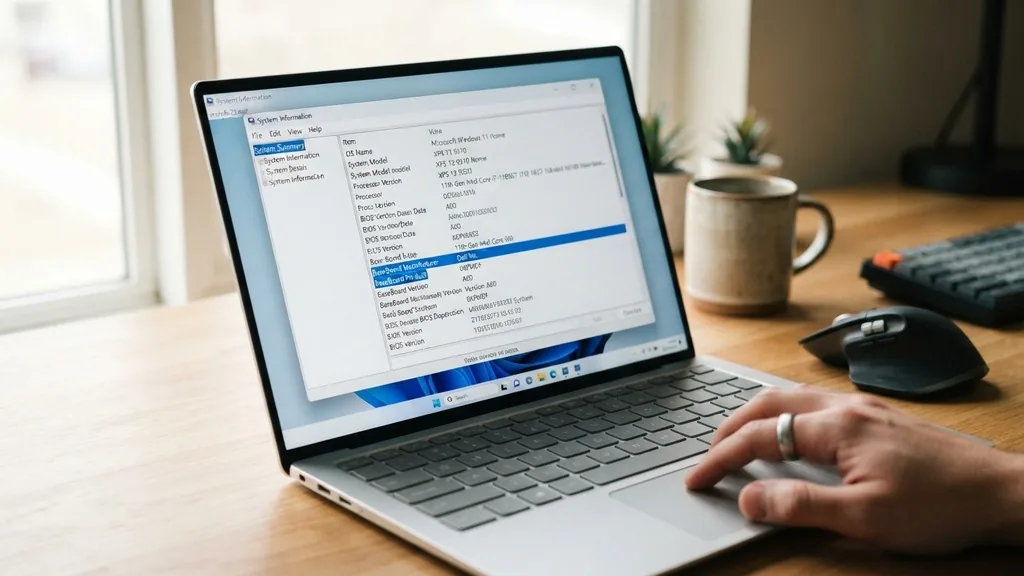
The most accessible way to get motherboard info on a Windows system is through the built-in System Information utility. You can access this by pressing the Windows key, typing “msinfo32,” and hitting Enter. Once the window opens, the “System Summary” section displays a wealth of data.
Look specifically for the “BaseBoard Manufacturer” and “BaseBoard Product” entries. These fields identify the company that built your board and the specific model name, respectively.
This method is highly reliable because it pulls data directly from the Windows System Information registry. If the information appears as “Not Available,” it is typically because the motherboard manufacturer did not program the DMI (Desktop Management Interface) strings into the board’s firmware correctly.
In most consumer-grade PCs and laptops, however, you will find the exact model name here. This tool is excellent for a quick check when you are already logged into your user account and need to verify your hardware version before downloading drivers from a manufacturer’s support portal.
Extracting Hardware Details Using Command Prompt
For power users or those who prefer a text-based interface, using the Command Prompt is an efficient way to get motherboard info. This approach bypasses graphical menus and provides a direct, clean output.
Open the Command Prompt by searching for “cmd” in the start menu. Once the terminal window is active, type the following command and press Enter: wmic baseboard get product,Manufacturer,version,serialnumber.
The system will instantly return the specific model name, the manufacturer, and the serial number associated with your board. Using the WMIC (Windows Management Instrumentation Command-line) tool is particularly useful if you are managing multiple machines remotely or scripting an inventory process.
If you notice that the serial number is blank, this is common with many custom-built PCs where the manufacturer did not burn that data into the board’s non-volatile memory during the assembly process. This command provides exactly the technical details needed for warranty claims or precise hardware documentation without requiring third-party software.
Checking the Motherboard Model via PowerShell
PowerShell offers a more modern and robust alternative to the standard Command Prompt for users who need to get motherboard info. It is the preferred tool for system administrators and tech enthusiasts who want to leverage the power of the .NET framework within the Windows environment.
To get started, right-click the Start button and select “Windows PowerShell” or “Terminal.” Type the command: Get-CimInstance Win32_BaseBoard | Select-Object Product, Manufacturer, SerialNumber.
The output from this command is clean, organized, and highly readable. By using the CIM (Common Information Model) instance, you are querying the same underlying data as the WMIC command but through a more stable and future-proof interface.
This is especially helpful if you are working on a newer version of Windows 11 where legacy tools might eventually be deprecated. If you need to export this information to a text file for record-keeping, you can simply add a redirect operator, such as ” > motherboard_info.txt,” to the end of your command, and the system will save the data to your current directory.
Accessing Motherboard Data Within the UEFI BIOS
When you cannot boot into your operating system, or if you need to confirm hardware settings at a low level, the UEFI BIOS is your best resource. To get motherboard info here, restart your computer and repeatedly press the designated key—usually Delete, F2, F10, or F12—during the startup sequence. Once inside the BIOS, the main dashboard usually displays the motherboard model name prominently, often alongside the CPU type and RAM capacity.
The BIOS interface is the most trustworthy source of information because it reads the hardware identifiers directly from the firmware chip on the board itself. If you are building a new system and haven’t installed an OS yet, this is the only way to verify your hardware. Keep in mind that different manufacturers, such as ASUS, MSI, or Gigabyte, organize their BIOS menus differently.
You may need to look for tabs labeled “System Information,” “Main,” or “Board Explorer.” Some high-end boards even provide a visual map of the board, allowing you to see which slots are populated and what the board’s exact revision number is.
Physical Inspection of the Motherboard
Sometimes, software methods fail to provide the specific revision number or exact serial number you need for a warranty replacement. In these cases, you must get motherboard info by looking at the hardware itself.
If you are comfortable opening your computer case, perform a visual inspection of the PCB (Printed Circuit Board). The model name is almost always printed in large, clear text directly onto the surface of the board, often near the CPU socket or between the PCIe slots.
When inspecting the board, look for a silkscreened label that stands out from the rest of the components. You might need a flashlight to see it clearly, especially if your GPU or a large air cooler is obstructing the view. While you are inside the case, look for a small sticker that contains the serial number and the revision version (often labeled as “Rev 1.0,” “Rev 2.0,” etc.).
This is vital if you are looking for specific BIOS updates, as different board revisions often require different firmware files to function correctly. Always ensure your system is completely powered down and unplugged before touching internal components to prevent static discharge damage.
Using Third-Party System Diagnostics Tools
If you want a comprehensive report that includes not just the model name, but also the chipset, socket type, and current BIOS version, third-party software is the most efficient solution. Tools like CPU-Z or HWiNFO provide a deep dive into your system’s architecture. These programs are widely used by enthusiasts and technicians to get motherboard info that is often hidden from standard Windows tools.
| Tool Name | Best For | Key Data Provided |
|---|---|---|
| CPU-Z | Quick Hardware Verification | Model, Chipset, BIOS Version |
| HWiNFO | Detailed Sensor Monitoring | Voltage, Temps, Full Specs |
| Speccy | User-Friendly Interface | General System Overview |
These utilities act as a bridge between the raw hardware registers and the user interface. By downloading a lightweight diagnostic tool, you can see if your motherboard supports specific features like XMP profiles for RAM or if it is running the latest stable firmware. These tools are generally safe and free, though you should always download them from the official developer websites to ensure you are getting the original, uncorrupted installer.
Handling Missing or Hidden Information
Sometimes, when you try to get motherboard info, you encounter generic names like “To be filled by O.E.M.” or “System Product Name.” This usually happens with pre-built computers from companies like Dell, HP, or Lenovo.
These manufacturers often use proprietary motherboards that do not share the standard naming conventions of off-the-shelf boards sold at retail stores. In these instances, the motherboard model is tied to the computer’s serial number or service tag.
If you are using a pre-built system, the best way to get the correct information is to visit the manufacturer’s support website and enter your device’s service tag or serial number. This will pull up the exact specifications for your unit, including the motherboard part number. This is essential for finding compatible spare parts or drivers.
Proprietary boards are designed specifically for the chassis they come in, so trying to find a retail equivalent often leads to frustration. Always use the manufacturer’s official support page to identify your specific hardware configuration if standard software tools return generic or empty values.
Addressing Topical Gaps: Why Information May Be Unavailable
A common point of confusion arises when users ask why they cannot find their motherboard information using standard commands. As mentioned, the DMI strings are managed by the manufacturer.
If a company skips this step during the factory assembly, the software will have nothing to report. This is particularly common in budget-tier components or specialized industrial boards.
Another factor is the difference between a board’s marketing name and its technical part number. A motherboard might be marketed as a “B550 Gaming Pro,” but its internal part number could be something entirely different. When looking for BIOS updates, always prioritize the part number or the revision number over the marketing name.
If you are struggling to get motherboard info because your system is failing to boot, do not rely on software. Instead, focus on the physical labels on the board or check the original purchase invoice, which usually lists the exact model of the motherboard used in the build. Understanding these nuances helps you avoid the common pitfall of downloading the wrong drivers for a board that shares a similar name but a different internal revision.
Frequently Asked Questions
- Can I get motherboard info if my computer won’t turn on? Yes, you can find the model name printed directly on the surface of the motherboard. Open the side panel of your computer case and look for the manufacturer’s logo and model number printed in white or gold text on the PCB.
- Does the BIOS always show the correct motherboard model? The BIOS is the most accurate source for this information. It reads the data directly from the board’s firmware. If the BIOS displays the model correctly, you can be certain that is the hardware you have installed in your system.
- Why does Windows say “To be filled by O.E.M.”? This message appears when the computer manufacturer did not program the motherboard’s identification strings into the system’s BIOS during production. This is common with pre-built systems from major brands; you should use their support website to find your specific hardware details instead.
- Is there a difference between the motherboard model and the revision? Yes, the model name identifies the board’s feature set, while the revision number indicates which iteration of that board you have. Different revisions may use different components, so always check your specific revision number before downloading firmware updates.
Getting the correct information about your hardware is the first step toward effective system maintenance. Whether you are using command-line tools like WMIC and PowerShell, exploring the depths of your BIOS, or simply inspecting the hardware inside your case, you now have a clear path to identifying your components accurately.
By following these methods, you ensure that your upgrades, driver installations, and troubleshooting efforts are based on verified, reliable data rather than guesswork. Keep these techniques in your toolkit for the next time you need to verify your system’s architecture.


