

Identifying your computer’s backbone is a fundamental task for any enthusiast or professional looking to upgrade their hardware. Whether you are planning to install a new graphics card, add more RAM, or troubleshoot a persistent stability issue, knowing exactly how to find out what kind of motherboard I have is essential. The motherboard, often referred to as the system board or baseboard, serves as the central hub connecting your CPU, memory, storage, and peripheral devices.
Without accurate information about this component, you might purchase incompatible hardware, leading to frustration and wasted time. Fortunately, there are several reliable ways to extract this data, ranging from simple software tools to direct physical inspection.
Using the Windows System Information Utility

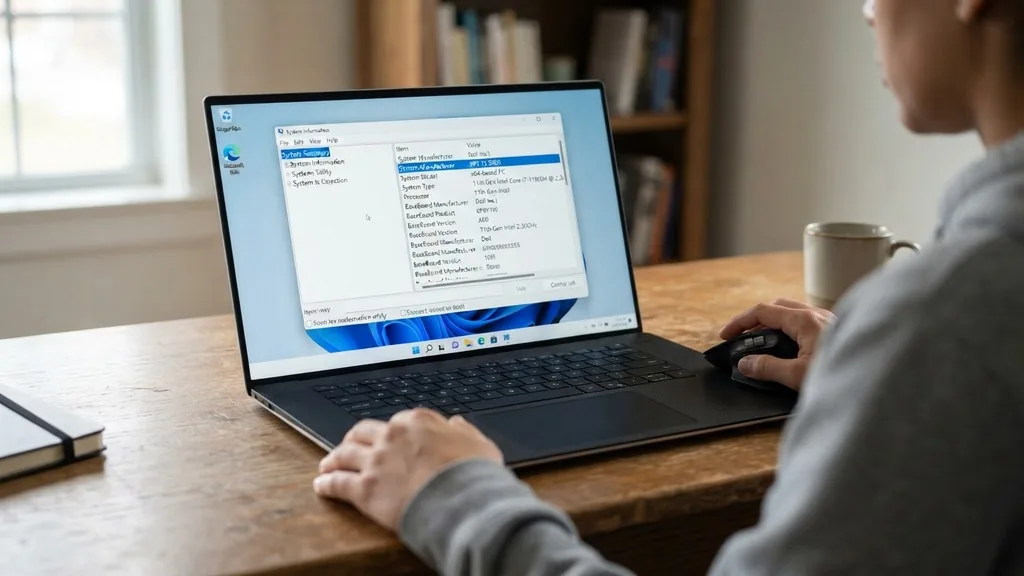
The quickest way to check your motherboard details on a Windows machine is through the built-in System Information tool. This utility provides a snapshot of your hardware configuration without requiring the installation of third-party software. To access it, click the Start button, type “msinfo32” into the search bar, and press Enter.
Once the window opens, ensure you are on the System Summary page. Look for the rows labeled “BaseBoard Manufacturer,” “BaseBoard Product,” and “BaseBoard Version.” These fields will explicitly list the company that made your board and the specific model number.
If you find that these fields are blank or display generic information like “To be filled by O.E.M.,” it usually means the computer manufacturer (such as Dell, HP, or Lenovo) has not properly configured the BIOS strings. In these cases, the System Information tool might only show the name of the pre-built desktop instead of the individual motherboard model. If you see this, you will need to pivot to more advanced methods, such as utilizing command-line tools or physical inspection, to get the precise specifications you require for your upgrade path.
Command Line Methods for Advanced Users
If you prefer a faster, more technical approach, the Command Prompt or PowerShell provides a direct line to your hardware’s WMI (Windows Management Instrumentation) database. This method is highly efficient because it bypasses the graphical interface entirely. Open the Command Prompt by typing “cmd” into your start menu search.
Once the black window appears, type the following command and press Enter: wmic baseboard get product,Manufacturer,version,serialnumber. This command instructs the operating system to query the baseboard directly and return the exact values recorded in the firmware.
The output will appear as a simple table within the command window. You will see the manufacturer, the specific product model, and the serial number. This is particularly useful if you are trying to register your product for warranty purposes or if you are checking for compatibility with a new processor.
PowerShell users can use a slightly different syntax to achieve the same result: Get-CimInstance Win32_BaseBoard | Format-Table -Property Product, Manufacturer, SerialNumber. Both of these methods are incredibly reliable because they pull data directly from the low-level system registers, ensuring that you get the most accurate information possible about your hardware.
Leveraging Third-Party Diagnostic Software
When Windows tools provide vague or incomplete data, specialized hardware monitoring software is the best solution. Tools like CPU-Z are industry standards for hardware identification. These applications are designed to read the hardware registers in real-time, providing a deep dive into your system’s architecture.
Once you download and run the installer, navigate to the “Mainboard” tab. Here, you will find a detailed breakdown of your motherboard model, the chipset, and the BIOS version. This level of detail is often necessary when you are dealing with custom-built PCs where the motherboard manufacturer might be different from the system integrator.
Third-party software often provides additional context that Windows utilities miss, such as the specific southbridge and northbridge chipsets. This information is critical if you are trying to determine if your board supports a specific generation of PCIe lanes or if you need to update your firmware to support a newer CPU architecture.
Always download these tools from the official developer websites to ensure you are not installing bundled bloatware or security risks. Once you have the model name displayed in the software, you can easily cross-reference it with the manufacturer’s website to find the official support pages and driver downloads.
Physical Inspection of the Hardware
Sometimes, software cannot reach the motherboard data—perhaps the operating system is corrupted, the drivers are missing, or the machine simply won’t boot. In these scenarios, you must perform a physical inspection. First, ensure your computer is powered off and unplugged.
Open the side panel of your PC case. The motherboard model name is almost always printed directly onto the printed circuit board (PCB) in large, white, or screen-printed lettering. You will typically find this near the CPU socket, between the PCIe slots, or near the RAM DIMM slots.
If the model name is obscured by large heat sinks or your graphics card, you might need to use a flashlight or a small mirror to see the text. If you still cannot find it, look for a sticker on the board itself. Manufacturers often place a barcode label on the edge of the board containing the serial number and the exact revision of the hardware.
Keep in mind that physical inspection is the most definitive method. While software can sometimes misreport data due to BIOS bugs, the text printed on the board is the literal truth of the hardware sitting in your chassis.
Understanding Motherboard Form Factors
Knowing your motherboard model is only half the battle; understanding its physical form factor is equally important. The form factor dictates the size of the board and the layout of the mounting holes, which determines whether it will fit in a specific case. The most common form factors are ATX, Micro-ATX, and Mini-ITX.
An ATX board is the standard size for most mid-tower and full-tower builds, offering the most expansion slots. Micro-ATX boards are slightly shorter, providing a balance between size and functionality, while Mini-ITX boards are compact, designed for small-form-factor builds where space is at a premium.
Comparison of Common Motherboard Sizes
| Form Factor | Typical Dimensions | Best Usage Case |
|---|---|---|
| ATX | 12 x 9.6 inches | Standard gaming and workstation PCs |
| Micro-ATX | 9.6 x 9.6 inches | Budget builds and compact towers |
| Mini-ITX | 6.7 x 6.7 inches | Small form factor (SFF) builds |
When you identify your motherboard, check the manufacturer’s specifications to confirm its form factor. This prevents the common mistake of buying a case that is too small for your board, or conversely, buying a massive case that leaves the interior looking empty and poorly managed. Knowing the form factor also helps when you are shopping for cooling solutions, as some large air coolers may overhang the RAM slots or collide with the case wall on smaller boards.
Checking Motherboard Information on macOS
If you are using a Mac, the process is fundamentally different because Apple uses proprietary hardware. You won’t find a standard “motherboard” model in the same sense as a PC, as the logic board is integrated into the system design. However, you can still find the model identifier.
Click the Apple menu in the top-left corner and select “About This Mac.” This window will display your model name (e.g., MacBook Air M2, 2022). To get more granular data, click “System Report.”
In the System Report window, look under the “Hardware” section. Here you will see the “Model Identifier” and “Boot ROM Version.”
While you won’t be swapping out the motherboard in a modern Mac, this information is vital for identifying your specific hardware generation when looking for official support documents or troubleshooting performance issues. Apple’s integration means that the software and hardware are tightly coupled, so you rarely need to know the “motherboard” name to upgrade components, as most parts are soldered directly onto the logic board.
Troubleshooting Missing or Incorrect Data
Occasionally, you might encounter a situation where the system reports an incorrect motherboard model. This often happens after a BIOS update or if the motherboard was replaced under warranty with a refurbished unit that didn’t have the DMI (Desktop Management Interface) strings correctly flashed.
If your software reports a generic name, check the BIOS/UEFI menu directly. Restart your computer and press the key displayed on the screen (usually F2, Del, or F12) to enter the BIOS.
Once inside the BIOS, the motherboard model and version are almost always displayed on the main dashboard or the “System Info” tab. This is the most reliable software-based source because it is the native environment of the motherboard firmware.
If the BIOS also displays generic or incorrect information, it is possible that the board is an OEM-specific model, such as those made by MSI or Gigabyte for pre-built systems from companies like Dell or HP. In these cases, you should search for the serial number printed on the board itself rather than the model name, as the manufacturer’s website may not list the board under a standard retail model name.
Addressing Topical Gaps and Common Pitfalls
Many users struggle to distinguish between a “chipset” and a “motherboard model.” A chipset (like the Intel Z790 or AMD B650) is the set of controllers that allow the CPU to communicate with the rest of the components.
A motherboard model (like the ASUS ROG Strix Z790-E) is the specific product built around that chipset. When upgrading your CPU, the chipset is the most important factor, but when buying replacement parts or checking compatibility with specific case headers, the motherboard model is what matters.
Another common gap is the confusion surrounding “Revision” numbers. A motherboard might have the same model name but different revisions (e.g., Rev 1.0, Rev 2.0). These revisions often feature subtle changes to the power delivery system (VRMs) or the addition of extra capacitors.
Always check the revision number if you are planning to flash a BIOS update, as using the wrong firmware for a specific revision can brick your board. By following these steps and understanding these nuances, you will have total clarity regarding the core of your computer.
Frequently Asked Questions
- Will the BIOS tell me what motherboard I have? Yes, entering the BIOS is one of the most reliable ways to see your motherboard model. Upon booting, press the designated key (usually Del or F2) to view the system information screen, where the specific model number is displayed prominently.
- How do I find my motherboard model without turning the PC on? You can perform a physical inspection by opening the computer case. The model name and version number are typically printed directly on the surface of the motherboard, often near the CPU socket or between the expansion slots.
- Does Windows Device Manager show the motherboard model? No, Device Manager is designed to show drivers and hardware peripherals like your GPU, network card, or disk drives. It does not explicitly list the motherboard model, so you must use System Information or command-line tools instead.
- Can I use the motherboard model to check for ATX compatibility? Yes, once you have the model name, you can search for it on the manufacturer’s website. Their technical specifications page will explicitly state the form factor, such as ATX, Micro-ATX, or Mini-ITX, which determines if it fits your case.


