

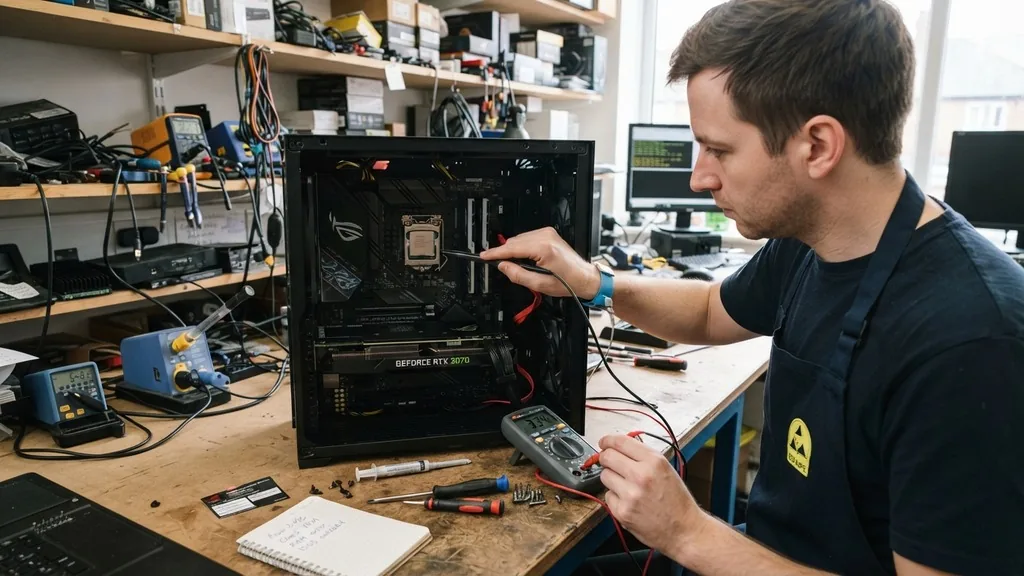
Deciding whether you should upgrade your motherboard is rarely a simple “yes” or “no” question. Unlike a graphics card or a stick of memory, the motherboard acts as the central nervous system of your computer.
Because it dictates which components you can use, upgrading it often forces a chain reaction of other hardware replacements. Most users contemplate this move when they hit a performance wall, but the real question is whether the bottleneck is actually the board itself or the components attached to it.
Identifying the Signs of a Failing or Outdated Motherboard
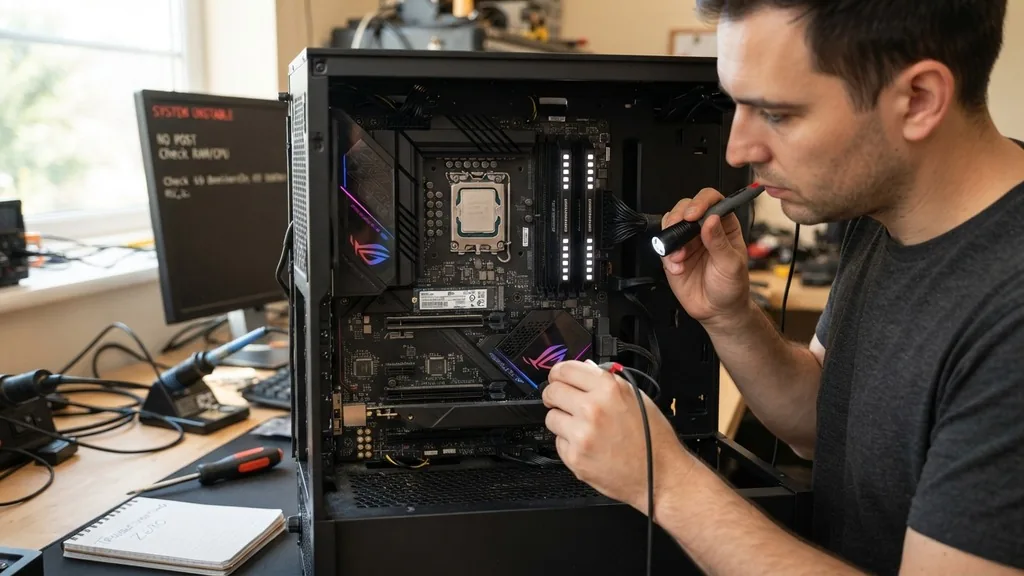
You should consider upgrading your motherboard when your current board lacks the hardware interfaces required for modern peripherals or when it suffers from persistent, unfixable stability issues. Often, users confuse a motherboard failure with a failing power supply or a dying storage drive. A motherboard that is truly outdated will show its age through a lack of support for current standards, such as fast M.2 NVMe storage, USB 3.2 Gen 2 headers, or modern high-speed memory modules.
If your system frequently experiences “Blue Screen of Death” (BSOD) errors despite having a healthy operating system, or if specific ports like USB or Ethernet have stopped functioning, the chipset or physical traces on the board may be degrading. Furthermore, if you are stuck on an older platform that cannot support the latest generation of processors, you are effectively trapped in a technological dead end. Before committing to a swap, verify that your issues aren’t caused by a failing CMOS battery or outdated BIOS firmware, as these simple fixes can sometimes breathe years of life into an aging system.
The Direct Impact of CPU Compatibility
The primary reason most users find themselves asking if they should upgrade their motherboard is the desire for a new CPU. Motherboards are designed around a specific CPU socket, such as the LGA 1700 or AM5.
If you want to move from an older generation processor to the latest silicon, the socket change is almost always mandatory. You cannot physically install a modern chip into an older socket; the pins simply won’t align, and the electrical delivery systems will be incompatible.
When you upgrade your CPU, you are essentially locked into the motherboard chipset that supports that specific generation. For example, moving from an Intel 10th Gen to a 14th Gen chip requires a new motherboard even if the socket seems similar, because the power delivery requirements and chipset features have evolved.
If you are planning a long-term build, check the manufacturer’s roadmap to see how many future CPU generations the board will support. This helps you avoid a situation where you spend money on a new board today, only to find yourself unable to upgrade your processor again in two years.
Memory Standards and DDR Transitions
You need to evaluate your RAM requirements because motherboard upgrades are frequently tied to the transition between memory generations, such as DDR4 and DDR5. If your current motherboard only supports DDR4, you cannot simply buy a new board and keep your old memory if you opt for a platform that requires DDR5.
This creates a significant hidden cost. When you decide whether you should upgrade your motherboard, you must calculate the total cost of the board, the processor, and the new memory modules as a single unit.
DDR5 offers higher bandwidth and improved power efficiency, but these gains are only accessible if your motherboard specifically supports the newer standard. Mixing and matching is impossible here; the physical notches on the RAM sticks are different, preventing you from accidentally installing the wrong type. If you are a professional user who relies on heavy multitasking or high-end video editing, the jump to a faster memory standard might justify a motherboard upgrade on its own, provided your CPU can take advantage of that extra speed.
PCIe Lanes and GPU Performance
Upgrading your motherboard becomes necessary when your current hardware limits the performance of your graphics card or high-speed storage. The PCIe (Peripheral Component Interconnect Express) slots on your motherboard determine how much data can move between your components.
If you are running an older PCIe 3.0 board but have purchased a modern GPU that utilizes PCIe 4.0 or 5.0, you might be leaving performance on the table. While PCIe is backward compatible, the bandwidth limitations of an older board can create a bottleneck for high-end cards.
How PCIe Generations Affect Your Build
- PCIe 3.0: Sufficient for most mid-range older GPUs, but limits top-tier modern performance.
- PCIe 4.0: The current standard for most modern gaming systems, providing ample bandwidth for high-end GPUs and fast NVMe SSDs.
- PCIe 5.0: Future-proofing for upcoming storage and display technology, though currently underutilized by most standard graphics cards.
Beyond just the speed, consider the number of available slots. If you need to add a capture card, a high-speed networking card, or multiple M.2 drives, an entry-level motherboard will quickly run out of physical space and electrical lanes. An upgrade allows you to choose a board with a more robust layout that accommodates all your expansion needs without forcing you to sacrifice one component for the sake of another.
Power Delivery and Thermal Management
A motherboard upgrade is often required if you are moving to a high-end CPU that demands more stable power delivery, known as the VRM (Voltage Regulator Module) array. If you try to run a top-tier, power-hungry processor on a budget-tier motherboard, the VRMs may overheat, causing the system to throttle the CPU speed to prevent damage. This results in poor performance despite having a fast processor.
High-quality boards, such as those in the Gigabyte Aorus series, often feature beefy heatsinks and superior power phases to keep the system cool and stable under heavy loads. If you notice your PC shutting down during intense tasks like 3D rendering or gaming, and you have already ruled out the PSU, the motherboard’s inability to handle the load is a prime suspect. Investing in a board with better thermal management is not just about speed; it is about the long-term health of your entire system.
The Hidden Costs of Software and OS Licensing
One of the biggest hurdles when you upgrade your motherboard is the software side of things. Since the motherboard is the primary identifier for your Windows license, changing it often triggers a “hardware change” notification from Microsoft. While modern Windows 10 and 11 activations are more flexible and often linked to your Microsoft account, you may still need to go through the reactivation process.
Furthermore, changing a motherboard usually necessitates a clean installation of your operating system to avoid driver conflicts. Your old Windows installation will be loaded with chipset drivers specific to your previous board, and these can cause instability or boot loops when forced to run on different hardware.
You should always back up your data before starting an upgrade. While some users manage to “swap and boot,” it is best practice to reinstall the OS to ensure your new, high-performance system runs as efficiently as possible.
Comparative Analysis of Upgrade Scenarios
To help you decide if a change is right for you, look at the table below which highlights the typical reasons for making the switch versus simply sticking with your current build.
| Upgrade Motivation | Is a Motherboard Swap Necessary? | Why? |
|---|---|---|
| New GPU | Rarely | Only if your case is too small or your PCIe version is severely limiting the card. |
| New CPU | Almost Always | Socket compatibility issues are the primary barrier between generations. |
| More Storage | Sometimes | Only if you run out of physical M.2 or SATA slots on your current board. |
| Better Overclocking | Yes | Budget boards lack the VRM cooling and BIOS features for stable overclocking. |
This table demonstrates that unless you are making a fundamental change to your processor or are physically limited by the board’s design, you can often save money by upgrading individual components rather than the entire foundation.
Addressing the Topical Gaps
Many articles fail to mention that the physical form factor of the motherboard—ATX, Micro-ATX, or Mini-ITX—must be matched to your computer case. If you decide to upgrade, you must verify that your new board actually fits your existing chassis. A common mistake is buying a high-end, full-sized ATX motherboard only to find that it won’t fit into a compact case.
Another frequently overlooked point is the BIOS update process. Even if a motherboard supports a specific CPU, it might require a BIOS update to recognize the chip if the board was manufactured before that CPU was released.
Many modern boards have a “BIOS Flashback” feature that allows you to update the firmware using a USB drive without even installing a CPU. If you are nervous about the upgrade, look for a board with this feature to simplify the setup process significantly.
Frequently Asked Questions
- How do I tell if I need to upgrade my motherboard? You generally need an upgrade only if you are changing your CPU to a new generation, your current board lacks necessary ports like M.2 or USB-C, or you are experiencing recurring hardware instability that cannot be resolved through software or driver updates.
- What is the lifespan of a motherboard? Most motherboards can last 5 to 10 years depending on the quality of the components. However, they usually become “outdated” long before they actually fail, as newer processors and memory standards eventually make the board incompatible with current computing needs.
- Are you supposed to update your motherboard BIOS? You should only update your BIOS if you are experiencing specific issues, need support for a new CPU, or if the update provides critical security patches. If your system is stable and performing well, updating the BIOS is often unnecessary and carries a small risk.
- Can I upgrade my motherboard without reinstalling Windows? It is technically possible, but highly discouraged. Because the motherboard contains the core chipset drivers, moving to a new board will likely cause driver conflicts. A clean install is the only way to ensure your new system runs at its full potential without hidden errors.


