


Updating the firmware of your motherboard is one of the most effective ways to ensure hardware compatibility, improve system stability, and unlock support for the latest processors. When you learn how to update BIOS on Gigabyte motherboard hardware, you are essentially providing your system with a fresh set of instructions that the CPU and other components use to communicate.
While many users feel intimidated by the prospect of modifying low-level system software, Gigabyte has streamlined the process significantly through tools like Q-Flash. This guide provides a deep dive into the necessary precautions, the step-by-step methodology, and the best practices for ensuring a successful transition to a newer BIOS version.
Understanding the Importance of BIOS Firmware
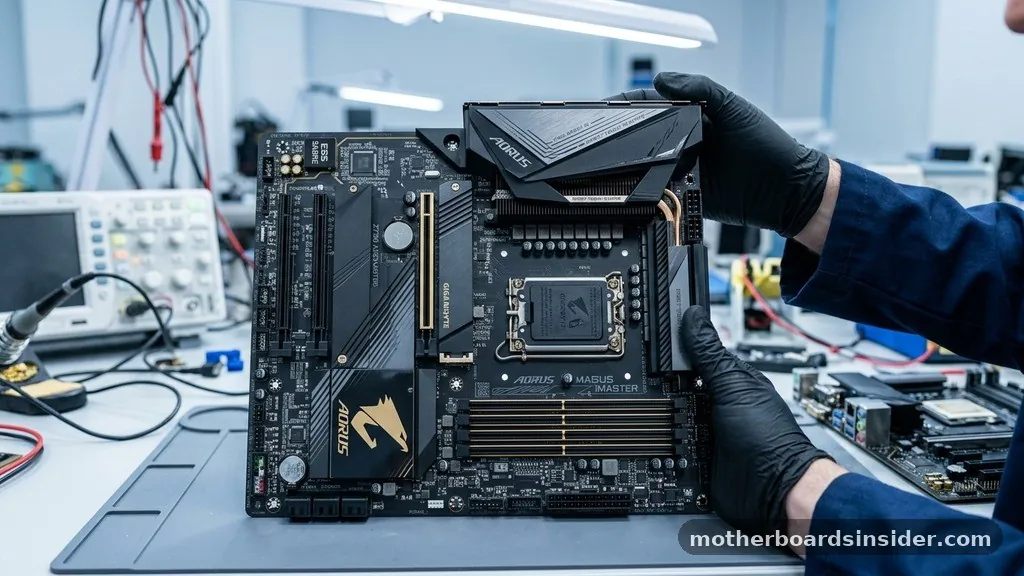
The Basic Input/Output System, or BIOS, acts as the primary interface between your hardware and your operating system. Every time you power on your computer, the firmware initializes the hardware components, performs a Power-On Self-Test (POST), and boots the operating system.
Over time, manufacturers release updates to address bugs, improve memory compatibility, and increase the security of the motherboard. If you are experiencing frequent crashes, issues with XMP profiles, or if you have recently purchased a new CPU that requires a specific microcode version, updating the firmware is often the recommended solution.
When you decide to update your system, you are replacing the existing code stored on a flash memory chip on the board. This process is sensitive; if the power is cut or the update is interrupted, the motherboard can become unresponsive, a state often referred to as “bricking.”
However, modern Gigabyte boards have built-in safeguards to prevent this, and as long as you follow the correct procedures, the risk is negligible. Understanding that the firmware is the bedrock of your PC’s health is the first step toward maintaining a high-performance machine that remains compatible with future technological advancements.
Verifying Your Current BIOS Version
Before downloading any files, you must first determine which version is currently installed on your computer. You do not want to attempt an update if you are already running the latest iteration or if the version you have is sufficient for your needs. To check your current status, you can access the BIOS interface directly or use the Windows System Information tool.
By pressing the Windows key and typing “System Information,” you can look for the “BIOS Version/Date” field. This string of text will tell you exactly what you are running.
It is also vital to correctly identify your specific motherboard model. Gigabyte often releases different “rev” or revision versions of the same motherboard model number. You can usually find the revision number printed directly on the corner of the PCB (printed circuit board).
Installing a file meant for “Rev 1.0” onto a “Rev 1.1” board can lead to system instability or failure to boot. Always cross-reference the model and revision printed on your board with the support page on the official website. This attention to detail prevents the common pitfall of flashing the wrong firmware, which is the most frequent cause of update-related issues.
Preparing the USB Flash Drive
The most reliable way to perform a firmware update is by using a USB stick. For this process, the drive needs to be formatted correctly. Most Gigabyte motherboards require the USB drive to be formatted in the FAT32 file system.
If your drive is currently formatted as NTFS or exFAT, the BIOS may not be able to read the files during the flash sequence. You can easily reformat the drive using the Disk Management utility in Windows, but remember that this will erase all data currently stored on the USB drive.
Once the drive is prepared, visit the official Gigabyte support page to find your specific model. Download the latest BIOS file, which typically comes as a compressed folder. Extract the contents of this folder; you will usually find a file with a unique extension, such as .F12 or .F20, depending on the version.
Copy this specific file to the root directory of your USB drive—do not place it inside a folder. Having the file readily available in the root directory ensures that the Q-Flash utility can locate it immediately once you enter the update environment. For more information on hardware standards and compatibility, you can refer to the National Institute of Standards and Technology guidelines regarding electronic system integrity.
Navigating the Q-Flash Utility
Gigabyte’s proprietary tool for updating firmware is called Q-Flash. It is integrated directly into the BIOS interface, meaning you do not need to be inside Windows to perform the update.
To access it, restart your computer and repeatedly press the “Delete” or “F2” key during the initial boot sequence. Once you reach the BIOS screen, you will typically see an option for “Q-Flash” at the bottom of the screen or accessible via the F8 hotkey.
Inside the Q-Flash menu, you will see a list of available drives. Select your USB drive, and it should display the BIOS file you copied earlier. When you select the file, the system will prompt you to confirm the update.
It is critical that you do not touch any buttons or power off the machine during this phase. The system will verify the file, erase the old firmware, and write the new version to the chip.
This usually takes only a few minutes. Once the progress bar reaches 100%, the system will typically restart automatically.
Using Q-Flash Plus for Unresponsive Systems
If you find yourself in a situation where your motherboard will not boot or you are installing a new CPU that the current BIOS doesn’t support, you may need the Q-Flash Plus feature. This is a unique capability found on many mid-to-high-end Gigabyte boards that allows you to update the firmware without a CPU, memory, or graphics card installed. This is a lifesaver for users who buy a new processor only to realize their board requires an update to recognize it.
To use Q-Flash Plus, you simply need your power supply connected to the 24-pin ATX and 8-pin CPU power headers on the motherboard. Place the renamed BIOS file (usually renamed to GIGABYTE.bin) on a FAT32 USB drive, insert it into the specific white-colored USB port labeled “BIOS” or “Q-Flash Plus,” and press the dedicated Q-Flash Plus button on the board.
A small LED will begin to flash, indicating that the motherboard is actively reading the file and updating the firmware. Once the LED stops blinking, the update is complete, and you can proceed to install your components.
Common Risks and How to Mitigate Them
The primary risk during an update is a power failure. If the power cuts out while the flash chip is being overwritten, the motherboard loses its ability to boot. To mitigate this, ensure your computer is plugged into a stable power source.
If you are using a laptop, ensure the battery is fully charged and the charger is connected. Another risk is a corrupt file download. Always verify the checksum of the downloaded file if the manufacturer provides it, or simply ensure the file size matches what is listed on the download page.
Another common issue is improper hardware configuration. Before starting, it is best practice to revert your BIOS settings to “Optimized Defaults.” This clears out any overclocking profiles or custom voltage settings that could potentially interfere with the stability of the update process.
By returning to stock settings, you minimize the variables that could cause the flash to fail. Furthermore, avoid performing updates during a thunderstorm or when there is any chance of a power grid fluctuation.
| Method | Requirement | Best For |
|---|---|---|
| Q-Flash (BIOS Menu) | Working CPU/RAM | General updates and stability |
| Q-Flash Plus | Power Supply Only | New CPU compatibility |
| @BIOS (Windows) | Active Windows OS | Convenience (not recommended) |
What to Do After the Update
Once the update has finished and your computer restarts, you should immediately re-enter the BIOS. After a firmware update, the settings are often reset to factory defaults.
This means your RAM’s XMP or EXPO profiles will be disabled, and your boot order might be reset. You must go back into the menus to re-enable your memory profiles, check your fan curves, and ensure that your boot drive is correctly prioritized.
It is also a good idea to perform a “Clear CMOS” if you encounter strange behavior after the update. This can be done by shorting the two pins on the motherboard labeled “CLR_CMOS” or by removing the coin-shaped battery from the board for a few minutes. This forces the system to fully re-initialize all hardware parameters.
Once you have reconfigured your settings, save and exit. Your system should now be running on the latest firmware, providing you with the benefits of the update while maintaining your preferred performance configuration.
Addressing Topical Gaps: Why Updates Sometimes Fail
Users frequently ask why they cannot update their BIOS, and the answers usually boil down to three categories: formatting, file naming, or hardware incompatibilities. If the system says “BIOS ID Check Error,” it usually means you have downloaded the wrong version for your specific motherboard revision.
Never force an update if the utility flags it as incompatible. Another common issue is the file extension; some older Gigabyte boards require the file to be renamed to a specific format, while newer ones are more flexible.
Always check the Gigabyte support website for specific instructions related to your model. Some updates require you to install an “EC Firmware Update Tool” before you can apply the actual BIOS update. If you skip this intermediate step, the main update will fail.
If you are using a Windows-based utility like @BIOS, it is highly recommended to close all background programs, including antivirus software, which might interfere with the write process. However, the most successful updates are consistently those performed through the BIOS-level Q-Flash utility rather than through the operating system.
Frequently Asked Questions
- Do I need to update my BIOS if my computer is working fine? Not necessarily. If your system is stable and you are not planning on upgrading your CPU, there is no urgent need to update. Firmware updates are primarily for fixing bugs, increasing security, or adding support for new hardware generations.
- What happens if the update fails? If the update fails, the motherboard may not boot. If your board has “DualBIOS” technology, it will automatically switch to the backup chip. If not, you may need to use the Q-Flash Plus feature to re-flash the firmware from a USB drive.
- Can I skip versions when updating? In most cases, yes. Gigabyte BIOS updates are generally cumulative, meaning the latest version contains all the fixes from previous versions. However, always read the description on the download page, as some versions specify that you must be on a specific prior version first.
- How do I know if the update was successful? After the computer restarts, enter the BIOS menu again. The version number displayed on the main screen should match the version you intended to install. If the number has changed to the new version, the process was successful.
In conclusion, knowing how to update BIOS on Gigabyte motherboard hardware is a valuable skill for any PC enthusiast. It empowers you to maintain your system’s longevity and performance without relying on professional repair services. By carefully verifying your motherboard revision, preparing your USB drive with the correct file system, and utilizing the robust Q-Flash interface, you can perform these updates safely and effectively.
Always remember to reset your settings after the update and take your time during the process to avoid unnecessary risks. With these best practices, your system will remain a reliable, high-performance platform for years to come.


