

Deciding how to replace motherboard and CPU is a major undertaking that effectively transforms your current machine into a new beast. Whether your aging system is struggling with modern software or you simply want to jump to a faster architecture, this process is the most effective way to improve computer performance.
While it might seem daunting to dismantle your rig, the procedure is manageable if you approach it with patience and a clear plan. By swapping these two core components, you are essentially rebuilding the heart of your system, which often requires careful attention to compatibility, cable management, and software configuration.
Preparing for Your Hardware Upgrade
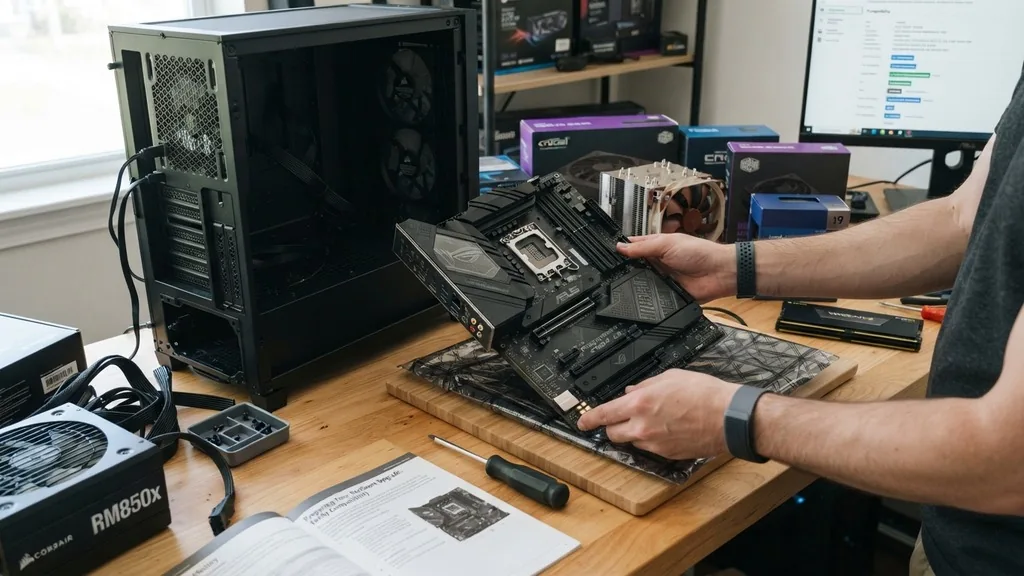
To successfully prepare for a system overhaul, you must first verify that your new hardware is physically and logically compatible with your existing setup. Before you even touch a screwdriver, you need to ensure your chosen parts will fit inside your current case and that your power supply unit has the necessary wattage and connectors.
It is vital to check the motherboard form factor—such as ATX, Micro-ATX, or Mini-ITX—to ensure it matches the mounting holes and spacing of your chassis. Furthermore, confirm that your new CPU matches the socket type of the new motherboard, as even minor generation differences can render them incompatible.
Data backup should be your absolute priority before disconnecting any cables. Even if you plan to keep your existing storage drives, the transition to a different chipset can occasionally cause issues with your boot configuration. Use an external drive or cloud storage to secure your essential documents, photos, and personal projects.
Additionally, if you are planning to keep your existing Windows installation, you should link your license to your Microsoft account. This makes reactivating the operating system significantly easier once the new hardware is up and running. Having a small container or magnetic tray to organize screws as you remove them will also save you significant frustration during the reassembly phase.
Dismantling the Existing System
Removing the old components requires a systematic approach to avoid damaging surrounding parts like your graphics card or RAM sticks. Begin by powering off your computer completely and flipping the switch on the back of your power supply unit to the off position. Unplug the power cable from the wall and the unit itself.
Press the power button on the case a few times while the unit is unplugged to drain any residual electricity from the capacitors. Once the system is neutralized, open the side panel and begin by disconnecting all cables attached to the motherboard. This includes the large 24-pin power connector, the 8-pin CPU power cable, and all front-panel connectors for your power button, USB ports, and audio jacks.
After the cables are clear, remove your graphics card by unlocking the PCIe retention clip. Next, unscrew the motherboard from the case standoffs. Keep a close eye on the I/O shield—the metal plate at the back of the case—as it often sticks or falls out once the board is loose.
If you are reusing your CPU cooler, carefully detach it from the processor. Do this slowly to avoid pulling the CPU out of its socket, especially if you are using a PGA-style processor where the pins are on the chip itself. Once the board is out, store it in an anti-static bag or on a non-conductive surface if you plan to keep it as a backup.
Installing the New CPU and Memory
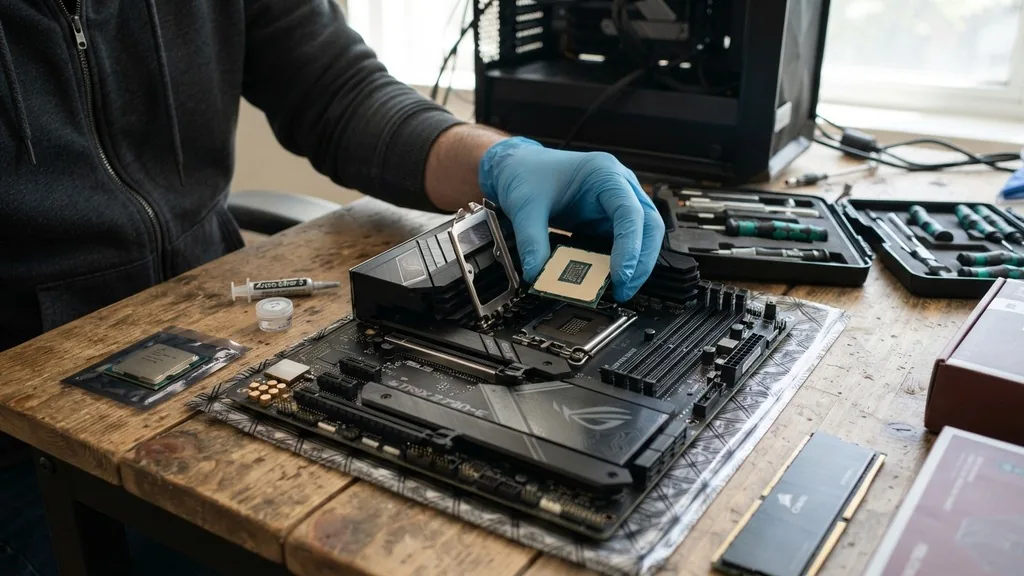
Installing the processor is arguably the most delicate part of the entire process. Before you start, place the new motherboard on top of its box to create a stable, non-conductive workbench. Lift the retention arm on the CPU socket.
If you are installing an Intel processor, look for the small notches on the side of the chip that correspond with the bumps in the socket to ensure correct orientation. For AMD processors, match the golden triangle on the corner of the chip with the corresponding mark on the socket.
Gently lower the CPU into place; it should drop in with zero force. If you feel resistance, stop immediately and check the alignment.
Once the CPU is seated, lower the retention arm to lock it in place. Next, install your RAM sticks into the designated slots. Most motherboards require you to use specific slots, usually the second and fourth positions from the CPU, to enable dual-channel memory mode.
Press down firmly on both ends of the RAM stick until you hear a distinct click. Finally, apply a pea-sized amount of thermal paste to the center of the CPU heat spreader before mounting your cooler.
Ensure the cooler is tightened evenly in a cross pattern to maintain consistent pressure across the processor surface. You can learn more about hardware standards by visiting the International Organization for Standardization for technical specifications.
Mounting the Motherboard and Managing Cables
With the CPU, cooler, and memory installed, you are ready to place the board into the case. First, snap the new I/O shield into the rectangular cutout at the back of the case if your motherboard does not have a pre-installed one. Align the motherboard with the pre-installed standoffs in your case.
Lower it gently, ensuring the rear ports slide into the I/O shield without bending any of the small grounding pins. Secure the board using the correct screws, but do not overtighten them, as this can crack the printed circuit board.
Once the board is mounted, the real work of cable management begins. Feed your power cables through the back of the case and bring them out near the corresponding ports on the motherboard. Connect the 24-pin ATX power cable and the 8-pin EPS CPU power cable first.
Next, route the front-panel connectors, which are often the most tedious part of the process. Consult your motherboard manual to identify which pins correspond to the power switch, reset switch, and LED indicators. Group your cables using zip ties or Velcro straps to ensure optimal airflow within the case, which keeps your components running cool under load.
Configuring BIOS and System Firmware
After everything is connected, it is time for the first boot. Plug in your monitor, keyboard, and power cable. Turn on the power supply and press the power button on the case.
If the fans spin and the motherboard lights up, you have successfully completed the physical installation. Immediately start tapping the Del or F2 key to enter the BIOS or UEFI menu.
Here, you need to verify that the system detects your CPU, memory, and storage drives. Check the temperature readings for the CPU to ensure your cooler is seated correctly; if the temperature climbs rapidly, shut down immediately and recheck your cooler mount.
Within the BIOS, you should also enable XMP or DOCP profiles for your RAM. Without this step, your memory will likely run at a lower, default speed rather than its rated performance frequency. Ensure your storage controller is set to the correct mode, usually AHCI or NVMe for modern drives.
If you are using a new NVMe SSD as your boot drive, confirm that the motherboard recognizes it as a primary boot device. Once you are satisfied with the settings, save and exit. The system will reboot, and if you are using an existing Windows installation, it will begin the process of identifying the new hardware drivers.
Handling Windows and Drivers
One common question is whether you need to reinstall Windows when changing a motherboard. In many cases, modern Windows 10 and 11 installations are remarkably resilient and will automatically pull the necessary drivers for the new chipset.
However, a clean installation is always the preferred method to avoid performance bottlenecks or stability issues caused by residual driver conflicts from your old hardware. If you choose to keep your existing OS, you will likely need to go to the manufacturer’s website to download the latest chipset, audio, and LAN drivers.
If you encounter performance issues, the System File Checker tool in Windows can help identify and repair corrupt files. Open your command prompt as an administrator and run ‘sfc /scannow’ to verify the integrity of your operating system files. If the system fails to boot or experiences persistent blue screens, it is a clear sign that a clean installation is required.
Back up your files, create a bootable USB drive using the Windows Media Creation Tool, and perform a fresh install. This ensures your computer runs at peak efficiency with no legacy baggage from your previous setup.
Common Troubleshooting Scenarios
Even experienced builders occasionally face issues during a system swap. The most frequent problem is a computer that refuses to turn on. This often stems from a loose front-panel connector or a power supply switch that was accidentally left in the off position.
Check that the 24-pin and 8-pin power cables are fully seated; they should click into place with significant pressure. Another common issue is a system that turns on but displays no signal on the monitor. Verify that your monitor cable is plugged into the graphics card, not the motherboard’s integrated display output, unless you are not using a dedicated GPU.
Common Hardware Troubleshooting Table
| Issue | Likely Cause | Resolution |
|---|---|---|
| No Power | Loose power cable or PSU switch | Check 24-pin cable and PSU toggle |
| No Display | GPU not seated or wrong port | Reseat GPU and check HDMI/DP cable |
| Boot Loop | Memory instability | Reseat RAM or clear CMOS |
| Overheating | Bad cooler contact | Re-apply paste and tighten cooler |
If you continue to face boot loops, try resetting the CMOS by removing the small coin-shaped battery on the motherboard for thirty seconds. This clears the BIOS settings back to factory defaults, which can often resolve conflicts caused by incorrect memory timings or overclocking attempts.
If the system still fails, take a step back and examine the motherboard for any bent pins or debris. Sometimes, a single loose screw behind the motherboard can cause a short circuit, preventing the system from starting.
Addressing Frequently Asked Questions
When you are deep in the process of upgrading, it is natural to have specific concerns about the longevity and functionality of your new setup. Many users worry about whether their existing software will still work or if their hardware will be compatible with future updates. Addressing these concerns through research and careful planning is the best way to ensure success.
- Is it easy to swap a motherboard and CPU? It is a moderate task that requires patience, basic tools, and a clear understanding of component compatibility.
- Can I replace my motherboard and CPU without reinstalling Windows? Yes, Windows is quite good at adapting to new hardware, but a clean install is recommended for optimal performance.
- Can I use my old RAM with a new motherboard? Only if the RAM type, such as DDR4 or DDR5, matches the new motherboard’s requirements.
- Does the motherboard size matter? Yes, you must ensure your new board fits the physical dimensions allowed by your computer case.
As you wrap up your build, take the time to stress-test your system. Use monitoring software to track temperatures and system stability while running a benchmark or a demanding game. This confirms that your assembly is solid and that your cooling solution is performing as expected.
By following these steps, you will have a machine that is not only faster but also correctly configured for your specific needs. The satisfaction of completing a successful build is well worth the effort, and the knowledge you gain will make your next upgrade even smoother. Keep your manual handy, stay organized, and don’t rush the process; your computer will thank you for the extra care.


