

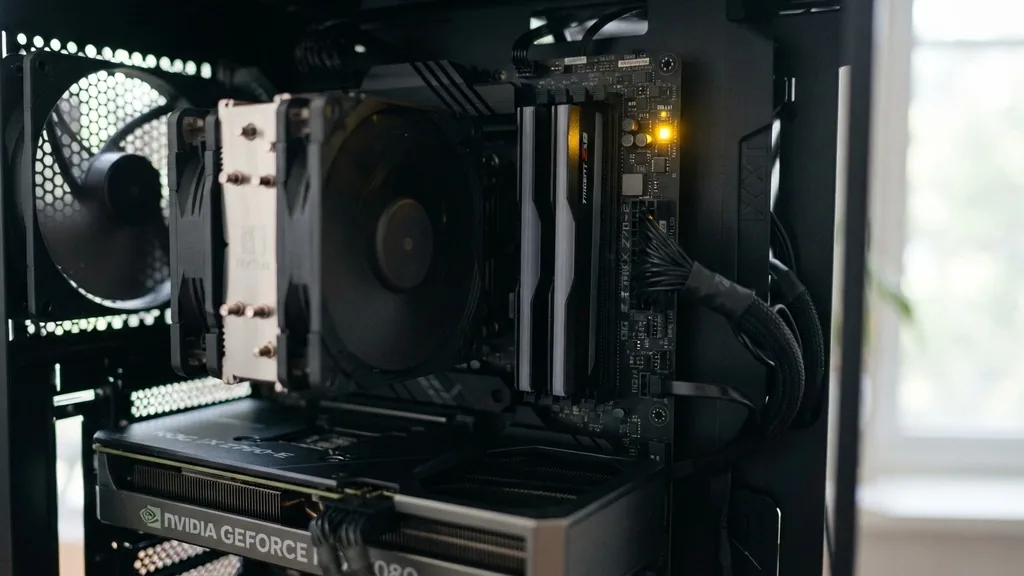
A yellow light on your motherboard is rarely a cause for immediate panic, but it is a clear signal that your system has hit a snag during the startup process. When you press the power button, the motherboard performs a Power-On Self-Test (POST) to ensure all core components are communicating correctly.
If the process stops or alerts you, the onboard diagnostic tools—often referred to as Q-LED indicators or debug LEDs—will illuminate a specific color to point you toward the culprit. A yellow or amber hue is almost universally associated with memory or DRAM initialization issues.
Understanding what this light signifies is the first step in restoring your system to a functional state. While the light itself is just an indicator, the underlying cause can range from something as simple as a loose stick of RAM to a more complex BIOS incompatibility. By methodically checking your hardware, you can usually identify the specific failure point without needing to replace expensive components.
Understanding the DRAM Status LED and POST Process
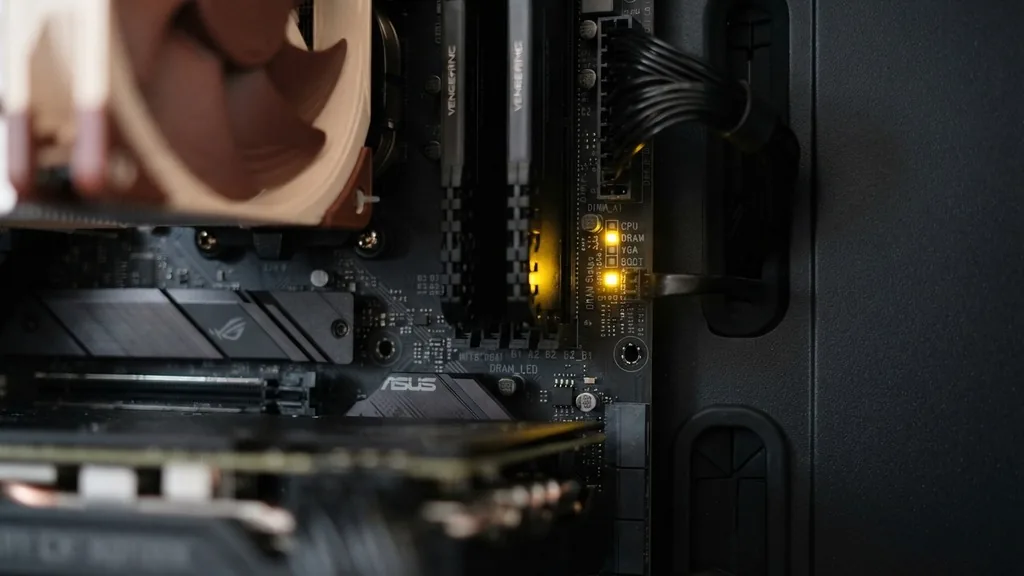
The yellow light on your motherboard typically represents the DRAM status LED, which indicates that the system is currently evaluating the memory modules. During a standard boot sequence, the motherboard cycles through several checks: CPU, DRAM, VGA, and Boot.
If the light stalls on the yellow LED, it means the POST (Power-On Self-Test) has failed to initialize the system memory. This is a critical stop because the computer cannot load the operating system or even reach the BIOS interface if it cannot verify the integrity and presence of your RAM.
When you see this light, the motherboard is essentially saying that it cannot communicate with the memory sticks installed in the DIMM slots. This could mean the sticks aren’t seated correctly, they are faulty, or the motherboard is struggling to negotiate the frequency settings with the CPU.
Because the memory is the bridge between your processor and your storage, a failure here causes the system to hang indefinitely, preventing the screen from displaying any post-code or diagnostic information. It is important to distinguish between a temporary flash of yellow during a cold boot—which is normal—and a solid, persistent light that remains on until you force a shutdown.
Common Causes for Memory Initialization Failures
Several factors can trigger a persistent yellow DRAM light. Most commonly, the issue is related to physical connectivity or minor electrical inconsistencies.
If you have recently moved your PC, performed a deep clean, or added new hardware, there is a high probability that a component has been nudged out of place. Even a microscopic layer of dust or a slightly oxidized contact point on the gold pins of your RAM can prevent the motherboard from establishing a clean signal.
Beyond physical seating, memory compatibility is a frequent culprit. If you are using high-performance RAM, the motherboard might be struggling to apply the correct voltage or timing settings automatically.
This often happens if you have enabled an XMP profile that the current BIOS version cannot stabilize, or if you have mixed and matched RAM kits with different latency ratings. While modern systems are good at “training” memory to find a stable state, they occasionally fail, leaving you with a diagnostic light that refuses to turn off.
Step-by-Step Guide to Reseating Your RAM
Reseating your RAM is the single most effective way to resolve a yellow motherboard light. Before you begin, ensure your system is completely powered down and the power supply unit is switched off.
Ground yourself to prevent static discharge by touching an unpainted metal part of your computer case or using an anti-static wrist strap. This is a vital precaution because static electricity can easily damage sensitive memory modules.
Once you are safe to proceed, follow these steps:
- Unlock the retention clips on the DIMM slots.
- Remove the RAM sticks carefully by pulling them straight up.
- Inspect the gold contacts on the RAM and the slots for debris or dust.
- Use a soft, lint-free cloth to gently wipe the gold contacts if they appear dirty.
- Reinsert the RAM into the slots, pressing down firmly until you hear a distinct click.
- Ensure the retention clips have snapped back into the locked position.
- Try booting the system with only one stick of RAM installed to isolate a potentially faulty module.
If the system boots with one stick but not the other, you have successfully identified a defective component. If the light persists regardless of which stick is in which slot, the issue may lie with the motherboard’s DIMM slots themselves or the CPU memory controller.
Checking the BIOS and CMOS Battery
If reseating the RAM does not solve the yellow light, your BIOS settings might be the root cause. Sometimes, the CMOS battery—the small coin-shaped battery on your motherboard—can lose its charge or become unseated, causing the motherboard to revert to unstable or corrupted settings. Clearing the CMOS resets the BIOS to its factory default state, which often resolves conflicts caused by aggressive overclocking or incompatible memory profiles.
To clear the CMOS, you can either remove the battery for a few minutes or use the “Clear CMOS” jumper pins if your motherboard supports them. Once the settings are reset, the motherboard will perform a fresh “memory training” sequence upon the next boot. This might take slightly longer than a normal startup, so be patient and let the system cycle through its checks.
If the system boots successfully after the reset, you can re-enter the BIOS to reconfigure your preferred settings, such as enabling XMP or adjusting fan curves, but be careful not to apply the exact same settings that caused the crash initially. You can find detailed instructions on handling your specific board by referring to the official hardware documentation and technical support resources provided by manufacturers.
The Role of the CPU Socket and Memory Controller
The memory controller is integrated directly into your CPU. If the CPU is not seated correctly in its socket, or if the mounting pressure from your cooler is uneven, it can lead to intermittent memory failure.
This is a common issue for users who have recently installed a new processor or replaced a cooling solution. If the CPU cooler is tightened too much on one side, it can warp the motherboard slightly, causing some pins in the socket to lose contact with the processor.
If you suspect the CPU is the issue, you should carefully remove the cooler and inspect the socket for bent pins. Even a single bent pin can disrupt the communication between the CPU and the memory slots.
If the pins look fine, reinstall the CPU, ensuring it drops into the socket without force, and reattach the cooler in a cross-pattern to ensure even pressure. This often resolves “stubborn” yellow light issues that seemed to point to RAM but were actually caused by poor signal integrity between the processor and the memory interface.
When to Consider a BIOS Update
In some cases, the yellow light indicates that the motherboard’s current BIOS version does not fully support the specific RAM kit or CPU you are using. This is particularly common if you are using a newer generation of memory or a processor that was released after your motherboard model hit the shelves. Manufacturers regularly release BIOS updates to improve memory compatibility and system stability.
If you can get the system to post—perhaps by using a different, more compatible stick of RAM—you should prioritize updating the BIOS to the latest version. Most modern motherboards allow you to update the BIOS directly from a USB flash drive using a tool in the BIOS menu.
Some high-end boards even feature a “BIOS FlashBack” button on the rear I/O panel, which allows you to update the firmware even without a CPU or RAM installed. This is a powerful feature that can save you if your current BIOS is too old to recognize your hardware.
Comparing Potential Hardware Failures
When troubleshooting a yellow light, it helps to keep a mental or physical table of the potential failure points to avoid wasting time on components that are likely functional. The following table highlights common diagnostic scenarios.
| Component | Likelihood of Causing Yellow Light | Troubleshooting Action |
|---|---|---|
| RAM Modules | High | Reseat or test sticks individually |
| DIMM Slots | Medium | Test in different slots |
| CPU/Socket | Medium | Check for bent pins/uneven pressure |
| CMOS Battery | Low | Clear CMOS or replace battery |
| Power Supply | Low | Check 24-pin and 8-pin power cables |
By isolating these variables, you can move from a state of frustration to a logical investigation. Always start with the most likely culprit—the RAM—before moving to more invasive procedures like reseating the CPU or updating the BIOS.
Addressing Peripheral Connectivity and Power Issues
While the yellow light is almost always related to DRAM, peripheral connectivity or power delivery issues can occasionally manifest as false positives or prevent the system from clearing the POST sequence entirely. If you have a large number of USB devices, external drives, or complex lighting controllers connected, try unplugging everything except your monitor and keyboard. Sometimes, a faulty USB device or a short circuit in a front-panel connector can cause the motherboard to hang during the initialization phase.
Additionally, ensure that your power supply unit is providing stable voltage. If the 24-pin motherboard power cable or the 8-pin CPU power cable is not fully engaged, the motherboard might receive enough power to light up the LEDs but not enough to initialize the memory controller.
Inspect these cables to ensure they are pushed in until the locking tab clicks. If you are using custom sleeved cable extensions, remove them temporarily to rule them out as the source of a voltage drop or poor contact, as these are frequent, overlooked causes of instability.
Topical Gaps: What Most Guides Miss
Many guides focus heavily on RAM, but they often neglect the influence of the motherboard’s internal “memory training” cycle. When you change hardware, the motherboard stores “training data” in the CMOS.
If the system is trying to use old, invalid training data with new hardware, it will fail to boot and show the yellow light. This is why clearing the CMOS is not just a “hail mary” move; it is a fundamental step in forcing the motherboard to re-train the memory from scratch.
Another gap is the issue of “static discharge” during the build process. Many users assume that if the computer turns on, it hasn’t been damaged by static, but a partial discharge can damage the memory controller on the CPU or the traces on the motherboard without killing the board entirely.
If you have tried everything else and the yellow light remains, the issue might be permanent damage to the memory lanes on the motherboard PCB. If you reach this point, checking for physical damage on the back of the motherboard—such as scratches or burnt components—is the final, albeit unfortunate, step in the diagnostic process.
FAQ Section
- Does a yellow light always mean my RAM is broken? No. A yellow light usually indicates a communication error between the RAM and the motherboard. It is much more frequently caused by poor seating, incorrect BIOS settings, or memory incompatibility than by actual physical failure of the memory sticks themselves.
- Why is my computer stuck on a yellow light even after I reseat the RAM? If reseating fails, the motherboard may be stuck on old BIOS memory training data. Clearing the CMOS is the best next step to force the system to re-initialize the memory modules with fresh settings. Ensure your RAM is also installed in the correct slots per your manual.
- Can a faulty power supply cause a yellow motherboard light? Yes, though it is less common. If the power supply unit is not delivering stable voltage to the DIMM slots, the motherboard will fail to initialize the memory. Check that all power cables are fully inserted and consider testing the system with a different power supply if possible.
- How long should I wait for the yellow light to go away? During the first boot after a hardware change or BIOS reset, memory training can take up to two to five minutes. If the yellow light stays on for more than ten minutes without any progress, it is safe to assume the system is hung and requires manual intervention.


