

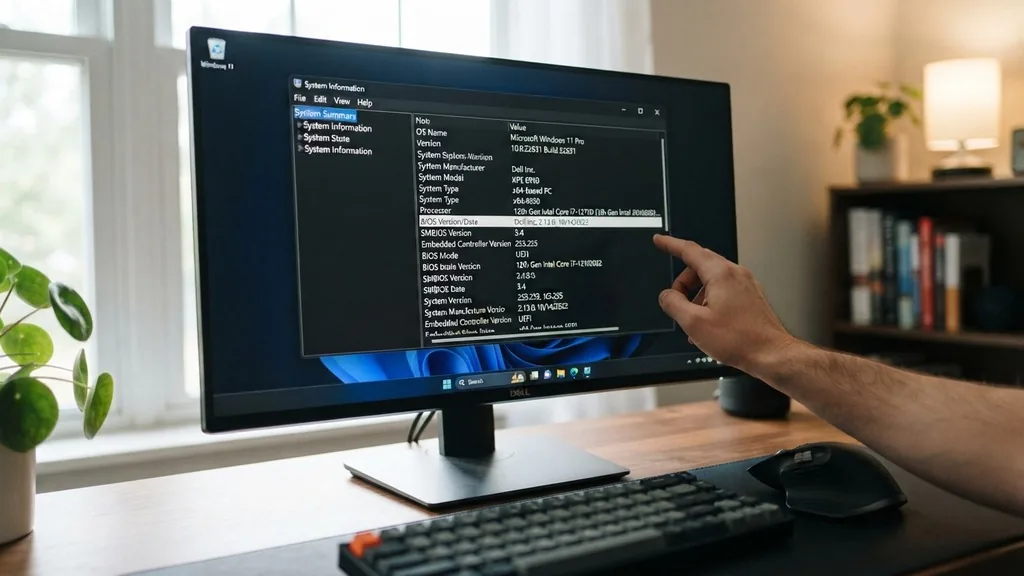
Knowing how to check motherboard BIOS version is a fundamental skill for any computer user, whether you are a casual enthusiast or an IT professional. Your Basic Input/Output System, or BIOS, acts as the primary bridge between your hardware and the operating system. When you need to troubleshoot hardware compatibility, enable new processor features, or simply ensure your system firmware is up to date, identifying the current version is the first logical step.
Using the Windows System Information Utility
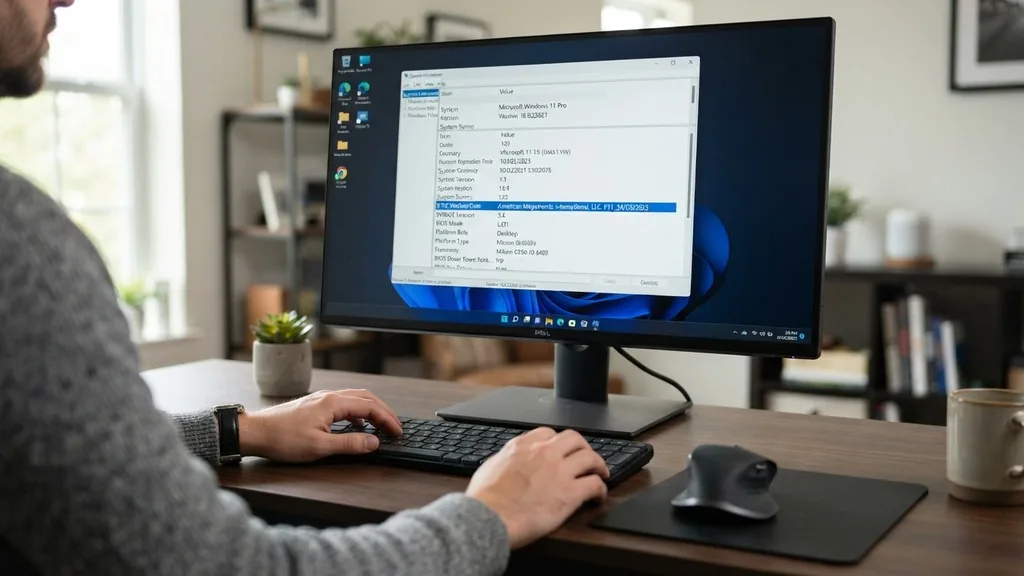
The most direct way to check the BIOS version on a Windows machine is via the built-in System Information tool. This utility provides a snapshot of your hardware configuration without requiring you to restart your computer or access the firmware interface directly. To access it, simply press the Windows key on your keyboard, type “msinfo32” or “System Information” into the search field, and press Enter.
Once the window opens, ensure that “System Summary” is selected in the left-hand navigation pane. Look through the list of items in the right pane until you find the row labeled “BIOS Version/Date.” This entry displays the manufacturer of the BIOS, the specific version number, and the release date.
This method is highly reliable for most modern desktop and laptop systems running Windows 10 or Windows 11. It is an excellent starting point because it pulls data directly from the Windows Management Instrumentation (WMI) database, which is populated by the firmware itself during the boot process.
Checking Firmware Details via Command Prompt
For users who prefer a more technical or automated approach, the Windows Command Prompt offers a rapid way to extract the same information. This is particularly useful if you are managing multiple machines or if you are comfortable with text-based interfaces. Open the Command Prompt by typing “cmd” into the search bar, then execute the following command: “wmic bios get smbiosbiosversion.”
The output will display the specific string identifying your BIOS version. You can also use “wmic bios get version” for a slightly broader set of data. This approach is highly efficient for system administrators who might need to script the collection of firmware data across a network.
Because it bypasses the graphical user interface, it is often faster than navigating menus in System Information. If the output returns a blank field, it may indicate that the motherboard manufacturer did not correctly populate the WMI data, which is rare but possible on older or obscure legacy hardware.
Accessing the BIOS Interface Directly
Entering the BIOS setup utility provides the most authoritative information because you are viewing the firmware directly from the source. To do this, you must restart your computer and repeatedly press a specific key during the initial boot sequence, before the Windows logo appears.
Common keys include F2, Del, F10, or F12, depending on your motherboard manufacturer. If you are uncertain which key to press, watch the screen closely during the first few seconds of startup; many systems display a prompt like “Press Del to enter setup.”
Once you are inside the BIOS or UEFI mode, the version information is typically located on the main landing page or under a tab labeled “System Information,” “Main,” or “About.” This interface is independent of your operating system, meaning it will show the exact version installed even if you have not installed Windows yet. This is the gold standard for verifying firmware status, especially if you suspect that your OS might be misreporting the data due to driver conflicts or corrupted system files.
Using PowerShell for Detailed Diagnostics
If you want more control and deeper insight, PowerShell is a powerful tool for checking your motherboard firmware details. Unlike the basic Command Prompt, PowerShell can return more comprehensive objects.
Open PowerShell and run the command: “Get-CimInstance Win32_BIOS | Select-Object Version.” This will return the version string clearly.
You can also use “Get-CimInstance Win32_ComputerSystem” to retrieve the model and manufacturer of your motherboard, which is often necessary when searching for the correct update files on the manufacturer’s website. By keeping the manufacturer and version details side-by-side, you avoid the common mistake of downloading firmware updates for the wrong board revision. PowerShell’s ability to pipe output into text files or CSVs makes it a preferred choice for those who need to document their system configuration for technical support forums or internal hardware tracking.
Identifying BIOS Versions on Different Motherboard Brands
Different manufacturers often organize their firmware interfaces differently. For example, MSI, ASUS, and Gigabyte all have distinct visual styles for their BIOS/UEFI screens.
While the information you are looking for—the BIOS version—is always present, its location varies. On many modern gaming motherboards, the version is displayed prominently in the top-right corner of the screen or within the “Advanced Mode” dashboard.
If you are using a pre-built system from a company like Dell, HP, or Lenovo, the firmware is often customized. These manufacturers might hide advanced settings behind an administrator password or simplify the interface to the point where version info is nested under a “Support” or “System Info” sub-menu.
If you are struggling to find the version on a proprietary machine, checking the manufacturer’s official support website is a great move. You can visit the official Intel support documentation for more context on how firmware updates relate to hardware stability.
Understanding the Importance of BIOS Updates
Why should you care about your version number? BIOS updates are not merely cosmetic; they often contain critical security patches, improved memory compatibility, and support for newer CPU generations.
For instance, if you are upgrading your processor, your motherboard might require a specific BIOS version to recognize the new silicon. Without this update, the system might refuse to post, leaving you with a black screen.
It is also important to note that BIOS updates can sometimes be risky. A power failure during an update can “brick” the motherboard, rendering it useless.
This is why checking your current version is essential—if your system is already running the version required for your hardware, there is often no need to risk an update. Only update if you are experiencing specific bugs, need compatibility for new hardware, or if a security bulletin recommends it for your specific board.
Comparing Methods for Checking BIOS
Choosing the right method depends on your current situation and comfort level. The table below outlines when to use each approach to ensure you get the data you need without unnecessary effort.
| Method | Difficulty | Best Used When |
|---|---|---|
| System Information | Low | General verification within Windows. |
| Command Prompt | Medium | Scripting or quick access via keyboard. |
| BIOS Menu | High | When Windows fails to boot or for absolute accuracy. |
| PowerShell | Medium | Advanced users needing detailed system objects. |
Each of these methods provides a slightly different perspective on the system. System Information is the most user-friendly, while the BIOS menu is the most reliable for troubleshooting hardware that refuses to interact with the operating system.
Addressing Topical Gaps and Common Pitfalls
A common point of confusion is the difference between the BIOS version and the motherboard model name. People often find the version number but struggle to find the correct driver page because they do not know their exact board revision. Always note the revision number (often printed on the motherboard PCB itself, e.g., “Rev 1.0” or “Rev 2.1”) because the same model name might have different hardware iterations requiring different BIOS files.
Another gap is the “How to check without a CPU” scenario. If you are building a new PC and cannot get to the BIOS screen because the CPU is unsupported, look for a sticker on the motherboard box or the board itself.
Many manufacturers print the “factory BIOS version” on a label near the RAM slots or the PCIe slots. If you have a modern board with a “BIOS Flashback” feature, you can often update the firmware using a USB drive without needing a CPU or RAM installed at all.
- Always verify the motherboard model and revision before downloading any firmware.
- Ensure your power supply is stable if you decide to proceed with an update.
- Back up your important data before performing any significant firmware changes.
- Check the manufacturer’s release notes to see if an update is actually necessary.
- Use a USB drive formatted to FAT32 for any manual BIOS flashing procedures.
Frequently Asked Questions
- Does updating the BIOS improve gaming performance? Usually, no. BIOS updates primarily focus on system stability, hardware compatibility, and security. While they might fix memory latency issues that indirectly affect performance, they are not a substitute for driver updates or hardware upgrades.
- What happens if I flash the wrong BIOS version? Flashing the wrong version can cause your system to stop booting entirely. If your motherboard has dual-BIOS or a recovery feature, you might be able to revert to the previous state, but otherwise, the motherboard may require professional repair.
- Can I check the BIOS version from the motherboard box? Yes, many manufacturers include a small sticker on the retail box or the motherboard itself that indicates the BIOS version it shipped with. This is helpful when determining if your board is ready for a newer processor out of the box.
- Why does the BIOS version date look so old? BIOS dates reflect when the firmware was compiled, not when you bought the board. Motherboards often sit in warehouse inventory for months, meaning the firmware could be outdated by the time you actually install it in your system.
Maintaining awareness of your system’s firmware status is a habit that pays off in the long run. By using the tools described—whether it is the simplicity of the System Information utility or the depth of the BIOS menu—you ensure your machine stays compatible with the latest hardware and software standards.
Always remember to tread carefully when dealing with firmware, and never skip the research phase before applying any updates. Your motherboard is the heart of your computer, and keeping its “brain” current is the best way to ensure reliable, high-performance computing for years to come.


