

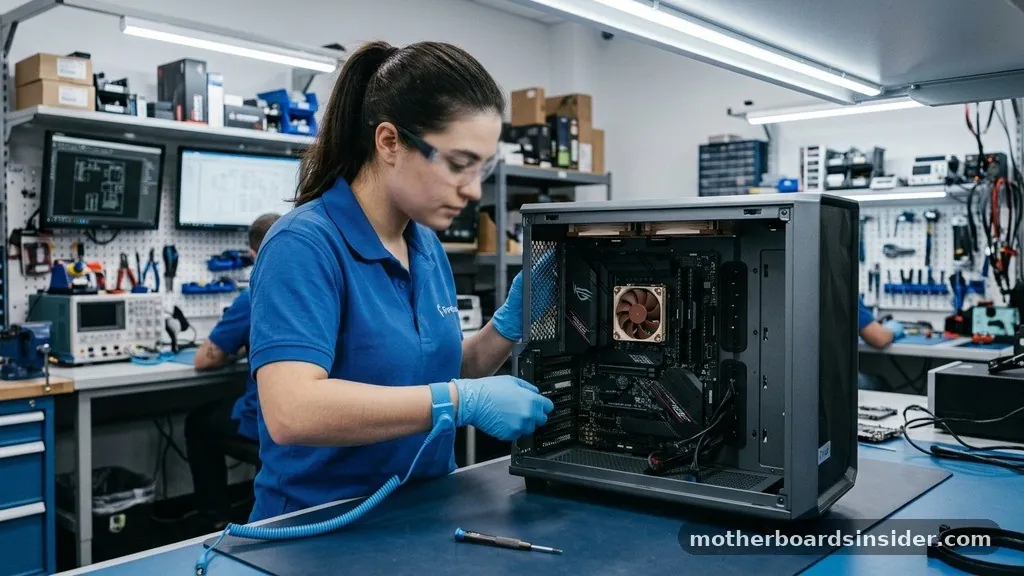
Updating the system firmware, commonly referred to as the BIOS or UEFI, is a critical maintenance task that can resolve stability issues, improve hardware compatibility, and enhance system performance. Many users feel intimidated by the prospect of modifying the core instructions that govern how their hardware initializes, yet learning how to update motherboard settings is a manageable process when approached with caution and preparation. By following the correct procedures, you can ensure your computer runs the latest improvements provided by your hardware manufacturer.
Understanding the Importance of BIOS Updates
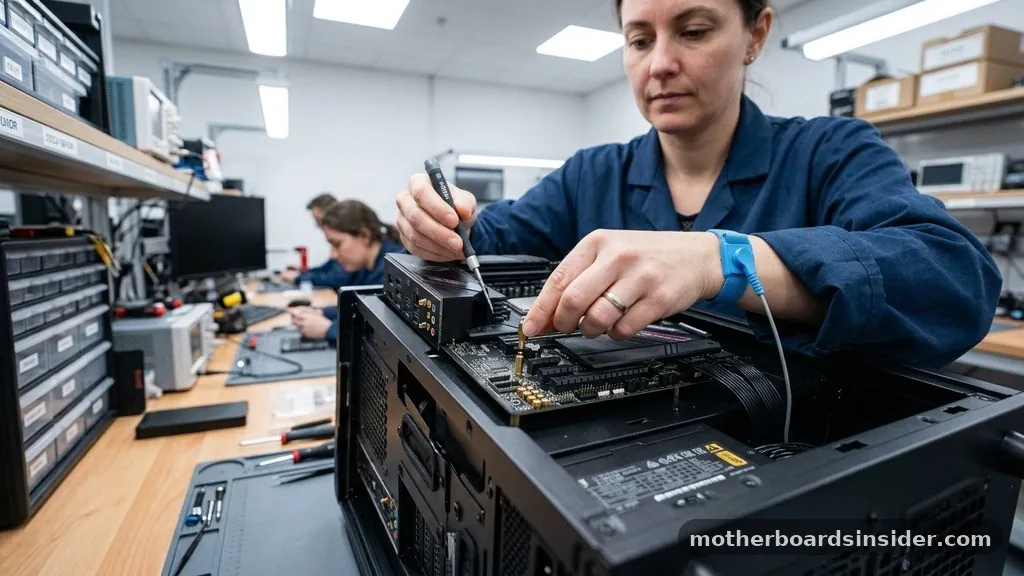
The motherboard functions as the central nervous system of your computer, connecting the processor, memory, storage, and peripherals. The firmware—specifically the Basic Input/Output System (BIOS) or the modern Unified Extensible Firmware Interface (UEFI)—is the first software that runs when you press the power button. Updating BIOS is not something you should do for the sake of it; instead, it is a targeted intervention performed to fix specific bugs, add support for newer CPU generations, or improve memory stability.
When a manufacturer releases a new version of the firmware, they often include microcode updates that patch vulnerabilities or optimize the communication between the processor and the chipset. If you are experiencing “random” system crashes, blue screens, or compatibility issues with newly installed RAM or graphics cards, checking for a firmware update is a logical troubleshooting step.
However, it is essential to remember that you should only perform this update if your current system is stable enough to survive the process. If your computer shuts down unexpectedly due to a loose cable or a failing power supply, you risk “bricking” the board, rendering it unusable.
Preparing for the Update Process
Before you initiate the process, you must gather the necessary information about your current hardware. You cannot simply download a random file from the internet; you must obtain the exact firmware intended for your specific board model and revision. To find this, you can use built-in tools like System Information in Windows or third-party utilities that display your motherboard’s exact model number and current version.
Once you have identified your board, visit the official website of your hardware vendor (e.g., ASUS, MSI, Gigabyte, or ASRock). Navigate to the support section and look for the “Downloads” or “Drivers & Tools” tab. It is vital to verify that the file you are downloading matches your specific hardware revision.
Installing firmware meant for a different version of the same motherboard model is a common cause of catastrophic failure. Always save the file to a reliable storage medium, preferably a high-quality USB flash drive formatted in FAT32, which is the standard file system most boards require for reading external media during the pre-boot stage.
Methods for Updating Firmware
There are several ways to perform an update, depending on the features provided by your manufacturer. The most common method involves using the BIOS/UEFI interface itself, often accessed by pressing a specific key—usually Delete or F2—during the initial boot sequence.
Within this interface, you will typically find a utility branded by the manufacturer, such as “EZ Flash” for ASUS or “M-Flash” for MSI. This method is generally considered the safest because it operates outside of the Windows operating system, minimizing the risk of software interference.
Another common approach is using a software utility provided by the manufacturer that runs directly inside Windows. While this is more convenient for novice users, it carries a higher risk because background processes, such as antivirus software or Windows updates, could potentially interrupt the flashing process.
If you choose this route, ensure you close all unnecessary applications before starting. For those who prefer a more robust approach, many high-end boards now include a dedicated button on the rear I/O panel that allows for a “BIOS Flashback” or similar feature, enabling you to update the firmware even without a CPU or RAM installed.
| Method | Difficulty | Risk Level | Recommended For |
|---|---|---|---|
| BIOS/UEFI Utility | Moderate | Low | All Users |
| Windows-based Utility | Easy | Moderate | Basic Users |
| BIOS Flashback Button | Moderate | Very Low | Advanced/Troubleshooting |
Step-by-Step Guide: Using the BIOS Utility
Using the built-in utility is the industry standard for safe firmware management. After you have downloaded the correct file from the official source, extract it if it is in a compressed format (like .zip). Move the extracted file to the root directory of your USB drive.
Restart your computer and repeatedly press the required key to enter the BIOS menu. Once inside, navigate to the Tools or Advanced menu to find the firmware update tool.
Select the USB drive from the list of available devices, locate the update file, and select it. The system will ask you to confirm that you want to proceed. Once you initiate the flash, the process will take several minutes.
During this time, it is absolutely critical that you do not touch the keyboard, mouse, or power button. Even a minor fluctuation in power or a premature restart can corrupt the onboard memory where the firmware resides.
Once the progress bar reaches 100%, the system will typically restart automatically. You may see the system cycle power a few times as it initializes the new settings; this is normal behavior.
Troubleshooting Common Update Issues
Despite careful preparation, problems can occasionally occur. If the system fails to boot after an update, the first step is to clear CMOS.
This restores the BIOS settings to their factory defaults, which often resolves conflicts caused by old configuration data interacting with the new firmware. To clear the CMOS, you can either use the physical jumper on the motherboard, remove the coin-shaped CR2032 battery for about a minute, or use a dedicated button if your board features one.
If the update fails or the system becomes unresponsive, do not panic. Many modern motherboards feature dual-BIOS or recovery systems. If your board does not support these, you may need to contact the manufacturer’s technical center for guidance.
They can often provide instructions on how to force a recovery or determine if a hardware repair is necessary. You can find more detailed information on specific hardware troubleshooting at the National Institute of Standards and Technology, which provides broad guidance on hardware security and standards. Always keep a log of the steps you took during the update, as this will be helpful if you need to explain the situation to support staff.
Understanding BIOS Flashback Technology
The advent of BIOS Flashback has been a game-changer for system builders. This feature allows you to update your motherboard using only a power supply and a USB drive, even if the CPU, RAM, and GPU are not installed.
This is particularly useful when buying a new processor that is newer than the motherboard itself, as the board might require an update to recognize the chip. To use this, you usually need to rename the firmware file to a specific naming convention defined by the manufacturer, place it on a FAT32-formatted USB drive, and insert it into a specifically labeled USB port on the back of the motherboard.
Once the drive is inserted, pressing the Flashback button triggers a dedicated controller on the board to read the file and write it to the BIOS chip. An LED light on the motherboard will typically blink to indicate that the update is in progress.
Once the light stops blinking or turns solid, the update is complete. This method is exceptionally reliable because it bypasses the operating system and the main CPU entirely, making it nearly impossible for software-level errors to interfere with the update.
Best Practices for a Successful Update
To ensure the highest probability of success, follow these professional best practices. First, always ensure your computer is plugged into a stable power source.
If you are using a laptop, ensure the battery is fully charged and the charger is plugged in. If you are using a desktop, a reliable Uninterruptible Power Supply (UPS) is highly recommended, as it protects against sudden power outages that could destroy the motherboard during the write phase.
Second, avoid updating during a thunderstorm or if you suspect your local power grid is unstable. Third, ensure that your current system is not currently suffering from hardware instability. If your system is crashing due to a faulty power supply or overheating, attempting a firmware update is a high-risk endeavor.
Resolve the hardware issues first, then perform the update as a final step. Finally, always document the BIOS version you are currently running before you begin, so you can verify the success of the update once the computer finishes its restart.
- Backup your personal data to an external drive before performing any major firmware changes.
- Ensure the USB drive is formatted as FAT32, as many BIOS utilities cannot read NTFS or exFAT.
- Disable any overclocking settings in the BIOS before initiating the flash to ensure maximum stability.
- Check the manufacturer’s release notes to see if the update is “critical” or “optional.”
- Allow the machine to complete its own reboot cycle; it may take longer than usual after an update.
The Future of BIOS and System Management
As computers evolve, the way we manage the interface between hardware and software is becoming more streamlined. We are seeing a shift toward “headless” updates where the system can automatically check for and apply firmware updates in the background, similar to how modern operating systems handle software patches. However, until this becomes universal, manual updates remain a vital part of the power-user toolkit.
The usage of UEFI has already brought significant improvements, such as mouse support, higher resolution interfaces, and the ability to load drivers directly into the pre-boot environment. As we look forward, the integration between the OS and the hardware will continue to deepen, potentially reducing the need for manual intervention.
For now, mastering the manual update process is an essential skill for anyone who builds, maintains, or upgrades their own PC. By understanding the risks and following the established protocols, you can keep your system running at its peak potential for years to come.
Frequently Asked Questions
Is it necessary to update my BIOS if my computer is working fine?
No, it is generally not recommended to update if your system is stable. BIOS updates are primarily intended to fix specific bugs or add support for new hardware. If you are not experiencing issues and do not plan to upgrade your CPU, it is often best to leave it alone.
What happens if the power goes out during a BIOS update?
If the power fails during the update, the motherboard may become “bricked,” meaning it cannot boot. Many modern boards include a recovery feature or a dual-BIOS system to prevent this. If your board does not have these features, it may require professional repair or a replacement.
How do I know which BIOS version I currently have?
You can check your current version by typing “System Information” into the Windows search bar. Look for the “BIOS Version/Date” field in the summary page. Alternatively, you can see this information by entering the BIOS/UEFI menu during the boot process, usually found on the main or system information tab.
Can I skip versions when updating my motherboard firmware?
In most cases, yes, you can update directly to the latest version. However, always read the release notes on the manufacturer’s website. Some manufacturers require you to install a specific “bridge” version or a base update before you can move to the newest firmware. Always follow the vendor‘s specific instructions.
The process of updating your motherboard firmware is a straightforward yet sensitive operation. By taking the time to verify your hardware, prepare your storage media correctly, and ensure a stable environment, you can confidently maintain your system’s performance and compatibility.
Whether you are adding a new processor or simply patching a known bug, the ability to manage your system’s firmware is a valuable skill that ensures your computer remains a reliable and powerful tool. Always prioritize caution, follow the manufacturer’s guidelines, and remember that when it comes to system firmware, patience is your best ally.


