

Troubleshooting a stubborn computer often leads you to the motherboard‘s firmware. If your machine fails to boot, displays strange errors, or refuses to recognize hardware, learning how to reset BIOS on motherboard is a foundational skill.
By reverting the firmware to its factory defaults, you eliminate misconfigurations that might be preventing the system from operating correctly. This process is essentially a “hard reset” for your hardware settings, clearing out custom tweaks, overclocking profiles, or incorrect storage configurations that could be causing instability.
Understanding the Role of BIOS and CMOS
The BIOS, or Basic Input/Output System, acts as the intermediary between your computer hardware and the operating system. It initiates the power-on self-test (POST) to ensure components like your CPU, memory, and storage drives are functioning before handing control over to Windows or Linux. Because the BIOS needs to remember your specific hardware settings—such as boot order, fan curves, and CPU voltage—it stores this data in a small amount of volatile memory known as CMOS (Complementary Metal-Oxide-Semiconductor).
The CMOS memory requires a constant, tiny trickle of electricity to maintain its data. This power is supplied by a small, coin-shaped battery located directly on the motherboard. When you perform a reset, you are essentially interrupting this power supply or triggering a hardware signal that forces the chip to dump its current configuration.
Once the power is restored, the BIOS chip reloads the default factory settings from its read-only memory, giving you a clean slate. This is why the process is frequently referred to as clearing the CMOS.
Safety Precautions Before You Begin
Before you touch any internal components, you must prioritize safety for both yourself and your hardware. Always shut down your computer completely through the operating system and flip the switch on the back of your power supply unit to the “off” position.
Unplug the power cord from the wall outlet to ensure there is no residual current flowing through the motherboard. Static electricity is a silent killer for modern microchips, so it is highly recommended to discharge yourself by touching a grounded metal object before opening the chassis.
Working inside a computer case can be cramped. Use a magnetic screwdriver to prevent screws from falling into hard-to-reach areas of the motherboard.
If you are working on a laptop, the process is significantly different and often requires disassembling the bottom panel, which may void your warranty. Always consult the official motherboard manufacturer documentation for your specific device model before attempting any hardware-level resets, as some modern systems have hidden security features that trigger anti-theft protocols when the CMOS is cleared.
Using the CMOS Battery Method
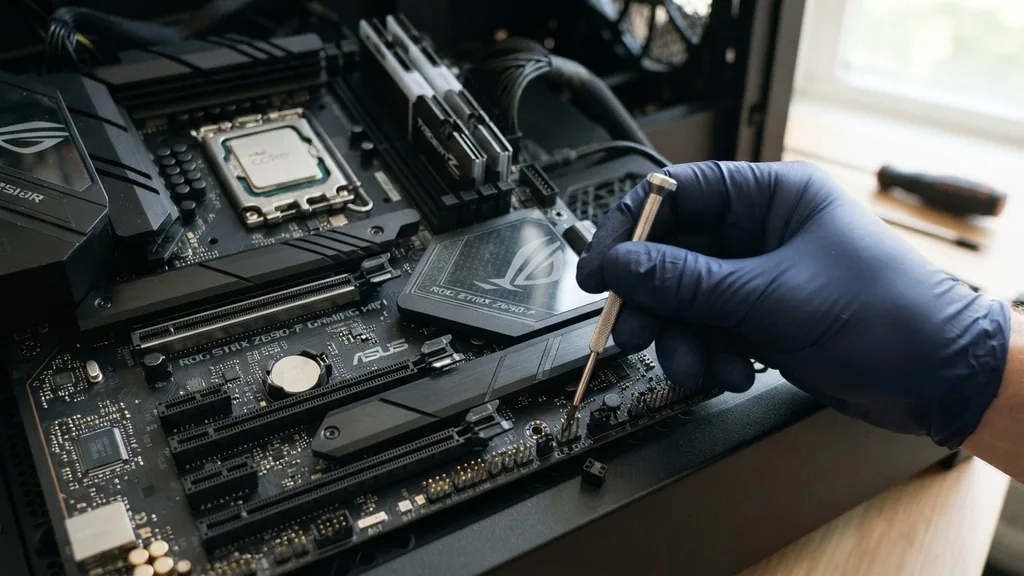
The most universal way to reset BIOS on motherboard is by physically removing the CMOS battery. This method works because the battery is the sole power source for the chip that holds your custom settings. Locate the silver, coin-shaped battery—typically a CR2032—on the surface of the motherboard.
You will see a small metal tab holding it in place. By pressing this tab gently, the battery will pop up, allowing you to remove it easily.
Once the battery is out, you should wait for at least five to ten minutes. This waiting period ensures that all capacitors on the motherboard have fully discharged, effectively clearing the volatile memory. After the time has elapsed, reinsert the battery into its slot, ensuring the positive side is facing up.
Plug your power cord back in and boot the system. You will likely see a prompt informing you that the BIOS settings have been reset or that the CMOS checksum is invalid, which is a normal indicator that the process was successful.
Shorting the Clear CMOS Jumpers
If you prefer a faster approach than waiting for a battery to drain, many motherboards feature a dedicated set of pins designed for clearing settings. These pins are usually labeled as CLR_CMOS, JBAT1, or simply RESET.
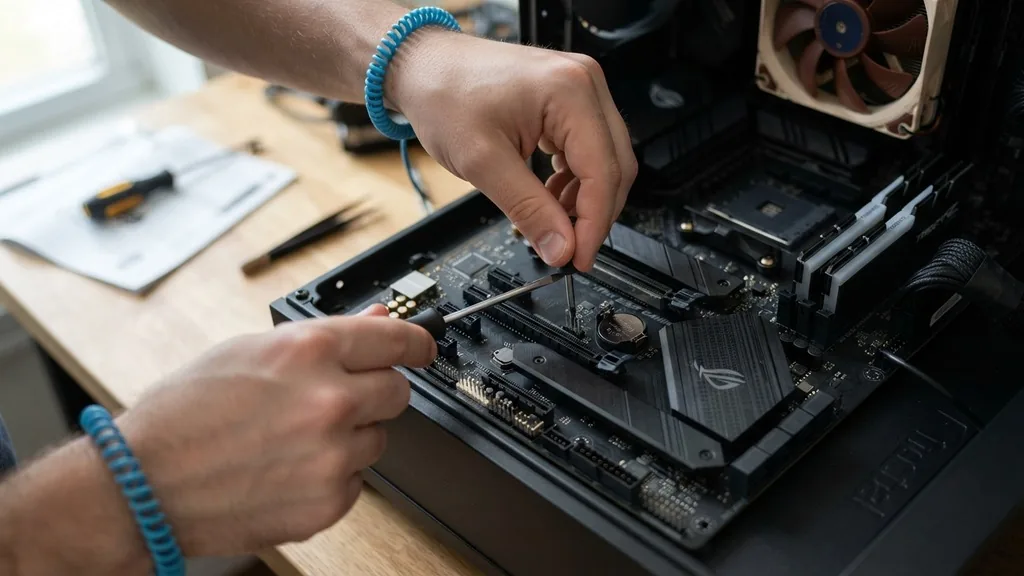
Using a conductive object like a metal screwdriver, you can momentarily bridge the connection between these two pins to force a reset. This creates a direct electrical path that clears the stored data almost instantaneously.
To perform this, ensure the computer is powered off and unplugged. Identify the two pins on your motherboard manual. Touch the metal shaft of your screwdriver to both pins simultaneously and hold it there for about 10 to 15 seconds.
This short-circuiting action acts as a reset command for the BIOS chip. Remove the screwdriver and plug your computer back in. This method is generally faster and safer than removing the battery, as it avoids the mechanical wear and tear of repeatedly unclipping the battery holder.
The Dedicated Reset Button Approach
High-end and gaming-oriented motherboards often include a physical button on the rear I/O panel or directly on the PCB specifically for clearing the CMOS. This is the most convenient way to reset BIOS on motherboard, as it requires no tools and no disassembly of the computer case. If your motherboard has a button labeled “Clear CMOS” or featuring a circular arrow icon, you are in luck.
Simply press and hold this button for 5 to 10 seconds while the computer is off and unplugged. Some modern boards may even allow you to trigger this reset while the power is connected, but it is safer to follow the standard power-off procedure unless your manual explicitly states otherwise.
This button is internally wired to the same circuit as the jumper pins, providing a user-friendly interface for an otherwise technical task. If you are building a new PC, checking for this feature can save you significant frustration during the overclocking or memory-tuning phase.
Resetting Through the BIOS Setup Utility
If your computer is still booting into the BIOS setup, you do not necessarily need to open the case to reset your settings. Most firmware interfaces include a “Load Optimized Defaults” or “Load Setup Defaults” option. This is the safest way to reset your BIOS, as it relies on the software interface rather than physical hardware manipulation.
To access this, press the designated key—usually Delete, F2, or F10—during the initial splash screen when you turn on your computer. Once inside the BIOS setup, look for an exit menu or a dedicated reset button on the screen. Selecting “Load Optimized Defaults” will overwrite your current configuration with the manufacturer’s recommended settings.
Always remember to “Save and Exit” to apply these changes. This method is ideal for resolving minor configuration conflicts without risking damage to the delicate pins or components inside your chassis.
Common Scenarios for Clearing CMOS
There are specific situations where a reset becomes necessary for system stability. If you have recently upgraded your CPU or RAM, the BIOS might be attempting to use timings or voltages from the old hardware, leading to a “no POST” scenario where the screen remains black. Resetting the BIOS forces the system to re-detect the hardware and apply appropriate default values for the new components.
Another common scenario involves forgotten BIOS passwords. If you have set a supervisor password and lost it, clearing the CMOS is often the only way to regain access to the BIOS settings.
However, be aware that on some enterprise-grade hardware, passwords are stored in non-volatile memory and may not be cleared by a simple CMOS reset, as this is a deliberate security feature. The following table highlights the primary differences between the various reset methods.
| Method | Ease of Use | Equipment Needed | Best For |
|---|---|---|---|
| BIOS Setup Menu | Very Easy | None | Software configuration errors |
| Clear CMOS Button | Easy | None | Frequent overclockers |
| Jumper Pins | Moderate | Screwdriver | Hard-to-reach batteries |
| Battery Removal | Moderate | None | Older boards without buttons |
Addressing Persistent Boot Issues
Sometimes, even after a successful reset, the system refuses to cooperate. If you have cleared the CMOS and the computer still fails to display an image, the problem might not be the BIOS settings at all.
It could be a hardware failure, such as a dead stick of memory or a faulty power supply. When troubleshooting, it is useful to follow a systematic process of elimination to narrow down the culprit.
- Reseat your RAM modules by taking them out and clicking them back into their slots.
- Disconnect all non-essential USB devices, including printers and external drives.
- Ensure your monitor cable is plugged into the dedicated graphics card rather than the motherboard port.
- Check that the CPU cooler is properly seated and the fan is connected to the CPU_FAN header.
- Verify that your power supply cables are firmly pushed into the 24-pin and CPU power connectors.
If you have tried all of these steps and the system remains unresponsive, you may be dealing with a corrupted BIOS chip. In rare cases, a failed firmware update can render the motherboard unusable. Some advanced motherboards feature a “Dual BIOS” system, which allows you to switch to a secondary, functional chip if the primary one becomes corrupted.
Frequently Asked Questions
- Does resetting the BIOS delete my files? No, resetting the BIOS only clears the hardware configuration settings stored in the CMOS memory. Your operating system, personal files, and programs on your hard drive or SSD remain completely untouched and safe during this process.
- What should I do if the time and date are incorrect after a reset? It is perfectly normal for the system clock to reset to a default factory date after clearing the CMOS. Once you boot into Windows or your preferred operating system, the time will automatically synchronize with internet servers, or you can manually update it in the system settings.
- Is it safe to clear the CMOS while the computer is on? You should never attempt to clear the CMOS while the computer is powered on. Doing so can cause electrical shorts or permanent damage to the motherboard circuitry. Always ensure the system is completely powered down and the power cord is removed before performing any reset.
- How do I know if the BIOS reset was successful? You will typically see a message on your screen during the next boot process stating “CMOS Checksum Error” or “BIOS settings reset to default.” This message is a clear indicator that the motherboard successfully reverted to its out-of-the-box configuration and is ready for setup.


