

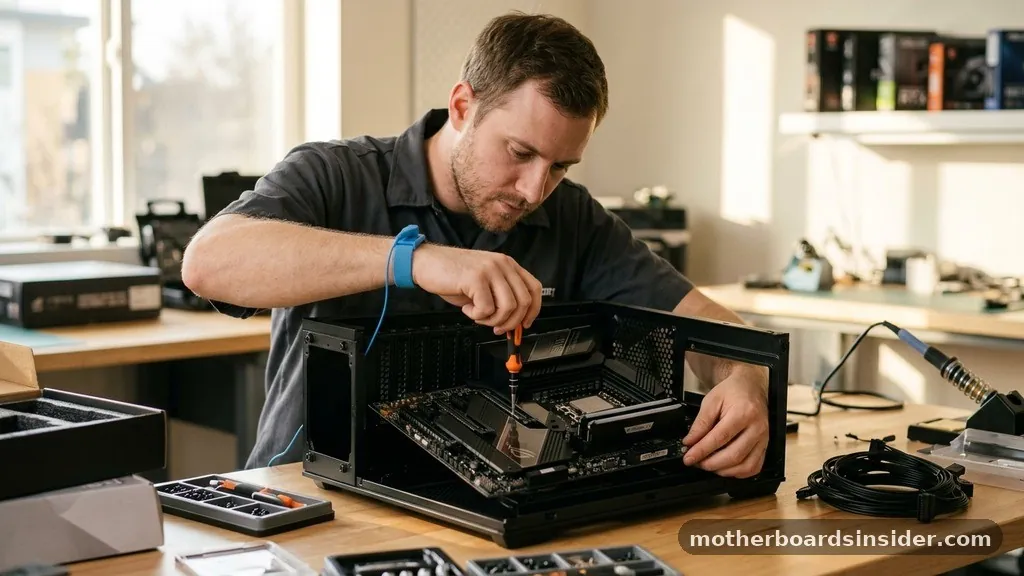
Building or maintaining a high-performance computer requires more than just snapping components together; it demands that you correctly install motherboard drivers to ensure the hardware communicates effectively with your operating system. When you first assemble a PC or perform a clean install of Windows, the generic drivers provided by the OS might allow the system to boot, but they rarely unlock the full potential of your hardware.
By following the correct procedure to install drivers, you ensure that your chipset, audio, networking, and USB controllers function at peak efficiency. This process bridges the gap between raw silicon and the software environment, preventing common stability issues like system freezes, poor peripheral connectivity, or sluggish performance.
Understanding the Role of Motherboard Drivers
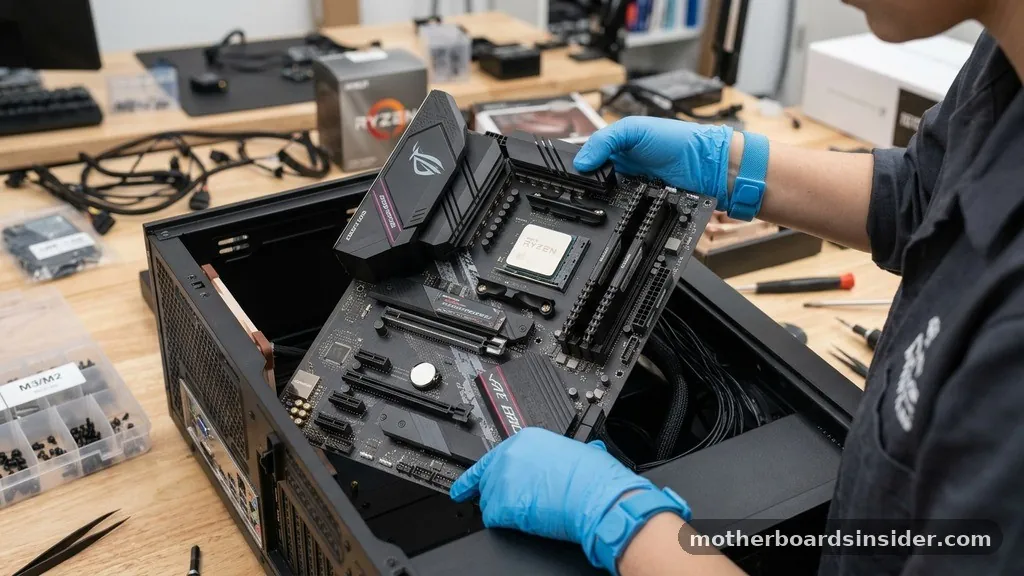
At its core, a driver is a specialized software component that acts as a translator between your hardware and the operating system. When you install motherboard drivers, you are essentially providing the kernel of your OS with the specific instructions needed to control the motherboard’s integrated features. Without these, your system might experience device conflicts, missing features, or an inability to utilize the full bandwidth of your PCIe lanes and memory controllers.
Motherboard manufacturers, such as ASUS, Gigabyte, or MSI, package these software bundles to handle specific hardware interactions. For instance, the chipset driver is arguably the most critical, as it manages the communication between the CPU, RAM, and various storage interfaces. Other components, such as the integrated network interface card (NIC) or the high-definition audio codec, require proprietary software to function beyond basic, limited functionality.
If you neglect this step, you might find that your high-speed internet connection is capped, or your surround sound system is reduced to basic stereo output. Understanding that these files are the essential link between the physical board and your user interface is the first step in mastering system maintenance.
Identifying Your Specific Motherboard Model
Before you can begin the installation process, you must accurately identify the exact make and model of your motherboard. Installing incorrect software can lead to system instability, blue screens, or hardware malfunctions. Many users mistakenly download generic chipset drivers from a processor manufacturer’s website, which, while useful, often lacks the specific, optimized configurations provided by the motherboard vendor.
To find your model information, you can use built-in tools within your operating system. For example, pressing the Windows key and typing “System Information” will reveal your baseboard product name. Alternatively, you can physically inspect the motherboard; the model number is almost always printed in large, clear text directly on the PCB, usually near the CPU socket or the PCIe slots.
If you are using a pre-built system, you may need to look up the serial number or model name on the manufacturer’s website. Having this information ready is vital because it ensures you visit the correct support site for your specific hardware revision. Using the wrong version can cause conflicts, especially if a manufacturer has released multiple hardware revisions of the same model name.
Sourcing Drivers from Official Manufacturer Websites
The golden rule of hardware maintenance is to only download software from the official product vendor. Third-party driver update tools often bundle unnecessary software, bloatware, or outdated files that can compromise your system’s security. When you navigate to the official support site, you are guaranteed to receive the most stable, tested versions of the software.
Once you are on the manufacturer’s page, you will typically need to navigate to a “Support,” “Downloads,” or “Drivers” section. Here, you will be prompted to select your specific operating system, such as Windows 10 or Windows 11. It is critical to select the correct version, as drivers for older systems are rarely compatible with newer architectures.
For instance, if you are looking for ASUS support, you will often find a dedicated page where you can enter your model name to see a list of available downloads, including BIOS updates, audio drivers, and chipset utilities. Always prioritize the latest version unless you are troubleshooting a specific regression issue. By downloading directly from the source, you protect your system from malicious code and ensure that you have access to the latest performance optimizations and security patches.
Preparing for the Installation Process
Before you click the install button, it is wise to prepare your system environment. Start by creating a restore point in Windows.
A system restore point acts as a safety net; if an installation goes wrong or causes a conflict, you can revert your system to its previous state without losing personal files. This is particularly important when updating low-level drivers like the chipset or BIOS.
Ensure that you have all the necessary files downloaded and extracted if they come in compressed formats like ZIP or RAR. It is also recommended to disconnect from the internet briefly if you are performing a full system re-installation to prevent Windows Update from automatically installing generic drivers in the background, which might conflict with the specific versions you intend to install.
Having your files organized in a folder on your desktop makes the process smoother and less prone to error. You should also close any unnecessary background applications, especially those that interact with hardware, such as monitoring software or RGB lighting controllers, as these can sometimes interfere with the installation of new drivers and lead to incomplete setups.
Executing the Installation: The Step-by-Step Method
The actual method to install drivers usually involves running an executable file provided by the manufacturer. Most modern motherboard drivers come with a convenient installer that automates the process. Once you have downloaded the packages, follow these general steps:
- Extract the downloaded files if they are in a compressed archive format.
- Locate the setup.exe or install.bat file within the folder.
- Right-click the file and select “Run as administrator” to ensure the installer has the necessary permissions.
- Follow the on-screen prompts, which typically involve clicking “Next” and accepting the license agreement.
- Restart your computer immediately after the installation is finished, even if the installer doesn’t explicitly prompt you to do so.
Restarting is essential because many drivers require a kernel-level reload to integrate fully with the operating system. If you install multiple drivers at once, such as audio, LAN, and chipset, it is often best to restart after each major installation to isolate any potential issues. This methodical approach ensures that if a specific driver causes a crash, you know exactly which one is the culprit, making it much easier to diagnose and fix the problem.
Comparing Driver Installation Methods
There are various ways to manage your motherboard’s software, each with its own set of pros and cons. Choosing the right method depends on your technical comfort level and the specific support tools provided by your hardware vendor.
| Method | Pros | Cons |
|---|---|---|
| Manual Download | Cleanest, avoids bloatware, most control | Time-consuming, requires manual tracking |
| Manufacturer Utilities | Automated, easy to use, keeps software updated | Can be resource-heavy, potential for unwanted background processes |
| Windows Update | Fully automated, requires zero effort | Often provides outdated or generic versions |
While the table above highlights the efficiency of manufacturer utilities, professional users often prefer the manual method to maintain a “lean” system. However, for the average user, using a proprietary tool like the ASUS DriverHub can be a lifesaver. These utilities frequently check for updates in the background and notify you when a newer version is available, ensuring your hardware remains compatible with the latest software environments.
Addressing Topical Gaps: Advanced Troubleshooting
A common question that arises is: “What if the driver won’t install?” Sometimes, you may encounter an error message stating that the hardware is not detected or that the installation failed.
This often happens because of a residual conflict from a previous driver installation. In these cases, you should use a tool to perform a clean sweep of the existing driver files before attempting a fresh install.
Another common issue involves “missing” drivers that appear as “Unknown Device” in the Windows Device Manager. To identify these, you can right-click the device, select “Properties,” go to the “Details” tab, and look for the “Hardware Ids.” Copying these IDs into a search engine will often reveal exactly which component (such as an Intel Management Engine interface or a specific USB controller) is missing its software.
Furthermore, if you are building a new PC, please refer to the motherboard manual for specific instructions on the order of installation. Usually, the chipset driver should be the very first thing you install, as it establishes the foundation for all other hardware components to communicate correctly with the OS. You can find comprehensive documentation on Intel’s official support page for further technical insights regarding chipset architectures.
Managing ASUS and Other Vendor-Specific Utilities
Many manufacturers provide specific software suites to simplify maintenance. For example, when you use an ASUS motherboard, the introduction of the ASUS DriverHub or Armoury Crate allows for a centralized management experience. These utilities through the manufacturer’s ecosystem can automatically scan your system and suggest the appropriate software packages.
However, a note: ASUS and other vendors often include “value-added” software in these suites. While convenient, some users find these applications to be unnecessary resource hogs. If you are a performance enthusiast, you might prefer to download the drivers manually through the support site and skip the extra utility software.
The key is to balance convenience with system performance. If you decide to use these tools, ensure you configure them to only download critical updates rather than installing every optional piece of software provided.
Keeping your system lean is the best way to ensure long-term stability and speed. Always check the “read me” files that come with the drivers, as they often contain important information regarding known issues or specific installation requirements for your version of the OS.
Frequently Asked Questions
Do I really need to install drivers for my motherboard?
Yes, installing motherboard drivers is essential. While Windows might provide basic functionality, it cannot fully access the advanced features of your hardware, such as optimized power management, high-speed networking, or integrated audio processing, without the specific drivers provided by the motherboard manufacturer.
How do I know which drivers to install?
You should visit the official support site for your specific motherboard model. Look for the “Downloads” or “Support” page, enter your exact model name, and select your operating system. Download the chipset, audio, LAN, and storage drivers as these are the core components needed for a stable system.
Can I install drivers from a USB drive?
Absolutely. If your system lacks internet connectivity during the setup phase, you can download the necessary files onto a USB flash drive using another computer. Once the files are on the USB, simply plug it into the new PC and run the installers directly from the drive.
What should I do if a driver update causes my system to crash?
If an update leads to instability, use the Windows “Device Manager” to roll back the driver to the previous version. If the system won’t boot, boot into “Safe Mode,” uninstall the problematic driver, and then reinstall a known stable version from the manufacturer’s website.
Conclusion
Successfully managing your motherboard’s software is a fundamental skill for any computer user. By following a structured approach—identifying your hardware, sourcing files from the official vendor, and executing the installation with care—you ensure that your computer operates at its maximum potential. Whether you are building a new machine or performing routine maintenance, remember that these drivers are the vital link that allows your operating system to harness the full power of your hardware.
By avoiding third-party update tools and sticking to official sources, you maintain a secure, stable, and highly responsive system for years to come. Take the time to perform these updates correctly, and your PC will reward you with consistent performance and reliability.


