

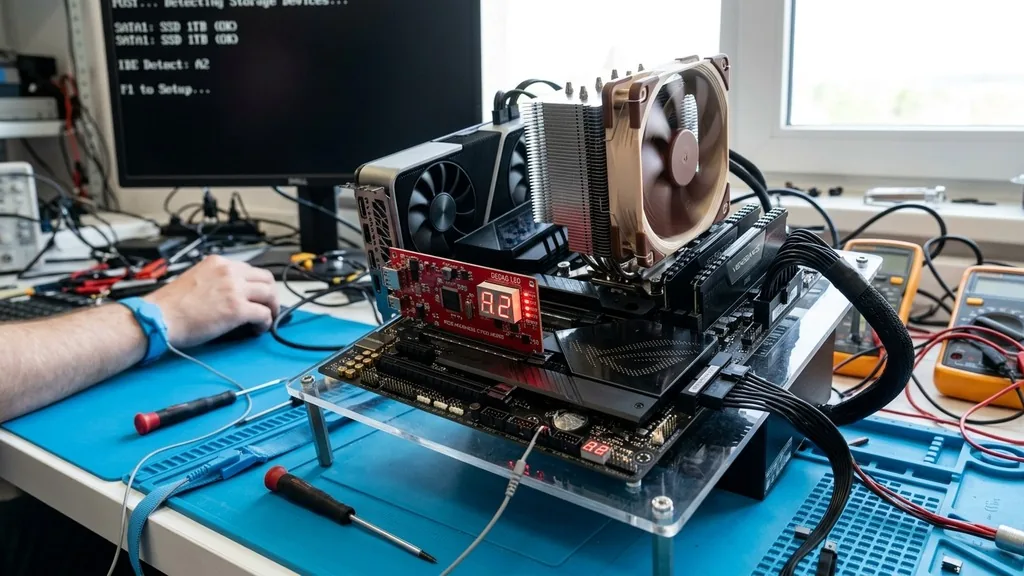
When your computer fails to boot or behaves erratically, the motherboard is often the primary suspect. Because it serves as the central nervous system of your PC, connecting the processor, memory, and storage, diagnosing it requires a systematic approach.
Learning how to test motherboard health involves isolating components to determine whether the board itself has suffered a hardware failure or if an external peripheral is causing the issue. By following logical troubleshooting steps, you can save time and money before rushing to purchase a replacement.
Understanding the POST Process
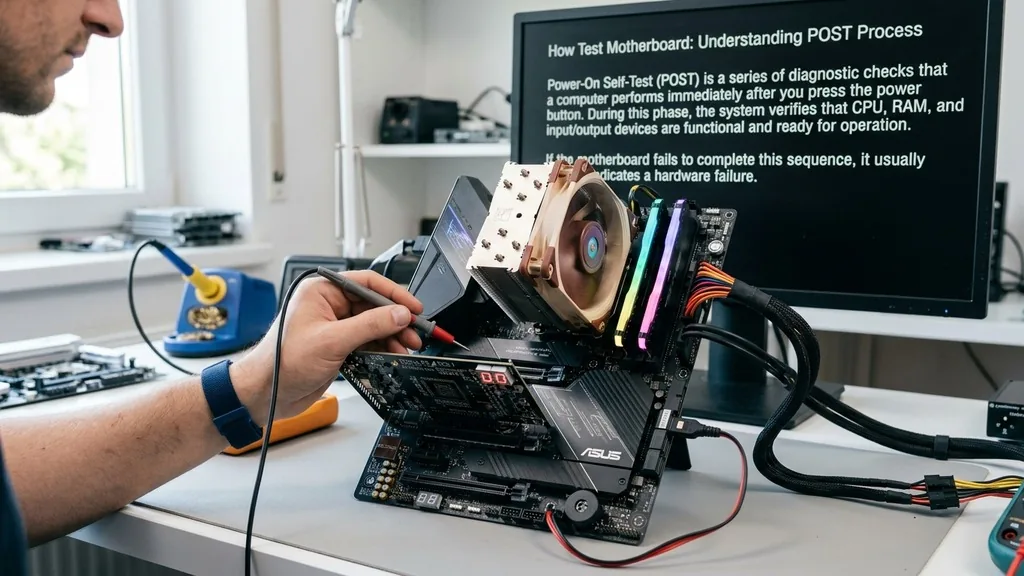
The Power-On Self-Test (POST) is a series of diagnostic checks that a computer performs immediately after you press the power button. During this phase, the system verifies that the CPU, RAM, and input/output devices are functional and ready for operation. If the motherboard fails to complete this sequence, it usually indicates a hardware conflict or a critical component failure.
To determine where the process is breaking down, look for a POST-code readout. Many modern gaming motherboards feature a small two-digit LED display specifically for this purpose. If your board does not have a display, it may use a series of beeps or a specific debug LED pattern.
You can find the meaning of these codes in your motherboard manual; they are specific to the manufacturer and model. If the system hangs on a specific code, it points directly to the component that is preventing the boot process from continuing.
Basic Visual Inspection for Physical Damage
Before reaching for complex tools, perform a thorough visual inspection of the board’s surface. A failing component often leaves physical evidence that is visible to the naked eye. Turn off the power, unplug the unit, and use a flashlight to scan the area around the CPU socket and the power delivery components.
Search for bulging or leaking capacitors. These small, cylinder-shaped components should have perfectly flat tops. If you notice any domed, cracked, or leaking tops, the board has likely suffered a power-related failure.
Additionally, inspect the area near the VRM (Voltage Regulator Module) for signs of scorching or burnt marks. Dust buildup can sometimes cause overheating, so ensure the board is clean. If you see signs of physical trauma or burnt traces on the PCB, the motherboard is likely beyond repair and requires replacement.
Testing with a Multimeter
Using a multimeter allows you to verify that the motherboard is receiving the correct voltage from your power supply unit. This is one of the most accurate ways to rule out power delivery issues. You will primarily be looking for the 24-pin ATX connector and the 8-pin CPU power connector.
Set your multimeter to the DC voltage setting and probe the pins while the power supply is connected to the board. You should see steady 12V, 5V, and 3.3V readings depending on the specific pin. A continuity test can also be performed to check if the power button on your case is actually sending a signal to the motherboard.
If the motherboard receives power but fails to turn on, the onboard power circuitry might be damaged. Always be extremely careful when probing live circuits to avoid accidental shorts.
The Minimalist Bench Test Approach
Sometimes, the best way to determine if your board is faulty is to strip the system down to its absolute bare essentials. This process, often called “breadboarding,” isolates the motherboard from any potential short circuits caused by the computer case or secondary peripherals.
Remove the motherboard from the chassis and place it on a non-conductive surface, such as the cardboard box it came in. Ensure you use motherboard standoffs if you do mount it temporarily, though a flat, dry, non-conductive surface is safer for testing.
Connect only the following:
- The power supply unit (24-pin and 8-pin CPU cables)
- The CPU and its cooler
- A single stick of RAM in the primary slot
- The power switch connector (or jump the pins with a screwdriver)
If the system posts in this configuration, the issue likely stemmed from a short circuit within the case or a faulty peripheral like a hard drive or USB device. If it still fails to post, you have successfully isolated the motherboard and CPU as the source of the failure.
Managing CMOS and BIOS Settings
Sometimes, a motherboard appears dead when it is actually just stuck in a corrupt BIOS state. The CMOS battery is responsible for maintaining the BIOS settings while the computer is unplugged. If this battery is depleted or if the settings have become corrupted, the board may refuse to boot.
To reset the BIOS, power off the system and remove the coin-shaped CR2032 battery from the motherboard for about 30 seconds. Replace it and attempt to boot again. This forces the motherboard to revert to its factory default settings.
If the system boots after this, the issue was likely a configuration error rather than a hardware failure. If you are comfortable, you can also look into how to use the official motherboard BIOS update procedures provided by the manufacturer to ensure you are running the latest firmware, which often resolves stability issues.
Using Diagnostic Cards for Advanced Troubleshooting
If you work on computers frequently, a diagnostic card is an invaluable investment. This is a PCI or PCIe card that plugs into an expansion slot and provides a much more granular readout of the boot process than the standard onboard LEDs.
These cards are designed to intercept the POST signals and translate them into readable text or specific error codes. They are especially useful for older motherboards that lack built-in diagnostic displays.
By observing the card during the boot sequence, you can see exactly where the hardware initialization stops. If the card shows no activity at all, it confirms that the motherboard is not communicating with the expansion bus, which is a strong indicator of a dead chipset or BIOS chip.
Checking for Short Circuits
A short circuit is a frequent cause of motherboard failure. This often happens if the board is making contact with the metal chassis in a spot it shouldn’t, or if a loose screw has fallen behind the PCB. Even a small piece of metal can bridge two traces and cause the safety features of the power supply to trip immediately.
Examine the back of the motherboard for any foreign objects. Ensure that all mounting screws are properly secured with the correct motherboard standoffs.
If your standoffs are missing or in the wrong position, the board may be grounding out against the case. When you press the power button, if the fans spin for a split second and then stop, this is a classic symptom of a short circuit protection mechanism engaging to prevent damage to the components.
Evaluating Common Component Failures
When testing the motherboard, you must also consider the health of the components attached to it. A faulty CPU or a defective stick of RAM can mimic the symptoms of a failed motherboard. Use the following table to compare potential symptoms and their likely causes.
| Symptom | Most Likely Cause | Secondary Cause |
|---|---|---|
| No power at all (no fans) | Power Supply Unit | Motherboard Power Circuit |
| Fans spin, no display | RAM / Memory | CPU or BIOS |
| System reboots randomly | Overheating (CPU/VRM) | Unstable Power Supply |
| BIOS error messages | Storage Drive / CMOS | Corrupt BIOS Firmware |
If you have access to known-working spare parts, swap your CPU and RAM into the target system one at a time. If the system boots after swapping the RAM, the motherboard was fine, and the RAM was the culprit. Always apply fresh thermal paste when reseating a CPU to ensure you don’t introduce thermal throttling or overheating issues during your testing process.
Addressing Frequently Asked Questions
- How do I know if my motherboard is fried? If you see physical damage like burnt traces, swollen capacitors, or a permanent smell of ozone, the board is likely dead. If the system fails to boot even after testing with a known-good power supply and minimal components, it is a strong sign of internal board failure.
- Can I test a motherboard without a CPU? Generally, no. A motherboard requires the CPU to initialize the BIOS and execute the POST process. Without a processor installed, the board will not complete the diagnostic sequence, and you will not be able to determine its functional status or receive any meaningful error codes.
- Why is my motherboard light on but nothing happens? This usually indicates that the standby power is working, but the board is failing to signal the power supply to turn on fully. It could be a faulty power switch, a short circuit, or a failure in the motherboard’s power management controller that prevents the system from waking up.
- Does a motherboard need to be replaced if the CMOS battery is dead? No, a dead CMOS battery does not mean the motherboard is broken. It simply means the board cannot save your BIOS settings, like the date, time, or boot priority, when the computer is unplugged. Replacing the battery with a new CR2032 usually solves the problem instantly.


