

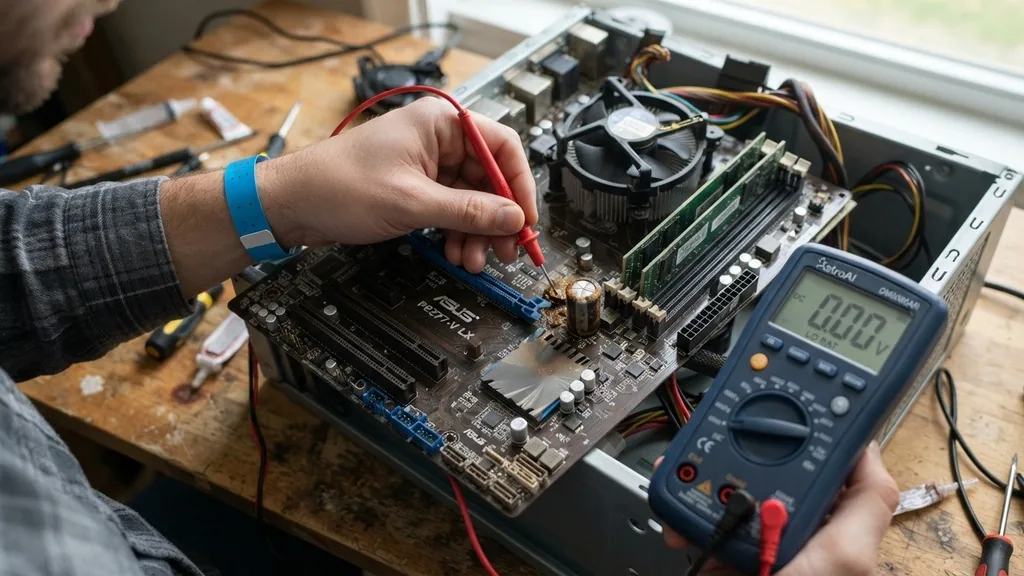
The motherboard acts as the central nervous system of your computer, connecting every piece of hardware together so they can communicate. When this critical component begins to fail, the entire system often becomes unstable, unresponsive, or completely dead. Knowing how to tell if your motherboard is bad is a skill that saves you from unnecessary upgrades or expensive repair fees.
Because the board handles power distribution and data transit between the CPU, RAM, and storage, symptoms of failure are often misinterpreted as issues with the power supply or operating system. By systematically checking for physical damage, boot errors, and component behavior, you can determine if your mainboard is truly the culprit.
Recognizing the Physical Signs of Motherboard Failure
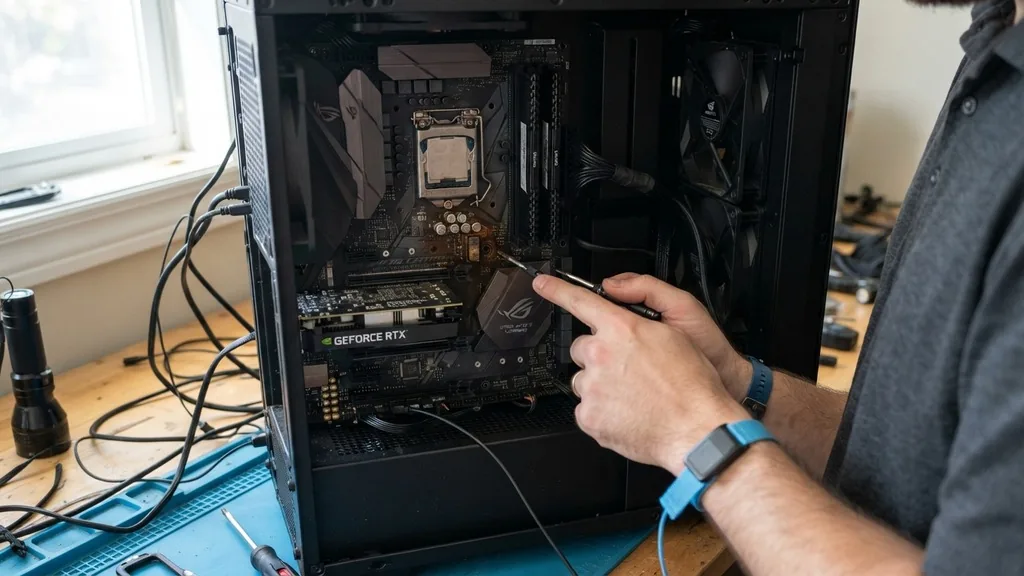
To identify a faulty motherboard, look for visible evidence of electrical damage or component degradation on the board itself. A failing board often shows physical symptoms that are undeniable, even if the computer is currently powered off. You should open the side panel of your desktop case and inspect the area around the CPU socket and the capacitors.
These small, cylindrical components are prone to bulging or leaking if they have been subjected to extreme heat or power surges over time. If you see a brown, crusty residue or a domed top on any capacitor, the board is likely damaged beyond repair.
Beyond capacitors, look for scorched traces or burnt marks on the surface of the circuit board. These marks often appear near the power delivery modules or the 24-pin power connector. If you smell a faint, acrid scent of ozone or burnt plastic when you get near the system, you are likely smelling the aftermath of a short circuit.
Do not attempt to power the machine on if you find these signs, as a shorted board can potentially damage other hardware like your RAM or SSD. Always ensure the system is completely unplugged from the wall before you touch any internal parts to avoid accidental static discharge.
Analyzing Boot Failures and POST Errors
The most common way to tell if your motherboard is bad involves watching how the computer behaves during the Power-On Self-Test (POST). When you press the power button, the system should initialize the CPU, memory, and graphics hardware. If the fans spin up for a second and then stop, or if the system runs but the screen remains black, the board might be failing to initialize these components.
Modern boards often include a set of diagnostic LEDs or a small speaker that emits beep codes to help you pinpoint the issue. Consult your manufacturer’s manual to translate these signals into specific error codes.
If your system makes it past the initial power phase but gets stuck on a frozen logo screen or constantly restarts, the BIOS or UEFI chip on the board could be corrupted. Sometimes, clearing the CMOS—the small battery-backed memory that stores your hardware settings—can resolve these issues.
If the board still fails to boot after a CMOS reset, the circuitry responsible for reading the firmware is likely defective. Pay attention to whether the motherboard shows any activity on the screen; if you can see a BIOS splash screen but the system crashes immediately after, the issue might be a storage drive, but if you see absolutely nothing, the board itself is a primary suspect.
Troubleshooting Power Supply vs. Motherboard Issues
One of the biggest challenges in PC repair is distinguishing between a bad power supply and a dead motherboard. Since both components prevent the computer from starting, people often replace the wrong part.
A simple way to narrow this down is to perform a jump-start test on your power supply, which involves shorting specific pins on the 24-pin cable to see if the fan spins independently of the motherboard. If the power supply turns on successfully when isolated, but the system remains dead when everything is connected, the motherboard is failing to distribute that power to the rest of your hardware.
Another indicator is the behavior of the peripheral lights and fans. If you notice that your keyboard LEDs or mouse lights flicker briefly when you press the power button, the motherboard is receiving power but failing to complete the startup cycle.
Conversely, if there is zero response from any component—no fans, no lights, no motherboard diagnostic LEDs—the problem could reside in the power distribution circuitry of the board. You can refer to the official Intel support documentation for detailed guides on hardware troubleshooting that can help clarify if your specific chipset is experiencing known power-delivery issues.
Investigating Peripheral and Graphics Card Connectivity
When your graphics card or other expansion cards stop working, it does not always mean the card itself is broken. The slot on the motherboard where the GPU sits can become loose, corroded, or electrically damaged over time.
If you experience artifacts on your screen, random signal loss, or the system fails to detect your graphics card entirely, try moving the card to a different PCIe slot if your board has one. If the card works perfectly in a different slot, the original slot is likely damaged.
You should also check the USB ports and audio headers for consistent performance. If your computer frequently loses connection to external devices like keyboards, mice, or external drives, the motherboard’s I/O controller might be failing.
When the onboard controller struggles to manage data traffic, you will notice intermittent freezes or device disconnects that happen across multiple operating systems. This indicates that the problem is not a software driver issue, but rather a physical failure of the board’s bus management systems.
Common Diagnostic Indicators
To help you organize these symptoms, the following table breaks down the most frequent indicators of a hardware-related motherboard failure.
| Symptom | Possible Cause | Action Required |
|---|---|---|
| System powers on, fans spin, no image | BIOS or CPU initialization failure | Clear CMOS, check RAM seating |
| Constant boot loops or random crashes | Voltage regulation module failure | Check for heat or replace motherboard |
| USB ports or audio ports unresponsive | I/O controller failure | Test with external hubs or replace board |
| Burnt smell or visible scorch marks | Electrical short circuit | Immediate hardware replacement |
Addressing Sudden System Crashes and Blue Screens
Frequent Blue Screen of Death (BSOD) errors are often attributed to Windows, but they can be a major sign of a failing motherboard. When a board begins to degrade, it may fail to maintain stable voltage levels for the CPU or RAM, leading to memory management errors or hardware-level interrupts.
If you have already reinstalled your operating system and updated all your drivers but the crashes persist, you are likely looking at a hardware fault. These crashes often occur under load, such as when you are playing a demanding game or rendering video, because the board can no longer handle the power draw required by the components.
Take note of the error codes associated with these crashes. If the codes vary wildly—ranging from memory management to kernel security check failures—it suggests that the underlying communication bus is unstable. This is a classic symptom of a motherboard that is struggling to manage data packets between the processor and the rest of the components.
When the motherboard cannot guarantee data integrity, the operating system panics to prevent file corruption. If you see these diverse errors, stop trying to fix the software and focus your efforts on testing the hardware.
The Impact of BIOS and Firmware Corruption
The BIOS chip is the brain of the motherboard, containing the instructions needed to turn the hardware on. If this chip fails or the firmware within it becomes corrupted, the motherboard becomes a paperweight. This can happen during a failed BIOS update, or it can happen spontaneously due to age.
If you suspect your BIOS is the problem, check if your motherboard has a “BIOS Flashback” feature. This allows you to update the firmware using a USB drive without needing a CPU or RAM installed.
If you have performed a BIOS update and the system never recovered, you have successfully narrowed the problem down to the board’s firmware logic. While some high-end boards have dual-BIOS chips that allow you to switch to a backup, most standard boards do not. In these cases, the board is effectively dead from a software perspective.
You should also consider that a failing CMOS battery can cause the BIOS to lose settings, leading to boot issues. Replacing this small, inexpensive coin-cell battery is a simple step that should be performed before assuming the motherboard itself is faulty.
Why Age and Environment Matter
Computers are sensitive pieces of equipment, and the environment they live in significantly impacts the lifespan of the motherboard. Dust buildup, for instance, acts as an insulator that prevents the board from shedding heat properly.
Over months or years, this trapped heat causes the solder joints to become brittle, eventually leading to micro-cracks that break the electrical connection. If you have been running your systems in a dusty environment without cleaning them, you are far more likely to experience early motherboard failure.
Humidity is another silent killer. High moisture levels can cause microscopic corrosion on the traces and connectors of the board. Even if you don’t see rust, the oxidation increases electrical resistance, which causes the board to heat up in specific spots.
If you live in a coastal area or a humid climate, your hardware is under constant stress. Regularly cleaning your PC with compressed air and using a surge protector can mitigate these risks, but if your board is already showing signs of erratic behavior after several years of operation, it might simply be reaching the end of its useful life.
Completing the Diagnostic Process
When you have exhausted all other possibilities, the final step is to perform a bench test. This involves removing the motherboard from the computer case and setting it up on a non-conductive surface, like a wooden table or the cardboard box it came in. By stripping the system down to the bare essentials—the motherboard, the CPU, one stick of RAM, and the power supply—you eliminate the possibility that a faulty case button, a shorted-out USB cable, or a defective hard drive is causing the issue.
If the motherboard still fails to POST in this minimal configuration, you have effectively ruled out everything else. At this point, you can be confident that the fault lies with the mainboard. While it is frustrating to identify a dead motherboard, doing so prevents you from wasting money on new RAM or a new power supply that won’t solve the problem.
If you need to replace the unit, ensure that your new board is compatible with your existing CPU socket and RAM generation. Taking the time to properly diagnose the hardware ensures that your next build is stable, reliable, and free from the mysterious ghosts of your old, failing system.
Frequently Asked Questions
- Can a bad motherboard be repaired? In most cases, it is not cost-effective to repair a motherboard. While professional technicians can sometimes resolder capacitors or fix trace damage, the labor costs usually exceed the price of a modern replacement board. Replacing the unit is generally the most practical solution.
- How long does a motherboard usually last? A well-maintained motherboard can last anywhere from five to ten years. Failure is often driven by heat accumulation, power surges, or environmental factors like humidity. If your system is older than seven years, components on the board are naturally reaching the end of their design life.
- Does a motherboard failure cause data loss? A failing motherboard does not inherently destroy the data stored on your hard drives or SSDs. However, if the board shorts out while the system is running, there is a small risk of electrical damage to other components, including your storage drives. Always keep your files backed up externally.
- What should I look for when buying a replacement? Ensure the new board has the correct socket type for your existing CPU and supports your current RAM (e.g., DDR4 or DDR5). Also, check the physical form factor, such as ATX or Micro-ATX, to confirm it will fit inside your existing computer case properly.


