

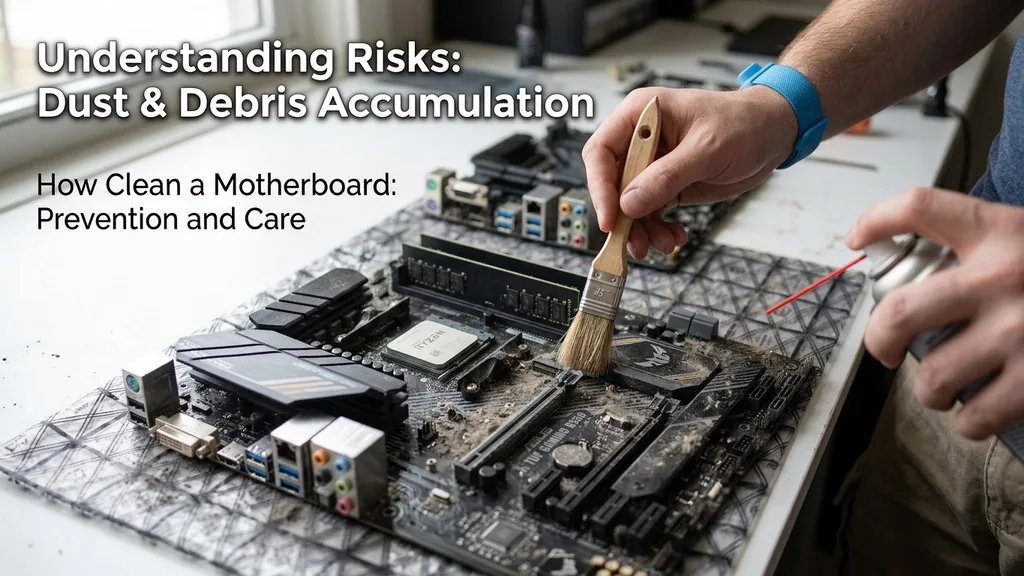
A motherboard serves as the central nervous system of any computer, acting as the primary communication hub between the CPU, memory, storage, and peripheral components. Over time, dust, debris, and even microscopic particles of oxidation can accumulate on its intricate circuitry.
Learning how to clean a motherboard is a critical maintenance skill that can prevent thermal throttling, electrical shorts, and long-term hardware failure. While the prospect of cleaning such a sensitive piece of hardware might seem daunting, it is entirely manageable with the right tools, a methodical approach, and a steady hand.
Understanding the Risks of Dust and Debris Accumulation
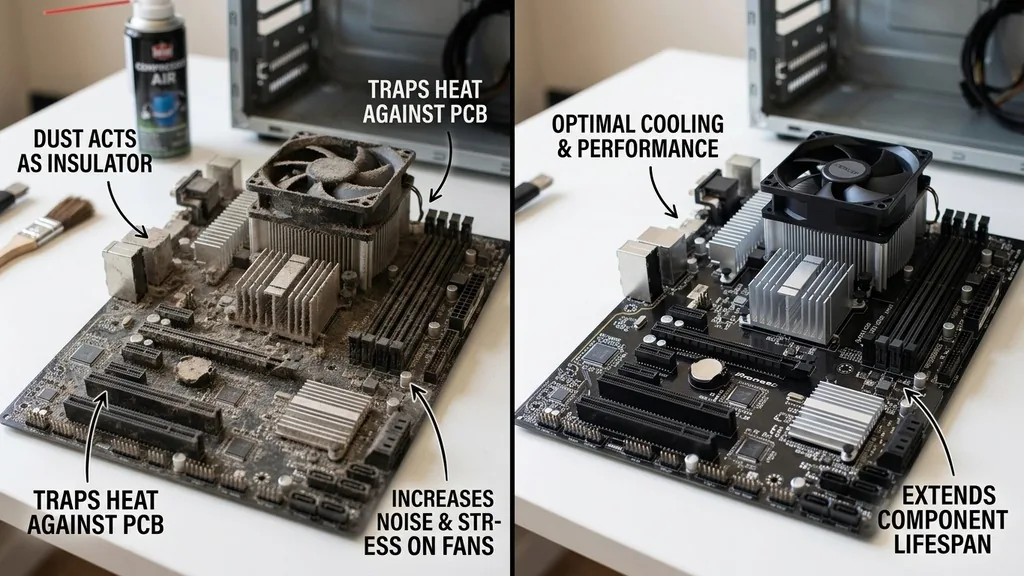
Dust acts as an insulator for electronic components. When a thin layer of dust covers your motherboard and its heatsinks, it traps heat against the surface of the PCB (Printed Circuit Board). This accumulation forces your cooling fans to work harder, increasing noise levels and potentially shortening the lifespan of your cooling hardware.
More importantly, dust can be conductive, especially if it is mixed with humidity. In extreme cases, a thick layer of dust can provide a bridge for electrical current to jump between pins or solder points, causing a short circuit that could permanently damage your components.
Beyond thermal management, debris can also obstruct the connection points of expansion cards and RAM slots. If dust particles settle inside a PCIe slot, they can prevent the gold contacts on your graphics card from making a clean connection with the motherboard’s pins.
This often leads to intermittent performance issues, system crashes, or failure to boot. By periodically cleaning your system, you ensure that the electrical signals flowing between your components remain stable and free from interference, allowing your PC to operate at its peak design specifications.
Essential Tools for Motherboard Maintenance
Before you begin the cleaning process, you need to gather specific tools designed to be safe for sensitive electronics. The most critical items are high-purity isopropyl alcohol and an anti-static brush. Never use household cleaners, soaps, or water, as these can leave behind conductive residues or cause immediate corrosion.
Using the wrong substances is the most common reason for hardware failure during maintenance. A clean, lint-free microfiber cloth is also essential for wiping down surfaces that do not have exposed pins or delicate capacitors.
It is important to note that you should prioritize tools that do not generate static electricity. Standard vacuum cleaners are dangerous because they can discharge thousands of volts of static electricity directly into your motherboard. Instead, use an anti-static vacuum or simply stick to compressed air.
If you are working in a dry environment, consider wearing an anti-static wrist strap connected to a grounded metal object to protect your system from accidental electrostatic discharge (ESD). Taking these precautions ensures that you are protecting your investment while performing the necessary maintenance tasks.
- 90% or higher Isopropyl Alcohol (anything lower contains too much water)
- Anti-static soft-bristled brush (natural hair or specialized synthetic)
- Compressed air canister or an electric air duster
- High-quality microfiber cloths that do not shed lint
- Anti-static wrist strap for grounding
- Flashlight for inspecting hard-to-reach areas
Preparing Your System for a Deep Clean
The first step in any hardware cleaning procedure is safety. Shut down your operating system completely and flip the power supply switch on the back of your computer to the “off” position. Unplug the power cable from the wall outlet.
Pressing the power button on the case a few times after unplugging it helps drain any residual charge stored in the capacitors. Once the system is fully powered down, move the computer to a well-lit, clean, and stable surface like a wooden desk.
Open the side panel of your computer case to expose the motherboard. Before touching any internal components, touch a metal part of the case to discharge any static electricity built up on your body.
If you have the time and the expertise, removing the motherboard from the case is the most effective way to reach every corner. However, if you are not comfortable disassembling the entire rig, you can clean it while it is installed, provided you are careful not to knock into delicate headers or connectors while maneuvering your tools.
How to Use Compressed Air Safely
Compressed air is the gold standard for dislodging heavy dust without needing to touch the surface of the motherboard. When using a canister of compressed air, keep the can upright at all times.
Tilting the can or turning it upside down can cause liquid propellant to spray onto the motherboard, which can cause sudden cooling or potentially leave a residue. Always use short, controlled bursts rather than a continuous stream to ensure you aren’t forcing dust deeper into sensitive slots or under heatsinks.
Aim the nozzle at an angle to blow dust away from the motherboard rather than deeper into it. Start from the top of the board and work your way down, moving the dust toward the bottom of the case where it can be easily cleared away.
Pay special attention to the CPU cooler fins, as this is where the most significant dust buildup typically occurs. If you have an electric duster, keep it at a distance of at least six inches to avoid damaging small surface-mounted components with high-pressure air.
Cleaning Stubborn Grime with Isopropyl Alcohol
When dust has become sticky or compacted due to humidity, compressed air alone will not be enough. This is where high-purity isopropyl alcohol becomes necessary. Because it evaporates rapidly and does not contain water, it is safe to use on circuit boards.
Dip your anti-static brush into a small amount of alcohol—do not soak the brush, just dampen the bristles. Gently scrub the areas affected by the grime, using light pressure to lift the particles away from the board.
If you are cleaning around delicate capacitors or surface-mounted resistors, use a cotton swab lightly dampened with the alcohol. Be extremely careful not to snag the cotton fibers on any sharp component legs, as this can leave behind lint that is difficult to remove.
After cleaning an area with alcohol, allow it to air dry for at least 15 to 20 minutes before restoring power to the system. This ensures that no hidden moisture remains in the crevices of the sockets or under the chips.
Addressing Motherboard Corrosion and Oxidation
If you notice green or white residue on the metal contacts of your motherboard, you are likely dealing with corrosion. This often happens in humid environments or after a minor liquid spill. Corrosion is essentially a chemical reaction that destroys the metal, so it must be handled carefully.
You can use a soft-bristled toothbrush and a small amount of 99% isopropyl alcohol to gently scrub the affected area. If the corrosion is severe, it may have already compromised the trace lines underneath the protective coating of the board.
For persistent oxidation, some technicians use a specialized contact cleaner designed for electronics. You can find detailed instructions on safe maintenance practices at the National Institute of Standards and Technology to understand how different materials react to cleaning agents. If the corrosion has spread to the pins of the CPU socket or the PCIe slots, you must be exceptionally gentle.
These pins are fragile and can bend or break with minimal force. If you cannot remove the corrosion with gentle brushing, it is often safer to leave it alone than to risk mechanical damage to the socket.
Comparing Cleaning Methods for Different Scenarios
Choosing the right technique depends on the severity of the dust and the condition of the hardware. For routine maintenance, a simple blast of air is usually sufficient.
However, if you are refurbishing a used motherboard or dealing with a system that has been sitting in a dusty environment for years, a more intensive approach is required. The following table outlines which methods are appropriate for various levels of contamination.
| Contamination Level | Recommended Tools | Frequency |
|---|---|---|
| Light Dusting | Compressed Air, Microfiber Cloth | Every 3-6 months |
| Compacted Dust | Anti-static Brush, Compressed Air | Once a year |
| Sticky Grime/Residue | Isopropyl Alcohol, Soft Brush | As needed |
| Light Oxidation | Contact Cleaner, Isopropyl Alcohol | Only when visible |
Filling the Gaps: Frequently Overlooked Areas
Many users focus only on the main surface of the motherboard and forget about the areas where dust hides most effectively. The underside of the motherboard, if your case has a removable back panel, is often a magnet for dust. Because the air flow is often restricted there, dust settles and stays.
You should also check the motherboard’s I/O shield area, where the ports exit the back of the case. These ports can collect dust over time, which can eventually push into the internal pins of the USB or audio connectors.
Another overlooked area is the RAM and PCIe slots themselves. If you are performing a full deep clean, it is often worth removing the RAM sticks and the graphics card to clean the slots with a blast of air.
This ensures that no debris is trapped in the contact pins, which could cause “no POST” issues. When you re-seat your components, the physical act of inserting them can often help clear away microscopic oxidation that was preventing a solid connection, effectively “refreshing” the contact points.
Final Inspection and Reassembly
Before you close up your computer case, perform a final visual inspection. Use a flashlight to check for any stray cotton fibers, brush bristles, or loose dust particles you may have missed.
Ensure that all cables are still firmly connected, as it is easy to accidentally nudge a fan header or a front-panel connector while you are cleaning. Once you are satisfied, replace the case panels and reconnect your peripherals.
When you power on the system for the first time after cleaning, keep a close eye on the boot process. Listen for any unusual fan noises that might indicate a cable has been pushed into a blade.
Check your BIOS or operating system monitoring software to ensure that your temperatures are within the expected range. If the system boots successfully and runs cool, you have successfully performed a professional-grade motherboard cleaning that will extend the life of your hardware and keep your system running smoothly.
Frequently Asked Questions
- How often should I clean my motherboard? In a standard home environment, cleaning your motherboard every six to twelve months is usually sufficient. If you have pets, live in a dusty area, or keep your computer on the floor, you may need to perform a light cleaning every three months to prevent heat buildup.
- Can I use a vacuum cleaner to clean the motherboard? You should avoid using a standard household vacuum cleaner. They generate static electricity that can destroy sensitive electronic components on the motherboard. If you need to remove heavy dust, use an anti-static vacuum designed for electronics or a can of compressed air instead.
- What if I accidentally spill water on my motherboard? If a spill occurs, immediately disconnect the power. If the motherboard is still wet, use 99% isopropyl alcohol to displace the water, as it evaporates quickly and helps prevent long-term corrosion. Do not turn the computer on until you are 100% sure the board is completely dry.
- Is it safe to use a toothbrush to clean the motherboard? You can use a soft-bristled toothbrush, provided it is clean and dry. Avoid using brushes with stiff, plastic bristles that might scratch the board’s protective coating. Ideally, choose an anti-static brush specifically sold for electronics to ensure you are not creating a static charge while scrubbing.


