

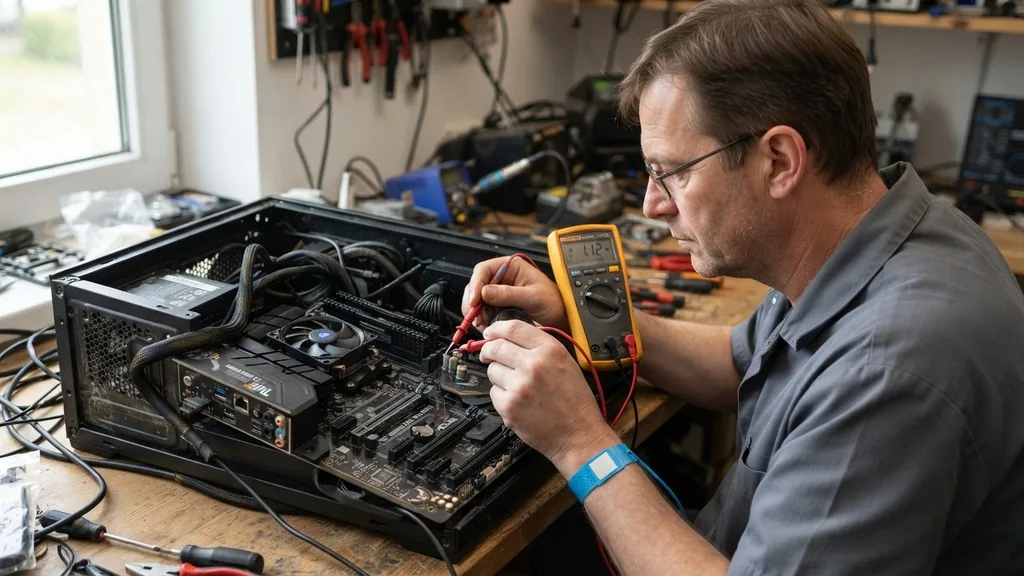
Identifying the signs of a dying motherboard is often an exercise in frustration. Because the motherboard acts as the central hub connecting your CPU, GPU, memory, and storage, its failure often mimics other component issues.
If your computer has started acting erratically, it is vital to discern whether the main board is the culprit or if a peripheral is simply misbehaving. Recognizing these patterns early can save your data and prevent unnecessary hardware replacements.
Identifying Early Warning Signs of Motherboard Instability
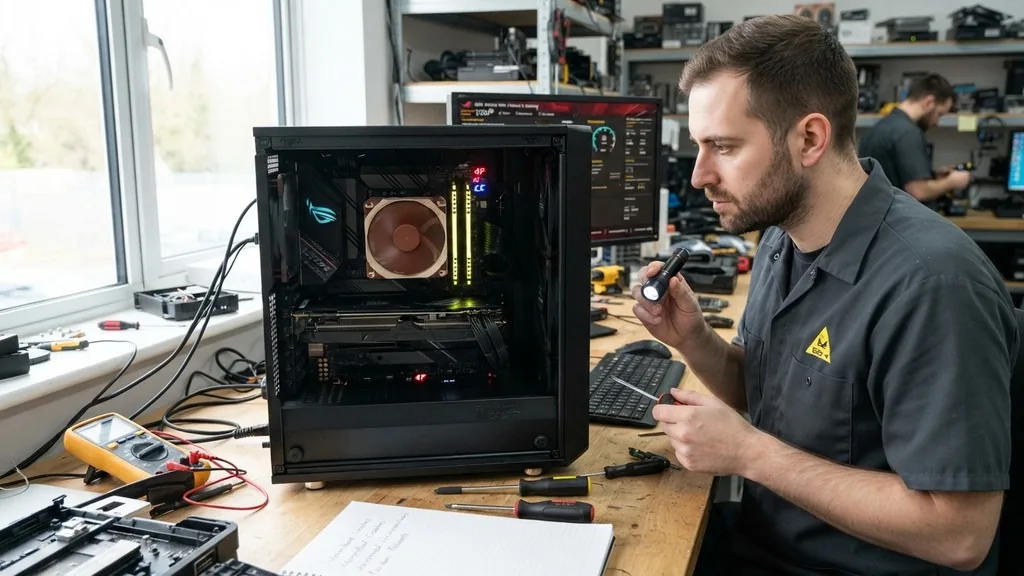
You can identify early motherboard failure by observing intermittent system crashes, unexplained peripheral disconnections, and sudden power cycles that occur without any clear software trigger. These symptoms often appear as minor annoyances before escalating into a complete system blackout. If your computer frequently freezes during intensive tasks or fails to wake from sleep mode, the motherboard’s voltage regulation modules might be struggling to maintain consistent power delivery.
When the motherboard begins to fail, the communication lines between the processor and the RAM can become corrupted. You might notice your computer failing to recognize memory sticks that were previously working perfectly. If you have swapped your RAM modules into different slots and the system still reports memory errors, the actual memory controller on the motherboard may be the point of failure.
Another subtle sign is the presence of distorted audio or erratic USB port behavior. Since these controllers are integrated directly into the chipset, their failure is a strong indicator of motherboard degradation. Always check your device manager to see if there are missing drivers or “unknown device” errors that persist even after clean driver installations.
Interpreting POST Codes and Error Lights
Most modern computer systems utilize a POST (Power-On Self-Test) routine to verify hardware health, which provides visual or auditory feedback when a component fails. If your motherboard features a debug LED display or a small speaker, it is your most reliable tool for diagnosis. A system that fails to boot but displays specific numeric codes or emits a series of beeps is telling you exactly where the process is breaking down.
Consult your motherboard manual to decode these signals. For instance, a continuous beeping pattern often points to a memory issue, while a specific series of short and long beeps might indicate a GPU or CPU communication error. If the board shows no activity at all—no fans, no lights, no beeps—you need to determine if the power supply unit (PSU) is dead or if the motherboard has stopped accepting electricity.
You can learn more about how PC components interact with power systems to better understand the diagnostic process. If the board is receiving power but refuses to initiate the boot cycle, the logic circuits are likely compromised.
The Impact of Physical Damage and Capacitor Failure
Physical inspection remains one of the most effective ways to tell if a motherboard is failing. Over time, electrolytic capacitors can bulge, leak, or burst due to heat stress or manufacturing defects.
When you open your case, look closely at the small cylindrical components surrounding the CPU socket. If any of them have rounded tops, brown crusty residue, or a noticeable lean, they have likely failed.
Beyond capacitors, check for signs of heat damage on the PCB (printed circuit board). Darkened, discolored areas near the VRMs (Voltage Regulator Modules) indicate that the board has been running at dangerously high temperatures. In some cases, you might even detect a faint, acrid burning smell when the computer is powered on.
If you see physical scarring or blown components, the motherboard is beyond repair and must be replaced. Do not attempt to solder these components unless you are a trained technician, as improper repairs can result in electrical shorts that damage your CPU or GPU.
Distinguishing Motherboard Issues from PSU Failures
One of the most common diagnostic mistakes is misidentifying a failing power supply as a dead motherboard. Both issues present similar symptoms, such as random shutdowns or a complete refusal to boot.
To differentiate between the two, you need to perform a systematic elimination. If your power supply is intermittent, it might not provide enough voltage to the motherboard, leading to the system restarting when you launch a game or high-demand application.
Comparison of Motherboard vs. PSU Failure Symptoms
| Symptom | Likely Motherboard Issue | Likely PSU Issue |
|---|---|---|
| System won’t turn on | No lights/fans, or infinite boot loop | No response, no fan spin at all |
| Random restarts | Occurs during OS load or heavy tasks | Occurs when GPU load spikes |
| Peripheral failure | USB/Audio ports stop working | Rarely affects specific ports |
| BIOS/UEFI access | Cannot enter BIOS or settings save | Not usually affected |
If you have a spare power supply, testing your system with it is the fastest way to rule out power delivery issues. If the system still refuses to post with a known-good power supply, the motherboard is almost certainly the component that has failed.
The Role of BIOS and Firmware Corruption
Sometimes, the hardware itself is perfectly fine, but the firmware that controls it—the BIOS or UEFI—has become corrupted. This can happen after a failed update, a sudden power outage during a flash, or simply due to a dying CMOS battery.
If your system settings reset every time you unplug your computer, the CMOS battery is likely dead. While this is a minor issue, a corrupted BIOS can prevent the system from recognizing your hardware entirely.
Try clearing the CMOS by removing the small coin-sized battery on the motherboard for a few minutes. This resets the BIOS to factory defaults. If the system boots afterward, the issue was related to incorrect configuration or corrupt firmware settings.
If you still face issues, look for a “BIOS Flashback” feature on your board, which allows you to update or restore the firmware using a USB drive without needing a functional CPU or RAM. This is a powerful feature that can save a board that appears to be “dead” due to software-level failure.
Environmental Factors and Component Longevity
Environmental conditions play a massive role in how long a motherboard lasts. High humidity can lead to corrosion on the trace lines, while excessive dust buildup acts as an insulator, trapping heat and causing the motherboard to overheat. If you live in an area with high dust levels or frequent power surges, your motherboard is at a higher risk of premature failure.
Using a surge protector is the bare minimum requirement for protecting your system. For more advanced protection, an Uninterruptible Power Supply (UPS) helps regulate the power flow and prevents the motherboard from suffering damage during brownouts. Furthermore, ensure your computer case has adequate airflow.
If your GPU generates significant heat that blows directly onto the motherboard chipset, that heat will eventually degrade the solder joints. Over time, these joints can crack, leading to the “intermittent failure” syndrome where the computer works for an hour and then suddenly crashes.
Analyzing Peripheral and Slot Connectivity
If your computer fails to recognize a specific device, such as a graphics card in the primary PCIe slot, the slot itself might be faulty. Dust can accumulate inside the slot, preventing a clean connection.
Use compressed air to clean the slots thoroughly, and try reseating your GPU. If the card works in a secondary slot but not the primary one, the PCIe lanes controlled by the CPU or the chipset have likely developed a fault.
Check for bent pins in the CPU socket if you are using an Intel-based system or a board where the pins are on the motherboard rather than the processor. Even a single bent pin can cause a channel of RAM to stop working or prevent the system from communicating with the GPU. When you are troubleshooting, always remove unnecessary peripherals.
Disconnect all USB drives, internal hard drives, and secondary cards, leaving only the CPU, one stick of RAM, and the power supply connected. This “bare-bones” approach helps you isolate the motherboard from other faulty components.
When to Replace vs. When to Repair
Once you have exhausted all diagnostic steps—clearing the CMOS, testing the PSU, checking the capacitors, and reseating components—you must decide whether to replace the board. In most modern systems, repairing a motherboard is not cost-effective. Unless you are dealing with a simple CMOS battery replacement or a loose jumper, the internal complexity of multi-layer PCBs makes professional repair nearly as expensive as purchasing a new unit.
If your motherboard is more than five years old, it is almost always better to upgrade. New boards offer better support for modern NVMe drives, faster memory, and more efficient power delivery. When choosing a replacement, look for boards with high-quality VRM heatsinks.
These help manage heat more effectively, which is the single biggest factor in extending the lifespan of your new hardware. Remember that replacing a motherboard often requires a clean install of your operating system, so always back up your data before starting the swap.
Frequently Asked Questions
- How do I know if my motherboard needs to be replaced? If you have tested your power supply, RAM, and GPU in another system and they work fine, but your current motherboard refuses to POST, shows physical damage like bulging capacitors, or suffers from constant, unexplained freezes, it is time to replace the board.
- What is the average lifespan of a motherboard? Most motherboards are designed to last between five to ten years. However, factors like high ambient temperature, poor power quality, and dust accumulation can significantly shorten this lifespan. Often, users choose to upgrade their motherboard simply because it becomes obsolete rather than because it failed.
- Can motherboard failure be fixed? Minor issues like a dead CMOS battery or corrupted BIOS can be fixed. However, physical damage to the circuitry or a failed chipset usually requires professional-grade soldering equipment and is rarely cost-effective. In most cases, replacing the motherboard is the only reliable solution for a hardware failure.
- How to tell if you fried your motherboard? Signs of a fried motherboard include a distinct burning smell, visible scorch marks on the PCB, or the system losing power immediately upon startup. If you suspect a short circuit, do not attempt to power it on again, as it could potentially damage other connected components like your CPU.


