

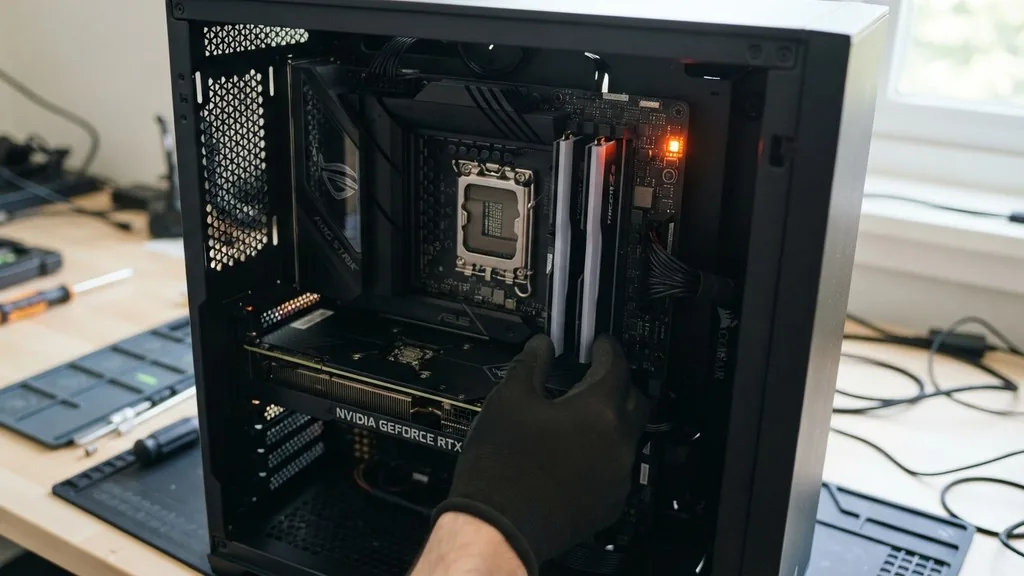
Staring at a PC that refuses to boot is frustrating, especially when your motherboard displays a persistent, ominous light labeled DRAM. This diagnostic LED is part of the POST (Power-On Self-Test) sequence, which acts as a fundamental gatekeeper for your hardware. When the system powers up, the BIOS checks essential components like the CPU, RAM, and GPU before handing control over to the operating system.
If the motherboard detects a communication failure or an initialization error with your memory modules, it halts the process and triggers the DRAM light. This signal indicates that the system cannot verify or interact with your installed memory, effectively preventing your computer from displaying any video output.
Understanding the DRAM Diagnostic LED
The DRAM light acts as a direct communication channel between the motherboard’s firmware and the user. It specifically informs you that the memory subsystem has failed to pass the initial integrity checks. This does not necessarily mean your RAM sticks are permanently broken, though that is a possibility.
Often, the issue stems from a poor physical connection, incorrect BIOS settings, or even a temporary static discharge that confused the memory controller. Modern motherboards utilize these LEDs to save you from digging through complex beep codes or manual error logs. When you see this light, the motherboard is essentially telling you it cannot perform the memory training required to establish a stable communication link between the CPU and the memory slots.
Performing a Hard Power Reset
A hard power reset is the quickest way to discharge residual electricity and force the motherboard to re-initialize its components. Sometimes, the hardware enters a locked state due to a minor electrical surge or a failed wake-from-sleep cycle. To perform this, turn off your power supply unit using the physical switch on the back.
Unplug the power cable entirely from the wall outlet. Press and hold the power button on your PC case for at least 30 seconds. This action clears the capacitors on the motherboard and the power supply, effectively dumping any stored energy that might be keeping the hardware in a hung state.
After waiting a few minutes, plug the power cable back in and attempt to boot. This simple step resolves a surprising number of DRAM light issues without requiring you to open the internal chassis.
Reseating Your RAM Modules
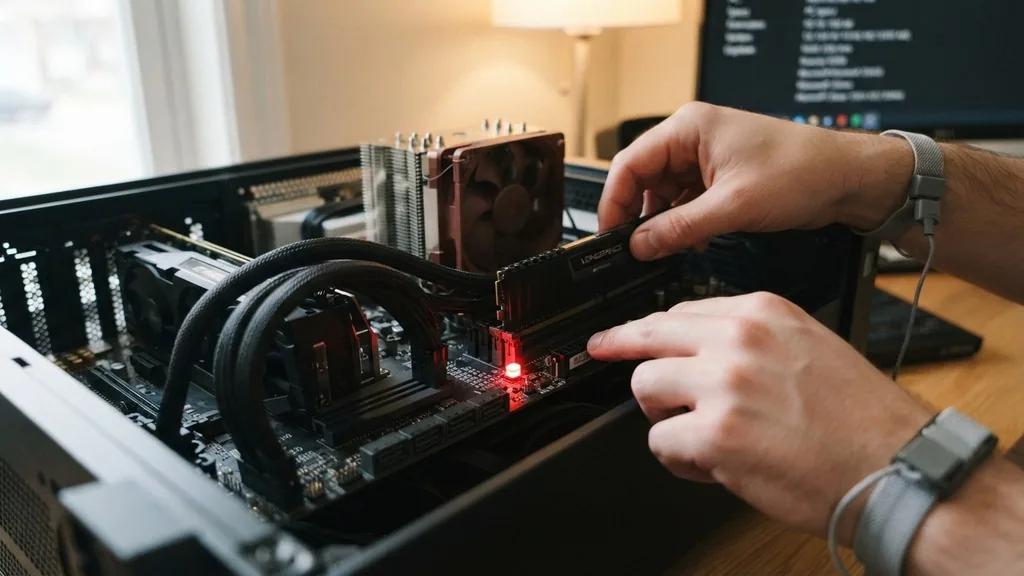
If a power reset fails to clear the light, the most common culprit is a physical connection issue. RAM sticks can shift slightly due to thermal expansion or vibrations, causing the gold contacts to lose firm contact with the pins inside the DIMM slot. You need to remove the memory modules entirely to inspect them.
Open the clips on both ends of the memory slot and pull the stick straight up. Inspect the gold contacts for any debris, oxidation, or dust. Using a clean, dry microfiber cloth, gently wipe the contacts.
When inserting the sticks back into the slot, ensure you push down firmly until you hear a distinct click. It is critical to use the correct slots as specified in your motherboard manual, as using the wrong configuration can often prevent the system from training the memory correctly.
Testing Individual RAM Sticks
When you have multiple sticks of RAM installed, it is difficult to identify which one is causing the problem. You should perform an isolation test to narrow down the failure. Remove all RAM sticks except for one.
Place this single stick in the primary slot, typically labeled as DIMM_A2 or DIMM_2 on most modern motherboards. Attempt to boot the system. If it fails, move that same stick to a different slot and try again.
If it still fails, swap that stick for another one and repeat the process. This systematic approach allows you to determine if you are dealing with a dead memory module or a faulty motherboard slot. If the system boots with one stick but not another, you have successfully identified the defective hardware component.
Interpreting DRAM Light Behavior
The behavior of the LED can provide clues about the nature of the error. A light that turns on and stays solid usually indicates a persistent hardware failure or a mismatch. If the light blinks or cycles on and off, the motherboard might be in the middle of memory training.
Memory training is a process where the BIOS determines the optimal timings and voltages for your specific RAM modules. On newer platforms like DDR5, this training process can take several minutes during the first boot or after a BIOS update.
If you see the DRAM light, wait at least five to ten minutes before assuming something is wrong. Interrupting this process can lead to a corrupted BIOS state or a failed boot sequence.
Clearing the CMOS Memory
The BIOS (Basic Input/Output System) stores configuration data in a volatile memory chip known as CMOS. Occasionally, this data becomes corrupted or contains settings that are incompatible with your current hardware configuration, such as an aggressive XMP profile that your CPU memory controller cannot handle. Clearing the CMOS resets these settings to factory defaults, which often resolves DRAM-related errors.
Locate the coin-shaped CR2032 battery on your motherboard and remove it carefully for about five minutes. Alternatively, many modern boards have a dedicated “Clear CMOS” jumper or button. By resetting the BIOS to its default state, you remove any custom memory frequency, voltage, or timing settings that might be triggering the DRAM warning light.
| Diagnostic Step | Difficulty | Estimated Time |
|---|---|---|
| Hard Power Reset | Easy | 5 Minutes |
| Reseating RAM | Easy | 10 Minutes |
| Clearing CMOS | Medium | 15 Minutes |
| BIOS Update | Hard | 30 Minutes |
Checking for CPU Pin Damage
A frequently overlooked cause of the DRAM light is the CPU itself. Because the memory controller is integrated directly into the processor, bent pins in the CPU socket can lead to a total failure of the memory channels. If you have recently installed a new processor or moved your build, it is possible that a pin is not making proper contact.
Carefully remove your CPU cooler and lift the processor from the socket. Use a bright light to inspect the socket pins.
Any bent or missing pins will prevent the memory controller from communicating with the RAM slots. If you find bent pins, you may need to use a magnifying glass and a very fine needle to gently realign them, though this requires extreme caution and a steady hand.
Updating or Flashing the BIOS
Newer hardware combinations often require specific BIOS versions to support specific memory kits. If you are using a new CPU with an older motherboard, the BIOS might not recognize the RAM correctly without an update. Most modern enthusiast motherboards include a feature called “BIOS Flashback,” which allows you to update the firmware even without a CPU or RAM installed.
You simply need a USB flash drive formatted to FAT32, the latest BIOS file downloaded from the manufacturer’s website, and the dedicated Flashback port on the rear I/O panel. Updating the BIOS can fix compatibility issues with memory modules and improve the stability of the memory controller, often clearing the DRAM light immediately upon the first successful boot after the update.
Addressing Potential Hardware Incompatibility
Sometimes, the RAM you have purchased is simply not compatible with your motherboard or CPU. While DDR4 and DDR5 are standards, the specific speeds, timings, and ranks (single vs. dual rank) can cause the system to reject the memory. Check your motherboard manufacturer’s Qualified Vendor List (QVL).
This document lists all the memory kits that have been verified to work with your specific motherboard model. If your RAM is not on this list, it does not mean it will never work, but it does mean it is more likely to encounter training errors. If you have exhausted all other troubleshooting steps and the DRAM light persists, consider testing with a known-working set of RAM sticks to see if the issue is purely a compatibility mismatch.
Common Questions Regarding DRAM Errors
- Can a bad CPU cause a DRAM light? Yes, because the memory controller is built into the CPU, damaged pins or a faulty integrated controller will prevent the system from initializing RAM.
- How do I know if a RAM slot is damaged? You can identify a faulty slot by testing a known-working RAM stick in every individual slot on the motherboard; if the system fails only in one specific slot, that slot is likely damaged.
- Does the DRAM light always mean the RAM is dead? No, it often indicates a communication error, BIOS configuration issue, or a temporary hang that can be resolved by clearing the CMOS or reseating the modules.
- Is it safe to leave the computer on while the DRAM light is lit? It is generally safe, but if the light stays on for more than 15 minutes without progress, the system is stuck and you should power it down to begin troubleshooting.
Dealing with a persistent DRAM light is a process of elimination. By systematically isolating the memory, clearing the CMOS, and checking for physical hardware faults, you can identify the root cause of the error. Do not rush the process, as some memory training cycles require patience.
If you continue to see the light after performing all these steps, consider seeking professional assistance or contacting the manufacturer for a warranty claim, especially if the board is still within its coverage period. Most motherboard manufacturers provide detailed support pages that can help you cross-reference specific error codes with your board’s model, providing further clarity if the general troubleshooting steps do not yield a fix.


