

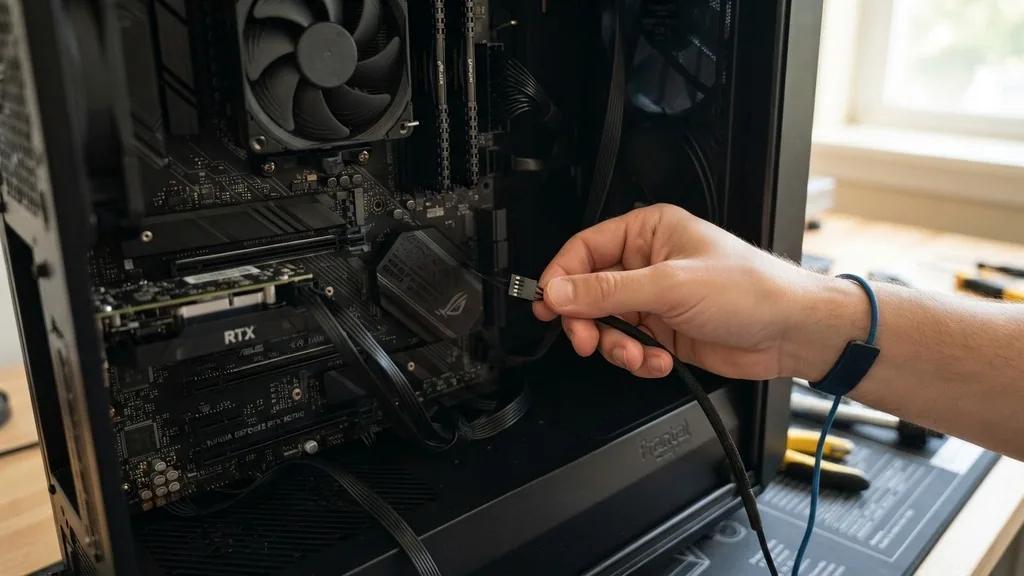
Proper airflow is the backbone of a high-performance computer build. Knowing how to connect case fans to motherboard headers ensures that your system stays cool, quiet, and stable under heavy loads. Whether you are building your first PC or upgrading an existing setup, understanding the relationship between fan connectors and your motherboard is essential.
Mismanaged airflow often leads to thermal throttling, which drags down performance and can shorten the lifespan of your expensive components. By mastering the connection process, you take full control over your machine’s thermals.
Identifying Your Motherboard Fan Headers
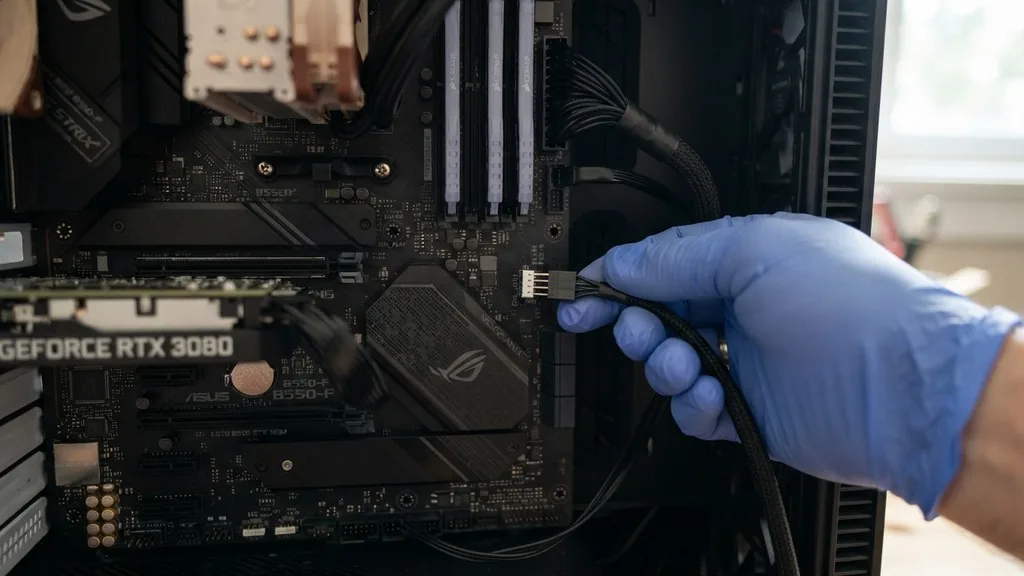
The primary way to connect cooling fans to your motherboard is through dedicated headers labeled specifically for chassis airflow. You can identify these by looking for pins protruding from the PCB, usually labeled as SYS_FAN or CHA_FAN.
Most modern motherboards include several of these headers distributed around the edges of the board to make cable management easier. These headers are designed to deliver power and receive speed data from your fans, allowing the system to communicate with your cooling hardware in real-time.
When you look closely at these headers, you will notice they usually have four pins arranged in a row. These are known as PWM headers. While they are designed for four-pin fans, they are backward compatible with older three-pin connectors.
The layout of the plastic shroud around the pins acts as a guide, ensuring you don’t plug the connector in backward. Always look for the plastic tab on the motherboard header that corresponds with the notch on your fan’s cable housing. If you force a connection, you risk bending the pins, which can permanently disable that header.
The Difference Between CPU_FAN and SYS_FAN
A common mistake is plugging case fans into the CPU_FAN header. This header is reserved exclusively for your processor cooler.
The motherboard BIOS often monitors the CPU_FAN header specifically to ensure the processor is being cooled; if it detects no fan connected there, it may trigger a “CPU Fan Error” on startup or, worse, fail to boot entirely to protect the hardware. Always use the SYS_FAN header for your intake and exhaust fans, as these are meant to be governed by the overall system temperature rather than the immediate, erratic spikes of a CPU’s heat output.
Understanding 3-Pin vs 4-Pin Fan Connectors
The physical interface of your fan determines how the motherboard controls its speed. A pin fan connector can have either three or four pins. Understanding the distinction is vital for maintaining a quiet build.
A three-pin fan uses pin DC voltage control to adjust speed, meaning the motherboard simply lowers or raises the amount of electricity sent to the motor. This is an effective method, but it can sometimes cause audible clicking or humming at very low speeds if the voltage drops too far.
A four-pin fan, on the other hand, utilizes Pulse Width Modulation, or PWM. This technology sends a constant 12V signal to the fan while using a separate signal pin to tell the fan’s internal controller exactly how fast to spin. This allows for much finer control and quieter operation at low RPMs.
If you plug a 3-pin fan into a 4-pin motherboard header, the BIOS will generally detect it and allow you to switch the control mode from PWM to DC voltage mode. Most modern motherboards are smart enough to handle this transition automatically, but checking your settings is a good habit.
| Connector Type | Control Method | Speed Precision | Compatibility |
|---|---|---|---|
| 3-Pin | Voltage (DC) | Moderate | Universal |
| 4-Pin | PWM | High | PWM-specific |
Managing Multiple Fans with Splitters and Hubs
If your case has more fans than your motherboard has headers, you don’t necessarily need to buy a new motherboard. You can use a fan splitter cable to connect two or even three fans to a single header. However, there is a hard limit to how much current a single motherboard header can provide—typically around 1 Amp.
Exceeding this can damage the motherboard’s circuitry. If you plan on daisy-chaining more than three fans, or if you are using high-performance static pressure fans that draw more power, you should look into a powered fan hub.
A powered hub connects to your motherboard for the signal (to control speed) but draws its power directly from your power supply unit via a SATA power connector or a Molex adapter. This isolates the power draw from the motherboard, ensuring the headers remain safe while allowing you to synchronize the speed of multiple fans.
This setup is ideal for builds with six or more case fans, providing a clean look while maintaining robust performance. Always ensure that the fans connected to a single splitter are identical models to prevent inconsistent speed readings or erratic behavior during RPM monitoring.
Configuring Fan Curves in the BIOS
Once your fans are physically connected, the real work begins in the motherboard BIOS. This is where you define how your fans behave based on temperature.
A fan curve is a graphical representation of the fan’s speed relative to the temperature of your components. You can set the fans to stay at a low, silent speed while the PC is idling and ramp up automatically as the temperature rises during gaming or rendering tasks.
Most modern BIOS interfaces allow you to perform a “fan calibration” or “fan test.” This process tests the minimum and maximum speeds of each connected fan, allowing the system to create an optimized curve that prevents the fans from stalling. If you find your PC is too loud, you can manually adjust these curves to be more conservative.
Conversely, if your system runs warm, you can tighten the curve so that the fans reach maximum RPM sooner. This level of customization is the primary benefit of connecting your fans directly to the motherboard rather than using a fixed-speed adapter.
Integrating RGB and Lighting Headers
Modern case fans often include lighting features that require a separate connection from the cooling motor power. You will typically find two types of lighting headers: 12V RGB (4-pin) and 5V addressable RGB header (3-pin).
These are not interchangeable, and plugging a 5V device into a 12V header will permanently fry the LEDs on your fans. The 5V V ARGB system allows for individual color control for every LED on the fan, creating the fluid, rainbow-like effects seen in high-end builds.
If your fans have proprietary connectors, you may need to use the controller included with the case or the fans themselves. These controllers often connect to an internal USB header on the motherboard, allowing you to use fan controller software provided by the manufacturer.
This is often the most convenient way to manage lighting and speed simultaneously, especially when dealing with a large ecosystem of fans from the same brand. Always consult your motherboard manual to confirm which headers are available for lighting synchronization.
Addressing Common Connectivity Problems
Sometimes, things don’t go according to plan. If a fan isn’t spinning, check the connection first. It is surprisingly easy to plug a connector in slightly off-center on a 4-pin header.
If the fan is plugged in correctly but still isn’t spinning, enter the BIOS and check if the header is enabled. Occasionally, a header might be disabled by default or set to a “Zero RPM” mode that keeps the fan off until a certain temperature threshold is reached.
Another common issue involves inconsistent RPM readings. If you use a splitter, only one fan can report its speed to the motherboard; the others simply follow the signal. If you notice the RPM readout jumping wildly, it is likely because two different fans are trying to send speed data back to the same header.
Ensure your splitter only has one “master” connector that carries the tachometer pin. You can learn more about the technical standards of these connections by reviewing the official PWM fan connector specifications provided by industry leaders.
The Importance of Strategic Airflow Planning
Connecting your fans correctly is only half the battle; where you place them matters just as much. The general rule of thumb is to create “positive pressure” within the case. This means you should have more air coming in through intake fans than going out through exhaust fans.
Positive pressure helps keep dust out of the system, as air is forced out through the small gaps in the case rather than being sucked in through unfiltered vents. You can achieve this by setting your intake fans to a slightly higher RPM curve than your exhaust fans in the BIOS.
Placement should also favor a clear path. Intake fans at the front should be unobstructed, pushing air directly toward your GPU and CPU heatsink. Exhaust fans at the rear and top should be placed to pull the hot air away from these components before it has a chance to recirculate.
If you have a bottom-mounted intake, make sure it is pulling air from a clean surface, as it will act as a vacuum for dust on your desk or floor. Regularly cleaning these intake filters is just as important as the initial installation.
Advanced Cooling Solutions and Future-Proofing
For enthusiasts looking to push their systems to the limit, liquid cooling or high-end air coolers might change how you approach fan management. Large radiators often require high-static-pressure fans, which can be much louder than standard case fans.
In these scenarios, using a dedicated fan controller or ensuring your motherboard headers are rated for higher current is essential. Some high-end motherboards even include a “W_PUMP” or water pump header, which is designed to run at a constant, high speed to keep coolant flowing, distinct from the variable speed requirements of case fans.
As you plan your build, consider the future. If you suspect you might add more drives, a second GPU, or more fans later, choose a case with ample room for cable management and a motherboard with extra headers.
Investing in a quality PWM fan hub early on can save you hours of frustration later. By treating your cooling system as a dynamic, controllable component of your PC, you ensure that your hardware remains efficient, quiet, and reliable for years to come.
Frequently Asked Questions
- Do I really need to connect case fans to the motherboard? Yes, connecting them to the motherboard allows for automatic speed adjustment based on temperature. If you connect them directly to the power supply, they will run at 100% speed constantly, which is often unnecessarily loud and creates more dust buildup inside your computer.
- How do I sync case fan lighting with my motherboard? To sync lighting, your fans must be compatible with your motherboard’s RGB or ARGB header. Connect the fan’s lighting cable to the corresponding header on the motherboard, then use the motherboard’s proprietary software (like Aura Sync, Mystic Light, or RGB Fusion) to customize the color patterns.
- What should I do if my case fans are 3-pin but my headers are 4-pin? You can safely plug 3-pin fans into 4-pin headers. The connector has a plastic guide that ensures it fits correctly. Once plugged in, you may need to go into your BIOS settings and change the header mode from “PWM” to “DC” or “Voltage” to ensure the speed is controlled correctly.
- Can I use a fan splitter for all my fans? You can use a splitter, but be mindful of the power limit. Most motherboard headers are limited to 1 Amp. Check the power rating of your fans (usually listed on the back) and ensure the total amperage of all fans on one header remains below the motherboard’s limit.


