

Knowing exactly what hardware resides inside your computer case is essential for troubleshooting, upgrading, or simply understanding the capabilities of your machine. When you ask what motherboard is in my pc, you are looking for the central hub that connects your CPU, memory, storage, and expansion cards. Identifying this component, often referred to as the mainboard or system board, allows you to determine if your PC can support a faster processor, more RAM, or a modern graphics card.
Without this knowledge, you might purchase incompatible hardware, leading to wasted time and unnecessary expense. Fortunately, there are several reliable ways to extract this information, ranging from simple software commands to physical inspection of the hardware itself.
Using Built-in Windows System Tools
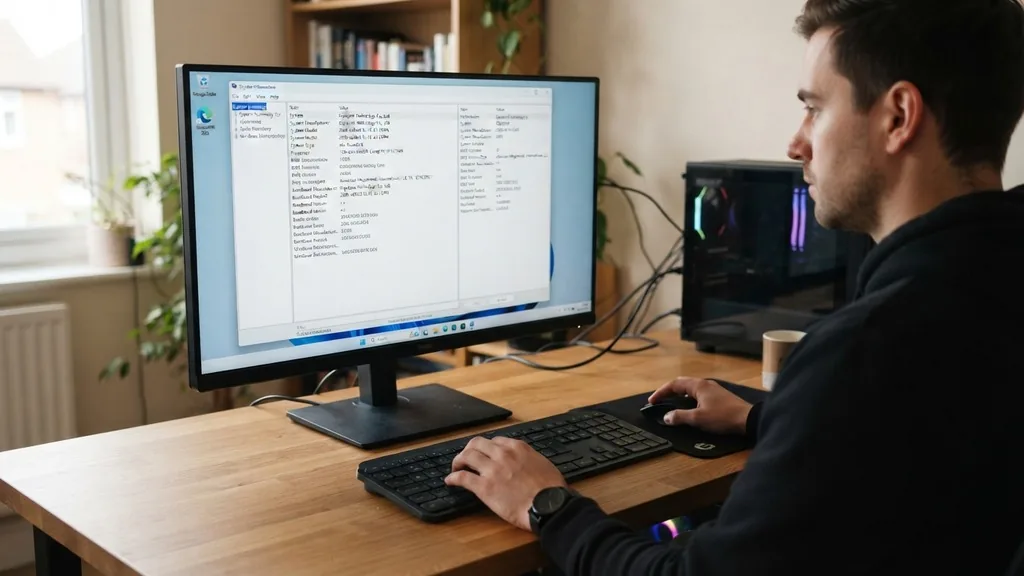
The most direct way to identify your hardware is by using the built-in utilities provided by the Windows operating system. These tools pull data directly from the firmware and drivers, meaning you do not need to install any third-party software to get the answer.
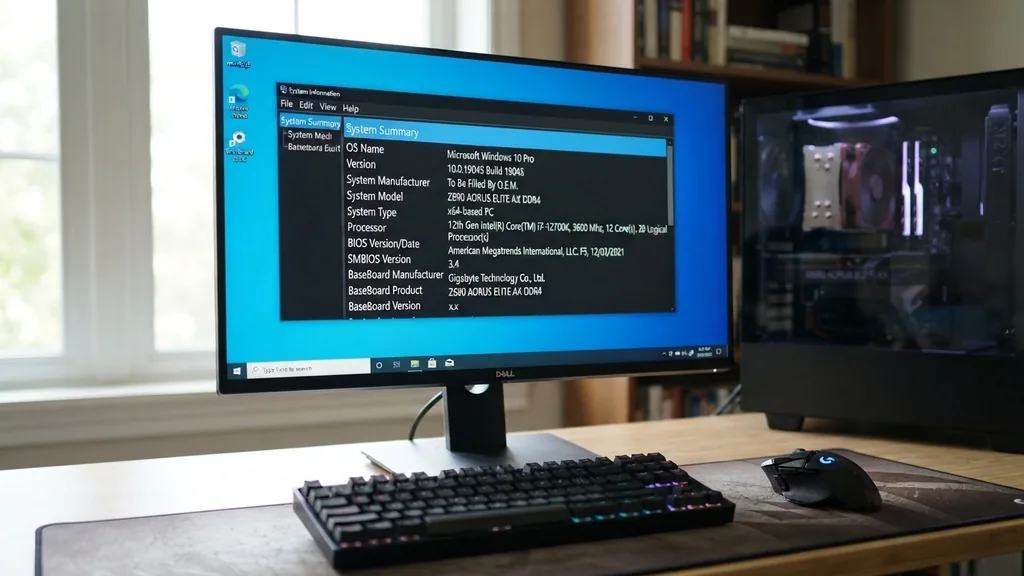
The System Information utility is a powerful, often overlooked tool that provides a comprehensive overview of your machine’s configuration. To access it, simply press the Windows key on your keyboard, type “msinfo32” into the search bar, and press Enter.
Once the System Information window opens, look for the “BaseBoard Manufacturer” and “BaseBoard Product” entries in the summary list. These fields will tell you the brand—such as ASUS, Gigabyte, MSI, or ASRock—and the specific model name of your mainboard. If these fields show “Base Board” or are missing, it is occasionally due to the manufacturer using generic branding for pre-built office machines.
In such cases, the software approach might be limited, but for most custom-built or retail PCs, this method is fast, accurate, and completely free of charge. It is the first step you should take before attempting more invasive procedures.
Leveraging Command Prompt for Quick Identification
If you prefer a text-based interface or want a method that feels more technical, the Command Prompt is an excellent tool for querying your motherboard model. This method is particularly useful if you are managing multiple machines or if you want to copy-paste the hardware details into a support ticket.
To start, press the Windows key, type “cmd,” and click on the Command Prompt application. You do not need administrative privileges for this specific query, so a standard user account will work perfectly.
Once the black command window appears, type the following command exactly as written: “wmic baseboard get product,Manufacturer,version,serialnumber” and press Enter. The system will process your request and display the information in a clean, tabulated format. This command specifically targets the WMI (Windows Management Instrumentation) layer to extract the exact board identification data.
It is a highly efficient way to confirm your hardware specifications without navigating through layers of graphical menus. By using the Command Prompt, you bypass the potential clutter of the System Information window, getting straight to the core identity of your PC’s foundation.
Third-Party Software for Detailed Analysis
Sometimes, the built-in Windows tools provide vague information, such as “To be filled by O.E.M.” or a generic serial number. If you find yourself in this situation, professional-grade diagnostic software can help.
One of the most trusted utilities in the industry is CPU-Z, which provides granular detail about your CPU, cache, memory, and motherboard. This tool is widely used by overclockers and enthusiasts to verify their system configuration in real-time.
When you run CPU-Z, navigate to the “Mainboard” tab. Here, you will find the manufacturer, the model, the chipset, and even the current BIOS version installed on your device. This is particularly helpful when you are planning an upgrade, as you need to know the chipset to determine which CPUs are supported by your current socket.
Unlike the Windows system tools, this software often parses the DMI (Desktop Management Interface) data more effectively, revealing hidden details about your specific board revision. Keep in mind that while these tools are free and safe, you should always download them from official developer websites to ensure you are not installing unwanted bundled software.
Checking the BIOS and UEFI Environment
If your operating system is failing to boot or if you simply prefer to access the data before Windows loads, you can check your motherboard model directly through the BIOS or UEFI menu. This is the low-level firmware that initializes your hardware during the startup process.
To enter this menu, you typically need to press a specific key—often Delete, F2, F10, or F12—immediately after you turn on your power button. The exact key is usually displayed on the screen for a few seconds during the boot sequence.
Once inside the UEFI interface, you will see a wealth of information about your system, including the motherboard model, the CPU temperature, and the RAM frequency. Most modern UEFI interfaces are graphical and easy to navigate with a mouse. If you are looking for the model number, it is usually displayed prominently on the main “System Information” or “Easy Mode” screen.
This method is foolproof because it relies on the hardware’s own self-identification, independent of any software drivers. It is the most reliable way to confirm what hardware you have if you are encountering driver-related issues within Windows.
Physical Inspection of the Motherboard
When all digital methods fail, or if you are working with a machine that does not have a functional storage drive, you must perform a physical inspection. This is the most accurate way to identify a motherboard because it ignores software labels and looks at the actual component.
You will need to turn off your PC, unplug it from the wall, and remove the side panel of your computer case. Once you have access to the interior, look for the model name printed directly onto the surface of the circuit board.
Manufacturers almost always silk-screen the model name in white or gold lettering, usually located near the CPU socket, between the PCIe slots, or near the RAM DIMM slots. Do not be confused by the large brand logos; focus on the specific model string, such as “B650-PLUS” or “Z790-A.” If the board is covered by a large graphics card or a bulky CPU cooler, you might need to use a flashlight or even a small mirror to read the text.
If you find a sticker with a barcode, the serial number is usually located there as well. While this process is more labor-intensive, it provides 100% certainty regardless of the state of your software or operating system.
Understanding the Importance of the Chipset
While the motherboard model is vital, the chipset is the “brain” of the board that dictates what features you can use. The chipset acts as the communication bridge between the processor, memory, and peripheral devices.
When you are looking at your motherboard model, you should also take note of the chipset, as this determines your upgrade path. For instance, an Intel Z-series chipset generally supports overclocking, while an H-series board is typically locked down for more budget-conscious, standard operation.
Understanding the relationship between your board and your CPU is critical for future-proofing. Many users make the mistake of buying a high-end CPU only to find their motherboard chipset lacks the necessary power delivery or voltage regulation modules to support it effectively. To help you understand how different board tiers generally align with user needs, consult the following breakdown.
| Motherboard Tier | Primary Target Audience | Key Features |
|---|---|---|
| Entry-Level | Home/Office users | Basic connectivity, limited slots, no overclocking |
| Mid-Range | Gamers/General power users | Better cooling, extra M.2 slots, decent audio |
| High-End/Enthusiast | Content creators/Overclockers | Robust power stages, Wi-Fi 6E/7, multiple PCIe lanes |
Resolving Common Identification Issues
Sometimes, the information you retrieve might seem cryptic or incomplete. For example, you might see a “System Model” listed as a string of numbers that does not match any consumer product.
This is common with pre-built PCs from companies like Dell, HP, or Lenovo, where they use proprietary boards designed specifically for their chassis. In these scenarios, the motherboard manufacturer is often not ASUS or MSI, but the computer manufacturer itself.
If you are struggling to identify a proprietary board, do not search for the model number on generic hardware websites. Instead, search for the model of your specific desktop or laptop on the manufacturer’s support portal.
Most of these companies maintain a database where you can enter your serial number or service tag to see a full list of your original components. This is the most effective way to find drivers and support documentation for proprietary hardware that does not follow standard retail naming conventions.
Why You Need to Know Your Board Specifications
Knowing what motherboard is in your pc is not just a one-time curiosity; it is a fundamental aspect of computer maintenance. There are several recurring reasons why you will need this information throughout the lifespan of your machine.
- Driver Updates: Manufacturers release BIOS updates to improve system stability and security. You cannot find the correct updates without knowing your exact board model.
- Hardware Compatibility: If you want to add more RAM, you need to know how many slots your board has and what maximum speed it supports.
- Troubleshooting: If your PC won’t POST (Power-On Self-Test), you will need the specific manual for your board to interpret the beep codes or LED error indicators.
- Expansion Capabilities: Knowing if you have available PCIe slots allows you to decide if you can add a dedicated sound card, a capture card, or a high-speed networking controller.
- Operating System Support: Some boards require specific firmware settings, like Secure Boot or TPM 2.0, to support newer versions of Windows.
By maintaining a record of your motherboard model, you empower yourself to make informed decisions. Whether you are dealing with a faulty component or simply planning a performance upgrade, having this information at your fingertips saves significant time. It prevents the frustration of buying parts that physically won’t fit or electrically won’t communicate with your existing system.
Interpreting BIOS and Firmware Versions
The motherboard is useless without the firmware that governs it. The BIOS (Basic Input/Output System) or the more modern UEFI (Unified Extensible Firmware Interface) is the software layer that tells the hardware how to behave before the operating system is loaded. When you check your motherboard details, it is highly recommended that you also note your current BIOS version.
Manufacturers frequently release updates to this firmware to resolve bugs, improve compatibility with newer CPUs, or patch security vulnerabilities. If you are experiencing strange system behavior, such as random crashes or hardware that is not being detected, checking the manufacturer’s website for a BIOS update is a standard troubleshooting step. However, you must be careful: flashing the BIOS incorrectly can permanently disable your board.
Always ensure you have a stable power supply and follow the manufacturer’s instructions to the letter. This is a powerful way to keep your system performing at its peak, but it should be approached with caution and technical diligence.
Frequently Asked Questions
- Is there a way to find my motherboard model without opening the case? Yes, you can use the Windows System Information tool by typing “msinfo32” in the search bar or use the Command Prompt with the command “wmic baseboard get product” to retrieve the exact model name without needing to touch any hardware.
- Why does my motherboard show “To be filled by O.E.M.”? This happens when your computer is a pre-built system from a company like Dell or HP. These manufacturers use custom-designed boards that do not have standard retail names, so you should check their support website using your PC’s serial number instead.
- Does the motherboard model tell me what RAM I should buy? Yes, it is crucial. Your motherboard model determines the generation of RAM (such as DDR4 or DDR5) and the maximum speed and capacity it can handle. Checking your motherboard manual or manufacturer page ensures you buy compatible memory modules for your system.
- Will CPU-Z show me my motherboard model safely? CPU-Z is a safe and widely trusted industry-standard tool for identifying hardware. It reads data directly from your system to display the manufacturer, model, and chipset information, making it one of the most reliable software options for checking your motherboard details quickly.


