

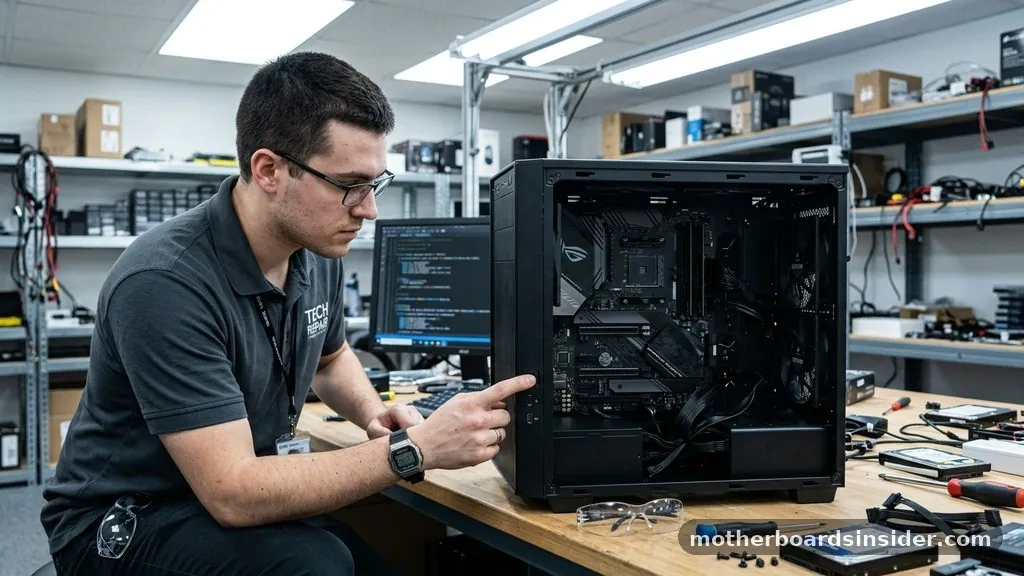
Determining whether your computer has suffered a catastrophic hardware failure requires a systematic approach to troubleshooting. When your machine fails to start, it is natural to worry that the central hub of your system has failed.
Learning how to tell if motherboard is dead involves isolating the electrical and mechanical signals your computer sends during the boot process. By systematically checking your power delivery, peripheral connectivity, and internal signals, you can distinguish between a failed mainboard and other common culprits like a faulty power supply or a loose memory module.
Initial Power Indicators and System Responsiveness
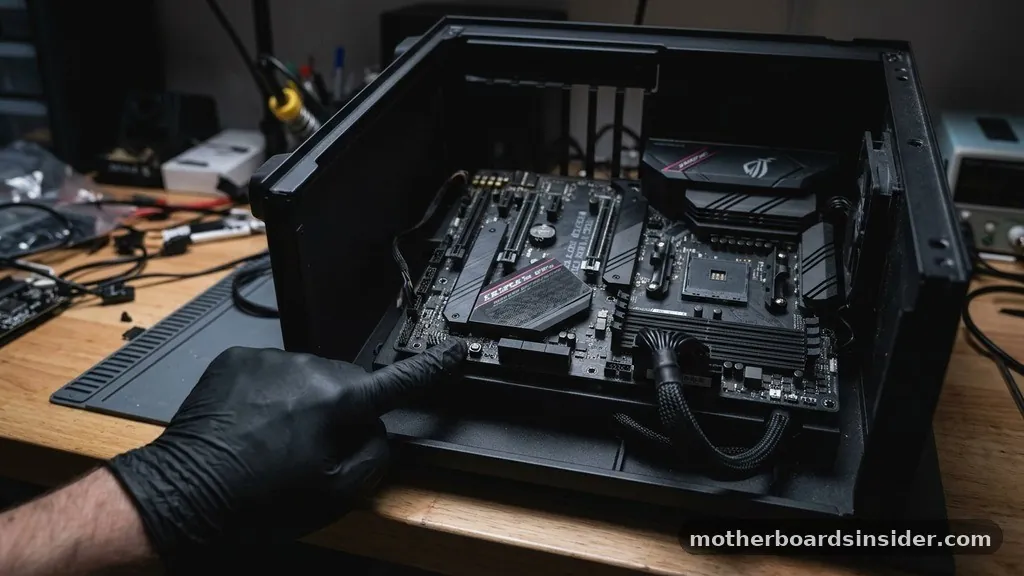
The first step in diagnosing a potential failure is observing the immediate reaction of the system when you initiate the startup sequence. When you are pressing power, the motherboard should ideally send a signal to the power supply unit (PSU) to begin drawing electricity.
If you notice absolutely nothing—no lights, no spinning fans, and no sound—the issue is often related to power delivery rather than the board itself. However, if the motherboard is dead, it will fail to relay the signal to the rest of the components even if the PSU is functioning correctly.
Observe the case for any signs of life. Many modern boards feature diagnostic LEDs that illuminate the moment they receive power from the PSU. If these leds remain dark, it suggests that electricity is either not reaching the board or the board’s power circuitry has failed.
It is essential to check if the power button itself is functioning. A loose header connection or a broken switch can mimic the symptoms of a dead board.
Ensure that the front panel connectors are firmly seated in their designated pins. If you have verified that the power supply is functional—perhaps by testing it with a dedicated power supply tester or on another working system—and you still receive no response, the probability of a motherboard failure increases significantly.
Interpreting Beep Codes and POST Diagnostic Signals
If your system shows some signs of life, such as fans spinning or lights turning on, but fails to reach the operating system, you are likely dealing with a Power-On Self-Test (POST) failure. A healthy system runs a series of checks on the CPU, RAM, and GPU before initializing the boot process. If the motherboard is alive but encounters a problem, it will typically communicate the issue through a series of beeps or numerical codes on a debug display.
Listen carefully for a beep code when you turn the machine on. A single, short beep usually indicates that the system is functioning correctly. A series of long or short beeps, however, points to specific hardware issues.
If you hear nothing at all, despite the fans spinning, this is a classic sign that the board is failing to execute the POST sequence. In these scenarios, the motherboard might be technically powered but unable to initialize the CPU or communicate with the memory slots.
If your board features a small speaker or an onboard LED display, consult your manual to decode these signals. If there is no sound and no video output, you are likely facing a critical failure of the board’s firmware or its ability to interface with the processor.
Testing Memory and Expansion Slot Integrity
Memory issues are frequently misdiagnosed as motherboard failures. If the RAM modules are not seated properly or if the memory slots themselves have become damaged, the system will often stall during the boot process.
When the computer shows no response or enters a boot loop, your first diagnostic action should be to strip the system down to the bare essentials. Remove all peripheral cards, including dedicated graphics cards, and test with only one stick of memory in the primary slot.
If the system fails to boot with one stick, try moving that same stick to a different slot. If you have multiple memory slots, the failure might be limited to a single channel, which suggests a partial failure of the board. If you test every slot with a known-working memory module and still get nothing, the board’s memory controller is likely compromised.
This is a common point of failure, especially on older systems where capacitors or trace lines may have degraded. Remember that the interaction between the CPU and the RAM is mediated entirely by the board; if the board cannot initialize the memory, it will not progress to the BIOS or the operating system.
The Role of the Power Supply in System Failure
Distinguishing between a dead motherboard and a dead power supply is a critical diagnostic step. A failing power supply can deliver enough voltage to spin a fan but not enough to trigger the CPU or initialize the board. This can lead to the illusion of a dead board when the primary issue is actually the unit providing the electricity.
To verify, examine the power cables connecting to the 24-pin and 8-pin connectors on the board. Ensure they are pushed in completely.
If you suspect the PSU, you can perform a “paperclip test” on the 24-pin connector to see if the power supply fan spins independently, though this does not guarantee the PSU is providing stable, clean power to the components. A board that is truly dead will not distribute power to the USB ports or the keyboard.
You can test this by plugging in a mouse or a keyboard and checking if the optical sensor or the num-lock light turns on. If the board is receiving power but these devices remain completely unresponsive, it is a strong indicator that the board’s onboard voltage regulators are failing to distribute power correctly to the peripherals.
Visual Inspection for Physical Damage
Sometimes, the evidence of a dead motherboard is visible to the naked eye. Before assuming the board is beyond repair, perform a thorough physical inspection. Look for signs of physical distress, such as bulging or leaking capacitors, which look like small cylinders with rounded or crusty tops.
On older hardware, these were a frequent cause of death. Also, inspect the board for any burnt or scorched areas, particularly near the voltage regulator modules (VRMs) located around the CPU socket.
Check the CPU socket pins for any bent or broken metal contacts. If you have recently installed or removed a processor, it is possible that a pin was damaged, preventing the CPU from establishing a stable connection with the board. While this is technically a CPU-board interface issue, the result is the same: the system will not boot.
Additionally, check for any loose screws or metal debris that might have fallen behind the board and caused a short circuit. A short can trigger the board’s built-in safety mechanisms, causing it to shut down immediately upon pressing power to protect itself from permanent damage.
BIOS and Firmware Corruption Issues
The BIOS is the brain of the motherboard, responsible for waking up the hardware components. If the BIOS chip is corrupted or the CMOS battery is completely depleted, the system may fail to start. In some cases, a failed BIOS update can render a board unresponsive.
If you suspect a firmware issue, try clearing the CMOS. You can do this by removing the small, coin-shaped battery from the board for a few minutes or by using the “Clear CMOS” jumper pins if your board provides them.
After clearing the CMOS, the board will revert to its factory settings. If the board was stuck in a loop due to incorrect voltage or timing settings, this reset might restore functionality. If the BIOS is corrupted beyond a simple reset, some boards offer “BIOS Flashback” features that allow you to update the firmware using a USB drive without needing a functional CPU or RAM.
This is a powerful tool for recovering a system that otherwise appears dead. If the board does not support this feature and the BIOS is corrupted, the motherboard will need to be replaced or the chip will need to be professionally reflashed.
Comparing Symptoms of Component Failure
It is helpful to compare the symptoms of a dead motherboard against other failing components. The following table provides a breakdown of common behaviors observed during hardware failure.
| Symptom | Potential Culprit | Diagnostic Action |
|---|---|---|
| No lights, no fans, no response | PSU or Power Cable | Test PSU with a multimeter or tester |
| Fans spin, no display, no beeps | Motherboard or CPU | Reseat RAM and clear CMOS |
| System loops during startup | RAM or BIOS settings | Test one RAM stick at a time |
| Smoke or burning smell | Short circuit on board | Immediate power-off and inspection |
Use this table as a reference when you are in the middle of troubleshooting. If your system displays one of these specific behaviors, you can narrow down your search significantly. Remember that the board acts as the central nervous system; if the motherboard is dead, it essentially disconnects all other parts of the machine from each other.
Addressing Topical Gaps: Peripheral and Port Failure
A common area of confusion is when a computer turns on, but specific ports or features fail to work. Users often ask if this means the motherboard is “dead.” The answer is nuanced.
If your USB ports, audio jacks, or Ethernet ports stop working while the rest of the computer functions, the motherboard is not necessarily dead, but it is certainly failing. This is often caused by damaged solder joints, failed onboard controllers, or software-level driver conflicts.
To determine if this is a hardware-level board issue, boot into the BIOS. If the ports are unresponsive even within the BIOS environment, it confirms that the problem is hardware-related. In many cases, these issues can be bypassed using expansion cards.
For example, if your onboard network port fails, you can install a PCIe network card. However, if the failure is widespread across multiple controllers, it suggests that the board’s traces or the chipset itself is degrading. At this point, the board is effectively entering its final stage of life, and while it might still boot, it is unreliable.
Frequently Asked Questions
Will a dead motherboard show any lights?
Usually, a completely dead motherboard will not show any lights. However, if only a specific component or circuit on the board has failed, the standby LED might still illuminate. If you see lights but get no response when pressing the power button, the issue is likely the power delivery or the board’s initialization sequence.
Can a motherboard be repaired if it is dead?
In most cases, replacing the motherboard is more cost-effective than repairing it. While professional technicians can replace blown capacitors or repair broken traces, this requires advanced soldering skills and specialized equipment. For the average user, a dead board is typically considered a total loss.
How do I test a motherboard without a CPU?
You generally cannot test a motherboard without a CPU because the board requires the processor to execute the POST routine. Without a CPU, the board will not be able to generate beep codes or display diagnostic information. Some high-end boards offer “Flashback” features that work without a CPU, but these are for firmware only.
Why does my computer fan spin but nothing happens?
If your fans are spinning but you see nothing on the screen, the motherboard is likely receiving power but failing to initialize the system. This often points to a failure in the memory, the CPU, or the BIOS. Try reseating your RAM and clearing your CMOS settings to resolve the issue.
Conclusion
Identifying a dead motherboard is an exercise in elimination. By starting with the power supply and systematically testing the memory, CPU, and BIOS, you can rule out peripheral issues and pinpoint the exact source of your system’s failure.
While it is never convenient to deal with hardware degradation, understanding these signals helps you avoid unnecessary expenses and ensures that you are replacing the correct component. Whether it is a simple power connection issue or a true hardware failure, a methodical approach ensures you get your computer back to work as quickly as possible.


