

When your computer refuses to boot, displays erratic hardware behavior, or gets stuck in a BIOS loop, performing a hardware reset is often the most effective troubleshooting step. Learning how to reset CMOS on motherboard hardware allows you to revert your system settings to their factory defaults.
This process effectively wipes away misconfigured parameters that might be preventing your machine from posting or stabilizing under load. Whether you have overclocked your CPU beyond its limits or updated firmware that caused compatibility conflicts, resetting the Complementary Metal-Oxide-Semiconductor chip is a standard procedure for restoring functionality.
Understanding the Role of the CMOS in Modern Systems
The CMOS chip is a small, low-power memory module on your motherboard that stores critical configuration data, including the date, time, and hardware settings required for the system to boot successfully. Because this memory is volatile, it requires a constant, tiny trickle of electricity to maintain its state.
This power is provided by the cmos battery, typically a CR2032 coin cell, which keeps the clock running and the settings preserved even when the main power cord is unplugged from the wall. Without this battery, your computer would lose its BIOS configuration every time you shut it down, forcing it to revert to default values upon every reboot.
When you enter the BIOS menu, you are essentially interacting with the interface that communicates directly with the CMOS. If you change fan curves, enable XMP profiles for your RAM, or adjust CPU voltages, those changes are written to the CMOS. If you accidentally set a voltage too high or a memory timing too aggressive, the system may fail to initialize.
By performing a cmos clear, you force the hardware to discard these custom profiles and revert to the factory-shipped settings. This is the electronic equivalent of a “factory reset” for your computer’s low-level hardware environment.
Identifying When a CMOS Reset Is Necessary
You should consider a reset when your machine shows symptoms of hardware-level instability that software updates or driver reinstalls cannot fix. The most common scenario occurs after an unsuccessful overclocking attempt.
If your computer turns on but the screen remains black, or if you receive a “CPU Overclocking Failed” error message, the system is likely trapped in a boot loop. Other indicators include the system clock constantly resetting to an incorrect date, or the computer failing to detect hardware components like your graphics card or hard drives despite them being physically connected.
Another frequent reason for needing a reset involves forgotten BIOS passwords. If a system is locked behind a supervisor password that you no longer possess, clearing the CMOS can sometimes bypass this security measure, depending on the motherboard manufacturer’s implementation.
Furthermore, if you are upgrading significant hardware components, such as a processor or motherboard chipset, a clean slate in the BIOS can prevent conflicts between the old hardware configuration and the new physical components. It is a fundamental troubleshooting step that isolates the issue to the firmware level.
Safety Precautions Before You Begin
Before you touch the internal components of your PC, you must ensure the safety of your hardware. The most critical step is to fully power down the computer and disconnect the power cord from the wall outlet. Simply shutting down Windows is not enough, as modern power supplies often maintain a standby voltage to the motherboard.
You should also press and hold the power button on your PC case for 10 to 15 seconds while the unit is unplugged to drain any residual charge stored in the capacitors. This prevents accidental shorts or electrical damage to sensitive components.
Static electricity is another significant risk. If you have a carpeted workspace or are wearing synthetic clothing, you can build up an electrostatic charge that might fry the motherboard’s delicate circuitry. It is best to work on a non-conductive surface, such as a wooden table, and touch a grounded metal object before reaching inside the case.
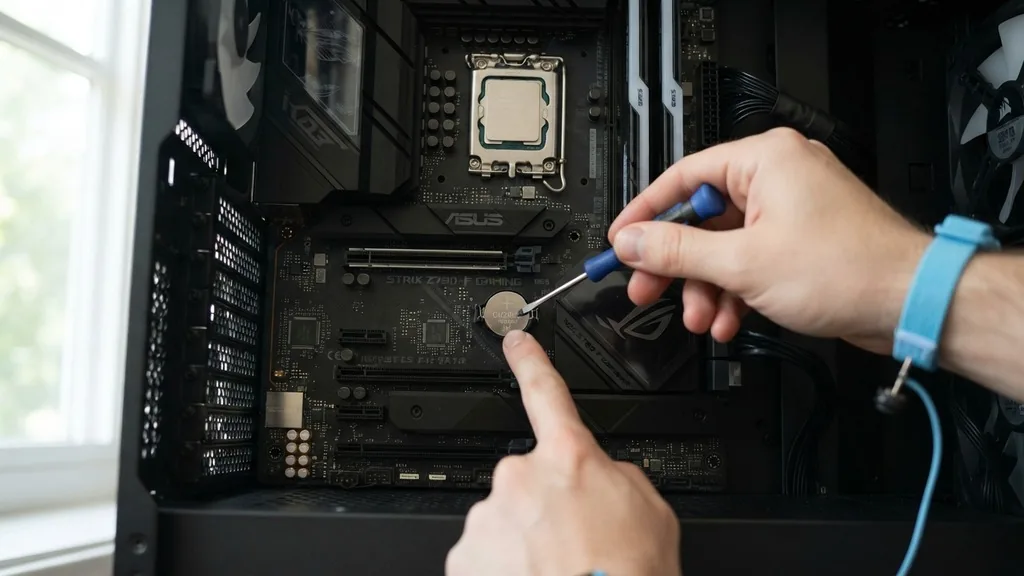
If you are comfortable using an anti-static wrist strap, it is highly recommended. Always handle the battery motherboard components by their edges and avoid touching the gold pins or the underside of the motherboard itself.
Method One: Removing the CMOS Battery
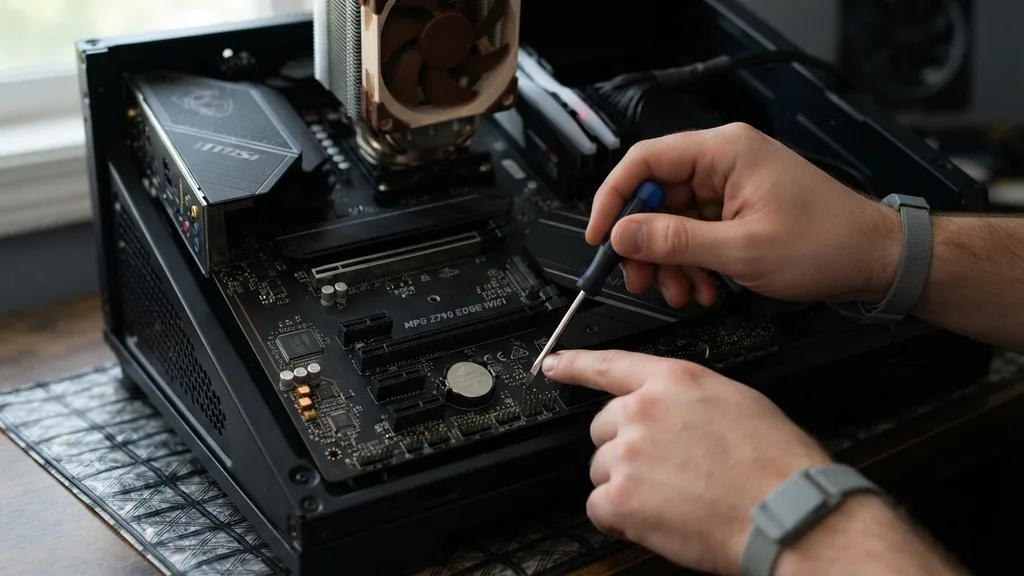
The most reliable way to reset your BIOS settings is by removing the cmos battery. This physical disconnect forces the memory to lose its charge, effectively clearing the data. Locate the circular, silver coin-shaped battery on your motherboard.
It is usually held in place by a small metal clip. Gently push the clip aside with a screwdriver or your finger, and the battery should pop out.
Once it is removed, wait for at least 60 seconds to ensure the capacitors on the board are completely discharged. Some users prefer waiting five to ten minutes to be absolutely certain.
After the time has elapsed, reinsert the battery into its slot, ensuring it is oriented correctly with the positive side facing up. Reconnect the power cable and attempt to boot the system. You will likely see a message on the screen indicating that the CMOS settings have been reset or that the BIOS checksum is invalid.
This is normal. You can then enter the BIOS to reconfigure your date, time, and preferred hardware settings. This method is universal and works on almost every desktop motherboard manufactured in the last three decades.
Method Two: Utilizing the CMOS Clear Jumper
Many motherboards feature a dedicated set of pins specifically designed to clear the CMOS without the need to remove the battery. These are often labeled as JBAT1, CLR_CMOS, or simply CMOS. To use this, you must locate the two or three pins on the motherboard.
If there is a plastic jumper cap already covering two of the pins, remove it and place it over the specific configuration required by your motherboard manual to bridge the circuit for a few seconds. If there is no cap, you can briefly touch both pins simultaneously with the tip of a metal screwdriver to complete the circuit.
This action signals the motherboard to reset its stored values. If your motherboard has a three-pin configuration, you usually move the cap from pins 1-2 to pins 2-3 for several seconds, then move it back to the original position.
This is faster than removing the battery and is particularly useful if your battery is tucked underneath a large graphics card or bulky CPU cooler, making it physically difficult to reach. Always consult your motherboard manual if you are unsure about which pins to bridge, as shorting the wrong pins could potentially damage the board.
Method Three: Using a Dedicated CMOS Button
High-end and enthusiast-grade motherboards often include a dedicated cmos button on the rear I/O panel. This is the most convenient method, as it allows you to reset the system without even opening the computer case. If your motherboard has this feature, you will typically see a button labeled “Clear CMOS” or marked with a reset icon near your USB ports or audio jacks.
Simply ensure the power is off, then press and hold the button for a few seconds. Some boards require you to hold it while the power is on, while others require the power to be disconnected.
This button is designed to be a fail-safe for overclockers. It is an excellent feature for those who frequently experiment with hardware settings and need a quick recovery option when the system fails to post. If you are unsure whether your board has this feature, check the back of your computer where the cables plug in.
If you see a button that looks different from the others or is recessed, consult the documentation provided by the manufacturer. It is a clean, efficient, and professional way to manage your settings.
Common Troubleshooting and Hardware Risks
While resetting the CMOS is generally safe, there are risks if performed incorrectly. Always ensure you are not using a magnetic tool that could damage sensitive components. If you are using a screwdriver to bridge pins, ensure it is insulated or that your hands are steady to avoid slipping onto other traces on the motherboard.
Another common issue is failing to put the jumper back in the correct position. If the jumper is left on the “clear” pins, the motherboard may refuse to boot at all, leading to confusion about whether the hardware is actually broken.
Another risk involves the battery motherboard mount itself. The plastic clips that hold the battery are notoriously fragile. If you apply too much force when removing or inserting the cell, you might snap the plastic, making it impossible to keep the battery in place.
If this happens, you may need to find a way to secure it or replace the motherboard entirely. Always move slowly and use minimal force. If the battery does not pop out easily, double-check that you are pressing the release tab correctly rather than prying against the motherboard surface.
Addressing Common Misconceptions About CMOS Resets
Many users worry that resetting the CMOS will delete their files or damage their operating system. This is a common misconception. The CMOS only holds hardware-level settings and BIOS information; it does not store your Windows installation, your personal files, or your software applications.
Your data is stored on your storage drives (SSDs or HDDs), which are completely independent of the CMOS memory. While you may need to reset your boot order (e.g., ensuring your SSD is the primary boot device) after a clear, your actual data remains perfectly intact.
Another question often asked is whether you have to reset the CMOS every time you boot. The answer is a definitive no. If you find yourself needing to reset the CMOS frequently, it is a strong indicator that your cmos battery is dead and needs to be replaced.
A healthy battery should last several years. If your computer forgets the date and time every time you unplug it, it is time to buy a new CR2032 cell. This is a cheap, five-minute fix that solves the problem permanently.
Technical Comparison of Reset Methods
Different motherboards offer different ways to manage firmware resets. Understanding the pros and cons of each method helps you choose the right approach for your specific situation. The table below outlines the primary differences between these methods.
| Method | Convenience | Risk Level | Hardware Required |
|---|---|---|---|
| Remove Battery | Low (Case access needed) | Low | None |
| Jumper Pins | Medium | Moderate | Screwdriver or Jumper Cap |
| Clear CMOS Button | High | Very Low | None |
As shown in the table, the dedicated button is the most efficient, but it is only available on specific premium boards. Removing the battery is the most accessible method for the average user, as it requires no specialized tools and works on virtually any system.
The jumper method is a middle ground but carries a slight risk of accidentally bridging the wrong pins if you are not careful. Always prioritize the method that matches your hardware’s specific design.
Advanced BIOS Management and Best Practices
Once you have successfully performed a cmos clear, you must re-enter the BIOS to optimize your system. The default settings are designed for maximum compatibility, not maximum performance. This means your RAM will likely run at a lower frequency (JEDEC speed) rather than its advertised XMP or EXPO speed.
You will need to re-enable these profiles to get the performance you paid for. Furthermore, ensure your SATA mode is set correctly—usually to AHCI—to prevent issues with your operating system drive detection.
If you are interested in the deeper technical aspects of how these settings function, you can read more about motherboard BIOS configuration on official technical support pages. Keeping your BIOS updated is also a best practice.
Manufacturers frequently release firmware updates that improve stability, add support for newer CPUs, and patch security vulnerabilities. After clearing your CMOS, check the manufacturer’s website for any available updates, but only perform them once you are certain your system is stable at factory defaults.
Finally, keep a record of your stable BIOS settings. Once you have a configuration that works perfectly—including your fan curves, memory timings, and boot priorities—many modern motherboards allow you to save these profiles to a USB drive. If you ever have to reset your CMOS again, you won’t have to manually reconfigure everything from scratch.
You can simply load your saved profile, saving yourself significant time and frustration. Taking these small steps transforms you from a casual user into a proactive system maintainer.
Frequently Asked Questions
- Is clearing the CMOS risky for my hardware? No, clearing the CMOS is a standard maintenance procedure. It does not damage your hardware. The primary risk is physical damage to the motherboard if you use excessive force or touch the wrong pins with a conductive tool while the power is connected.
- Do I need to remove the battery if I have a clear button? No, you do not. The button is specifically designed to perform the same function as removing the battery. If your motherboard includes a dedicated button on the rear I/O panel, use that first, as it is the safest and most convenient option available.
- Will a CMOS reset delete my Windows files? Absolutely not. Your files are stored on your hard drive or SSD, which is separate from the CMOS chip. A reset only affects the motherboard’s low-level firmware settings, such as the date, time, and hardware configuration, but your storage drives remain entirely untouched by the process.
- How often should I have to reset my CMOS? You should rarely, if ever, need to reset your CMOS. If you find yourself doing it frequently, it usually indicates a failing battery or an unstable hardware configuration, such as an aggressive overclock or a faulty component that requires consistent troubleshooting to get the system to boot.


