

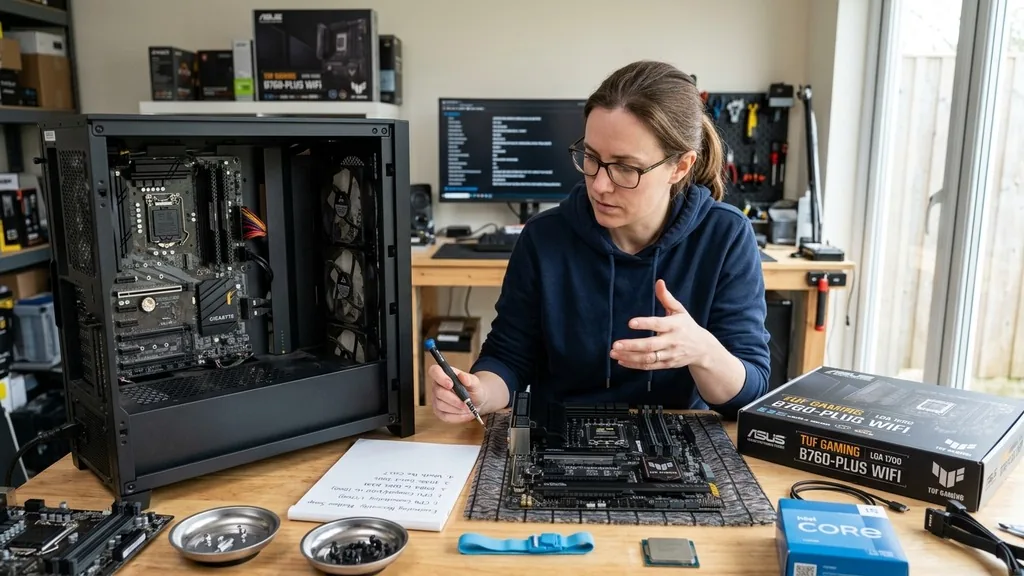
Deciding to upgrade your motherboard is often the most daunting task a PC enthusiast can face. Unlike swapping out a graphics card or adding more RAM, the motherboard acts as the central nervous system of your machine. When you change it, you are effectively rebuilding the core of your computer.
You might be doing this to support a new CPU architecture, to gain more M.2 storage slots, or perhaps to move to a smaller form factor like Mini-ITX. Whatever the motivation, the process requires patience, precision, and a solid understanding of how components interact.
Evaluating the Necessity of a Motherboard Swap
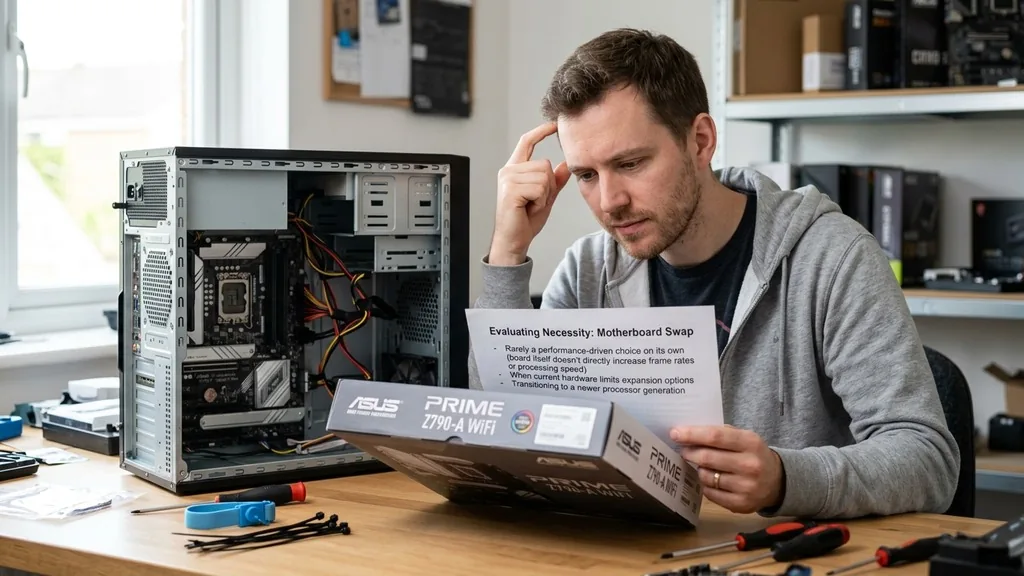
Upgrading your motherboard is rarely a performance-driven choice on its own, as the board itself doesn’t directly increase your frame rates or processing speed. You generally need to swap the motherboard when your current hardware limits your expansion options or when you are transitioning to a newer processor generation that requires a different socket. If you find your current system lacks the PCIe lanes for high-speed storage, or you are stuck on an aging chipset that prevents you from using modern DDR5 memory, you have a valid technical reason to proceed.
Before you commit to this, ask yourself if the limitation is actually the motherboard. If you are struggling with slow system speeds, check your CPU utilization and disk health first. A new motherboard won’t fix a failing hard drive or a thermal-throttled processor.
However, if you are planning a significant platform jump—such as moving from an Intel 10th Gen to a 14th Gen, or from an older AMD AM4 socket to AM5—the motherboard upgrade is a mandatory prerequisite. Ensure you document your current system configuration thoroughly before you start pulling cables.
Choosing the Right Replacement Board
Selecting the correct component involves matching the motherboard to your existing or planned CPU. You must check the socket type—such as LGA 1700 or AM5—to ensure physical compatibility. Beyond the socket, consider the form factor.
Your current computer case likely dictates whether you need an ATX, Micro-ATX, or Mini-ITX board. If you buy a motherboard that is too large for your chassis, you will face an immediate installation failure.
Another critical factor is the chipset. Higher-tier chipsets, such as the Z-series for Intel or X-series for AMD, offer more overclocking potential, more USB ports, and additional PCIe lanes. If you are a casual user, a mid-range B-series motherboard usually provides the best balance of features and price.
Look for connectivity options like Wi-Fi 6E, 2.5 Gigabit Ethernet, and sufficient internal headers for your case fans and RGB lighting. Always verify that the motherboard supports the RAM speed you intend to use, as memory compatibility can be a frequent source of boot-up issues.
| Feature | Budget/Entry Board | High-End/Enthusiast Board |
|---|---|---|
| VRM Cooling | Minimal/None | Advanced Heat-Sink Arrays |
| PCIe Slots | Limited (1-2) | Multiple (3+) |
| Overclocking | Locked or Restricted | Full BIOS Control |
| Connectivity | Standard USB/Ethernet | Thunderbolt/High-Speed Wi-Fi |
Preparing Your Data and Software Environment
A common misconception is that changing a motherboard will automatically wipe your hard drive. In reality, your personal data—photos, documents, and games—lives on your storage drives, not the motherboard. However, your operating system is a different story.
Windows ties its activation status to your hardware ID, which is primarily derived from your motherboard. When you install a new board, Windows may detect a significant hardware change and lose its activation status.
Before you begin, ensure you have a full backup of all critical files on an external drive or cloud service. If you are using a Microsoft account, link your digital license to that account. This makes reactivating Windows much easier after the hardware swap.
It is also a good practice to download the latest drivers for your new motherboard from the manufacturer’s website onto a USB flash drive. Having these ready will save you from a “chicken and egg” scenario where you need internet access to download drivers, but your new board doesn’t have the network drivers installed to connect to the web.
Safely Disassembling Your Current System
The disassembly process is where most mistakes occur, usually due to rushing or static electricity. First, power off your computer and flip the switch on the back of your power supply unit to the “off” position.
Unplug all cables from the rear of the case. It is helpful to label your cables as you remove them; a piece of masking tape and a pen can save you significant frustration when you start putting things back together.
Open your case side panel and lay the machine flat. Start by removing the graphics card, as it often blocks access to the motherboard screws and the release latches for the RAM. Next, unplug the 24-pin main power cable, the 8-pin CPU power cable, and all front-panel connectors.
Be gentle with these, as they are fragile. Once the board is clear of cables, unscrew the motherboard from its standoffs.
Keep these screws organized, as you will need them to secure the new board. If you are transferring your CPU and RAM, remove them carefully and store them in an anti-static bag or back in their original packaging until you are ready to install them on the new board.
Installing the New Motherboard
Installation begins with the I/O shield. Modern, high-end motherboards often come with the I/O shield pre-installed, but if yours is separate, snap it into the rear of the case before placing the motherboard inside.
If you forget this step, you will have to remove the entire motherboard again, which is a common and frustrating rookie mistake. Align the motherboard with the case standoffs, ensuring that the holes on the board match the mounting points.
Lower the board into place carefully. It should rest on the standoffs without significant resistance. If it feels like you are forcing it, stop and check if a cable is caught underneath or if the I/O shield is misaligned.
Once it is seated, use the screws you removed earlier to secure the board to the standoffs. Do not overtighten them, as this can crack the PCB or damage the mounting points. Once the board is firmly in place, you can begin the process of reattaching your components, starting with the CPU and RAM, followed by the power cables and front-panel headers.
Connecting Power and Front Panel Headers
The front-panel headers—the tiny pins that connect your power button, reset button, and HDD activity light to the motherboard—are often the most confusing part of the build. Consult your motherboard manual, as the layout is rarely standardized across different manufacturers.
These connections are essential for the physical operation of your computer. If you plug them in incorrectly, the power button simply won’t do anything when pressed.
Next, focus on the power delivery. Connect the 24-pin ATX cable to the main power header and the 8-pin (or 4+4 pin) EPS cable to the CPU power header. Ensure these are pushed in until you hear a distinct click.
If you are using a modular power supply, double-check that the cables are also fully seated on the power supply unit end. For a deeper dive into hardware standards and power efficiency, you can refer to the Intel Power Supply Design Guide, which outlines the specifications for modern desktop components. Organizing these cables behind the motherboard tray is not just for aesthetics; it improves airflow and makes future maintenance much easier.
Handling Windows and Driver Initialization
Once everything is connected, it is time for the first boot. Press the power button and enter the BIOS immediately. Check that your components—CPU, RAM, and storage drives—are all detected correctly.
Set your XMP or EXPO profile for your memory to ensure it runs at its rated speed. If the system boots into your old Windows installation, you might find that it works surprisingly well, as Windows 10 and 11 are very good at automatically pulling generic drivers for new hardware.
However, a “clean slate” approach is often recommended. If you experience system instability, random crashes, or bizarre errors, a fresh installation of Windows is the best way to ensure the new motherboard and the OS are communicating perfectly. If you choose to keep your old installation, uninstall the old chipset and audio drivers before installing the new ones.
This prevents driver conflicts that can lead to blue screens and performance degradation. Run Windows Update until no more critical updates are available to ensure the OS has the latest security patches and hardware support.
Common Troubleshooting and Post-Upgrade Tips
Even the most experienced builders encounter issues after a motherboard swap. If the system fails to post, the first thing to check is the Q-LEDs or the Dr. Debug code on your motherboard.
Many modern boards have small LEDs that indicate exactly where the boot process is failing—CPU, DRAM, VGA, or Boot. If the DRAM light is on, try reseating your RAM sticks or testing with a single stick to rule out a faulty module.
Another common issue is the “no display” error. If you have a dedicated graphics card, make sure your monitor is plugged into the GPU output, not the motherboard’s HDMI or DisplayPort, which might be disabled if your CPU lacks integrated graphics. If you are using a new CPU with an older motherboard model, you might need a BIOS update to ensure compatibility.
Some boards allow you to flash the BIOS via a USB stick without even needing a CPU installed, which is a lifesaver in these scenarios. Keep an eye on your CPU temperatures in the BIOS; if they climb rapidly, your cooler might not be mounted correctly, which is a clear sign that you need to reapply thermal paste and check the mounting pressure.
- Verify the BIOS version supports your specific CPU model.
- Ensure all power cables are fully seated and clicked into place.
- Check that RAM sticks are in the correct slots (usually the second and fourth slots from the CPU).
- Clear the CMOS if the board refuses to post after multiple attempts.
- Update your chipset drivers immediately after booting into Windows.
- Verify that your Windows license is activated via your Microsoft account.
Frequently Asked Questions
- How hard is it to replace a motherboard? Replacing a motherboard is a moderate-difficulty task. It requires careful handling of delicate parts and basic knowledge of cable routing. If you have built a computer before or feel comfortable performing minor internal upgrades, you will find this process manageable with patience and the correct manual.
- Will I lose my data if I change my motherboard? Your data is stored on your hard drives or SSDs, not the motherboard. You will not lose your files, but you may need to reactivate Windows or reinstall certain drivers. Always perform a full backup of your important documents before starting any major hardware modification to be safe.
- Do I need to reinstall Windows when upgrading? It is not strictly required, as Windows 10 and 11 are quite resilient. However, a clean installation is highly recommended to avoid driver conflicts and ensure optimal system performance. If you choose not to reinstall, be prepared to clean up old drivers and troubleshoot potential software stability issues.
- How do I know if my motherboard is compatible with my CPU? You must check the motherboard’s socket type (e.g., LGA 1700, AM5) and the chipset support list on the manufacturer’s official website. These resources will tell you exactly which processors are supported and whether a BIOS update is required to ensure the CPU functions correctly with that specific board.


