

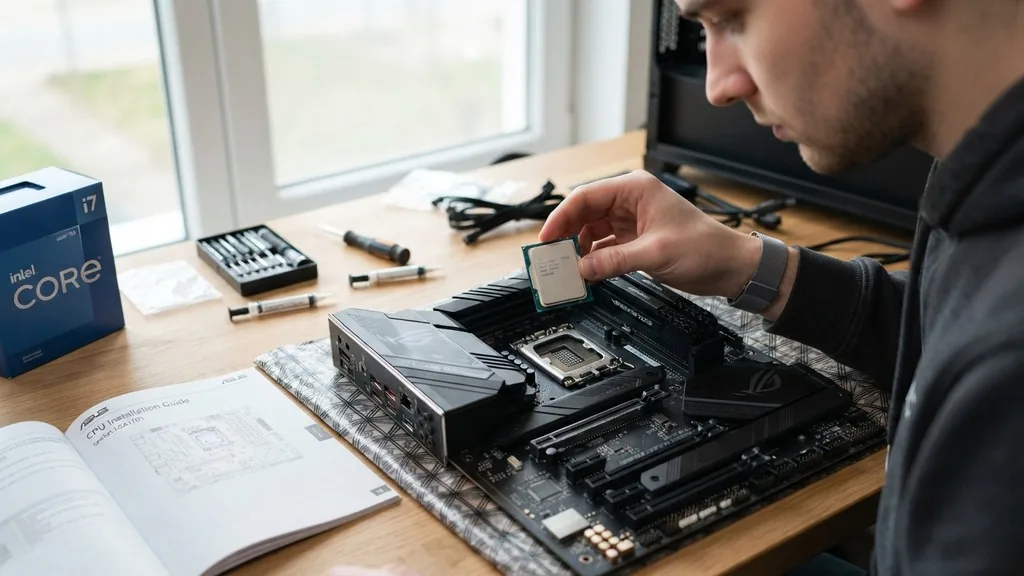
Finding the right processor for your computer build starts with understanding the physical and electrical relationship between the CPU and the motherboard. Many people assume that if a chip fits into the socket, it will work, but this is a common misconception that can lead to system instability or hardware failure. To successfully identify a compatible processor, you must look beyond the physical socket and investigate the chipset, BIOS version, and power delivery requirements.
Understanding the CPU Socket Interface
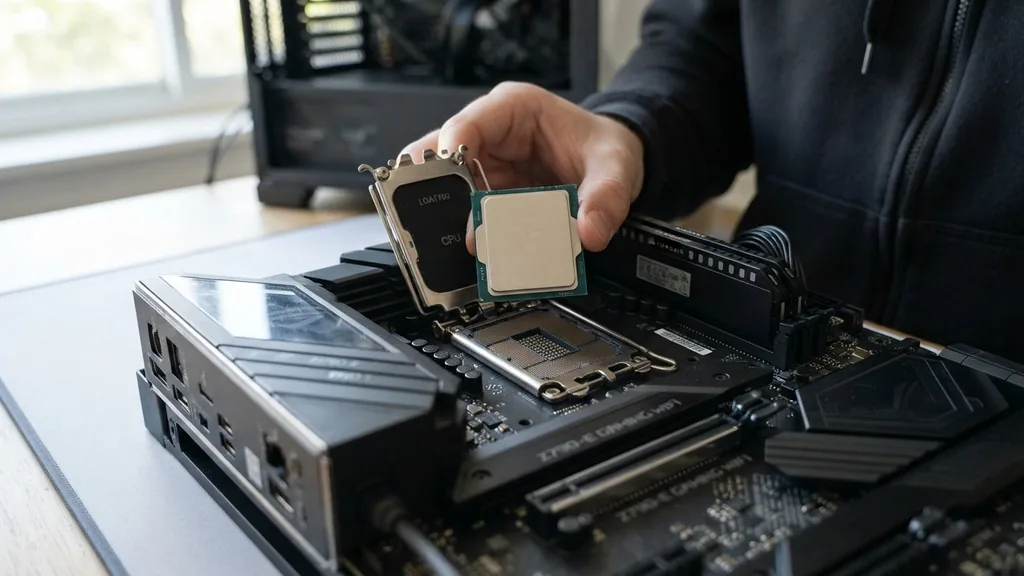
A CPU socket is the physical connector on the motherboard that allows the processor to interface with the rest of your system. The most direct answer to how to find a compatible CPU for a motherboard is to match the processor’s socket type exactly to the socket on your mainboard. If the pin count, layout, or physical dimensions do not align, the processor will not seat properly, and attempting to force it can cause permanent damage to both the motherboard pins and the CPU contact pads.
Intel and AMD utilize distinct socket architectures that are generally incompatible with one another. For example, modern Intel desktop processors typically use the LGA (Land Grid Array) format, where the pins are located on the motherboard itself.
Conversely, many AMD processors have historically used the PGA (Pin Grid Array) format, where the pins are on the CPU, though they have transitioned to LGA with their AM5 platform. You must check your motherboard manual or the manufacturer’s product page to identify the specific socket name, such as LGA 1700 or AM4, and ensure the processor you choose matches that specific designation.
Decoding the Motherboard Chipset
The chipset acts as the traffic controller for your motherboard, dictating which processors can communicate with your RAM, storage, and expansion cards. Even if a CPU fits physically into the socket, it will not function if the chipset does not support that specific CPU generation. For instance, a motherboard with an Intel B660 chipset might physically accept a 14th-generation Intel chip, but it may require a specific BIOS update to recognize the newer architecture.
When searching for compatibility, you should prioritize the chipset model. Manufacturers often release a compatibility list on their official websites that explicitly states which processor models function with each chipset version.
Always verify this list before making a purchase. If you are building a new system, choosing a modern chipset ensures you have the longest possible upgrade path, allowing you to swap in newer, faster processors down the road without replacing the entire motherboard.
Verifying BIOS and Firmware Versions
A common trap for builders is assuming a motherboard works with a CPU out of the box simply because the socket matches. In reality, the motherboard’s BIOS—the foundational software that tells the hardware how to interact—must be programmed to recognize the specific CPU model. If your motherboard was manufactured before a particular CPU was released, the BIOS might be too old to identify the chip, resulting in a system that refuses to boot.
To resolve this, you may need to perform a BIOS update. Many modern motherboards include a feature that allows you to flash the BIOS using only a USB drive and a power supply, even without a CPU installed. This process is essential if you are trying to install a newer generation processor onto an older board.
Check the manufacturer’s website for the “CPU Support List,” which will often indicate the minimum BIOS version required for every compatible processor. If your current BIOS version is lower than the one listed, you must update the firmware before the system will recognize the new hardware.
The Role of TDP and Power Delivery
The Thermal Design Power (TDP) of a CPU represents the maximum heat the processor is expected to generate under a standard workload. While this is primarily a cooling concern, it is also a vital indicator of electrical compatibility.
High-performance CPUs require more power, which puts a significant load on the motherboard’s Voltage Regulator Modules (VRMs). If you pair a high-TDP processor with a budget-friendly motherboard that has weak VRM cooling, you may experience thermal throttling or system crashes during heavy tasks.
Always check the power phase design of your motherboard. Enthusiast-grade processors often require robust power delivery systems to maintain stable clock speeds.
If you are uncertain, you can consult the official processor support documentation provided by the manufacturer to see if your motherboard is rated to handle the specific TDP of your chosen CPU. Ignoring these power requirements can lead to unstable performance, as the motherboard may automatically down-clock the CPU to prevent electrical damage.
Using Online Compatibility Tools
For the average user, manually cross-referencing socket types, chipsets, and BIOS versions can feel overwhelming. Fortunately, there are several reliable online tools designed to automate this process.
Platforms like PCPartPicker allow you to build a virtual system by selecting your motherboard first; the site then automatically filters out any CPUs that are not compatible with your choice. This is an excellent way to prevent basic errors during the planning phase.
While these tools are highly accurate, they are not infallible. You should always use them as a starting point rather than the final authority. Once you have a shortlist of compatible processors, perform a final check against the motherboard manufacturer’s official support page.
This “double-verification” method is the gold standard for avoiding costly mistakes. Remember that these tools cannot always account for minor revision differences in motherboard hardware, so the official manufacturer documentation remains your most reliable source of truth.
Distinguishing Between Motherboard Generations
Manufacturers frequently release different “revisions” of the same motherboard model. For example, a motherboard might be released as version 1.0 and later updated to version 2.0 with improved power delivery or a different onboard component.
Sometimes, these revisions change the CPU support list entirely. It is critical to check the specific revision number printed on the motherboard PCB, usually found in a corner or near the PCIe slots.
When you look up compatibility, ensure you are viewing the support list for your exact motherboard revision. Installing a CPU that is supported on version 2.0 but not on version 1.0 will lead to a system that fails to post.
This is particularly common when manufacturers update the chipset or memory controller support mid-lifecycle. Always be diligent about matching the revision number to the manufacturer’s documentation to ensure total system stability.
Common Hardware Compatibility Factors
Beyond the socket, chipset, and BIOS, there are several other factors that influence how a CPU interacts with your motherboard. Memory controller support is one of them.
Different CPU generations support different types and speeds of RAM (such as DDR4 versus DDR5). If your motherboard is designed for DDR4, you cannot install a CPU that requires DDR5, even if the socket physically fits.
| Factor | What to Check | Consequence of Mismatch |
|---|---|---|
| Socket Type | Pin count and physical layout | CPU will not fit or will be damaged |
| Chipset | Motherboard logic compatibility | System will not boot or function |
| BIOS Version | Firmware support for new CPUs | System will not recognize processor |
| Memory Type | DDR4 vs DDR5 standard | RAM will not fit or function |
This table highlights the most critical technical specifications that determine whether a component will work in your build. Each of these categories must be satisfied simultaneously for your computer to function correctly. If you are upgrading, ensure that your motherboard’s memory slots are compatible with the RAM requirements of your new processor, as a CPU upgrade often necessitates a memory upgrade as well.
Troubleshooting Boot Issues After Installation
If you have installed a new CPU and the system fails to boot, don’t panic. First, ensure that all power cables are firmly connected, including the 8-pin or 4-pin CPU power connector located near the top of the motherboard. A common oversight is forgetting this cable, which provides the necessary power for the processor to initialize.
If the power is connected correctly, look for debug LEDs on the motherboard. Most modern boards have a set of four lights labeled CPU, DRAM, VGA, and BOOT. If the CPU light remains illuminated, it is a clear signal that the motherboard is struggling to communicate with the processor.
This usually points back to an outdated BIOS or a bent pin in the socket. If you see bent pins, do not attempt to power the system on further, as this can cause a short circuit.
Instead, carefully inspect the socket under a bright light. If everything looks clean, the most likely solution is to reinstall your previous CPU to update the BIOS to the latest version before attempting the new processor install again.
Frequently Asked Questions
- Can I use any CPU with any motherboard if the socket fits? No, physical fitment is only the first step. You must also ensure the motherboard chipset supports the processor architecture and that the installed BIOS version is compatible with that specific CPU model to ensure the system boots correctly.
- How do I know if my motherboard needs a BIOS update for a new CPU? Check the motherboard manufacturer’s website for their official CPU support list. It will specify the minimum BIOS version required for each processor. If your current version is older, you must update the firmware before the upgrade.
- Does the RAM type matter when choosing a CPU? Yes, modern CPUs are tied to specific memory standards like DDR4 or DDR5. A motherboard designed for DDR4 will not accept a CPU that requires DDR5, and the physical notches on the RAM sticks will not align with the motherboard slots.
- What should I do if my system won’t start after a CPU install? Start by checking the CPU power cable and verifying the BIOS version. If those are correct, inspect the motherboard socket for bent pins. If the problem persists, use a diagnostic LED or speaker code provided by the motherboard manual to identify the error.


