Identifying the specific hardware inside your computer is a fundamental skill for any user looking to upgrade their components, troubleshoot driver issues, or simply keep their system documentation up to date. Knowing how to find your motherboard name allows you to verify compatibility for new RAM sticks, determine if your CPU socket supports a specific processor upgrade, or download the correct firmware updates from the manufacturer. Whether you are a casual user or a PC enthusiast, this process is straightforward once you know where to look.
Using Windows System Information to Locate Motherboard Details
The quickest way to find your motherboard name on a Windows computer is through the built-in System Information tool. This utility aggregates data directly from your hardware and the operating system, providing a clear overview of your machine’s architecture without requiring third-party software.
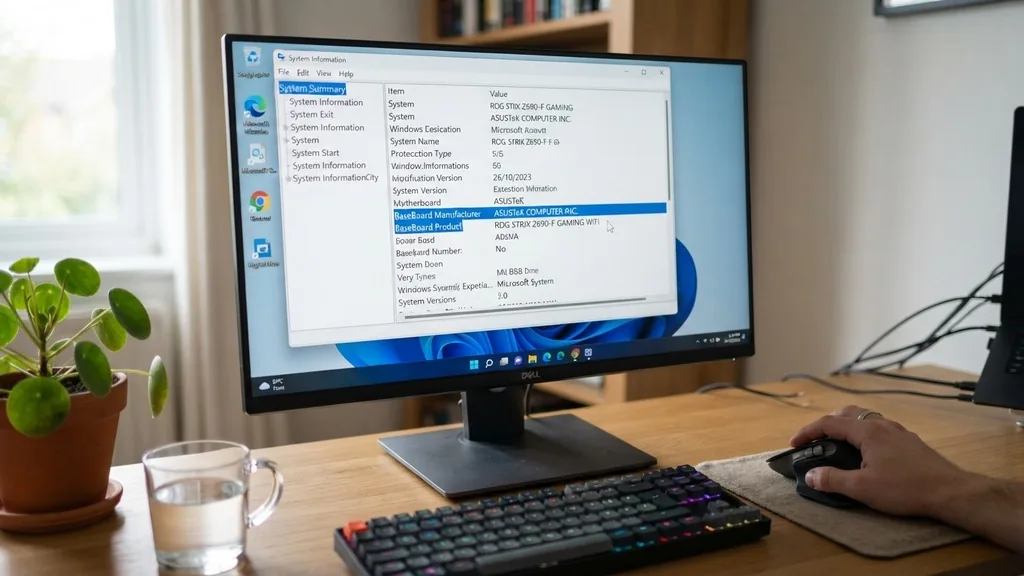
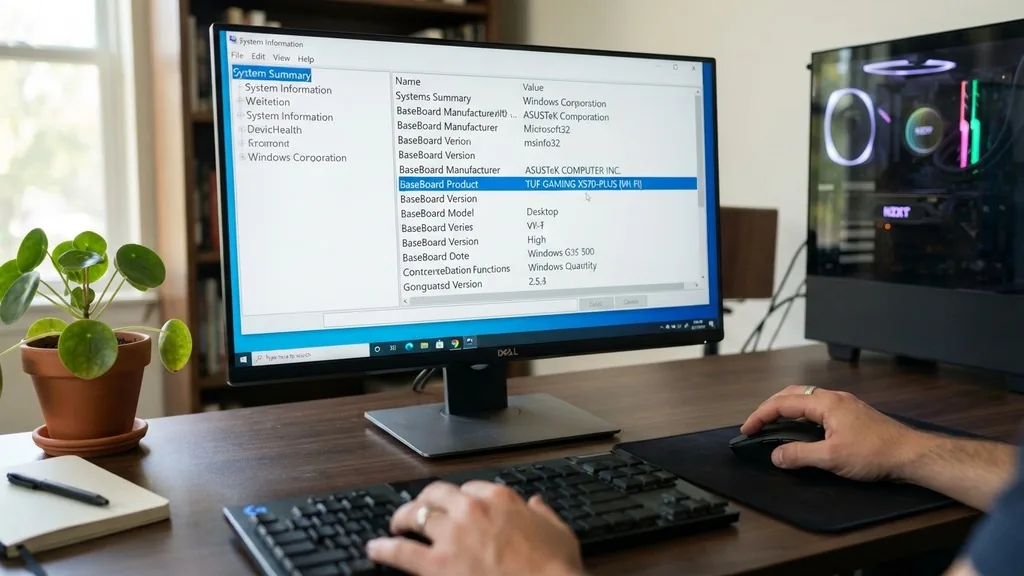
To access this, press the Windows key on your keyboard, type “msinfo32” into the search bar, and press Enter. Once the window opens, ensure “System Summary” is selected in the left-hand pane.
Look through the list on the right side for the entries labeled “BaseBoard Manufacturer,” “BaseBoard Product,” and “BaseBoard Version.” The “BaseBoard Product” line is exactly what you need; it displays the specific model name or part number of your motherboard.
This method is highly effective because it pulls the information directly from the SMBIOS (System Management BIOS) data. If you see the word “BaseBoard,” understand that in technical terms, this is synonymous with the motherboard.
Manufacturers like ASUS often use specific product codes here that allow you to search their support pages for precise driver updates or manual downloads. If the fields appear blank, it is usually because the motherboard manufacturer did not program the hardware strings correctly during the assembly process, which is rare but can happen with pre-built, proprietary systems from large OEMs.
Retrieving Motherboard Data via Command Prompt
For users who prefer a more direct approach or are comfortable working with text-based interfaces, the Command Prompt (CMD) provides a rapid way to extract motherboard information. This method is particularly useful if you are managing a system remotely or if the graphical user interface is unresponsive.
Open the Command Prompt by typing “cmd” into your search bar. Once the window appears, you can execute a specific command to query the Windows Management Instrumentation (WMI). Type the following command and press Enter: “wmic baseboard get product,Manufacturer,version,serialnumber”.
This command instructs the system to return the core identifiers for your motherboard. The “Product” column will display the model name, while the “Manufacturer” column reveals the company that produced the board. If you are looking for the
It is a powerful, lightweight way to get the data you need without navigating through multiple sub-menus. Note that if the result returns “To be filled by O.E.M.,” it indicates that the system builder skipped these steps during the factory setup, and you may need to rely on physical inspection or third-party diagnostic tools instead.
Leveraging PowerShell for Advanced Hardware Queries
PowerShell is a more robust alternative to the standard Command Prompt, offering deeper access to system diagnostics. If you need to script a process to pull hardware information across multiple machines, PowerShell is the industry standard for this task.
To find your motherboard name using PowerShell, right-click the Start button and select “Windows PowerShell” or “Terminal.” Once the blue window opens, copy and paste the following command: “Get-CimInstance Win32_BaseBoard | Select-Object Manufacturer, Product, SerialNumber”.
This command interacts with the Common Information Model to fetch specific data points from the motherboard’s firmware. The output is formatted cleanly, making it easy to read. One advantage of using PowerShell is that it allows for easier exporting of this data.
If you are troubleshooting a fleet of computers, you can append a pipe character and a command like “Export-Csv” to save the motherboard details of every machine into a spreadsheet. This is a common practice for IT administrators who need to track hardware versions across an entire office infrastructure.
Physical Inspection of the Motherboard
Sometimes, software reporting tools fail to provide the exact information you need, especially if the BIOS is outdated or the motherboard is a proprietary model used by a pre-built desktop manufacturer. In these instances, the most reliable way to find your motherboard name is to open the computer case and look directly at the printed circuit board.
Before doing this, ensure the computer is powered off and unplugged. Ground yourself to prevent static discharge by touching a metal part of the case. Once you remove the side panel, scan the surface of the motherboard.
Manufacturers almost always print the model name in bold, white silkscreen lettering. It is often located near the CPU socket, between the PCIe slots, or along the edge of the memory DIMM slots.
If you find a long string of text but aren’t sure which part is the model name, look for the most prominent brand name (like MSI, Gigabyte, or ASRock) followed by a series of letters and numbers. For example, a board might be labeled “ROG STRIX Z790-E GAMING.”
This is the specific identifier you need. If you cannot read the text, use your smartphone to take a clear, high-resolution photo of the board, which often makes it easier to zoom in and decipher the model number later.
Using UEFI BIOS to Identify Hardware
If your computer is not booting into Windows or you are in the process of building a new system, the UEFI BIOS is your best source for hardware identification. The BIOS (Basic Input/Output System) is the low-level software that initializes your hardware before the operating system loads.
To enter the BIOS, restart your computer and repeatedly press the designated key—usually F2, F12, or Del—during the initial startup splash screen. Once you are inside the BIOS, the motherboard model name is typically displayed on the main dashboard or the “System Information” tab.
This environment is ideal because it is completely independent of the operating system. If you have installed a new CPU and the system won’t boot, checking the motherboard model and BIOS version here will help you determine if you need a firmware update to support your new processor. Many modern motherboards also have an “Easy Mode” that displays the model name prominently at the top of the screen, making it accessible even to those who are not familiar with complex BIOS settings.
Comparing Methods for Motherboard Identification
Choosing the right method depends on your current situation and the state of your computer. The following table highlights the pros and cons of each approach to help you decide how to proceed.
Method
Best For
Ease of Use
System Information (msinfo32)
Quick checks inside Windows
Very Easy
Command Prompt (WMIC)
Fast, text-based retrieval
Moderate
UEFI BIOS
Hardware troubleshooting
Moderate
Physical Inspection
Proprietary/OEM systems
Difficult
Each of these methods serves a distinct purpose. While software-based solutions are convenient, they rely on the motherboard’s firmware reporting data correctly to the OS. Physical inspection is the final authority, as it relies on the physical markings etched into the board during manufacturing.
Third-Party Diagnostic Utilities
If the native Windows tools are insufficient or if you require more granular detail, third-party diagnostic software is an excellent resource. These programs are designed to scan your hardware and provide an exhaustive report on every component installed in your system.
One of the most popular tools is CPU-Z. This free utility provides a dedicated “Mainboard” tab that displays the manufacturer, model, chipset, and even the current BIOS version. It is a lightweight application that does not require a complex installation process.
Another option is HWiNFO, which is significantly more detailed. HWiNFO provides a real-time monitoring view that can show you voltages, temperatures, and specific hardware identifiers for every component connected to your motherboard.
When using these tools, ensure you download them from their official websites to avoid bundled bloatware. These programs are favored by enthusiasts and overclockers because they offer a level of detail that standard Windows tools simply cannot match. For instance, if you need to know the specific revision of your motherboard—which can change which drivers you need—these utilities are often the only way to get that information without opening the case.
Sometimes, the information retrieved from your system might seem inconsistent or incomplete. This is a common frustration, especially when working with pre-built computers from companies like Dell, HP, or Lenovo. These manufacturers often use custom-designed motherboards that do not carry the standard retail model names found on consumer boards.
If you find that your “BaseBoard Product” is listed as a generic string of numbers, it means the board was manufactured specifically for that system builder. In these cases, searching for the serial number on the manufacturer’s support website is usually more effective than searching for the motherboard model name.
Always check for the latest drivers on the manufacturer’s official support page.
If you are looking for an upgrade, confirm the socket type, not just the model name.
Ensure your power supply is compatible if you are replacing the motherboard entirely.
Double-check that your RAM modules match the memory slots and speed supported by the board.
Always back up your data before performing any hardware-related BIOS updates.
If you are a Mac user, the process for finding motherboard information is different. Apple does not use “motherboards” in the traditional sense; they use logic boards.
You can find this information by clicking the Apple menu, selecting “About This Mac,” and then clicking “System Report.” Under the “Hardware” section, you will see the “Model Identifier” and “Boot ROM Version,” which act as the equivalent identifiers for your specific logic board.
Frequently Asked Questions
What if my motherboard name is not showing up in Windows? If Windows cannot identify the motherboard, the information is likely missing from the BIOS firmware. You can try a third-party tool like CPU-Z, or you may need to open the computer case to check the physical markings printed directly on the motherboard surface.
Does the motherboard model matter for Windows updates? Generally, no. Windows Update handles most drivers automatically. However, for specific performance optimizations, chipset drivers, or BIOS updates, you must know the exact model to ensure you download the correct software from the manufacturer’s website, as using the wrong version can cause system instability.
How do I check my motherboard model without turning the PC on? You must open the computer case and look for the model name silkscreened onto the PCB. It is often located near the CPU socket or the PCIe slots. Alternatively, if you have the original retail box or the purchase receipt, the model number will be printed there.
Is the baseboard the same thing as the motherboard? Yes, in the context of system information and technical documentation, “baseboard” is simply the formal term for the motherboard. When you see “BaseBoard Product” in system reports, it is referring to the specific model name and revision of the motherboard installed in your system.
James Wilson
James Wilson is a seasoned product review specialist with a strong focus on motherboards and gaming equipment. With years of hands-on experience testing gaming consoles and mothers, he brings practical insights and honest recommendations to help readers make informed decisions. James is passionate about the role gaming console quality plays in achieving the perfect gaming performance, and he combines technical knowledge with a user-friendly approach. His reviews are known for their clarity, depth, and reliability, making him a trusted voice for gaming enthusiasts looking to upgrade their gaming rig.