

Identifying the hardware inside your computer is a fundamental skill for any user, whether you are planning a component upgrade, troubleshooting a driver conflict, or simply curious about your machine’s capabilities. Knowing how to see what type of motherboard I have is the first step toward understanding the architecture of your system. Because the motherboard serves as the central hub that connects your processor, memory, storage, and peripherals, having its exact details is essential for ensuring compatibility with new parts or finding the correct firmware updates.
Fortunately, you do not need to be a hardware engineer to retrieve this information. Modern operating systems and low-level firmware environments provide several straightforward ways to extract these details, ranging from simple command-line prompts to visual inspections of the physical hardware itself.
Using Windows System Information to Identify Your Motherboard

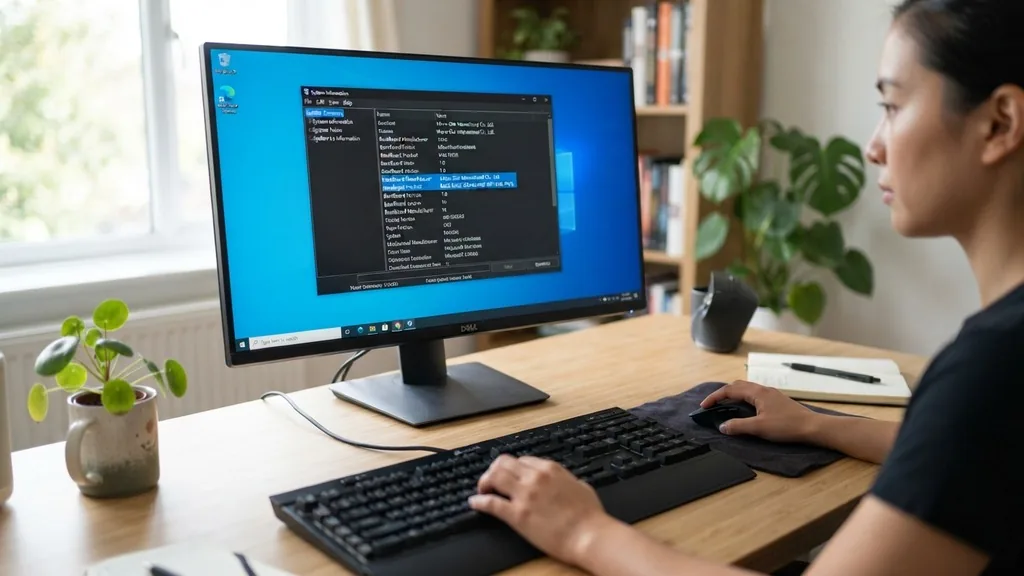
The most direct way to find your motherboard model in Windows is through the built-in System Information tool. This utility aggregates data directly from your hardware and firmware, providing a summary of your machine’s core specifications. To access this, press the Windows key, type “msinfo32” or “System Information” into the search bar, and hit Enter.
Once the window opens, ensure you are on the “System Summary” tab. Look for the rows labeled “BaseBoard Manufacturer,” “BaseBoard Product,” and “BaseBoard Version.”
The “BaseBoard Product” field is what most users refer to as the motherboard model. Because Windows uses the term “BaseBoard” to describe the motherboard, it is important not to be confused by the terminology.
If the information displayed says “Not Available” or “To be filled by O.E.M,” it typically means you are using a pre-built computer from a company like Dell, HP, or Lenovo, where the manufacturer has customized the firmware settings to hide the specific retail model of the board. In such cases, the system information will often show the manufacturer’s proprietary part number instead of a standard retail name like “ASUS ROG Strix” or “MSI Tomahawk.”
Extracting Motherboard Details via Command Prompt
For users who prefer a faster, more technical approach, the Command Prompt (CMD) offers a way to query the Windows Management Instrumentation (WMI) database directly. This method is highly effective because it pulls the data directly from the system’s registry and BIOS interface without requiring a graphical user interface.
Open the Command Prompt by typing “cmd” into your Windows search bar. Once the black terminal window appears, type the following command and press Enter: wmic baseboard get product,Manufacturer,version,serialnumber.
This command instructs the operating system to retrieve the specific product name, the company that manufactured the board, the version of the PCB, and the unique serial number. You will see a clean, text-based output that provides the exact identity of your hardware. If you are looking to save this information for later reference, you can easily copy the text from the command window or pipe the output to a text file.
Using the command line is particularly useful if you are managing multiple machines or if you are working on a system where the graphical menus are running slowly or are inaccessible due to display driver issues. It is a reliable, lightweight way to get the data you need without overhead.
Checking the Motherboard Model Through the BIOS/UEFI
If your operating system refuses to boot or if you are in the middle of a troubleshooting process that prevents you from reaching the Windows desktop, the BIOS or UEFI menu is your best resource. Every motherboard manufacturer includes a system overview page within the firmware interface.
To reach this, restart your computer and repeatedly press the designated function key—usually Del, F2, F10, or F12—during the initial power-on self-test (POST) screen. The specific key is often displayed at the bottom of your screen for a few seconds during startup.
Once you have entered the BIOS or UEFI, the motherboard model is usually displayed prominently on the “Main” or “System Information” tab. This environment is independent of your operating system, which makes it the most accurate source of truth for your hardware. If you see your motherboard model listed here, you can be certain that it is the hardware identifier recognized by the system at the lowest level.
Some modern motherboards even include a “System Browser” or “Board Explorer” feature, which provides a visual map of the motherboard, allowing you to see not just the model, but which slots are occupied by RAM, storage, or expansion cards. This is incredibly helpful when you are performing maintenance and need to confirm which specific ports are in use.
Physically Inspecting the Motherboard Inside the Case
Sometimes, software utilities fail to report the motherboard model correctly, especially if the BIOS has been flashed with a generic version or if the system is a highly customized pre-built unit. In these scenarios, the only way to be 100% certain is to physically inspect the hardware.
Before opening your computer case, ensure the machine is powered down and disconnected from the wall outlet. It is also wise to touch a metal part of the chassis to discharge any static electricity before touching any internal components.
Once you have removed the side panel, look for a model name printed directly onto the surface of the motherboard. Manufacturers almost always silk-screen the model name in a prominent location, often near the CPU socket, the RAM slots, or the PCIe expansion lanes. You might need to move a few cables or adjust a GPU to get a clear view.
If you cannot find the name, look for a small sticker with a barcode; this sticker typically contains the serial number and a part number that you can search for on the manufacturer’s website. If you are curious about the technical specifications of your board, you can visit the official support site for your component manufacturer to cross-reference the numbers you find on the board with their database.
Using Third-Party System Utilities for Detailed Reporting
While Windows tools are sufficient for finding the basic model name, third-party software can provide a deeper dive into your system’s architecture. Tools like CPU-Z or HWiNFO are industry standards for enthusiasts and technicians who need granular details about their hardware.
CPU-Z, for example, has a dedicated “Mainboard” tab that displays the manufacturer, model, chipset, and BIOS version in a very readable format. This is often more reliable than the standard Windows System Information tool, as these programs are designed to interface directly with the hardware sensors and registers.
The advantage of using these utilities is that they often uncover information that the operating system overlooks. For instance, if you are trying to determine if your motherboard supports a specific type of high-speed RAM or a newer generation of processors, these programs will tell you the exact chipset version.
Knowing the chipset is just as important as knowing the motherboard model, as it dictates the feature set and compatibility for future upgrades. These programs are generally free, lightweight, and do not require complex installation processes, making them an excellent addition to your troubleshooting toolkit.
Common Motherboard Form Factors and Identifying Them
Understanding the physical size and layout of your motherboard is just as important as knowing its model name. Form factors define the dimensions of the board and the placement of the mounting holes, which determines whether the board will fit into a specific computer case.
The most common form factor is ATX, which is the standard size for most desktop builds. However, you might also encounter smaller boards, such as Micro-ATX (mATX) or Mini-ITX.
| Form Factor | Typical Dimensions | Expansion Slots |
|---|---|---|
| ATX | 12 x 9.6 inches | Up to 7 |
| Micro-ATX | 9.6 x 9.6 inches | Up to 4 |
| Mini-ITX | 6.7 x 6.7 inches | 1 |
Identifying the form factor is simple: if you have a full-sized tower case, you likely have an ATX board. If your case is compact or square-shaped, it is likely a Micro-ATX or Mini-ITX board. The number of expansion slots visible on the board is a quick visual indicator of its form factor.
ATX boards have more space for multiple graphics cards and additional peripheral cards, while Mini-ITX is designed for space-saving builds where only a single GPU is required. Knowing your form factor is critical if you ever plan to move your components into a new case or upgrade your cooling system, as some high-end air coolers may not fit on smaller boards.
Why Knowing Your Motherboard Model Matters for Upgrades
You might wonder why it is so important to track down this specific piece of information. The reality is that the motherboard is the foundation of your system’s upgrade path. If you decide to add more RAM, you need to know how many slots are available and what the maximum speed and capacity are for that specific model.
If you are upgrading your CPU, the motherboard’s socket type and BIOS compatibility are the deciding factors. Installing a processor that does not match the motherboard’s socket will result in physical damage, and installing one that the BIOS doesn’t support will result in a system that simply refuses to boot.
Furthermore, driver updates are managed at the motherboard level. When you visit a manufacturer’s support page, you are usually asked to select your specific board model to download the correct chipset, audio, and network drivers. Using the wrong drivers can lead to system instability, blue screens of death, or hardware that simply doesn’t work.
Keeping a record of your motherboard model, perhaps in a digital note or a physical tag inside your case, can save you hours of frustration when it comes time to maintain or improve your computer. It turns an intimidating technical task into a simple matter of looking up the correct specifications.
Troubleshooting Common Identification Issues
What happens if you have tried all these methods and still cannot identify your motherboard? There are a few scenarios where this occurs. In some cases, the board might be an “OEM” (Original Equipment Manufacturer) board, which means it was made specifically for a brand like Dell or HP.
These boards are not sold in retail stores, so they do not have a public-facing model name like “Z790-A.” Instead, they have a proprietary part number, such as “0D41M.” To get information on these, you must search for the part number on the computer manufacturer’s support site rather than the component manufacturer’s site.
Another common issue is that the BIOS information has been corrupted or wiped during a failed update. If this happens, you will see generic strings of text where the model name should be. In this case, you will have to rely on the physical inspection method described earlier.
Check the surface of the motherboard for any printed text or stickers. If the board is too old or the text has worn off, you can sometimes identify it by the chipset markings or by the layout of the capacitors and heatsinks using a reverse image search.
While rare, these situations are usually solvable with a bit of patience and detective work. Always remember that the motherboard is a piece of hardware, and the physical reality of the board itself is the ultimate source of truth when all digital avenues are exhausted.
Frequently Asked Questions
- Does the motherboard model change if I update my BIOS? No, updating your BIOS does not change the physical motherboard model. It only updates the firmware version running on the board to improve stability or support new hardware. Your motherboard’s identity remains the same regardless of the firmware version installed.
- Can I find my motherboard model without opening the computer? Yes, using the Windows System Information tool (msinfo32) or the Command Prompt (wmic) are both highly effective methods for identifying your motherboard without ever needing to open the computer case or touch any physical hardware components.
- What should I do if my motherboard manufacturer is listed as “To be filled by O.E.M”? This indicates you have a pre-built system from a company like HP, Dell, or Lenovo. You should search for your computer’s model name or serial number on the manufacturer’s official support website to find the specific motherboard specifications and driver downloads.
- Is there a way to check my motherboard model on a Mac? Macs do not use standard motherboards in the same way Windows PCs do; they use proprietary logic boards. You can find information about your specific model by clicking the Apple menu and selecting “About This Mac,” which provides the model and year of your device.


