

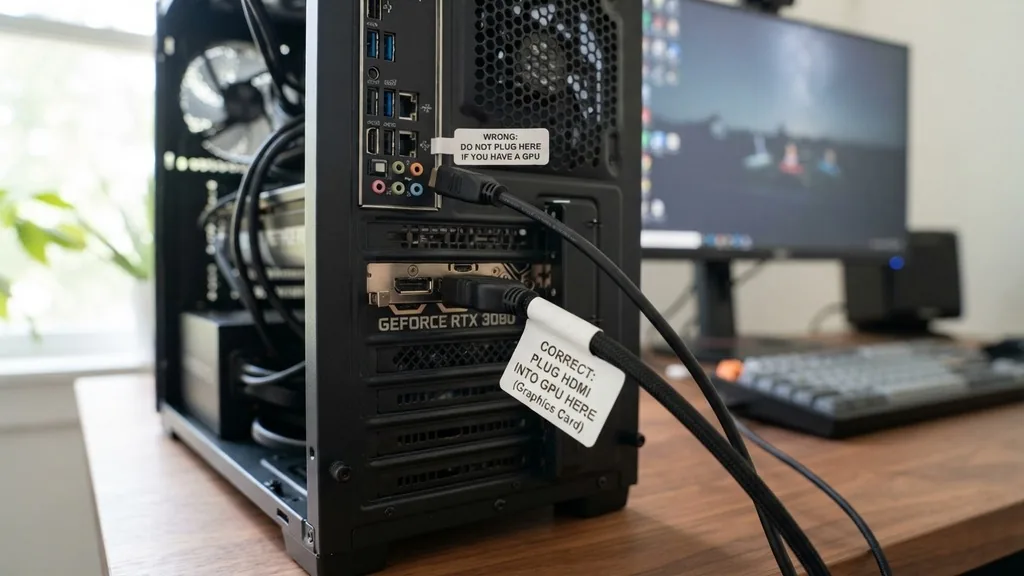
When you are setting up a new computer or troubleshooting a display issue, one of the most common points of confusion is where to connect your monitor. If you are wondering, “do you plug HDMI into GPU or motherboard,” the answer depends entirely on the components inside your specific machine.
For the vast majority of users who have a dedicated graphics card, the correct answer is to plug your HDMI cable directly into the GPU. Plugging into the motherboard while a dedicated card is present often leads to reduced performance, missing features, or a black screen.
Why the GPU Is the Preferred Connection Point
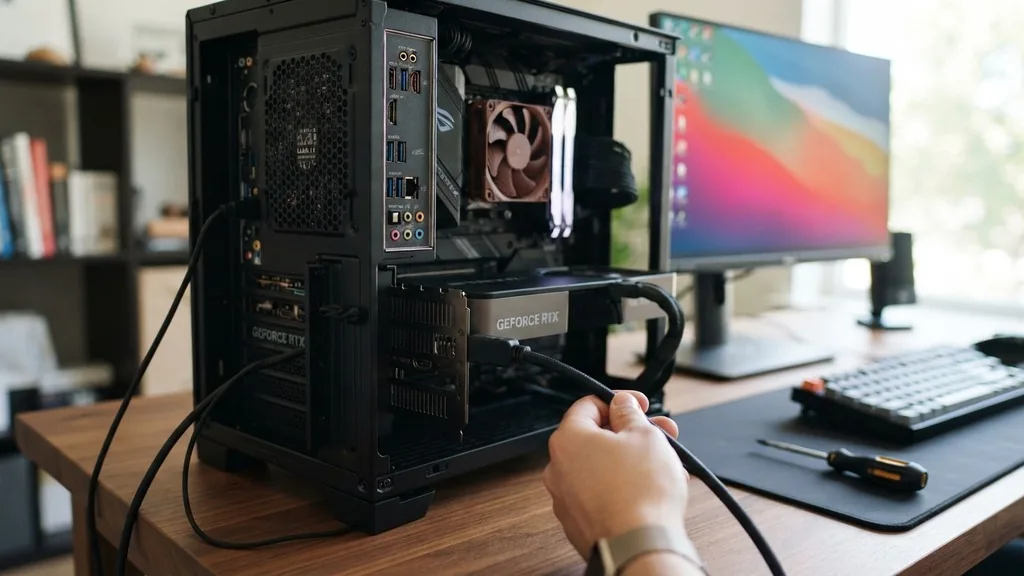
You should always plug your HDMI cable into the GPU because the graphics card is designed to handle all rendering tasks for your display. When you install a discrete video card into a PCIe slot, it becomes the primary engine for your visual output. The GPU contains specialized hardware, including high-speed video memory (VRAM) and complex processing cores, that work together to generate the images you see on your monitor.
If you mistakenly plug your monitor into the motherboard’s display output, you are bypassing the power of your dedicated card. Instead, your computer will attempt to use the integrated graphics built into the CPU. While modern processors are capable of basic desktop tasks and video playback, they are not designed for intensive applications like gaming, 3D rendering, or video editing.
By using the GPU port, you ensure that the hardware you paid for is actually doing the work. This direct connection minimizes latency and ensures that the communication between your software and the screen is as efficient as possible.
Understanding the Role of Integrated Graphics
Integrated graphics exist on the processor die to provide a baseline level of display functionality for systems that do not have a dedicated card. This is useful for office computers, media servers, or budget builds where a discrete card is an unnecessary expense. When you plug into the motherboard, you are utilizing this integrated silicon.
However, once you add a dedicated GPU, the motherboard will often automatically disable the onboard video ports to prevent conflicts. If you find that your screen remains black after booting up, there is a high probability that your BIOS settings are configured to prioritize the PCIe slot, effectively cutting off the signal from the motherboard ports.
Relying on integrated graphics when you have a powerful card installed creates a massive CPU bottleneck. The processor is forced to manage both the computational logic for your applications and the overhead of rendering the display, which can lead to system stuttering, slower frame rates, and a generally poor user experience.
Visual Identification of Your Ports
Distinguishing between the motherboard ports and the GPU ports is generally straightforward once you know where to look. On the back of a standard desktop tower, you will see an I/O shield—this is a metal plate surrounding the ports attached directly to the motherboard, such as USB slots, Ethernet jacks, and audio ports.
Near these, you will likely see HDMI, DisplayPort, or VGA outputs. These are the integrated graphics ports.
Below this area, you will find expansion slots that align with the back of the case. This is where your graphics card sits. A discrete video card will have its own dedicated set of outputs, usually located horizontally across the back of the card.
These ports are often positioned lower down on the chassis compared to the motherboard I/O panel. If you are unsure, look for the physical separation between the card’s metal bracket and the rest of the motherboard’s connectivity panel. Connecting your monitor to the lower, horizontal ports ensures you are tapping into the dedicated graphics power.
Performance Differences: Dedicated vs. Integrated
The difference in performance between these two connection methods is significant. A dedicated GPU is built with its own cooling solution, power delivery system, and specialized memory.
When you use this hardware, you unlock the full potential of your system. In contrast, integrated graphics share system RAM, which is significantly slower than the VRAM found on a graphics card.
| Feature | Dedicated GPU | Integrated Graphics |
|---|---|---|
| Rendering Power | High (Dedicated VRAM) | Low (Shared System RAM) |
| Gaming Performance | Excellent for AAA titles | Basic for low-end titles |
| Power Consumption | Higher (Requires PSU) | Lower (Minimal impact) |
| Display Output | Direct GPU processing | CPU-managed processing |
As shown in the table above, the disparity in rendering power and gaming capability is stark. If you are a gamer or a professional creator, using the motherboard output is effectively rendering your expensive graphics card useless. You might notice screen flickering, input lag, or an inability to achieve higher resolutions and refresh rates if you rely on the motherboard ports, as they often lack the bandwidth support found on modern dedicated cards.
Troubleshooting Common Display Issues
If you have plugged your HDMI cable into the GPU and still face issues, you may need to look at your driver installation. Even if the cable is in the right spot, the operating system needs the correct software to communicate with the hardware. A missing or corrupted driver can cause the screen to stay black or default to a very low resolution.
- Ensure the PCIe power cables from your power supply are firmly seated in the GPU.
- Check the BIOS settings to confirm the “Primary Display” or “Initiate Graphic Adapter” is set to “PEG” or “PCI-E.”
- Verify that your monitor input source is set correctly (e.g., HDMI 1 vs. HDMI 2).
- Update your GPU drivers through the manufacturer’s official website.
- Inspect the HDMI cable for physical damage or bent pins.
These steps cover the most common reasons for display failure. Sometimes, the motherboard might default to integrated graphics even if a card is present, which is why a quick check of the BIOS can resolve an issue that seems like a hardware defect. If you continue to struggle with your setup, you can visit the NVIDIA support center for specific troubleshooting regarding your graphics hardware.
The Impact of Resolution and Refresh Rate
Modern monitors often push the limits of older cables and ports. If you are using a high-resolution display, such as a 4K panel, or a high-refresh-rate monitor, such as 144Hz or higher, the connection point matters even more. Integrated graphics ports on motherboards are often restricted to older HDMI specifications, which may not support high bandwidths.
By plugging into your dedicated GPU, you ensure that you are using the latest DisplayPort or HDMI standards provided by the card’s architecture. This allows for higher resolution support and smoother motion, which is critical for competitive gaming or professional design work. If you plug into the motherboard, you might find that your monitor is capped at 60Hz, or that you cannot select your monitor’s native resolution, leading to a blurry or pixelated desktop experience.
Addressing Topical Gaps: Why Some Users Get Confused
One reason this question persists is that some users build systems with “headless” servers or specific configurations where the integrated graphics are the primary intent. Additionally, some modern CPUs do not have integrated graphics at all.
In these cases, the motherboard ports are literally non-functional. If you have an Intel processor with an “F” suffix or an AMD processor without a “G” suffix, those motherboard ports will never output a signal.
This leads to confusion when a user plugs into the motherboard, gets no signal, and assumes the component is broken. The reality is that the hardware lacks the capability to display anything without a dedicated GPU. Understanding your specific processor model is key.
If your CPU does not feature an integrated graphics engine, your only option is the dedicated card. This is why it is vital to know your hardware specifications before you begin your build.
Long-term Hardware Health and Maintenance
Properly connecting your monitor to the GPU promotes better system stability. When you utilize the dedicated card, you keep the thermal load on the CPU lower.
If the CPU is handling both its primary computational tasks and the display output, it will run hotter. By offloading the graphics, you allow the CPU to focus on processing data, which can lead to a longer lifespan for your components.
Furthermore, monitoring your GPU temperatures is easier with dedicated software once your display is routed through the card. You can keep an eye on fan speeds and clock frequencies, ensuring that your system is running within safe parameters. If you ever upgrade your hardware in the future, remember that the rule remains the same: the monitor should always be connected to the most powerful graphics engine in your machine, which will almost always be the dedicated graphics card.
Frequently Asked Questions
- Will my computer break if I plug the HDMI into the motherboard by mistake? No, plugging your cable into the motherboard will not cause physical damage to your hardware. It simply means your system will rely on the integrated graphics rather than your dedicated card, resulting in lower performance and potentially no video signal at all.
- How do I know if my dedicated GPU is working correctly? You can check your GPU status by opening the Task Manager in Windows. Navigate to the “Performance” tab and look for “GPU.” If it shows activity and lists the model of your dedicated card, your system is correctly utilizing it for your display tasks.
- Do I need to change any settings if I switch from motherboard to GPU? Usually, the system will detect the dedicated GPU automatically once you plug the cable in. However, if you see no image, restart your computer and enter the BIOS to ensure the PCIe slot is selected as the primary output for your video signal.
- Does the cable type matter when connecting to the GPU? Yes, using a high-quality HDMI or DisplayPort cable is essential for achieving high resolutions and refresh rates. Ensure your cable meets the specifications required by both your monitor and your graphics card to avoid signal drops, flickering, or limited performance settings.


