

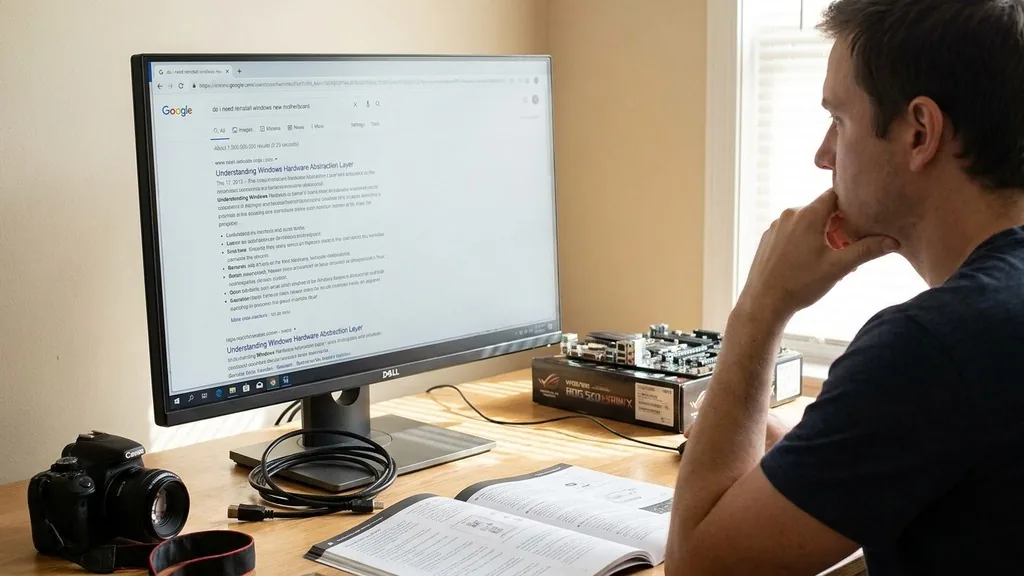
Upgrading your PC is a major milestone for any enthusiast, but the prospect of a hardware swap often brings anxiety about the software environment. When you ask, “do I need to reinstall windows with new motherboard,” you are touching on the core of how your operating system interacts with your hardware.
While modern versions of Windows are incredibly resilient and capable of adapting to massive configuration changes, the answer isn’t a simple yes or no. It depends entirely on the stability of your current installation, the chipset differences between your old and new boards, and your personal preference for a clean slate.
Understanding the Windows Hardware Abstraction Layer

At its core, Windows uses a system called the Hardware Abstraction Layer (HAL) to communicate between your software and the physical components of your computer. When you first install the operating system, it detects the specific chipset, CPU, and controller architecture of your motherboard. It then loads the necessary drivers to manage these components.
If you move your hard drive containing the OS to a new motherboard, the operating system will attempt to reconfigure these drivers during the first boot. In many cases, it succeeds remarkably well, especially with Windows 10 and Windows 11.
However, moving from one chipset architecture to another—for instance, switching from an Intel-based board to an AMD-based one—can sometimes lead to “ghost” drivers. These are remnants of your old hardware that persist in the registry, potentially causing minor performance hiccups, blue screens, or unexpected system crashes.
While the system might boot, it isn’t always running at optimal efficiency. If you find your system acting sluggish after a hardware swap, that is a clear sign that the HAL is struggling to reconcile the old configuration with the new environment.
The License and Activation Reality
One of the biggest concerns users have involves the legality and activation status of their copy of Windows. You might wonder if you need to buy a new license when you swap out the heart of your machine.
Generally, if you purchased a retail version of Windows, the license is tied to you, the user, and can be transferred to a new machine. You simply need to sign in with your Microsoft account, and the digital license should carry over to the new hardware.
The situation is trickier if you are using an OEM (Original Equipment Manufacturer) license. These versions are typically tied to the motherboard they were first installed on. When you change the motherboard, the license is technically considered “used up” by the old hardware.
While Microsoft’s activation servers have become more lenient over the years, there is no guarantee that an OEM key will activate automatically on a new board. If you encounter activation issues, you might have to contact support or, in some cases, purchase a new license key to ensure full compliance and access to all personalization features.
Stability Concerns and Driver Conflicts
Even if Windows boots successfully, you are often left with a cluttered system filled with legacy drivers from your previous motherboard. These drivers are designed to manage specific power states, audio controllers, and bus architectures that no longer exist in your new setup. Over time, these unnecessary files can create conflicts with your new hardware, leading to instability that might not show up immediately but could manifest during intensive tasks like gaming or video editing.
To understand the difference between a clean install and a “swap-in” approach, consider the following comparison of potential issues:
| Factor | Clean Reinstall | Keep Existing Install |
|---|---|---|
| System Stability | High (Optimal) | Variable (Potential Conflicts) |
| Driver Integrity | Perfect (Current) | Messy (Old Remnants) |
| Setup Time | Long (Hours/Days) | Short (Minutes) |
| Data Preservation | Requires Backup | Directly Available |
As the table illustrates, the convenience of keeping your existing installation comes at the cost of potential long-term stability. A clean install ensures that every driver is fresh and specifically tailored to your new components, eliminating the risk of conflicting software layers.
When You Should Definitely Reinstall
There are specific scenarios where a fresh installation of your operating system is not just recommended, but practically mandatory. If you are making a major architectural jump, such as moving from a very old legacy BIOS system to a modern UEFI-based motherboard, the partition structure of your drive may be incompatible.
Older systems often used MBR (Master Boot Record) partitioning, whereas modern boards strongly prefer GPT (GUID Partition Table). Trying to force a legacy installation onto a modern board can prevent the system from booting entirely or disable critical features like Secure Boot.
Furthermore, if your computer has been running slowly, suffering from random crashes, or dealing with malware infections, swapping the motherboard is the perfect time to “nuke and pave.” By wiping the drive and starting fresh, you ensure that none of the previous system’s issues carry over to your new, more powerful hardware.
Think of it as a fresh start for your digital life. It removes the accumulation of temporary files, broken registry entries, and bloated software that naturally builds up over months or years of use.
Preparing for a Hardware Swap
If you decide that you are going to attempt to keep your current installation, preparation is the most important step. Before you even touch a screwdriver, you must back up your critical data.
External hard drives or cloud storage solutions are essential here. You should also ensure that you have your Windows product key or, better yet, ensure your license is linked to your Microsoft account.
Another crucial step is to download the necessary drivers for your new motherboard onto a USB flash drive. Even if Windows 10 or 11 can handle basic connectivity, you will likely need specific chipset, network, and audio drivers to get the most out of your new hardware.
You can check the official Microsoft support pages for advice on managing hardware changes and account linking. Having these files ready means that once the system boots, you can immediately install the correct software, minimizing the time the system spends running on generic, potentially unstable drivers.
The Process of Migrating Without a Wipe
If you choose to keep your current installation, you need to follow a specific sequence of actions to maximize your chances of success. First, uninstall any motherboard-specific software from your old board—think RGB control apps, monitoring tools, or proprietary audio enhancements.
These programs are notorious for causing crashes when they fail to find the hardware they expect. Once these are gone, shut down the PC and perform the physical installation of the new components.
When you boot the new system for the first time, expect a few restarts. Windows will detect the new hardware and attempt to configure itself. Once you reach the desktop, your first priority should be to run Windows Update.
This allows the OS to pull down the most relevant drivers from the Microsoft servers. After the updates are complete, install the specific chipset drivers you downloaded earlier.
Finally, check the Device Manager for any yellow warning triangles. These indicate hardware that is missing a proper driver, which you should address immediately to ensure your system is fully functional.
Addressing Topical Gaps: Why Some Users Still Struggle
A common point of confusion is whether a new CPU requires the same level of caution as a new motherboard. While a new CPU is often handled by the OS without issue, changing the motherboard involves changing the primary controller for the entire system, which is why it is far more likely to cause problems.
Many users report that they didn’t need to reinstall, yet they face “ghost” issues months down the line. This is a gap in many discussions—the difference between a system that boots and a system that runs correctly.
Another gap is the role of third-party security software. Antivirus suites often hook deep into the kernel of the operating system. When the underlying motherboard changes, these security products may perceive the change as a malicious attempt to compromise the system, leading to lockouts or total system failure.
If you use a third-party security suite, it is highly advisable to uninstall it before you change your motherboard. You can simply reinstall it once the new system is stable.
Final Verdict: The Professional Recommendation
While it is technically possible to avoid a fresh installation, it is rarely the best path for long-term reliability. If you are a casual user who is intimidated by the process of backing up files and reinstalling applications, you might get away with a direct swap.
However, for those who value performance, stability, and peace of mind, a clean install is the gold standard. It guarantees that you aren’t carrying over technical debt from your old configuration into your new, potentially much faster system.
Ultimately, the time invested in a fresh install is often less than the time spent troubleshooting mysterious bugs caused by old drivers or registry conflicts. When you build a new foundation for your computer with a new motherboard, it only makes sense to build a fresh foundation for your software as well. By taking the time to back up your data and perform a clean install, you ensure that your computer will be fast, stable, and ready to handle whatever tasks you throw at it.
Frequently Asked Questions
- Do I need to buy a new Windows license for a new motherboard? Generally, no. If you have a retail license linked to your Microsoft account, it will transfer automatically. If you have an OEM license, it is technically tied to the original hardware, though it may occasionally activate depending on your specific hardware configuration and Microsoft’s current policy.
- Will my files be deleted if I don’t reinstall Windows? No, keeping your current installation means your files, documents, and programs remain on the drive. However, you should always create a backup before swapping hardware, as the process of moving an OS to a new motherboard carries a small risk of data corruption or boot failure.
- Can I use my old SSD without formatting it? Yes, you can move an existing SSD to a new motherboard. Windows will attempt to reconfigure itself for the new hardware upon the first boot. While this often works, it is recommended to perform a clean install to avoid driver conflicts and ensure optimal system performance and stability.


