

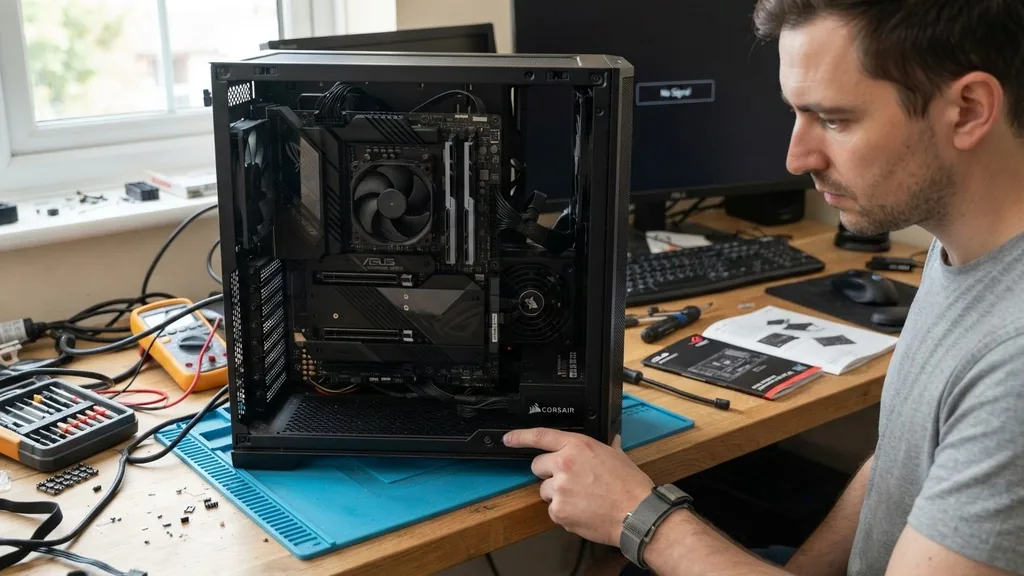
Determining if your motherboard has failed is one of the most frustrating experiences for any computer user. Because the board acts as the central nervous system for your entire system, a failure here often mimics other hardware issues, such as a faulty power supply or a dying processor. When you press the power button and nothing happens—or the computer behaves erratically—it is natural to assume the worst.
However, before you start shopping for a replacement, you must systematically rule out other components. This process involves checking power delivery, internal connectivity, and peripheral responses to isolate the cause of the silence.
The Initial Power-Up: Observing System Behavior
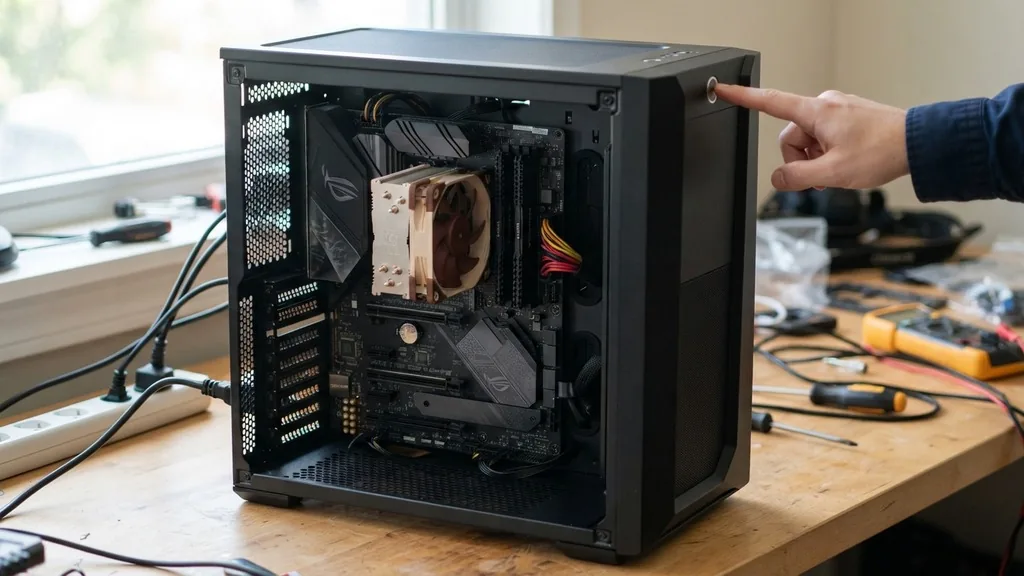
You can determine if your board is unresponsive by observing the primary physical indicators of power delivery during the startup sequence. When you are pressing power, the system should exhibit immediate physical signs of life. If you press the button and see absolutely no light, hear no fans, and notice no activity from your hard drives, the issue is typically related to power delivery rather than the board itself.
A truly dead board often results in a “no-post” scenario, where the computer remains cold and dark. However, it is important to distinguish between a board that is completely dead and one that is simply failing to initialize.
If the fan in your power supply spins for a split second and then stops, or if the CPU cooler pulses briefly, the board might be triggering an emergency shutdown due to a short circuit. Inspect your case for any loose screws that might have fallen behind the board, as these are common culprits for shorting out circuitry and preventing a successful boot.
Analyzing Diagnostic LEDs and Beep Codes
Modern systems often include built-in diagnostic tools that communicate the health of your hardware. If your motherboard features debug LEDs—usually labeled CPU, DRAM, VGA, or BOOT—these lights provide a direct window into the startup sequence. When you turn on the computer, the board cycles through these checks.
If the sequence stalls on a specific light, that component is likely the point of failure. If no lights turn on at all, the power is not reaching the board, or the board’s voltage regulation modules have failed.
Older or enterprise-grade systems often use a speaker to emit beep codes. These sounds are not random; they follow a specific pattern defined by the BIOS manufacturer. A single short beep usually indicates a successful POST (Power-On Self-Test), while a series of long or short beeps points to a specific hardware fault.
If you hear nothing when you trigger the start sequence, check the connection of the internal speaker. If the speaker is confirmed to be working but remains silent during a failed boot, the board is likely failing to initiate the POST process entirely, which is a strong indicator of a dead chip.
Testing the Power Supply Unit
Before condemning the board, you must verify that your Power Supply Unit (PSU) is functioning correctly. Many users mistakenly believe their board is dead when, in reality, the PSU has simply stopped providing the necessary voltage to the 24-pin or 8-pin connectors.
You can perform a simple “paperclip test” on the PSU to see if it powers on independently of the board. Please note that you should always consult the official Intel support documentation regarding hardware safety before attempting manual power supply tests.
If the PSU fan spins when bridged, it is receiving power, but it might still be failing to output the correct voltages under load. If you have access to a multimeter, check the pins on the 24-pin connector to ensure they are outputting the correct 12V, 5V, and 3.3V signals.
If the PSU is fine, the fault likely lies with the board’s inability to distribute that power to the CPU and other components. A board that refuses to draw power from a verified, healthy PSU is almost certainly defective.
Checking for Physical Damage and Component Failure
Physical inspection is a critical step in diagnosing a terminal board failure. Look closely at the surface of the board for signs of scorched components, burnt traces, or leaking capacitors.
Older boards, in particular, are prone to “capacitor plague,” where the electrolytic capacitors bulge at the top or leak a brown, crusty residue. If you see any physical deformation, the board is likely beyond repair.
You should also examine the socket pins for the CPU. If you recently moved your system or upgraded your processor, you might have accidentally bent a pin in the socket. A single bent pin can prevent the entire system from communicating with the processor, leading to a state where the board refuses to boot.
Use a magnifying glass to inspect the socket under bright light, ensuring every pin is perfectly aligned. If the pins are damaged, the board may be salvageable with a steady hand, but it is often more cost-effective to replace it.
The Role of RAM and Peripherals in Boot Failures
Sometimes, a board appears dead because a faulty peripheral or a bad stick of memory is preventing the POST process from completing. If you have multiple sticks of RAM, remove all but one and try booting the system.
Rotate the sticks through different slots to rule out a dead memory channel. A system that hangs before showing any video output might simply be failing to initialize the memory controller.
Furthermore, disconnect all unnecessary peripherals. Unplug your USB devices, remove secondary hard drives, and disconnect your graphics card if your processor has integrated graphics.
By stripping the system down to the bare minimum—just the board, the processor, and one stick of RAM—you eliminate variables. If the system still shows no signs of life, such as no spinning fans or status lights, you have successfully isolated the board as the most probable point of failure.
Understanding BIOS and CMOS Corruption
A corrupted BIOS can effectively “brick” a board, making it appear dead even if the hardware itself is in perfect condition. The BIOS contains the instructions the board needs to talk to the hardware. If this firmware becomes corrupted due to a failed update or a sudden power loss, the board will not be able to execute the startup sequence.
To address this, try clearing the CMOS. You can usually do this by removing the small, coin-shaped CR2032 battery from the board for about thirty seconds. This resets the BIOS to its factory defaults.
Some boards also have a dedicated “Clear CMOS” jumper or button. If the board boots after a reset, you were dealing with a software-level configuration issue rather than a hardware death. If resetting the CMOS does not change the behavior, the firmware chip itself might be physically damaged.
Comparing Common Failure Symptoms
To help you organize your troubleshooting, use the table below to compare the common signs of hardware failure.
| Symptom | Likely Cause | Action Required |
|---|---|---|
| No lights, no fans, no response | PSU or Motherboard | Test PSU with multimeter |
| Fans spin, but no video output | RAM, GPU, or CPU | Reseat RAM and test GPU |
| Fans pulse, then immediately stop | Short circuit | Check for loose screws |
| System loops continuously | BIOS or CPU instability | Clear CMOS and reset BIOS |
Addressing Topical Gaps: When Is a Board Actually “Dead”?
A common misconception is that a board is “dead” if it doesn’t boot into Windows. However, there is a clear distinction between a failed operating system and a failed board.
If you can see the manufacturer’s logo on the screen but the system hangs before loading the OS, your board is actually functioning correctly; the issue is likely your storage drive or your Windows installation. A dead board is one that cannot perform the most basic tasks, such as initializing the power regulation or communicating with the processor.
Another gap in common knowledge is the longevity of the board. Many users ask if a board can “slowly die.” The answer is yes.
If you experience intermittent freezing, random blue screens, or USB ports that stop working one by one, your board might be suffering from failing capacitors or deteriorating traces. This “slow death” is often more difficult to diagnose than a sudden failure because the system remains functional enough to deceive you. Keep a log of these minor glitches; if they worsen over time, it is a strong indicator that the board is reaching the end of its life cycle.
Final Troubleshooting Checklist
If you are still unsure about the state of your hardware, follow this list to perform a final audit of your components:
- Verify the power cable is firmly seated in the wall and the PSU.
- Ensure the 24-pin and 8-pin power connectors are fully latched into the board.
- Check that the front panel connectors (power switch, reset switch) are attached to the correct pins.
- Remove the CMOS battery to reset the BIOS settings.
- Reseat the RAM sticks and the graphics card to ensure solid contact.
- Inspect the board for any physical damage or burnt components.
- Test the system with a known-working power supply.
- Remove all non-essential USB devices and internal drives.
If you have completed these steps and the board remains unresponsive, you can be reasonably confident that the hardware is beyond repair. At this stage, professional repair is rarely cost-effective compared to the price of a modern replacement.
Always ensure that any new board you purchase is compatible with your existing CPU socket and RAM type to avoid further complications. By following this systematic approach, you save time, avoid unnecessary purchases, and gain a deeper understanding of your system’s architecture.
Frequently Asked Questions
- Is a dead motherboard fixable? In most cases, no. While a professional lab could potentially replace individual components like capacitors or voltage regulators, the cost of labor usually exceeds the price of a new board. It is almost always more efficient to replace the board entirely.
- Will a dead motherboard light up? Usually, no. If the board is completely dead, it cannot pass power to the diagnostic LEDs or the integrated lighting. If you see lights but get no other activity, the board might be receiving power but failing to initialize the POST process.
- How do I know if my motherboard needs to be replaced? You should consider a replacement if you have verified that your PSU, RAM, and CPU are functioning correctly, yet the board still fails to boot or show any diagnostic output. Consistent, unresolvable hardware errors also point toward a failing board.
- What happens if the motherboard fails? When the board fails, the entire system becomes unusable. It cannot process instructions, communicate with your storage, or display video. Because it acts as the bridge between all components, a failure effectively renders the attached hardware inert until the board is replaced.


