

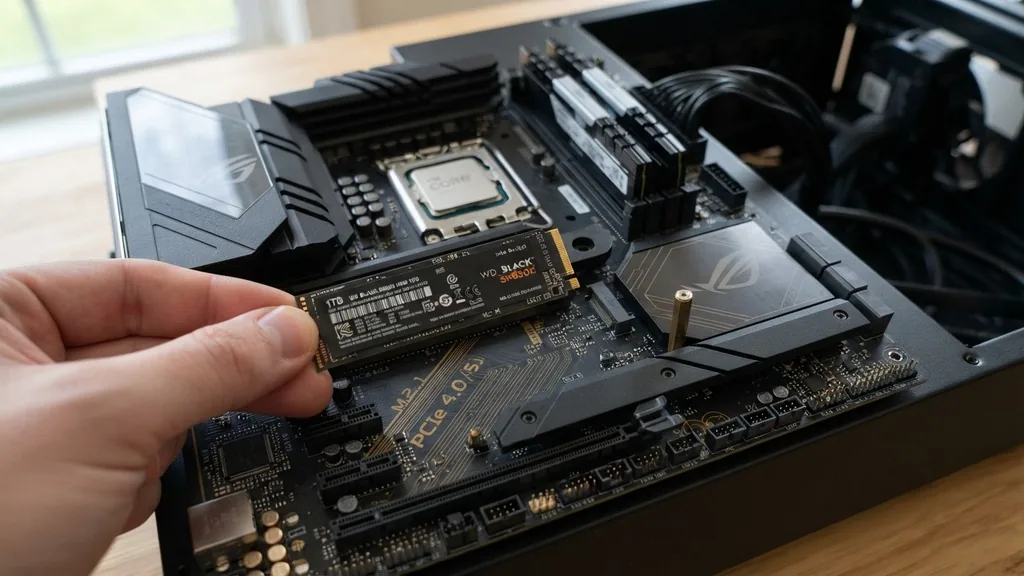
Finding exactly where your SSD goes on the motherboard can feel intimidating if you have never built a computer before. Modern motherboards have evolved significantly, moving away from simple cable-based storage to high-speed, direct-to-board connections. Whether you are upgrading your storage capacity or building a new machine from scratch, locating the correct interface is the first step toward faster system performance and improved data access speeds.
Identifying the M.2 Slot for NVMe Drives
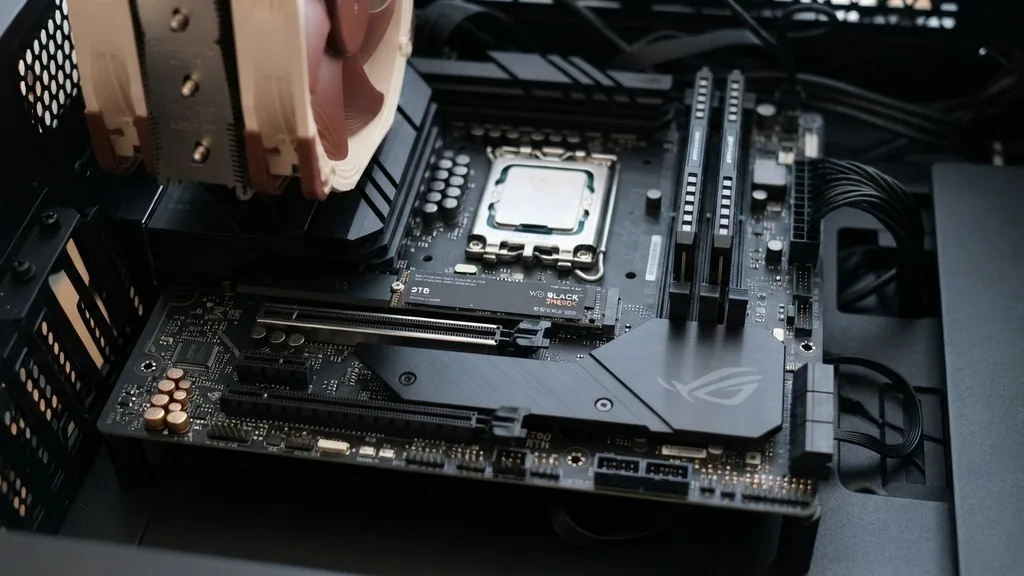
The M.2 slot is the most common location for modern, high-speed storage. You will typically find these slots positioned directly on the surface of the motherboard, often nestled between the CPU socket and the primary PCIe x16 graphics card slot. These slots are designed specifically for NVMe drives, which utilize the NVMe protocol to communicate directly with the processor, bypassing the bottlenecks associated with older legacy storage standards.
To identify an M.2 slot, look for a small, horizontal plastic connector with a single screw hole at the opposite end. Many motherboards now feature multiple M.2 slots, but it is important to note that they are not always identical. Some slots may only support older SATA-based M.2 drives, while others are wired for the full speed of current PCIe generation lanes.
Check your motherboard manual to see which slot supports the highest speed, as placing your primary OS drive in the fastest slot is essential for optimal boot times. If your motherboard includes a metal cover over these slots, that is a heatsink. You must unscrew this piece to reveal the connector underneath.
Locating SATA Ports for Traditional SSDs
If you are using a 2.5-inch SSD instead of the stick-like M.2 variety, you are likely looking for a SATA port. These ports are almost always located along the right-hand edge of the motherboard, perpendicular to the board’s surface.
They look like small, L-shaped plastic blocks, usually arranged in a block of four to six connectors. Unlike M.2 drives, which plug directly into the board, 2.5-inch SSDs require a SATA data cable to bridge the connection between the drive and the storage controller on the motherboard.
Because these cables can lead to cable clutter, manufacturers often tuck these ports near the edge of the board to make routing easier. If you are struggling to find them, look for the SATA cables already connected to any optical drives or older hard disks.
These cables follow a standardized shape, making them easy to identify once you know what to look for. Always ensure you are using a SATA III cable to get the maximum bandwidth allowed by the interface, as older cables might limit the performance of your drive.
Understanding PCIe Lane Allocation and Performance
It matters significantly where you place your SSD because not all slots share the same bandwidth. A PCIe lane is essentially a data highway, and your motherboard has a finite number of these lanes available.
If you populate every slot on your motherboard, the system may have to disable certain ports to keep everything running smoothly. This is a common point of confusion for users wondering why their drive isn’t appearing or why it feels sluggish.
When you install an NVMe drive into an M.2 slot that shares lanes with a secondary PCIe slot, the motherboard might drop the speed of your graphics card or disable a SATA port entirely. Always consult your motherboard diagram to see which slots share resources.
For the best performance, the primary M.2 slot—usually the one closest to the CPU—is almost always linked directly to the processor’s PCIe lanes, providing the lowest latency and highest throughput. If you are unsure about the specifics of your board, the Intel support documentation on storage interfaces provides a deep look at how these controllers interact with the CPU.
The Role of Motherboard Standoffs and Screw Kits
One of the most frequent mistakes during installation involves the motherboard standoff and the accompanying screw kit. When you install an M.2 SSD, you will notice that the drive naturally wants to spring upward at an angle.
This is normal, but it must be secured flat against the board to ensure a proper connection. The screw kit provided with your motherboard usually contains a tiny screw and, occasionally, a small metal standoff that needs to be installed into the correct hole corresponding to the length of your SSD (commonly 2280 size).
If you lose this screw, do not attempt to force a larger screw into the hole, as this can damage the motherboard traces. Most modern boards have moved to “tool-less” plastic latches that rotate to lock the drive in place, which eliminates the need for tiny, easily lost screws.
If your board still uses screws, keep them in a safe place during the build process. If you are installing a 2.5-inch drive, the motherboard itself doesn’t provide the mounting hardware; instead, you rely on the drive bays inside your computer case.
Managing Drives in BIOS UEFI and Disk Management
Once you have physically installed the drive, the work isn’t finished. You must tell the computer that a new piece of hardware exists. Upon starting your PC, you will need to enter the BIOS UEFI interface by pressing the appropriate key—often Delete or F2—during the startup sequence.
Within this menu, you can see if the motherboard has detected your drive. If it doesn’t appear here, the physical connection is likely loose, or the slot is disabled in the settings.
After verifying the hardware detection, you move to the operating system. In Windows, you will use Disk Management to initialize the drive. A brand-new SSD will not show up in your file explorer until you create a partition and assign it a drive letter.
This process essentially “formats” the drive so that the OS can read and write files to it. If you are setting this up as your primary boot drive, ensure you configure the boot priority in the BIOS so that the computer knows to load the operating system from your new, fast SSD rather than an old, slower hard disk.
Form Factor Differences and Compatibility
The form factor of your SSD dictates exactly where it fits. NVMe drives typically come in the 2280 size, meaning they are 22mm wide and 80mm long.
While this is the industry standard, some smaller devices or specialized motherboards might require 2242 or 2260 sizes. Before purchasing a drive, check your motherboard manual to ensure it supports the specific length of the drive you intend to buy.
Another important distinction is the difference between M.2 SATA and M.2 NVMe drives. While they look nearly identical, the keying (the notches in the gold contacts) can differ. Some older motherboards had slots that only accepted M.2 SATA drives.
Plugging an NVMe drive into a SATA-only slot will result in the drive not being recognized. Conversely, a SATA M.2 drive will not function in a slot that is strictly wired for PCIe/NVMe. Always check the labels on your motherboard, which often print “M.2” or “PCIe” next to the compatible slots.
Common Installation Pitfalls to Avoid
Even experienced builders occasionally encounter issues when installing storage. One common error is failing to remove the plastic film from the thermal pad on an M.2 heatsink. If you leave this film on, the thermal pad cannot make contact with the drive, causing it to overheat and throttle its performance significantly.
Another issue is overtightening the screws. The M.2 drive should be held firmly, but you should not use excessive force, as this can crack the delicate PCB of the SSD.
Furthermore, ensure that your power supply is completely off and you have discharged any static electricity before touching the motherboard. While modern components are more resilient, a static discharge can still fry sensitive controller chips.
If you are adding an SSD to a system that already has an HDD, double-check your SATA cable connections. Sometimes, adding a new drive can dislodge an existing one, leading to “missing” files that were actually just on a drive that lost its connection during the installation process.
Comparison of Storage Interface Speeds
To help you decide which slot to use, it is helpful to understand the limitations of each interface. The following table illustrates the theoretical maximum speeds and typical use cases for the most common storage connections found on modern motherboards.
| Interface Type | Max Speed (Theoretical) | Primary Use Case |
|---|---|---|
| SATA III | 6 Gbps | Mass storage, secondary game drives |
| PCIe 3.0 x4 NVMe | 32 Gbps | Fast boot drives, creative workloads |
| PCIe 4.0 x4 NVMe | 64 Gbps | High-performance gaming, 4K video editing |
| PCIe 5.0 x4 NVMe | 128 Gbps | Cutting-edge workstations, massive data transfer |
As shown in the table, the jump from SATA to NVMe is substantial. While SATA is perfectly fine for storing documents or photos, an NVMe drive is vastly superior for running an operating system or modern, resource-heavy applications. Always prioritize your fastest slots for the drives that contain your most frequently accessed data.
Frequently Asked Questions
- Does it matter which M.2 slot I use? Yes, it matters. The slot closest to the CPU usually connects directly to the processor’s PCIe lanes, offering the best performance. Secondary slots often share lanes with other components and may be slower or cause other ports to disable when in use.
- How do I know if my SSD is recognized? Check the BIOS UEFI menu on startup to see if the drive appears in the storage list. If you are in Windows, open the Disk Management tool; if the drive is there but has a black bar, you must initialize and format it.
- Do I need a heatsink for my M.2 SSD? If your motherboard came with a heatsink, you should definitely use it. High-speed NVMe drives generate significant heat; a heatsink prevents thermal throttling, ensuring the drive maintains peak performance during heavy file transfers or intense gaming sessions.
- Can I use a SATA SSD if I have no M.2 slots? Absolutely. You can use a standard 2.5-inch SATA SSD with a SATA data cable and a SATA power cable from your power supply. While they are slower than NVMe drives, they are still significantly faster than traditional mechanical hard drives.


