

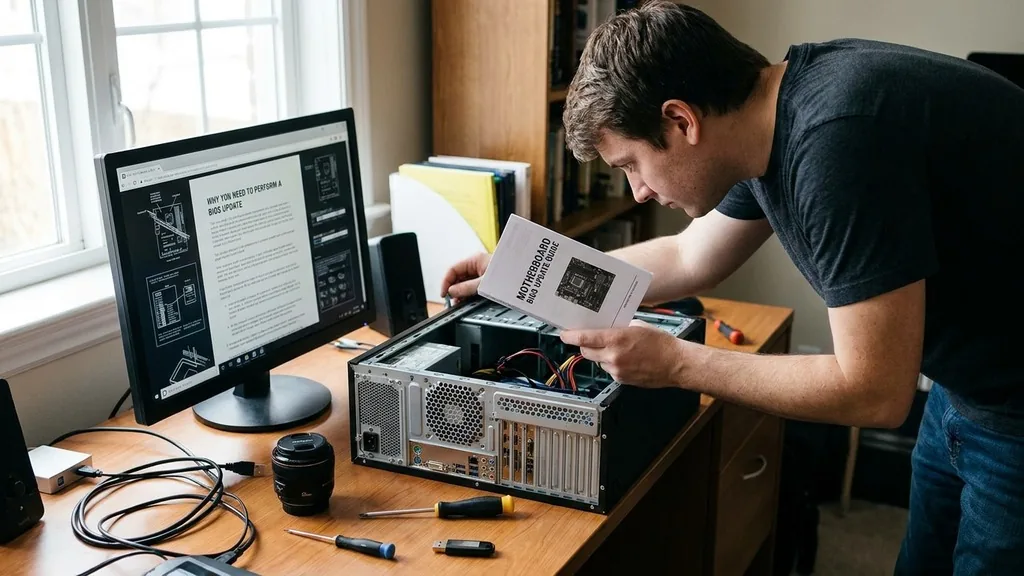
Updating your motherboard, specifically the BIOS or UEFI firmware, is a critical task that many computer users overlook until they run into compatibility issues or stability problems. When you learn how to update my motherboard, you are essentially performing a low-level software refresh that dictates how your hardware components communicate with each other.
This process is not as daunting as it sounds, but it requires patience and attention to detail, as a failed update can potentially render your system unbootable. Understanding the underlying firmware architecture allows you to maintain peak performance and ensure your hardware supports the latest processors and memory modules released since you first built your machine.
Why You Need to Perform a BIOS Update
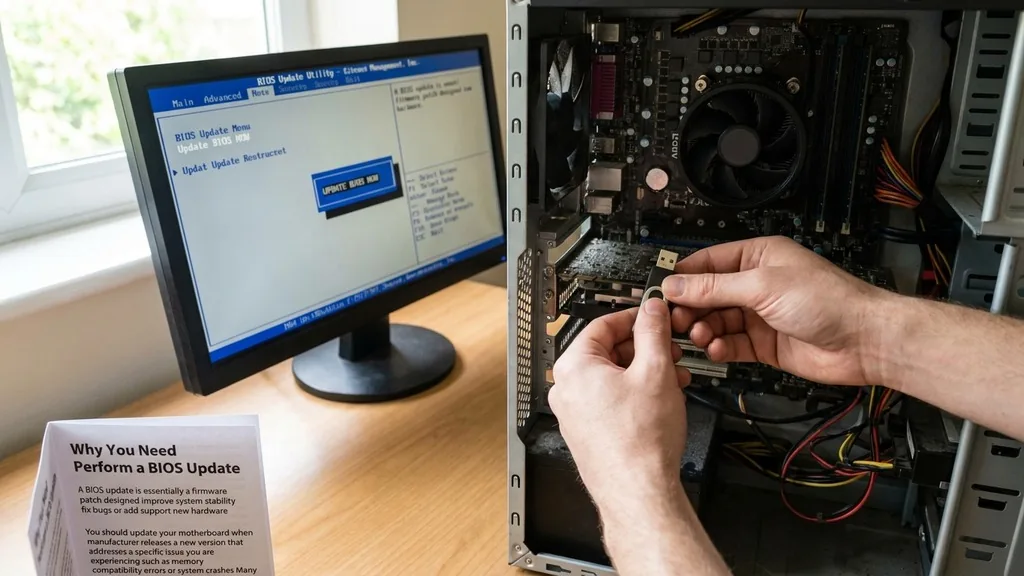
A BIOS update is essentially a firmware patch designed to improve system stability, fix bugs, or add support for new hardware. You should update your motherboard when the manufacturer releases a new version that addresses a specific issue you are experiencing, such as memory compatibility errors or system crashes.
Many enthusiasts also perform this update to unlock compatibility for newer generations of CPUs that were released after their current board was manufactured. For instance, if you recently upgraded to a newer processor, a firmware update might be the only way to get the system to post.
Beyond hardware support, these updates often include security patches. Because the BIOS sits at the foundational level of your computer, vulnerabilities here can be dangerous. Manufacturers like Intel and various motherboard vendors regularly release microcode updates to mitigate security risks.
If your system is running perfectly fine and you aren’t planning on changing any hardware, some experts suggest leaving it alone. However, if you are experiencing irregular system behavior or preparing for a hardware upgrade, performing an update is a necessary step in the lifecycle of your PC.
Identifying Your Current BIOS Version
Before you can download the correct files, you must verify your current firmware version. You don’t want to accidentally try to install an older version or, worse, a version intended for a completely different board model. To find this information, you can use the built-in Windows System Information tool.
Press the Windows key, type “msinfo32,” and hit Enter. In the window that opens, look for the “BIOS Version/Date” field. Write this down or take a screenshot, as it serves as your baseline.
You also need to identify the exact model name of your motherboard. You can often see this printed directly on the PCB, but the System Information tool or third-party utilities like CPU-Z are more reliable.
Never guess your motherboard model; a single character difference between two board revisions can lead to a bricked device. Once you have the model name and the current version, you are ready to visit the official manufacturer support page to see if a newer update is available for your specific hardware.
Preparing the USB Flash Drive for the Update
The most common method for updating your firmware involves using a USB flash drive. You should choose a reliable, small-capacity USB drive if possible, as some older BIOS interfaces struggle to read drives larger than 32GB. Before you start, ensure the drive is formatted correctly.
Most motherboards require the drive to be formatted in FAT32. If your drive is currently using NTFS or exFAT, the BIOS may not be able to detect the update file during the flash process.
Once the drive is ready, visit the manufacturer’s official support website. Navigate to the “Support” or “Drivers & Tools” section for your specific motherboard model. Locate the “BIOS” or “Firmware” download section.
Download the latest version, which usually comes as a compressed ZIP file. Extract the file to the root directory of your USB drive.
Do not put it inside a folder, as this makes it harder for the motherboard’s utility to locate the file. Eject the drive safely from your computer once the file transfer is complete.
Entering the BIOS Interface
To initiate the update, you must enter the motherboard’s setup environment. Restart your computer and repeatedly press the designated key during the boot sequence—usually Del, F2, or F10.
The correct key is typically displayed on the screen for a few seconds before the operating system starts loading. Once you are inside the BIOS, the interface might look like a simple text-based menu or a modern, mouse-driven graphical interface, depending on the age and brand of your board.
Modern boards from companies like ASUS, MSI, and Gigabyte provide dedicated “Flash” utilities built directly into the BIOS. Look for tabs labeled “Tool,” “Advanced,” or “Utilities.” Common names for these tools include “EZ Flash,” “M-Flash,” or “Q-Flash.”
When you select this utility, it will prompt you to select the file from your connected storage device. Ensure that your computer is connected to a stable power source throughout this process. A power failure during this specific stage is the most common cause of permanent motherboard damage.
Executing the Flash Process Safely
Once you have selected the update file, the system will verify it. This is a crucial safety check; the motherboard confirms that the file is compatible with your hardware before it begins overwriting the existing firmware. You will likely be asked to confirm the action one final time.
After you confirm, the system will begin the flash process. During this time, the progress bar may seem to stall or move slowly—this is normal. Do not restart the computer, unplug it, or touch the power button under any circumstances.
The computer will typically restart automatically once the process reaches 100%. Some systems may take longer than usual to boot up the first time after an update because the BIOS is reconfiguring the hardware settings. Be patient.
If the screen remains black for an extended period, wait at least five minutes before worrying. If it still doesn’t boot, you may need to clear the CMOS or use a secondary recovery method if your board supports it.
Understanding BIOS Flashback Technology
If you are worried about the risks of a standard update, many modern motherboards include a feature called BIOS flashback. This is a hardware-level recovery tool that allows you to update or restore the firmware even if the CPU, RAM, or graphics card is not installed or detected. It works by having a dedicated power circuit that handles the firmware update process independently of the main system components.
To use this feature, you usually need to rename the firmware file to a specific name determined by the manufacturer—check your manual for the exact requirements. Plug the USB drive into a designated “BIOS” USB port on the back I/O panel and press the dedicated “Flashback” button.
A small LED will blink to indicate that the system is writing the data. This is an incredibly useful feature for users who buy a new processor that requires an update before the motherboard can even recognize it.
Comparing Traditional Updates vs. Flashback
Not all motherboards are created equal. The method you use to update your system depends heavily on your specific hardware capabilities. The table below outlines the differences between standard software-based updates and hardware-level recovery methods.
| Method | Ease of Use | Risk Level | Requirement |
|---|---|---|---|
| In-BIOS Utility | Moderate | Low | Working CPU/RAM |
| BIOS Flashback | High | Very Low | Power Supply Only |
| Windows-Based Flash | Easiest | High | Stable OS |
While Windows-based flashing tools exist, they are generally considered the riskiest method. If a background process crashes the utility or the operating system hangs during the write phase, the board can be left in an unusable state. Always prefer the built-in BIOS utility or the dedicated flashback button if available.
Addressing Topical Gaps and Common Pitfalls
Many users ask, “Do motherboards update automatically?” The short answer is no. Unlike your operating system or your graphics drivers, motherboard firmware does not update itself in the background.
You must manually seek out the update. Another common error is assuming that the latest version is always the best. If you have a stable system, and the new update specifically mentions support for a CPU you don’t own, you don’t necessarily need to install it.
A significant gap in many guides is the mention of “CMOS resetting.” After an update, your custom BIOS settings—such as XMP/DOCP profiles for your memory, fan curves, or overclocking settings—will likely be wiped.
You should expect to re-enter the BIOS after the update to re-enable these features. If you fail to re-enable your memory profile, you might notice your computer feeling slower, as your RAM will default to the lowest supported speed (often 2133MHz or 2666MHz) instead of its rated performance speed.
Frequently Asked Questions
- How do I know if my motherboard needs an update? Check the manufacturer’s website for “Release Notes.” If your current version is stable and you aren’t adding new hardware, you likely don’t need to update. However, if you face persistent stability issues or need support for a newer processor, an update is recommended.
- Can I skip versions when updating my BIOS? In most cases, yes. Manufacturers typically design their firmware updates to be cumulative. You can usually jump directly from your current version to the latest one without installing the intermediate updates, but always read the specific instructions on the download page to be certain.
- What happens if the power goes out during the update? If power is lost while the BIOS is being written, the motherboard may become “bricked” and fail to boot. Some high-end boards have dual-BIOS chips that allow you to switch to a backup, but many standard boards will require professional repair or replacement. Always use a UPS if possible.
- Is it safe to update my motherboard drivers? Yes, updating drivers for components like audio, chipset, or LAN is perfectly safe and handled within your operating system. These are different from the BIOS firmware. You should keep your chipset drivers current to ensure the system communicates efficiently with your processor and storage devices.
Maintaining your system’s foundation is a skill that pays off in longevity and performance. By following these steps carefully, you can ensure that your motherboard remains compatible with the latest technologies while avoiding unnecessary risks.
Always take your time, verify your model numbers, and never interrupt the process once it has begun. With these precautions, managing your system firmware becomes a routine maintenance task rather than a source of anxiety.


