

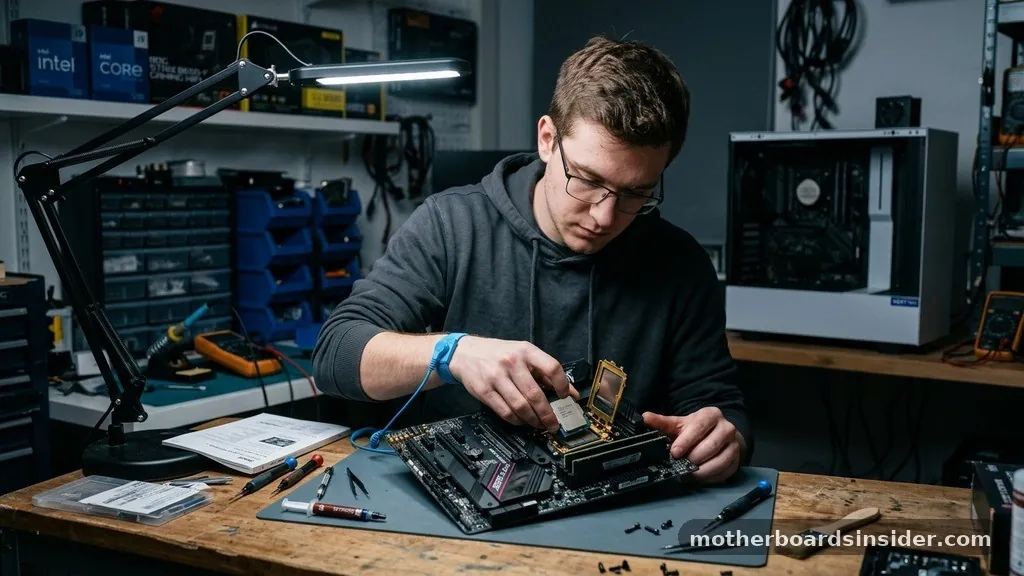
Updating the firmware on your computer’s mainboard is a critical task that ensures hardware compatibility, stability, and security. When you learn how to update bios on motherboard hardware, you are effectively providing your system with the latest instructions on how to communicate with newer components like high-speed RAM, modern processors, and advanced storage devices. While the process has become significantly more user-friendly over the years, it remains a task that requires precision and patience, as interrupting the sequence can lead to a non-functional system.
Modern computing relies on the Basic Input/Output System (BIOS) or the more contemporary Unified Extensible Firmware Interface (UEFI) to initialize hardware during the startup sequence. Because this software sits at the lowest level of the machine’s architecture, keeping it current is essential for maintaining performance. Whether you are troubleshooting a stability issue or preparing your machine for a processor upgrade, understanding the nuances of the flashing process is a skill every PC builder should possess.
Understanding the Necessity of Firmware Maintenance
Most users often wonder if they actually need to perform an update. The golden rule of system maintenance is simple: if your machine is running perfectly, there is often no urgent reason to flash the firmware.
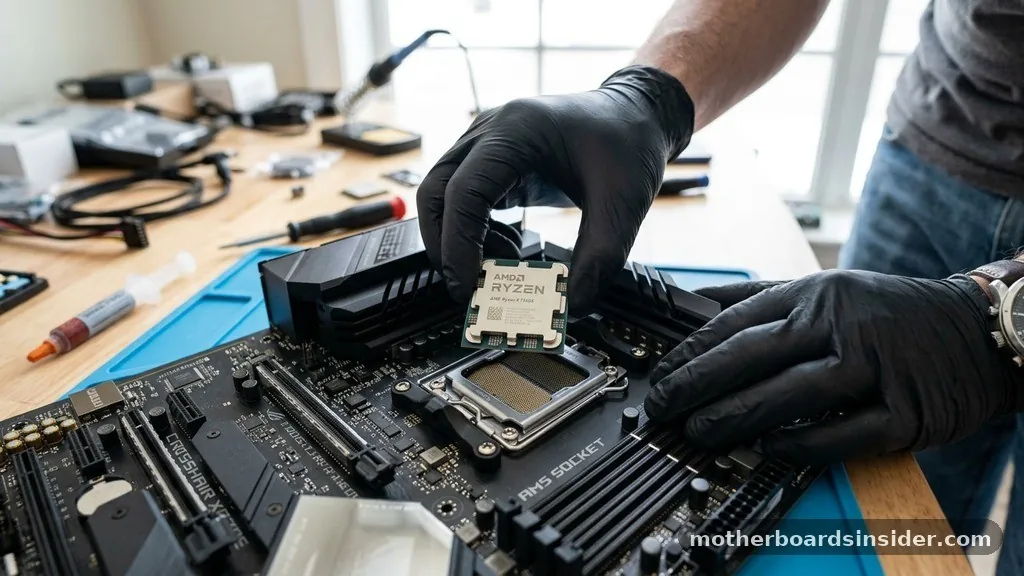
However, there are specific scenarios where an update becomes mandatory. If you have purchased a new CPU that was released after your motherboard was manufactured, the board may not recognize the processor without a specific firmware version.
Furthermore, manufacturers frequently release patches that improve system memory compatibility, fix bugs that cause random restarts, or address security vulnerabilities. These updates are provided through the official support portals of the hardware vendor. Before you decide to proceed, you must verify your current bios version.
This information is easily accessible by entering the system interface during the initial boot sequence or by checking the “System Information” utility within your operating system. If the manufacturer has released a version that explicitly addresses a problem you are experiencing, or if it adds support for a component you intend to install, then the process is warranted.
Preparing for the Update Process
Before you begin the technical steps, preparation is the most important phase. You must ensure that your system has a stable and uninterrupted flow of power.
If your computer loses electricity during the flashing sequence, the motherboard can become “bricked,” meaning it will no longer start. If you are using a desktop, ensure it is plugged into a reliable power source, ideally protected by an Uninterruptible Power Supply (UPS) if you live in an area with frequent outages.
You will also need a USB flash drive formatted to the FAT32 file system. While many modern boards can read other formats, FAT32 remains the universal standard for firmware files. Before moving forward, visit the manufacturer’s website—such as those for ASUS, MSI, Gigabyte, or ASRock—and search for your specific model.
It is vital to match the exact revision of your board, as installing the wrong firmware file can cause permanent damage to your hardware. Always download the files directly from the vendor’s site to avoid corrupted or malicious software.
Utilizing the Built-in Flash Utility
Most modern motherboards include a dedicated tool within the firmware interface itself, which is widely considered the safest method for updating. To access this, restart your computer and repeatedly press the key designated to enter the setup screen—usually Delete, F2, or F12. Once you are inside, navigate to the Tools or Advanced menu to find the utility, often named “EZ Flash,” “M-Flash,” or “Q-Flash.”
Once the utility is open, you will be prompted to select the file you saved to your storage drive. The system will then ask you to confirm that you wish to proceed. This is the moment of truth.
Once you select “Yes,” the system will begin reading the new data and writing it to the chip. This usually takes just a few minutes.
During this time, do not touch the keyboard, mouse, or power button. The system will usually restart automatically once the operation is finished, and you may see a message indicating that the update was successful.
Advanced Recovery: BIOS Flashback
In recent years, high-end boards have introduced a feature called bios flashback. This is a revolutionary tool that allows you to update the firmware even if you do not have a CPU, RAM, or a graphics card installed.
This is particularly useful if you have a board that is too old to recognize a new CPU you just installed. To use this, you simply rename the firmware file according to the manufacturer’s specific naming convention, place it on a formatted drive, and insert it into a specifically labeled USB port on the rear I/O panel.
After inserting the drive, you press a small button on the back of the motherboard labeled “Flashback.” A small LED will typically begin to blink, indicating that the system is actively writing the new code. Once the light stops blinking or turns off, the process is complete.
This feature provides a massive safety net, as it allows you to recover from a corrupted flash or simply prepare a board for a new build without needing to boot into the interface. It is a testament to how far hardware design has evolved to make the process more accessible to the average user.
Standard vs. Flashback Methods
To help you distinguish between the different approaches to maintaining your system firmware, the following table outlines the primary differences between the standard internal utility and the dedicated external flashback feature.
| Feature | Internal UEFI Utility | Dedicated Flashback Button |
|---|---|---|
| Requirement | System must boot to BIOS | No CPU or RAM required |
| Ease of Use | Moderate (requires navigation) | High (one-button operation) |
| Primary Usage | Standard maintenance | Emergency recovery/New build setup |
| Complexity | Requires interface knowledge | Requires specific file naming |
Managing Settings After the Update
Once the update has finished, your computer will reboot. It is common for the system to take a bit longer than usual to start up for the first time, as it needs to retrain the memory and re-initialize hardware components. You will likely see a message on the screen stating that the settings have been reset to default.
This is entirely normal. The update process effectively clears the CMOS, which means any custom fan curves, overclocking profiles, or boot priority settings you previously configured will have been wiped.
You should re-enter the interface to re-apply your preferred settings. If you had an XMP or EXPO profile enabled for your RAM, make sure to re-enable it, otherwise, your memory will run at its base speed rather than its rated performance speed.
Check your boot drive order as well, especially if you have multiple storage devices, to ensure the system starts from your primary operating system drive. Taking these steps ensures that the system is not only up to date but also optimized to your specific hardware configuration.
Troubleshooting Common Issues
If you run into issues, stay calm. Most problems are minor and can be fixed with simple steps. If the system fails to post after an update, the first step is to clear cmos.
You can do this by removing the small coin-shaped battery from the motherboard for about 30 seconds or by shorting the “Clear CMOS” pins as indicated in your manual. This resets the motherboard to its factory-shipped state, which often resolves conflicts caused by incompatible settings left over from the previous firmware version.
If you are still unable to boot, verify that the file you downloaded was not corrupted. Sometimes, a download can be interrupted, resulting in a partial file. Try re-downloading the file from the vendor’s support page and repeating the process.
If you are experiencing instability, such as system crashes or blue screens, it is possible that the new version has a bug. In such cases, you may need to revert to a previous, more stable version.
Always keep a record of which version you were running before you started, as this provides a reliable fallback position. You can find more detailed technical documentation at the National Institute of Standards and Technology regarding system security and firmware standards.
Topical Gaps and Frequently Asked Questions
A common point of confusion is whether a motherboard can automatically update itself. While some pre-built systems from major OEMs include proprietary software that automates this, custom-built machines generally require manual intervention. This is by design, as it prevents accidental interruptions to a critical process.
Another misconception is that “updating” is the same as “flashing.” They are effectively the same in this context, though “flashing” refers to the specific act of writing data to the EEPROM chip.
How do I know if my motherboard needs an update?
If your system is stable and recognizes all your hardware components, you likely do not need to update. However, if you are planning to install a newer generation of CPU, or if the manufacturer has released a security patch, an update is highly recommended to ensure compatibility and system integrity.
What happens if the power cuts out during an update?
If the power is lost while the system is writing the new firmware, the BIOS chip may become corrupted, leaving the motherboard unable to boot. Many modern boards include a “Dual BIOS” feature or the “Flashback” button mentioned earlier, which can be used to recover the system from this state.
Can I skip versions when updating?
In most cases, yes. Manufacturers typically design their firmware updates to be cumulative, meaning the latest version includes all the fixes and improvements from previous releases. However, always read the description on the download page, as some vendors occasionally require an intermediate update before jumping to a much newer version.
Is it possible to update from inside Windows?
Yes, most manufacturers provide a Windows-based utility. While convenient, these are often considered less reliable than using the built-in UEFI tool because they are susceptible to interference from background processes, antivirus software, or operating system crashes. Using the built-in UEFI method is always the preferred and safest choice.
Conclusion
Learning how to update bios on motherboard hardware is a foundational aspect of PC maintenance. By ensuring your firmware is current, you are protecting your investment and ensuring that your hardware performs at its absolute peak. While the thought of flashing your system can be intimidating, the process is straightforward when you follow the manufacturer’s guidelines, use a reliable power source, and take the time to prepare correctly.
By maintaining your system with care, you will enjoy a smoother, more compatible, and more secure computing experience for years to come. Remember, the goal is always to improve stability; if your system is functioning perfectly, there is no need to rush the process, but when the time comes to make a change, you now have the knowledge to do so with confidence.


