

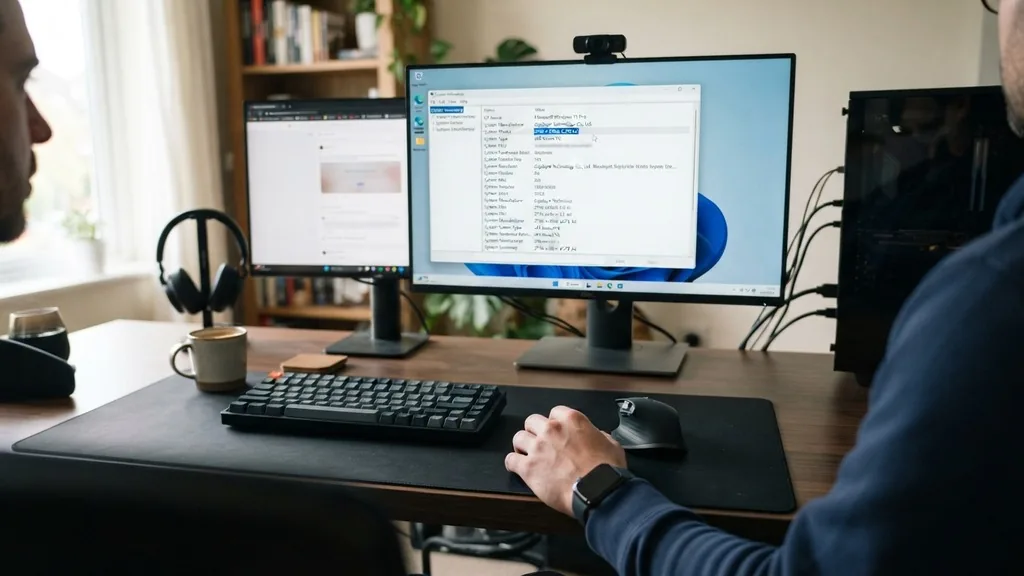
Knowing exactly which hardware resides inside your computer case is essential for troubleshooting, upgrading components, and ensuring you have the correct drivers installed. If you are wondering where to find my motherboard model, you are likely at a stage where you need to verify compatibility for a new CPU, RAM kit, or graphics card.
Identifying this core component—often referred to as the baseboard—is a straightforward process that can be accomplished through software utilities or a physical inspection of the hardware itself. Whether you are running a modern Windows 11 machine or an older system, the steps remain consistent and accessible for users of all skill levels.
Using Windows System Information to Identify Your Board
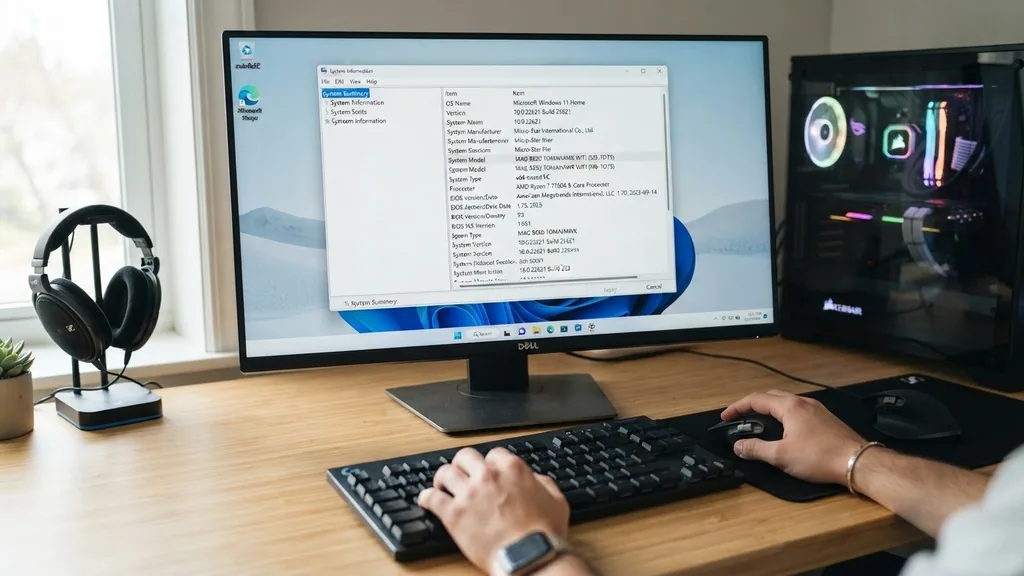
The fastest way to find your motherboard model without touching a screwdriver is to utilize the built-in Windows System Information tool. This utility pulls data directly from the system firmware and provides a quick summary of your hardware configuration. To access this, press the Windows key, type “msinfo32,” and hit Enter.
Once the window opens, look for the “BaseBoard Manufacturer” and “BaseBoard Product” fields in the System Summary section. The “BaseBoard Product” line specifically displays your motherboard model name, which is exactly what you need for driver downloads or support queries.
If you find that the “BaseBoard Product” field simply says “To be filled by O.E.M.,” it indicates that your computer is likely a pre-built system from a manufacturer like Dell, HP, or Lenovo. In these cases, the motherboard is proprietary, and you will need to search for your specific computer model number on the manufacturer’s website rather than looking for a generic motherboard model. This software method is highly effective for most users because it requires no installation of third-party software and is built into every version of Windows, including 7, 10, and 11.
Command Prompt Methods for Quick Verification
For those who prefer a more direct approach or are comfortable with command-line interfaces, the Windows Command Prompt (CMD) offers a way to query your motherboard information instantly. Open your Start menu, type “cmd,” and run it as an administrator or a standard user.
Once the black window appears, you can type the following command to retrieve your hardware details: “wmic baseboard get product,Manufacturer,version,serialnumber.” After pressing Enter, the system will return the manufacturer and product name of your motherboard.
This method is particularly useful for power users or those managing multiple systems who want to verify hardware without navigating through graphical menus. It essentially asks the Windows Management Instrumentation (WMI) service to pull the motherboard model name directly from the BIOS/UEFI data.
If you are interested in the specific technical specifications of your build, this command string is a reliable way to get the exact data without any clutter. You can find additional details on hardware management via the Microsoft Windows Management Instrumentation documentation.
Checking the UEFI BIOS for Hardware Details
If you are unable to boot into Windows, or if you simply prefer to see the hardware information before the operating system even loads, the UEFI BIOS is your best resource. To enter the BIOS, restart your computer and repeatedly press the designated key—commonly Del, F2, F10, or F12, depending on your motherboard brand—during the initial startup splash screen. Once you are inside the BIOS interface, the motherboard model name is almost always displayed on the main “Easy Mode” or “System Information” page.
This is a foolproof way to verify your hardware because the BIOS is the low-level firmware that initializes your components. If you have an ASUS motherboard, for example, the model name will be prominently displayed at the top of the interface.
This method is also useful if you are planning to perform a BIOS update, as you will need the exact model name to ensure you download the correct firmware file from the manufacturer’s official support page. Always be careful when navigating the BIOS, and avoid changing settings unless you are certain of their impact on your system stability.
Physical Inspection of the Motherboard
Sometimes, software might report a generic or incorrect name, especially if the motherboard has been heavily customized by a system integrator. In these instances, the most accurate way to find your motherboard model is to open your computer case and look directly at the board.
Most manufacturers silkscreen the model name in bold, white lettering directly onto the printed circuit board (PCB). You will typically find this located between the PCIe slots or near the CPU socket.
Before opening your PC, ensure it is completely powered down and the power cable is disconnected from the wall. If you have a large graphics card or bulky CPU cooler, you might need a flashlight to see into the tight corners of the chassis.
Many modern boards also have a sticker on the back of the I/O shield area or near the RAM slots that contains the specific revision number and model name. If you cannot see it clearly, take a high-resolution photo with your smartphone and zoom in on the image; this often makes the fine-print text much easier to read than looking with the naked eye.
Utilizing Third-Party Diagnostic Software
If the built-in Windows tools are failing to provide the specific details you need, third-party diagnostic software is an excellent alternative. Tools like CPU-Z are industry standards for hardware identification.
Once installed, these programs provide a comprehensive overview of your CPU, memory, and motherboard. Under the “Mainboard” tab in CPU-Z, you will see the exact manufacturer, model, chipset, and BIOS version.
These programs are particularly helpful because they often provide more granular data than Windows System Information. For instance, if you are looking to upgrade your RAM, the software will tell you exactly what speed and type of memory your motherboard supports.
When downloading such tools, always ensure you get them from the developer’s official website to avoid bundled software or security risks. These utilities are lightweight, free, and incredibly effective at pulling data that might be obscured by proprietary OEM naming conventions.
Understanding Motherboard Naming Conventions
Manufacturers like ASUS, MSI, and Gigabyte follow specific naming patterns that can help you identify your board even if you only have a partial name. Generally, the name includes the chipset, the form factor, and a series identifier. For example, a board labeled “ROG STRIX B650-A GAMING WIFI” tells you the brand (ASUS ROG), the chipset (B650), and the fact that it includes built-in wireless networking.
Understanding these naming structures makes it easier to find the right support pages. When you search for your motherboard model online, the manufacturer’s product page will almost always contain a “Support” or “Drivers” section.
This is where you will find the latest BIOS updates, chipset drivers, and compatibility lists for processors and memory. Being able to decode the name helps you avoid downloading drivers for the wrong revision of the board, as some models have “Rev 1.0” and “Rev 2.0” versions that are not compatible with each other.
Identifying Motherboards in Pre-Built Systems
If you purchased a pre-built computer from a major retailer, you might find that the motherboard model name is not standard. Companies like Dell and HP often commission custom-designed motherboards that do not follow retail naming conventions.
In these cases, the “motherboard model” is essentially the computer model itself. You should look for the service tag or serial number on the sticker attached to the outside of your computer case.
Once you have this service tag, you can go to the manufacturer’s support website and enter that code. This will bring up the exact hardware configuration that shipped with your machine.
This is the most reliable way to find documentation for proprietary boards, as you will not find them listed on the generic support pages of companies like Gigabyte or ASRock. Using the manufacturer’s support portal ensures that you get the correct drivers, as proprietary boards often have unique power delivery or header configurations that differ from retail versions.
Comparison of Identification Methods
Choosing the right method depends on your current situation and the state of your computer. The following table provides a quick reference to help you decide which approach is most appropriate for your needs.
| Method | Ease of Use | Best For | Requires Power |
|---|---|---|---|
| System Information (msinfo32) | Very Easy | Quick checks inside Windows | Yes |
| Command Prompt (wmic) | Moderate | Scripting and power users | Yes |
| UEFI BIOS | Moderate | Troubleshooting boot issues | Yes |
| Physical Inspection | Hard | Identifying damaged or unknown boards | No |
| Third-Party Software | Very Easy | Detailed technical specifications | Yes |
Each of these methods has its place depending on whether you are simply curious about your hardware or if you are in the middle of a complex repair. If you are planning a significant upgrade, it is often a good idea to cross-reference your findings. For example, use CPU-Z to get the model name, then check the manufacturer’s website to confirm that your current BIOS version is compatible with the new hardware you plan to install.
Common Troubleshooting and FAQ
When you are trying to locate your motherboard information, you might run into a few common roadblocks. Below are answers to frequently asked questions that can help you clear up any confusion and get the information you need.
- What if my motherboard model isn’t showing up? If software returns a generic name like “System Board,” it is likely a pre-built PC. Use the serial number or service tag on the computer’s chassis to look up the support page on the manufacturer’s website.
- Does it matter if I have a Rev 1.0 or 2.0 board? Yes, it is very important. Different revisions can use different components or BIOS versions. Always check your physical board or the documentation provided by the manufacturer to ensure you are downloading the correct files.
- Can I use a different manufacturer’s BIOS? Never attempt to flash a BIOS from a different manufacturer or a different model. Doing so will almost certainly “brick” your motherboard, rendering the computer unusable and requiring hardware-level repairs to fix.
- Why does the motherboard model name look so long? Manufacturers include series names, chipset codes, and feature sets in the full model name. Focus on the core alphanumeric string, such as “B550” or “Z790,” to find the general support page, then refine by the specific board suffix.
Taking the time to identify your hardware correctly is a vital step in maintaining your system’s health. Whether you are updating your firmware to improve system stability or simply checking to see if your memory configuration is optimal, having this knowledge at your fingertips saves time and prevents potential errors. Please remember that if you are ever unsure about a specific hardware change, the safest path is to consult the official documentation provided by the motherboard manufacturer.
By following these methods, you will be able to manage your system with confidence and ensure that every component is working exactly as it should. Always document your findings, perhaps by saving a screenshot or writing down the model number in a text file, so you can easily reference it in the future when you need to perform additional maintenance or upgrades.


