

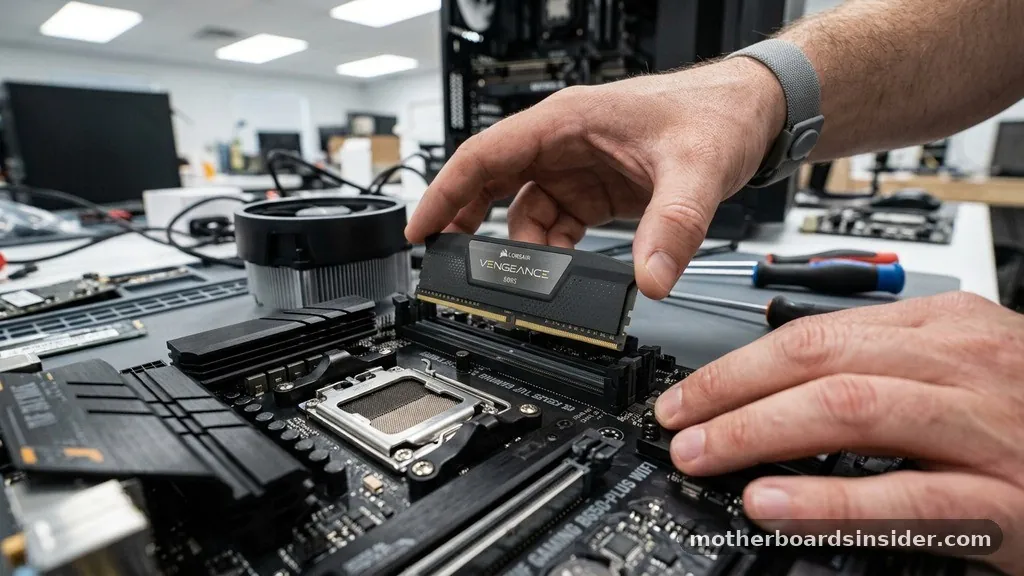
Determining whether your hardware components will work together is the most critical step in building or upgrading a computer. If you are asking yourself “is my ram compatible with my motherboard,” you are likely standing at the crossroads of a system upgrade or a brand-new custom build.
RAM, or Random Access Memory, serves as the high-speed workspace for your processor, and if the physical interface or the electrical signaling does not match the specifications of your motherboard, the system will either fail to boot or suffer from severe instability. Understanding the intricate relationship between your memory modules and your mainboard is essential for ensuring that your PC functions as intended, whether you are aiming for high-end gaming performance or reliable office multitasking.
Understanding the Physical Interface and Generation
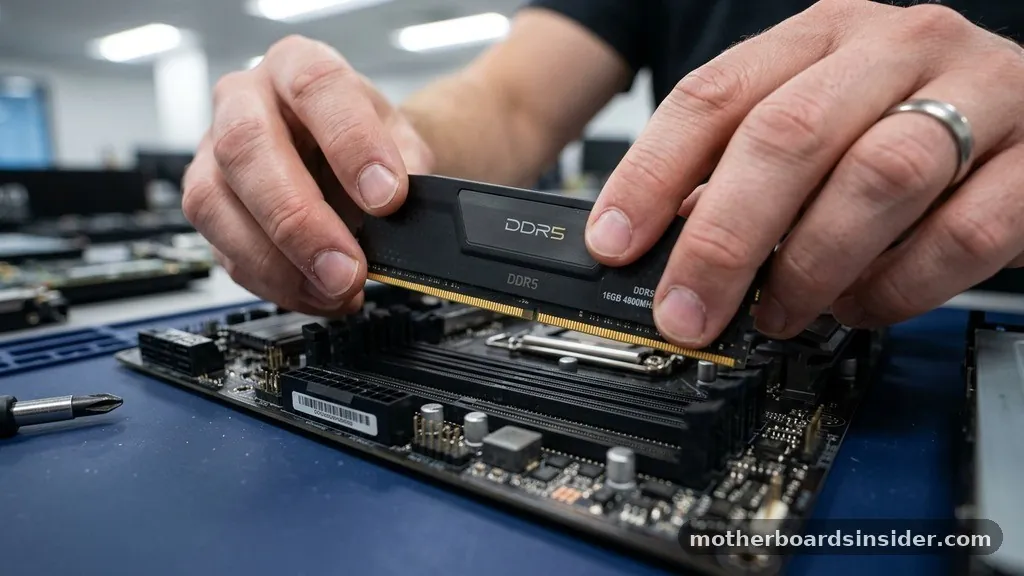
The most fundamental rule of memory installation involves the physical generation of the modules. You cannot simply slot any stick of memory into any available DIMM slot on your motherboard. The architecture of modern computing relies on specific generations of DDR (Double Data Rate) memory, such as DDR4 or DDR5.
Each generation features a unique physical notch, or “key,” located along the gold contact pins. This physical key is positioned differently on each generation to prevent users from accidentally installing incompatible hardware.
When you look at your motherboard, the manual will explicitly state which generation of memory it supports. For instance, a motherboard designed for DDR4 will physically reject a DDR5 module because the notch will not align with the slot’s bridge. Attempting to force a stick into the wrong slot can cause permanent, irreparable damage to both the memory module and the motherboard’s DIMM slots.
Always verify the generation before making a purchase. If your system is a few years old, it likely uses DDR4.
If you have recently purchased a high-end motherboard, it might require the newer DDR5 standard. Never assume that because a stick looks similar to your existing memory that it is compatible; always prioritize the specific generation listed in the motherboard’s technical documentation.
Analyzing Memory Speed and Frequency Support
Beyond the physical generation, you must consider the clock speed, measured in Megahertz (MHz) or Megatransfers per second (MT/s). A common question users ask is whether they can use faster RAM than their motherboard officially supports. The answer is nuanced.
While a motherboard might be rated for a base speed—such as 2666MHz—it can often run faster modules, provided the BIOS supports it. However, the system will typically downclock the RAM to match the motherboard’s maximum supported speed or the processor’s memory controller limit.
If you purchase 3600MHz RAM for a motherboard that only supports 2400MHz, your computer will likely boot, but the memory will operate at the lower 2400MHz frequency. Conversely, if you install RAM that is slower than the motherboard’s native speed, you will be bottlenecking your system’s performance. To get the advertised speed of high-performance memory, you often need to enable an XMP (Extreme Memory Profile) or DOCP (Direct Over Clock Profile) in your BIOS.
Without this step, your high-speed RAM will run at the default JEDEC standard speed, which is significantly slower. Always check the motherboard’s qualified vendor list (QVL) to see which specific high-speed modules have been tested and verified to run at their rated speeds on your board.
The Role of the Motherboard Qualified Vendor List
Every major manufacturer, such as ASUS, MSI, Gigabyte, or ASRock, maintains a document known as the Qualified Vendor List, or QVL. This is arguably the most reliable compatibility checker available for your specific hardware.
The QVL is a comprehensive list of memory kits that the manufacturer has physically tested with that exact motherboard model. While it is impossible for a manufacturer to test every single stick of RAM on the market, the QVL provides a “guaranteed” path to stability.
Using the QVL is particularly important if you are planning on overclocking or using four sticks of memory simultaneously. Populating all four DIMM slots puts a higher load on the processor’s integrated memory controller, which can sometimes lead to instability if the specific memory sticks are not perfectly matched. If you find your RAM model number on the QVL, you can be confident that the manufacturer has verified that the module meets the electrical and timing requirements of the board.
You can find this document on the support page of your specific motherboard’s make model on the manufacturer’s website. If you cannot find your specific RAM on the list, it does not necessarily mean it won’t work, but it does mean it hasn’t been officially validated, which introduces a small level of risk.
Memory Capacity and Channel Architecture
When planning an upgrade, the total capacity of your RAM is just as important as its compatibility. You must check the maximum capacity supported by your motherboard.
Some entry-level boards have a cap of 32GB or 64GB, while high-end enthusiast boards can support 128GB or even 256GB of memory. Installing more RAM than the board supports can lead to the system failing to recognize the extra capacity, or in some cases, failing to boot entirely.
Furthermore, you should consider the memory channel architecture. Most consumer motherboards use a dual-channel configuration, meaning that installing memory in pairs (two or four sticks) provides a significant performance boost over using a single stick. If you have four slots on your motherboard, they are usually color-coded or labeled to indicate the correct pairing.
Installing your RAM in the wrong slots—for example, placing two sticks side-by-side rather than in the designated alternating slots—will prevent the system from utilizing dual-channel mode, effectively cutting your memory bandwidth in half. Always refer to your motherboard manual to identify the correct slots for optimal performance.
Form Factor: Desktop DIMM vs. Laptop SO-DIMM
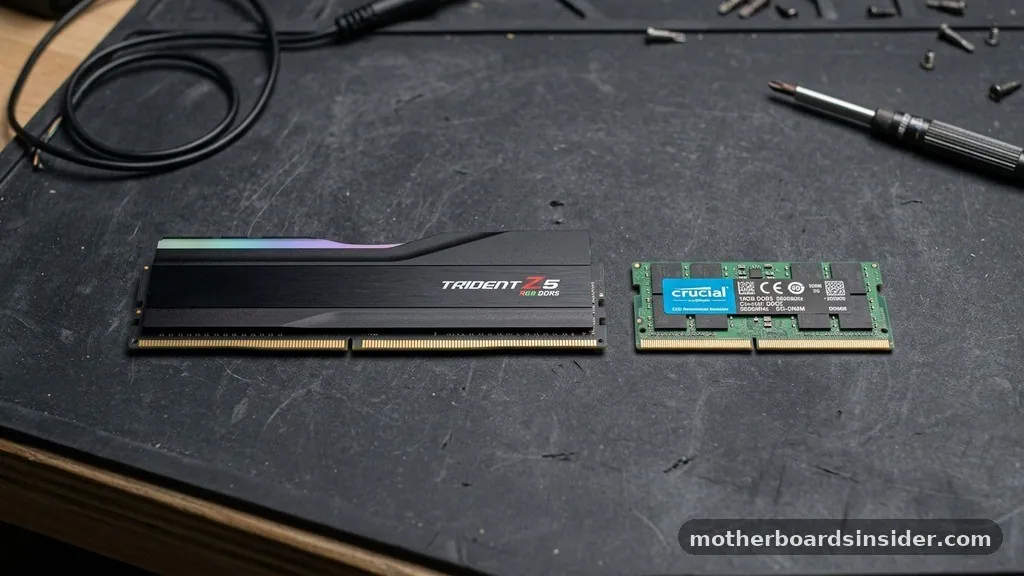
Another critical aspect of ram compatibility is the form factor. Desktop computers use long DIMM (Dual In-line Memory Module) sticks, while laptops and small form factor (SFF) systems typically use shorter SO-DIMM (Small Outline DIMM) modules.
These two form factors are not interchangeable. You cannot fit a desktop DIMM into a laptop, nor can you use a laptop SO-DIMM in a standard desktop motherboard without a specialized adapter, which is rarely recommended due to signal integrity issues.
If you are upgrading a laptop, you must be extra vigilant. Not only do you need to match the generation (e.g., DDR4 SODIMM), but you also need to check the voltage requirements.
Some older laptops require low-voltage RAM (often marked as DDR3L), and using standard-voltage RAM in these machines can lead to system failure or even hardware damage. Always use the system’s service tag or serial number on the manufacturer’s website to identify the exact specifications required for your specific machine.
Common Indicators of Incompatibility
If you have already installed your RAM and are worried about compatibility, your system will usually give you clear indicators if something is wrong. The most common sign is the “No POST” scenario, where the computer turns on—fans spin and lights turn on—but the screen remains black, and the machine fails to reach the BIOS or operating system. Many modern motherboards include debug LEDs or a small speaker that emits “beep codes” to help diagnose the issue.
A “DRAM” debug light on your motherboard is the most direct signal that the system is failing to initialize the memory. If you see this light, try the following steps:
- Reseat the RAM: Remove the sticks and click them back into the slots firmly.
- Test one stick: Try booting with only one module installed to rule out a single faulty stick.
- Clear CMOS: Resetting the BIOS to factory defaults can sometimes resolve timing conflicts.
- Update BIOS: Newer BIOS versions often include improved memory compatibility patches.
If the system boots but crashes frequently, especially during gaming or heavy workloads, it may be a sign of unstable memory settings.
This often happens if the motherboard is struggling to maintain the XMP profile of the RAM. In such cases, manually lowering the frequency or increasing the voltage slightly (within safe limits) can provide the stability your system needs.
How to Use Online Compatibility Tools
If you find the technical manuals and QVL lists overwhelming, you can use a digital tool help to simplify the process. Many reputable memory manufacturers, such as Crucial, Kingston, and Corsair, offer an online compatibility checker.
These tools allow you to input your computer’s brand and model or your motherboard’s specific model number. The tool then filters their inventory to show you only the products that are confirmed to be compatible with your hardware.
This is an excellent way to avoid the guesswork associated with manually checking voltages, timings, and physical dimensions. For example, if you visit the official Crucial memory advisor, you can find a list of compatible upgrades tailored to your specific system configuration.
These tools are generally very accurate and are updated regularly as new hardware is released. While these tools are incredibly helpful, it is always a good practice to double-check the results against your motherboard’s official manual, especially if you are building a high-end system where every bit of performance matters.
Addressing Topical Gaps: ECC vs. Non-ECC Memory
A frequent point of confusion for users is the distinction between ECC (Error Correction Code) and non-ECC memory. ECC memory is designed for workstations and servers; it contains an extra chip to detect and correct data corruption. Most consumer-grade motherboards do not support ECC memory, and even if they do, they often require a specific type of processor (such as an Intel Xeon or certain AMD Ryzen PRO CPUs) to enable the feature.
If you accidentally purchase ECC memory for a standard gaming motherboard, the system will likely not boot at all, or it will simply ignore the error-correction features. Always ensure you are purchasing “Unbuffered” or “UDIMM” memory for standard desktop use, as this is the industry standard for home and office computers. If your motherboard specifically requires ECC, it will be clearly stated in the technical specifications.
Do not assume your board supports both; mixing the two is a recipe for system instability. Furthermore, pay attention to the “rank” of the memory (single-rank vs. dual-rank), as some older motherboards have specific limitations on how many ranks they can handle per channel.
| Feature | Desktop (DIMM) | Laptop (SO-DIMM) |
|---|---|---|
| Physical Size | Large (approx. 133mm) | Small (approx. 67mm) |
| Pin Count (DDR4) | 288 pins | 260 pins |
| Compatibility | Desktop Motherboards | Laptop/Mini-PC Motherboards |
| Overclocking | Commonly Supported | Limited Support |
Conclusion and Best Practices
Ensuring that your RAM is compatible with your motherboard is a manageable task if you follow a logical, step-by-step approach. Start by consulting your motherboard’s manual, which remains the single most accurate source of information for your specific hardware.
Cross-reference your findings with the manufacturer’s QVL to see if your chosen memory has been tested. If you prefer a more automated approach, utilize the online tools provided by major memory manufacturers to narrow down your search to compatible options.
Remember that the goal is not just to get the system to turn on, but to achieve long-term stability and performance. By paying attention to the generation, frequency, capacity, and form factor, you can avoid the frustration of incompatible hardware.
If you are ever in doubt, reach out to the motherboard manufacturer’s support team or check community forums for users who have successfully paired your motherboard with the specific RAM you are considering. With careful research and the right tools, you can confidently upgrade your system and enjoy a faster, more reliable computing experience.


