

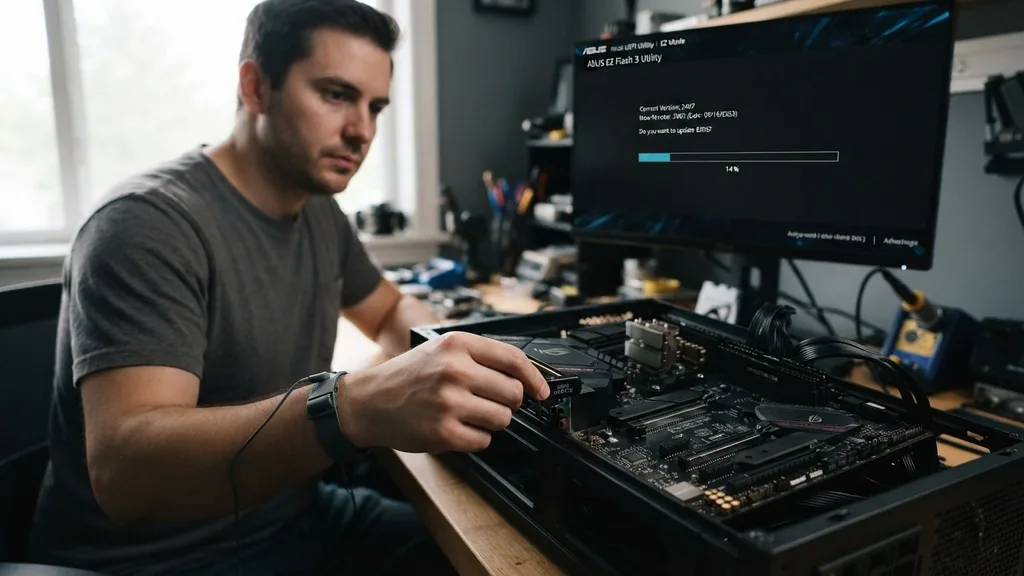
Learning how to upgrade motherboard BIOS is a critical skill for any PC builder or enthusiast looking to maintain hardware stability. A Basic Input/Output System, or BIOS, acts as the primary firmware that initializes your hardware during the boot process.
When you update this firmware, you are essentially providing your motherboard with new instructions to better communicate with modern processors, faster RAM modules, and improved security patches. While the process is often viewed as intimidating due to the risk of “bricking” the board, modern tools have made the procedure significantly more accessible for the average user.
Understanding the Necessity of a BIOS Update
To understand why you might need to perform a BIOS update, you must first recognize that motherboards are shipped with a specific version of firmware that was current at the time of manufacturing. If you purchase a high-end motherboard that sat on a warehouse shelf for six months, it may not recognize a brand-new processor released shortly after that production date. In these scenarios, updating the firmware is not just a recommendation; it is a functional requirement to get your computer to post.
Beyond hardware compatibility, manufacturers release these updates to fix bugs, improve memory stability, and patch security vulnerabilities. You might notice your system crashes when using XMP profiles for your RAM, or perhaps your USB ports are behaving erratically. These issues are frequently resolved in subsequent firmware releases.
By checking your current version against the manufacturer’s official support page, you can identify whether your system is running outdated code. Always remember that if your system is running perfectly fine, there is no urgent need to flash the firmware. The “if it isn’t broken, don’t fix it” rule remains the golden standard in hardware maintenance.
Identifying Your Current BIOS Version
Before downloading any files, you must verify what version is currently running on your system. You cannot simply guess or assume; you need precise information to ensure you download the correct update. The easiest way to check your BIOS version is through the System Information tool in Windows.
Press the Windows key, type “msinfo32,” and hit enter. Look for the “BIOS Version/Date” entry in the system summary list.
Another method involves entering the BIOS interface itself. By restarting your computer and repeatedly pressing the DEL or F2 key, you can access the configuration menu. The version number is almost always displayed on the main landing page or the system information tab.
Write this information down or take a photo of the screen. This ensures you have a reference point when you visit the manufacturer’s website.
You will need this to compare against the latest available versions on the support page. Never attempt to flash a version that is not specifically designed for your exact motherboard revision, as doing so can cause irreparable damage to the board’s non-volatile memory.
Locating and Downloading the Correct Firmware File
Finding the right support page is a step where many users encounter issues. You must navigate to the official website of your motherboard manufacturer—such as ASUS, MSI, Gigabyte, or ASRock. Do not rely on third-party driver update tools, as these can sometimes provide incorrect or modified files.
Once you arrive at the manufacturer’s site, use their internal search function to find your specific motherboard model. Be extremely careful here; many boards have similar names but different hardware revisions (e.g., Rev 1.0 vs.
Rev 1.2). Using the wrong file will result in a failed update.
After you have confirmed the model and revision, navigate to the “Support” or “Downloads” section for that product. Look specifically for a tab labeled “BIOS” or “Firmware.” You will usually see a list of available versions, often accompanied by release notes.
These notes are incredibly useful, as they detail exactly what has been changed—such as “Improve system stability” or “Add support for Ryzen 5000 series processors.” Download the latest version, which is typically provided as a compressed ZIP file.
Once downloaded, extract the contents to a folder on your desktop. You will usually find a single file with a unique extension, such as .CAP, .ROM, or .BIN, depending on the manufacturer.
Preparing a USB Flash Drive for the Flash Process
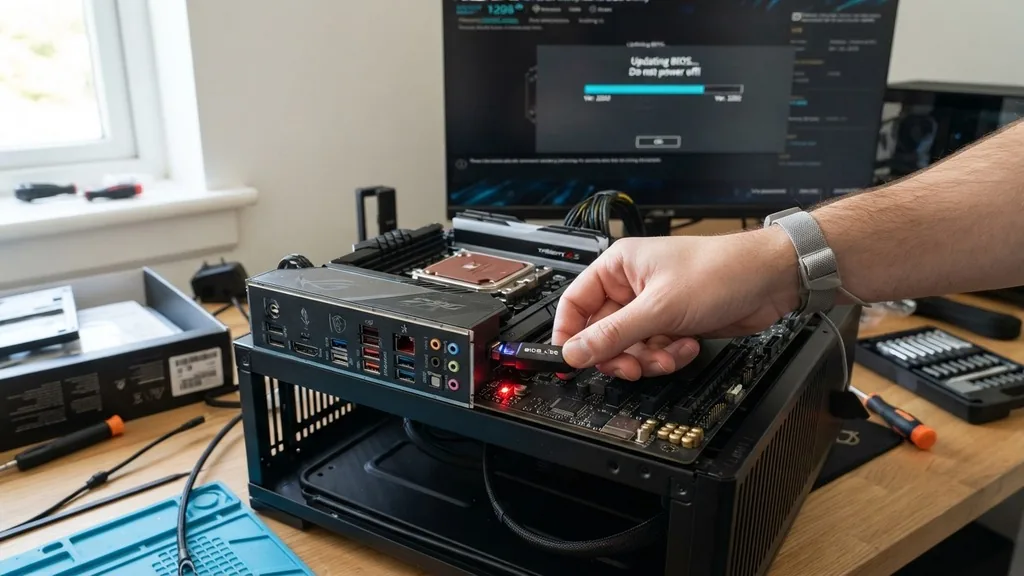
The most reliable method for updating your system firmware is via a USB flash drive. Avoid using Windows-based update utilities if you can, as a Windows crash or a background process interference during the flash can lead to a corrupted motherboard. To prepare your drive, insert a standard USB flash drive into your computer.
Most motherboards require the drive to be formatted in FAT32. If your drive is currently formatted as NTFS or exFAT, you should reformat it to ensure the motherboard’s built-in flash tool can read it.
Once formatted, copy the extracted BIOS file directly onto the root directory of the drive. Do not place it inside a subfolder, as some older BIOS utilities struggle to navigate file structures. Safely eject the drive from your Windows system.
You now have a bootable flash tool ready to go. This physical separation between your operating system and the update process is the safest way to prevent accidental data corruption. If you want to learn more about the technical standards of these interfaces, you can consult the Unified Extensible Firmware Interface specifications provided by the industry standards body.
Executing the Update via the BIOS Interface
With your USB drive inserted, restart your computer and enter the BIOS again. Look for a utility tool menu—different manufacturers use different names, such as “EZ Flash,” “M-Flash,” or “Q-Flash.” When you launch this utility, it will scan your connected storage devices.
Select the USB drive you just prepared. You should see the firmware file listed on the screen. Select the file, and the utility will prompt you to confirm that you want to proceed with the update.
This is the most critical moment of the entire process. Once you click “Yes” or “Start,” the motherboard will begin writing the new firmware to the chip. You must ensure that your power supply remains stable.
If the power cuts out during this process, the board will be left in an incomplete state, which is what people refer to as “bricking.” Most modern motherboards have safety features like Dual BIOS or BIOS Flashback that can recover from a failed update, but it is better to avoid the situation entirely.
Sit back and let the progress bar complete its cycle. Do not touch the keyboard or mouse until the system indicates the process is finished and it initiates a reboot.
Addressing Potential Issues and Errors
Even when following instructions perfectly, you might encounter issues. If the BIOS utility refuses to recognize your USB drive, ensure it is plugged into a USB 2.0 port rather than a USB 3.0 port, as some older firmware versions lack the necessary drivers for higher-speed ports.
If the utility claims the file is “not a valid BIOS file,” you may have downloaded the wrong version or the file was corrupted during the download process. In this case, delete the file and attempt to download it again from the manufacturer’s website.
Another common issue is the computer failing to boot after the update. If this happens, don’t panic. The update process often resets your BIOS settings to factory defaults.
This means any custom fan curves, overclocking profiles, or boot priorities you previously set have been wiped. You will need to enter the BIOS after the first successful post to reconfigure your settings.
If the system still refuses to boot, you may need to clear the CMOS by removing the small coin-shaped battery on the motherboard for 30 seconds and then replacing it. This forces the hardware to revert to its most basic, stable state.
Comparison of BIOS Update Methods
There are several ways to update your firmware, each with different risk profiles and ease-of-use factors. The following table compares the most common methods used by enthusiasts and technicians.
| Method | Ease of Use | Risk Level | Best For |
|---|---|---|---|
| BIOS Utility (USB) | Moderate | Low | General Users |
| Windows Flash Tool | Easy | High | Quick Updates |
| Flashback (No CPU) | Difficult | Very Low | New Builds/Dead Boards |
Each method serves a purpose. The Windows tool is convenient but carries the risk of OS-level interference. The USB method is the industry standard for stability.
The “Flashback” method, which allows you to update a motherboard without a processor or RAM installed, is a lifesaver for people who bought a board that doesn’t support their CPU out of the box. Knowing which method is available to you depends entirely on your specific motherboard features.
Answering Common Topical Gaps
Many users wonder if they can skip versions when updating. For instance, if you are currently on version F2 and version F5 is available, do you need to install F3 and F4 first? In most cases, the answer is no.
Most manufacturers provide “cumulative” updates, meaning the latest version contains all the fixes and improvements from previous iterations. However, always read the description on the manufacturer’s website.
Some versions have “bridge” requirements, where you must install a specific intermediate version before moving to the latest one. If the website doesn’t explicitly state this, you can safely jump to the most recent version.
Another common question involves what happens to your data. Updating the BIOS does not affect your hard drives or SSDs; your operating system and personal files remain untouched. The BIOS resides on a dedicated chip on the motherboard, completely separate from your storage media.
The only thing you lose are the configuration settings within the BIOS menu itself. If you have complex overclocking settings, it is wise to write down your voltages and frequencies before you perform the update, as you will have to re-enter them manually afterward.
Frequently Asked Questions
- Is it dangerous to update my BIOS? While there is a small risk of failure if power is lost, it is generally safe if you follow instructions. Avoid updating during a thunderstorm or if your power supply is unreliable. Most modern motherboards include recovery features to mitigate these risks effectively.
- How do I know if the update was successful? The most reliable indicator is the system successfully booting back into your operating system. Once you are back in Windows, use the System Information tool again to verify that the BIOS version number matches the file you downloaded and installed.
- Do I need to update my BIOS if my PC is working well? No, you do not need to update it. BIOS updates are primarily intended to fix specific issues, add hardware compatibility, or improve system security. If you are not experiencing any problems, the potential risks of the update process outweigh the minor benefits of having the absolute latest version.
- What should I do if the power goes out during the update? If the power cuts mid-update, your board may not post. Check your motherboard manual to see if it supports a “BIOS Flashback” feature. This allows you to restore the firmware using only a USB drive and a power supply, even if the motherboard seems completely dead.
In summary, learning how to update your firmware is about preparation and patience. By verifying your model, using a stable USB drive, and following the official manufacturer instructions, you can keep your system running optimally.
The process is a fundamental part of PC maintenance that ensures your hardware remains compatible and secure for years to come. Take your time, double-check your files, and you will have no trouble keeping your system up to date.


