

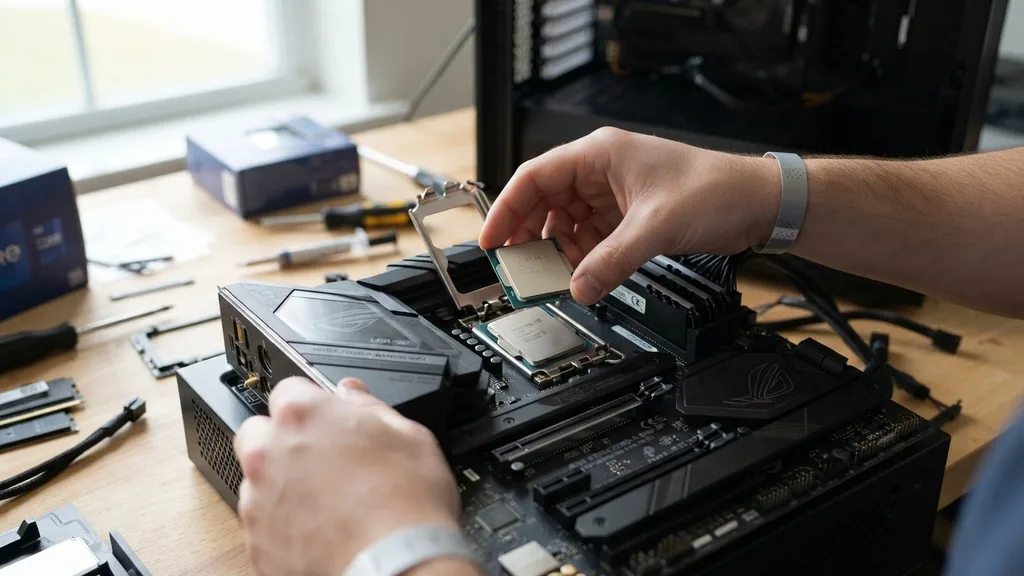
Deciding whether you can upgrade your CPU without changing your motherboard requires a clear understanding of your current system’s architecture. Many users wonder if they can simply swap their processor to achieve better performance without the headache of a full system teardown.
The short answer is that it is often possible, but it depends entirely on the specific socket type and the chipset currently installed on your circuit board. You must verify compatibility before purchasing any new silicon, as forced installation can lead to irreparable hardware damage.
Understanding CPU Socket Compatibility
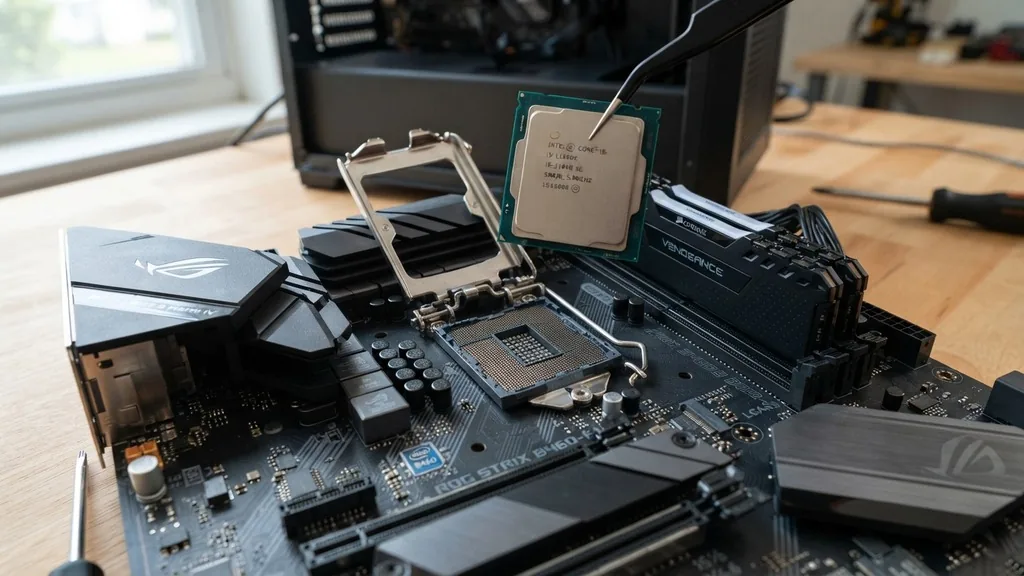
You can upgrade your CPU without changing your motherboard if the new processor shares the exact same socket type as your existing one. A socket is the physical interface on the board where the processor sits.
If your motherboard uses an LGA 1200 socket, for example, you are restricted to CPUs designed for that specific interface. You cannot physically install an LGA 1700 processor into an LGA 1200 socket because the pin counts and physical dimensions are entirely different.
When you look at your system, the socket is the primary gatekeeper. Manufacturers like Intel and AMD update these sockets periodically to support new electrical requirements and memory standards. When a company moves from one generation to the next, they often change the socket, effectively forcing you to replace the board if you want the latest technology.
This is why checking the manufacturer’s CPU support list for your specific board model is the most critical step. You should visit the manufacturer’s website to see the list of supported processors for your exact BIOS version.
The Role of the Motherboard Chipset
Even if a CPU fits physically into the socket, it may not function if the chipset does not support it. The chipset is the set of electronic components on the board that manages the data flow between the processor, memory, and storage.
Think of the socket as the door and the chipset as the translator. If the translator doesn’t speak the language of the new CPU, the system will not boot, even if the physical connection is perfect.
This is a common frustration for users who buy a CPU from a newer generation that technically fits the socket but remains unsupported by their older chipset. For instance, some motherboards might require a BIOS update to recognize a newer processor.
Without that update, the board remains “blind” to the new hardware. Always check the official Intel processor compatibility guide or the equivalent AMD documentation to ensure your chipset is compatible with the chip you intend to install.
Performing a BIOS Update Before the Swap
If your hardware is compatible, you will almost certainly need to update your BIOS before you remove the old processor. The BIOS (Basic Input/Output System) acts as the foundation for your hardware communication.
Manufacturers frequently release updates to add support for newer CPU models. If you swap the processor first and your current BIOS version is outdated, the board will likely fail to initialize, leaving you with a black screen and no way to fix the issue without reinstalling the old CPU.
To perform this update, you must download the latest firmware from the motherboard manufacturer’s support page while your current system is still fully operational. Follow the instructions carefully, as a power failure during a BIOS flash can “brick” your board, rendering it useless.
Once the update is complete, you can safely power down the system, disconnect the power cable, and begin the physical swap. This preparation is a crucial step that many beginners overlook, leading to unnecessary panic when the system refuses to start.
Evaluating Power Delivery and VRM Constraints
A frequently ignored factor in CPU upgrades is the board’s power delivery system, specifically the Voltage Regulator Modules (VRMs). If you are moving from a low-power processor to a high-end, power-hungry model, your existing motherboard might struggle to provide stable electricity. This is especially true for budget-tier boards that were never designed to handle the thermal and electrical load of a top-tier chip.
When the VRMs are pushed beyond their limits, they overheat, causing the system to throttle performance or crash entirely. You might see the CPU clock speeds drop significantly under load as a safety mechanism.
Before committing to a high-end upgrade, search for reviews of your specific motherboard to see how it handles your target CPU. If the board has poor heat dissipation or weak power phases, you might be better off sticking to a mid-range processor that won’t strain the existing components.
Thermal Management and Cooling Requirements
Upgrading your processor often means you are also upgrading to a chip that runs hotter. If your current cooling solution is a basic stock cooler, it likely won’t be enough to handle a more powerful CPU. You must consider whether your existing case has sufficient airflow and if the cooler mounting hardware is compatible with the new chip.
Many high-performance CPUs do not include a cooler in the box, meaning you need to budget for a new air cooler or an All-in-One (AIO) liquid cooler. Ensure that the cooler fits within your case dimensions and that your power supply has enough overhead to handle the increased power draw.
If you ignore thermal management, you will experience “thermal throttling,” where the CPU intentionally slows itself down to prevent damage from excessive heat. This would negate the performance gains you were hoping to achieve with the upgrade.
Comparing Upgrade Paths
When determining if you should upgrade just the CPU or replace the entire platform, it helps to look at the cost-to-performance ratio. Sometimes, the performance jump from a small CPU upgrade is not worth the time, money, and risk involved.
| Upgrade Type | Cost | Performance Gain | Complexity |
|---|---|---|---|
| CPU Only | Low-Medium | Moderate | Low |
| CPU + Motherboard | High | High | Moderate |
| Full System Swap | Very High | Very High |
As the table illustrates, a CPU-only upgrade is the most cost-effective method for boosting performance. However, if your current motherboard is several years old, you might be missing out on faster memory standards like DDR5 or faster PCIe lanes for modern graphics cards. In such cases, replacing the motherboard alongside the CPU provides a much better long-term value, even if the initial investment is significantly higher.
Avoiding Data Loss and Software Issues
A common concern is whether changing the CPU will cause you to lose your files or force a Windows reinstallation. The good news is that the CPU is not where your data resides. Your files, programs, and operating system are stored on your hard drives or solid-state drives.
Changing the processor will not wipe your data. However, the operating system might detect the change in hardware and ask you to re-verify your license.
Windows 10 and 11 are generally good at adapting to new hardware, but you may need to download new chipset drivers after the upgrade to ensure everything runs smoothly. It is always a best practice to back up your critical data to an external drive or cloud storage before making any hardware changes. While the risk of data loss is extremely low, having a backup provides peace of mind in the unlikely event of a system failure during the transition.
Step-by-Step Installation Best Practices
If you have confirmed compatibility, updated your BIOS, and verified your cooling, you are ready for the physical installation. Start by shutting down your computer and flipping the switch on the back of your power supply unit to the “off” position. Unplug the power cable and hold the power button for ten seconds to drain any residual electricity from the capacitors.
Once the system is cold, remove the side panel and carefully detach the cooler from the old processor. Gently lift the retention arm, remove the old CPU, and place it in an anti-static bag. Carefully align the new CPU with the socket, ensuring the triangle indicator on the corner of the chip matches the indicator on the socket.
Do not apply force. If it doesn’t drop in easily, something is misaligned.
Apply a pea-sized amount of thermal paste to the center of the chip, reinstall your cooler, and reconnect all power cables. Double-check your connections before flipping the switch to start the system for the first time.
Addressing Topical Gaps: When Is It Better to Wait?
Many users ask if it is worth upgrading a CPU if the motherboard is reaching the end of its lifecycle. If you are using a board that is already four or five years old, you are likely using older DDR4 memory and PCIe 3.0 or 4.0 slots. Even if you manage to fit a newer CPU into that board, you will be bottlenecked by the slower speeds of your other components.
If your goal is gaming or heavy workstation tasks, upgrading just the CPU might provide a minor boost, but you will still be limited by the rest of the system. In these instances, it is often smarter to hold onto your money and save for a complete platform upgrade. This allows you to jump to a newer memory standard and a more modern architecture, which will provide a much more noticeable improvement in speed and system responsiveness than a marginal CPU swap ever could.
Frequently Asked Questions
- Do I need a new motherboard when upgrading my CPU? Not always. If the new CPU uses the same socket and is supported by your current motherboard’s BIOS, you can keep the same board. Always check the manufacturer’s CPU support list first.
- Can I replace my CPU without reinstalling Windows? Yes, replacing the CPU does not require a Windows reinstall. Your operating system and files are stored on your storage drives, which remain unaffected by a processor swap. You may occasionally need to reactivate Windows or update chipset drivers.
- How do I check if my motherboard supports a new CPU? Search for your motherboard model on the manufacturer’s website and look for a “Support” or “CPU Support List” page. This document will show every compatible processor and the minimum BIOS version required for each chip to function correctly.
- What happens if I install an unsupported CPU? The most common outcome is that the system simply will not boot. You might see a black screen, or the board might give you a diagnostic LED code indicating a CPU error. In rare cases, physical damage could occur if the electrical requirements are incompatible.


