

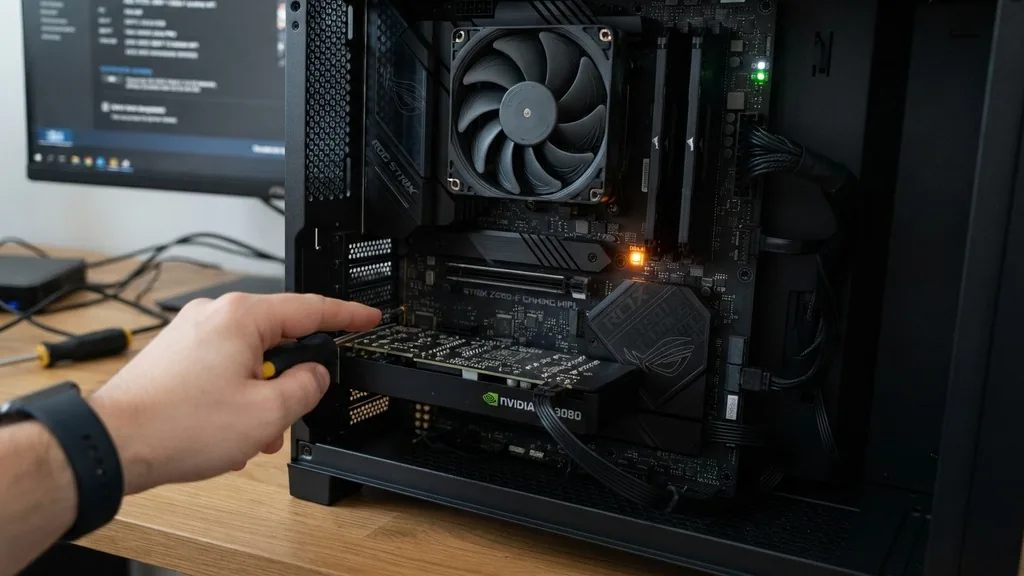
Finding an unexpected glow inside your computer case can be alarming, especially when your system fails to boot. If you are asking what does orange light on motherboard mean, you are likely dealing with a hardware initialization error.
Modern motherboards are equipped with diagnostic tools designed to communicate specific failures during the power-on self-test process. An orange light typically serves as a warning signal from the system’s firmware, indicating that a component—most frequently the system memory—has failed to pass its initial check before the operating system can load.
Understanding the Diagnostic LED System
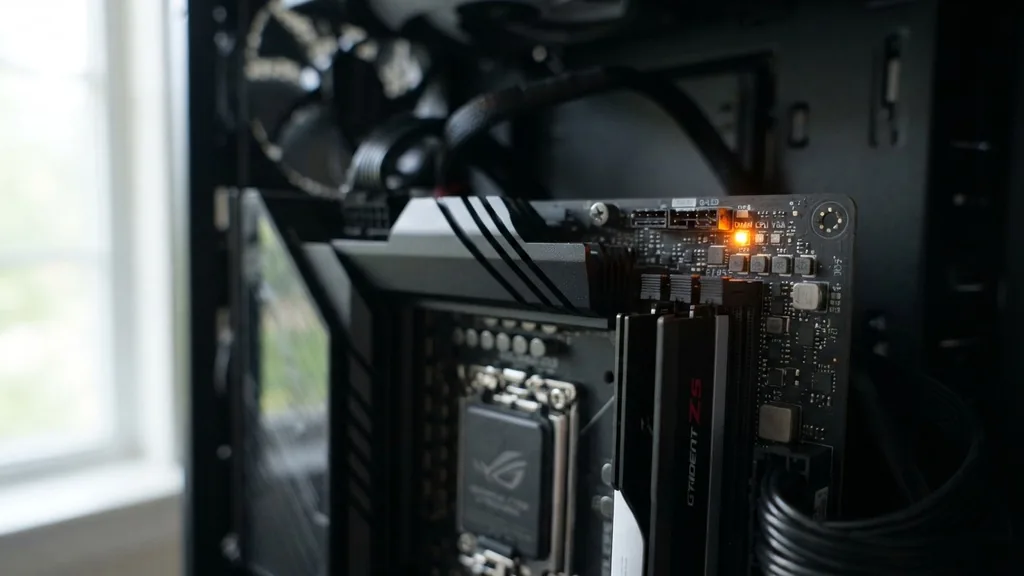
Diagnostic lights, often referred to as Q-LEDs or debug LEDs, are small surface-mounted diodes located on the PCB of your motherboard. These indicators are part of the motherboard POST codes system, which allows the computer to report its status before a display signal is even generated. When you press the power button, the motherboard initiates a series of checks on the CPU, RAM, GPU, and storage devices. If any of these stages fail, the corresponding LED remains illuminated to point you toward the culprit. The orange hue is the industry-standard color used by major manufacturers like ASUS, MSI, and Gigabyte to signify a DRAM or memory-related issue during the BIOS initialization phase.
DRAM Status LED and Memory Initialization
The most common answer to the question of what does orange light on motherboard mean is a failure in the DRAM status LED check. This specific light illuminates when the motherboard cannot successfully communicate with the installed memory modules. During the boot sequence, the BIOS must identify the RAM, verify its capacity, and confirm it is operating at a stable frequency. If the motherboard detects an error during this handshake, it halts the boot process to prevent data corruption or hardware damage.
Common Reasons for DRAM Failures
Memory modules are sensitive components that can fail for several reasons. Often, the issue is not that the RAM is broken, but rather that it is not making proper electrical contact with the DIMM slot. Over time, oxidation or physical movement can cause the pins on the RAM stick to lose their connection. Additionally, if you have recently upgraded your memory, the new sticks might not be fully compatible with your motherboard’s specific speed requirements or the current BIOS version. In some cases, the memory controller located within your CPU might be struggling to handle a high-frequency XMP profile that was previously enabled, leading to a hang during the training phase of boot-up.
The Role of Memory Module Seating
Physical installation is the first thing you should check when you see an orange light. Improper memory module seating is a frequent cause of boot failures. Even if a stick of RAM looks like it is clicked into place, one side may not be fully engaged with the copper contacts inside the DIMM slot. To resolve this, you should power down the system, unplug the power supply unit, and remove the RAM sticks entirely. Inspect the slots for any debris or dust that might be obstructing the connection. Carefully reinsert the modules, applying firm, even pressure until you hear the retention clips snap into place on both sides.
Testing Individual Sticks
If reseating all sticks does not resolve the orange light, you should attempt to isolate the problem by testing your memory one module at a time. Many users have multiple sticks of RAM installed, and it only takes one faulty module to prevent the entire system from booting. Try placing a single stick in the primary DIMM slot—usually marked as A2 or DIMM_2 in your motherboard manual—and attempt to power on the machine. If it boots, you know that stick is functional. Repeat this process with your other sticks to identify if one specific module is causing the diagnostic LED to remain orange.
BIOS Initialization and XMP Profiles
Sometimes, the orange light indicates that the BIOS is struggling to configure the memory settings automatically. This often happens if you have enabled an XMP profile or manual overclocking settings that the current hardware configuration cannot support. If the system was working fine previously but suddenly shows an orange light after a restart, the BIOS might be attempting to apply an unstable memory frequency. A CMOS reset is the most effective way to revert these settings to their factory defaults, forcing the motherboard to re-train the memory at a safe, standard speed.
How to Perform a CMOS Reset
To perform a CMOS reset, you can either remove the coin-shaped CR2032 battery from the motherboard for about 30 seconds or bridge the CLRTC pins with a screwdriver while the system is powered off. Clearing the CMOS wipes the custom BIOS settings, which often clears out “ghost” configurations that are preventing the system from recognizing the RAM correctly. After the reset, the motherboard will perform a fresh memory training cycle on the next boot. This process can take significantly longer than a normal startup, so be patient and let the system cycle for a few minutes before assuming it has failed again.
Checking the CPU Socket Pins
While the orange light usually points to the RAM, the memory controller is located inside the CPU. If the CPU is not making perfect contact with the motherboard, the system will not be able to address the memory channels. This is particularly relevant if you have recently installed or moved the processor. Inspecting the CPU socket pins is a delicate task, but it is necessary if you suspect a deeper hardware issue. Bent pins can cause specific memory channels to fail, leaving you with an orange debug light that persists regardless of which RAM stick you use.
Avoiding Static Discharge
When handling your CPU or motherboard, you must be hyper-aware of static discharge. Static electricity can permanently damage the sensitive microscopic circuits on the motherboard or the pins within the socket. Always ground yourself by touching a bare metal part of the PC case before reaching inside. Using an anti-static wrist strap is the safest practice. If you find bent pins in an Intel LGA-style socket, they are extremely difficult to repair; however, if you have an AMD AM4 or older processor, you might be able to gently realign a slightly bent pin with a mechanical pencil tip or a needle.
Power Supply Unit and Voltage Stability
A failing or inadequate power supply unit can occasionally cause erratic motherboard behavior, including the appearance of debug lights. If the PSU is not providing stable voltage to the 24-pin motherboard connector or the 8-pin CPU power cable, the BIOS may fail to initialize the memory correctly. While this is less common than simple RAM seating issues, it is a factor if you have recently added high-power components like a new GPU that is straining your power budget.
Monitoring Power Distribution
Check that all power cables are fully inserted and locked into their respective headers. A loose power cable can lead to voltage drops that cause the system to hang during the POST phase. If you have a modular power supply, ensure the cables are firmly seated at both the PSU end and the motherboard end. If you have access to a power supply tester or a spare unit, swapping it out is a definitive way to rule out power delivery as the source of your orange light. You can find more information about troubleshooting motherboard power issues on official support documentation provided by hardware manufacturers.
Motherboard Manuals and Specific Debug Codes
Every motherboard manufacturer has its own unique way of handling diagnostic LEDs. While orange almost always means DRAM, you should always consult your specific motherboard manual to confirm the exact meaning of the light in your system. Some high-end boards have a small numeric display that shows specific Q-Code numbers, while others rely solely on the color of the LED. The manual will provide a legend that explains what each color combination represents, which can save you hours of guesswork.
Interpreting Manufacturer Variations
| LED Color | Common Meaning | Action Required |
|---|---|---|
| Solid Orange | DRAM/Memory Error | Reseat RAM, clear CMOS, test individual sticks |
| Solid Red | CPU Initialization Error | Check CPU seating, cooler pressure, and power |
| Solid White | VGA/GPU Error | Ensure GPU is seated and power cables are attached |
| Solid Yellow/Green | Boot Device Error | Check SATA/NVMe drive connection and BIOS boot order |
Peripheral Connectivity and Interference
In rare instances, external peripheral connectivity can interfere with the boot process. USB devices, especially those that draw significant power or have faulty firmware, can occasionally cause the BIOS to hang during initialization. If your motherboard is stuck on the orange DRAM light, try disconnecting all non-essential USB devices, including keyboards, mice, webcams, and external drives. Clearing the system of all potential points of failure allows the motherboard to focus purely on the core components required for the POST process.
Troubleshooting Strategy
* Disconnect all USB peripherals. * Remove any secondary storage drives or expansion cards. * Attempt to boot with only the CPU, one stick of RAM, and the power supply connected. * If the system boots, add components back one by one to find the device causing the conflict. * Update your BIOS to the latest version once you reach the desktop to improve hardware compatibility.
Addressing Topical Gaps: Why Does It Happen Randomly?
A common frustration for users is when the orange light appears seemingly at random after months of perfect operation. This usually points to environmental factors or degraded hardware. Humidity can cause slight oxidation on the gold contacts of your RAM, while seasonal temperature changes can affect the physical tension of the CPU cooler, which in turn affects the contact between the CPU and the socket pins. If you experience this issue periodically, it is a sign that your system is on the edge of stability. You should prioritize updating your BIOS, as manufacturers frequently release firmware updates that improve memory training and compatibility with various DRAM kits.
Long-term Stability Maintenance
To prevent the orange light from returning, ensure your PC is kept in a dust-free environment. Dust buildup can trap moisture and act as a thermal insulator, leading to overheating of the memory controller. Periodically using compressed air to clear out the DIMM slots and the CPU socket area is a good preventative measure. Furthermore, if you are running your RAM at high XMP speeds, you might consider manually increasing the DRAM voltage by a tiny increment—such as 0.05V—within the BIOS. This can often provide the extra stability needed to prevent the memory from failing its initialization check during cold boots.
Frequently Asked Questions
- How can I fix an orange light on my motherboard? The most effective fix is to reseat your RAM sticks and perform a CMOS reset. This clears out potentially unstable memory configurations. If that fails, test your RAM modules one at a time in different slots to identify if a specific stick or slot is faulty.
- Is the orange light always related to RAM? In the vast majority of modern motherboards, a solid orange light indicates a DRAM (memory) initialization error. While it can sometimes point to a CPU memory controller issue or a power delivery fault, the memory modules themselves are the most frequent cause of this specific diagnostic signal.
- Can I use my PC if the orange light is on? No, if the orange light is illuminated, the motherboard has halted the boot process before the operating system can load. This is a safety mechanism to prevent the system from running with unstable or uninitialized memory, which could lead to data corruption or crashes shortly after booting.
- What should I do if the light persists after trying everything? If you have reseated the RAM, cleared the CMOS, tested individual sticks, and checked for CPU socket issues, the problem may be a failed motherboard or a defective memory controller on the CPU. At this stage, you may need to test your components in a different, working system.


