

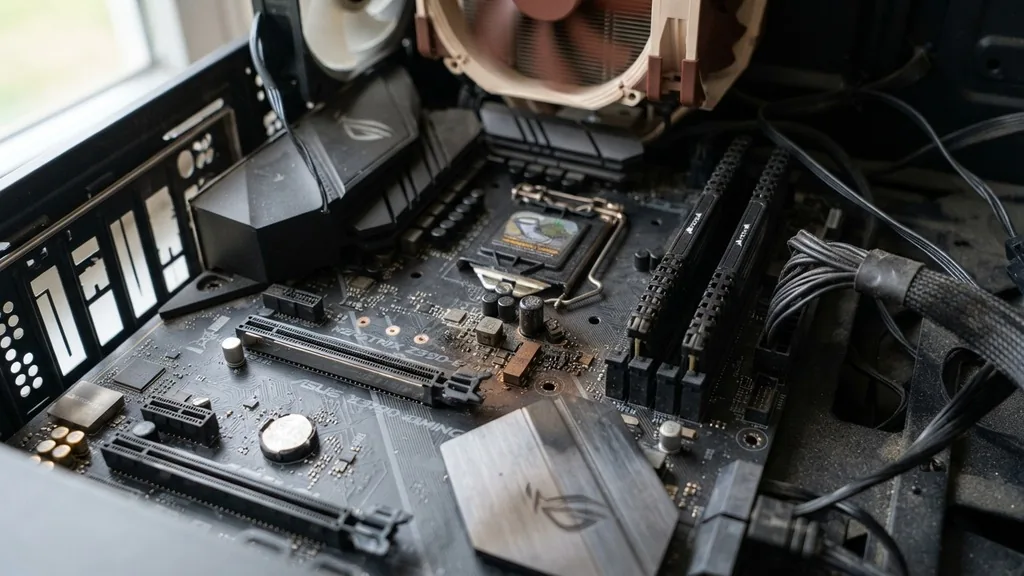
Identifying a dead computer system often feels like a guessing game, but learning how to tell if motherboard is fried is a process of systematic elimination. When your PC or laptop refuses to boot, the motherboard is frequently the primary suspect because it acts as the central nervous system for every other piece of hardware.
If the main circuit board fails, the CPU, RAM, and GPU lose their ability to communicate, effectively rendering the machine useless. By understanding the specific electrical and physical symptoms of a hardware failure, you can avoid unnecessary repairs and pinpoint exactly what needs to be replaced.
Immediate Physical Indicators of Hardware Failure
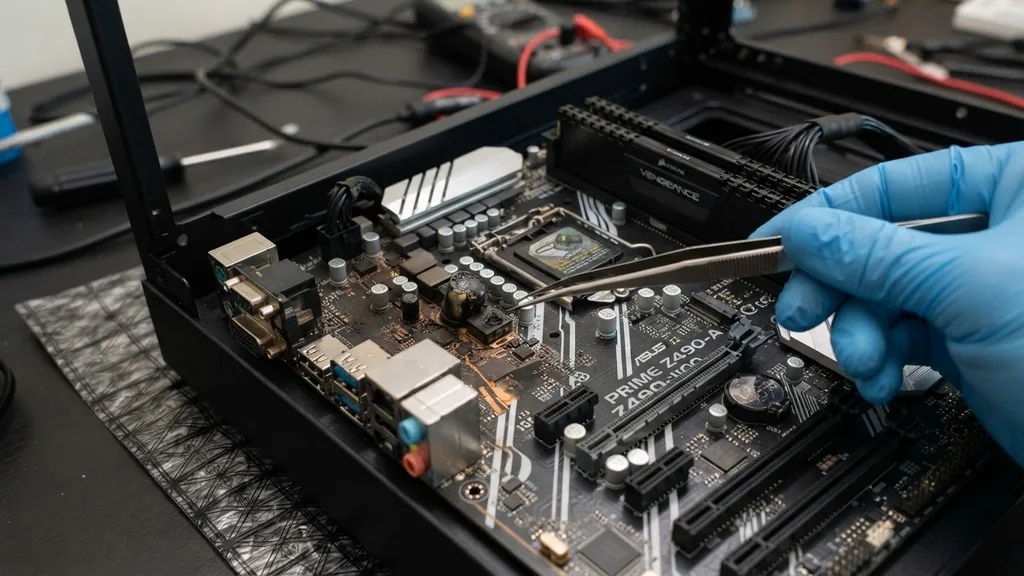
To identify if a motherboard is fried, you must first perform a visual inspection of the board’s surface and physical components. This is the most direct way to spot catastrophic damage.
A healthy motherboard should look clean, with all capacitors standing straight and no signs of discoloration or burnt marks. If you notice a faint smell of ozone or burnt plastic, this is a major red flag indicating that a power surge or electrical short has likely compromised the circuitry.
Look closely at the electrolytic capacitors. On older or lower-quality boards, these can bulge at the top or leak a brownish, crusty substance. This is a common failure point that prevents the motherboard from maintaining a stable voltage.
Additionally, check for “blown” surface-mount components, which often appear as small black scorch marks on the PCB (Printed Circuit Board). If you see any physical charring or smell anything acrid, you do not need to perform further software tests; the hardware has suffered a permanent, irreversible failure that requires a complete replacement.
Power Supply and Boot Sequence Analysis
The power supply unit (PSU) is the most frequent culprit when a system fails to start, so you must rule it out before concluding the motherboard is the issue. If you press the power button and absolutely nothing happens—no fans spin, no lights flicker, and there is no sound from the hard drive—the power may not be reaching the board. However, if the fans spin for a split second and then abruptly stop, the motherboard might have triggered a safety shutdown due to a detected short circuit.
A functional motherboard should at least attempt to initialize the BIOS/UEFI. If your case fans spin continuously but the screen remains black, the motherboard might be receiving power but failing to execute the Power-On Self-Test (POST). If you have a internal speaker or a diagnostic LED display on your board, watch for specific beep codes or error numbers.
These codes are the manufacturer’s way of telling you exactly what is wrong. A failure to produce any beep codes at all, even when the RAM is intentionally removed, is a strong indicator that the motherboard’s integrated circuits are no longer operational.
Testing Components Through the Process of Elimination
Since the motherboard is the hub for all hardware, it can sometimes hide a failure in another component that makes it appear as though the board itself is dead. To confirm how to tell if motherboard is fried, you must strip the system down to its bare essentials.
Remove all peripheral devices, including external hard drives, USB hubs, and secondary expansion cards. Leave only the CPU, one stick of RAM, and the power supply connected.
If the system still refuses to POST, swap the RAM stick into a different slot. If you have access to another known-working power supply, test that next.
By isolating the motherboard from non-essential components, you create a controlled environment where the only possible failure points are the CPU, the RAM, or the motherboard itself. If you have verified that the CPU works in another system and the RAM is functional, the motherboard is the only remaining entity that can be responsible for the lack of activity.
Understanding Beep Codes and Diagnostic LEDs
Modern motherboards are designed with built-in diagnostic tools that provide immediate feedback during the boot process. If you are trying to figure out how to tell if motherboard is fried, these codes are your most valuable resource.
When you first turn on the computer, the BIOS performs a series of checks. If it encounters a problem, it sends a signal through the system speaker or lights up specific LEDs on the board to indicate the nature of the fault.
Most manufacturers follow standard BIOS signaling patterns, though these can vary. For example, a single short beep usually indicates a successful POST, whereas a series of long or repeating beeps signals a hardware error. If your motherboard has a small digital display—often called a “Q-Code” display—it will show a two-digit hexadecimal code.
You can look these codes up in your motherboard manual or on the manufacturer’s website to see exactly which stage of the boot process is failing. If the board shows no lights, no display codes, and makes no beeps even when you know the speaker is functional, the motherboard is likely dead.
Comparing Common Failure Symptoms
When troubleshooting a system, it is helpful to categorize the symptoms you are seeing to differentiate between a motherboard failure and a simple power supply or CPU issue. The following table provides a quick reference for common signs of hardware malfunction.
| Symptom | Likely Cause | Action Required |
|---|---|---|
| No power, no lights, no fan spin | PSU or Motherboard | Test PSU with a tester or jumper |
| Fans spin, no video, no beep codes | Motherboard or CPU | Clear CMOS and test RAM |
| System reboots randomly | PSU, Overheating, or Motherboard | Check temperatures and cables |
| Blue Screen of Death (BSOD) | Drivers, RAM, or Motherboard | Check Windows Event Viewer logs |
The Role of the CMOS Battery
One often overlooked component in motherboard troubleshooting is the CMOS battery. This small, coin-shaped battery maintains the BIOS settings and the system clock when the computer is unplugged.
While a dead battery won’t usually “fry” a motherboard, it can cause the system to fail to boot or behave erratically. If the battery voltage drops too low, the BIOS may become corrupted or fail to initialize, leading you to believe the motherboard is dead.
To rule this out, locate the CR2032 battery on the motherboard, remove it for about 30 seconds, and then place it back in. Alternatively, replace it with a fresh one. This process resets the BIOS to its factory defaults.
If the computer suddenly boots after a CMOS reset, your motherboard is likely fine, and the issue was simply a configuration error or a battery that reached the end of its life. This simple step saves many users from the frustration of unnecessary hardware replacements.
Addressing Unique Laptop Motherboard Challenges
Knowing how to tell if motherboard is fried on a laptop is significantly more difficult than on a desktop. Laptops have highly integrated, proprietary designs where the CPU, GPU, and RAM are often soldered directly onto the main board.
Because you cannot easily swap out parts to test them, you must rely on external symptoms and software-based diagnostics. If a laptop experiences a spill, the liquid often causes corrosion across the traces of the motherboard, leading to a slow, progressive failure.
If your laptop shows no signs of life, start by checking the charging port and the power adapter. A broken DC jack is a common issue that mimics a dead motherboard. Use a multimeter to check if the power adapter is outputting the correct voltage.
If the charger is fine but the laptop remains unresponsive, try a “hard reset” by removing the main battery and holding the power button for 30 seconds to drain residual charge. If these steps fail, you are likely looking at a motherboard replacement, which is often more expensive than the value of the laptop itself. For more information on hardware standards, you can consult the National Institute of Standards and Technology for general guidance on technical equipment reliability.
Environmental Factors and Short Circuits
Sometimes a motherboard isn’t “fried” in the sense of being permanently broken; instead, it is being prevented from working by an external environmental factor. A short circuit caused by a loose screw behind the motherboard or a piece of conductive debris can force the board into a permanent protection mode.
If you recently moved your case or installed a new component, check that the motherboard is properly mounted on its standoffs. If the board is touching the metal case directly, it will short out the moment you press the power button.
Static electricity is another silent killer. If you were working inside the case without an anti-static wrist strap, you might have discharged a static shock into the board, causing microscopic damage to the chipset.
This type of damage is impossible to see with the naked eye. If you have verified all power connections, ruled out the PSU, and ensured there are no shorts, the motherboard has likely suffered a component-level failure that is beyond repair for the average user.
Troubleshooting Topical Gaps
A common question that arises when discussing this topic is whether a fried motherboard can be “fixed.” In the vast majority of cases, the answer is no.
While professional repair shops with specialized equipment can sometimes replace individual capacitors or MOSFETs, the cost of labor usually exceeds the cost of a new board. Furthermore, if the chipset or the PCB traces themselves are damaged, the board is essentially scrap metal.
Another gap in common knowledge is the difference between a “dead” motherboard and a “bricked” one. A bricked motherboard has a corrupted BIOS, meaning the hardware is physically fine, but the software that tells the hardware how to start is missing or broken. Many modern motherboards feature “BIOS Flashback,” which allows you to update the BIOS using a USB drive even without a CPU or RAM installed.
If your motherboard has this feature, always try flashing the latest firmware before you give up on the board. This often revives systems that appear completely dead.
FAQ Section
- Can a fried motherboard be repaired? In most cases, it is not cost-effective to repair a motherboard. While a professional can replace a blown capacitor, damage to the chipset or PCB traces is permanent. Replacing the entire board is usually the only practical solution for a failed unit.
- Does a dead motherboard show any signs of life? A completely dead motherboard typically shows no signs of life, such as fan movement or status lights. However, if the motherboard is partially damaged, it may power on for a second before shutting down, or it may hang during the initial boot sequence with no display output.
- Is it possible for a motherboard to fail without a power surge? Yes, motherboards fail for many reasons beyond power surges. Component aging, overheating, physical damage, manufacturing defects, and moisture damage from humidity or spills can all cause a motherboard to stop functioning over time, even with a stable power supply.
- How can I confirm my motherboard is the problem? The best way to confirm is to use the process of elimination. Test your power supply, RAM, and CPU in another system if possible. If those components work elsewhere but the motherboard still fails to POST in a stripped-down configuration, the motherboard is almost certainly the faulty component.


