

Upgrading your computer with a solid-state drive is the single most effective way to improve system responsiveness. Whether you are moving from a mechanical hard drive or simply adding more storage, learning how to install SSD on motherboard hardware is a fundamental skill for any PC builder.
Modern motherboards support several types of drives, ranging from the classic 2.5-inch SATA SSD to the high-speed, compact M.2 NVMe modules. Because the physical interface dictates the installation method, identifying which type you have is the first step toward a successful upgrade.
Understanding Your SSD Interface and Compatibility
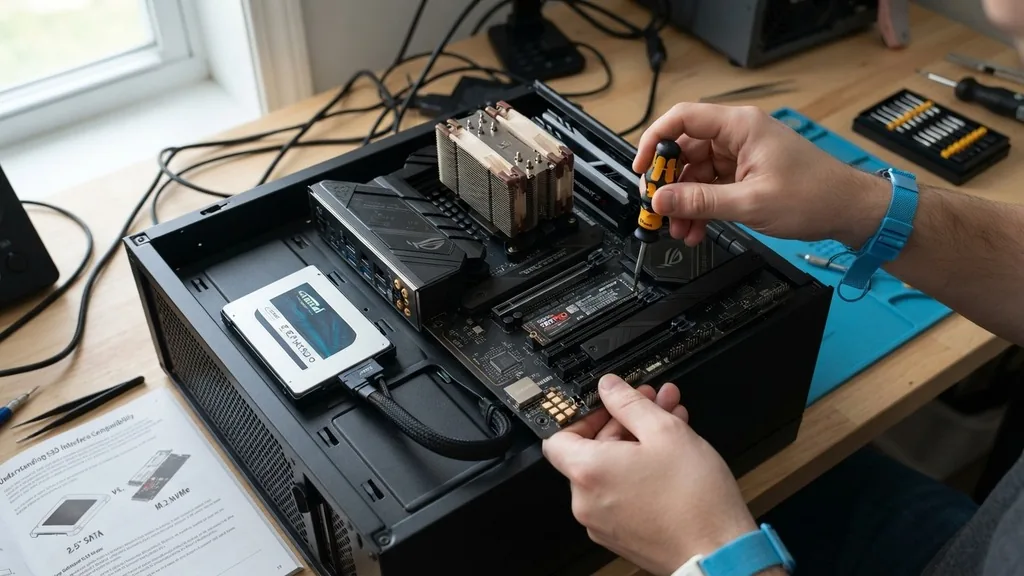
To successfully install an SSD, you must first distinguish between the two primary form factors: the 2.5-inch SATA drive and the M.2 module. The 2.5-inch SATA SSD looks like a miniature version of a traditional hard drive.
It requires two separate connections: a data cable that links to the motherboard and a power cable that connects directly to the power supply unit. These drives are versatile and fit into almost any PC case with standard drive bays, but they are limited by the SATA III interface speed, which peaks around 600 MB/s.
Conversely, the M.2 SSD is a small, stick-shaped drive that plugs directly into a dedicated slot on the motherboard. These are often NVMe drives, which utilize the PCIe bus for significantly faster data transfer speeds.
Before you begin, check your motherboard manual to ensure it contains an M.2 slot that supports your specific drive type, as some slots are keyed for SATA-only M.2 drives while others support only PCIe/NVMe. Using a table can help clarify the key differences between these two storage solutions before you commit to the hardware.
| Feature | 2.5-inch SATA SSD | M.2 NVMe SSD |
|---|---|---|
| Connection Method | SATA Data Cable + Power Cable | Direct Slot Insertion |
| Physical Size | Larger, requires mounting brackets | Compact, stick-like form factor |
| Performance | Up to 600 MB/s | Up to 7,000+ MB/s (Gen4/Gen5) |
| Cabling | Requires internal wiring | No cables needed |
Preparing Your System for Hardware Installation
Safety is the priority when opening your computer. Before you touch any internal components, power down your system completely. Flip the switch on the back of your power supply unit to the “off” position and unplug the power cord from the wall outlet.
This prevents accidental shorts that could damage your sensitive electronics. Once the power is disconnected, press the power button on your case a few times to drain any remaining electricity stored in the capacitors.
Static electricity is the silent killer of computer hardware. Before you begin installing, touch a metal part of your computer case that is unpainted to discharge any static electricity built up on your body. Ideally, work on a non-carpeted surface to minimize static risk.
Gather your tools—usually, a small Phillips-head screwdriver is all you need. Many M.2 drives come with a tiny screw, or your motherboard may have pre-installed standoffs. If you are working in a tight space, a magnetic screwdriver tip can save you from losing these microscopic fasteners.
Installing an M.2 NVMe SSD Step-by-Step
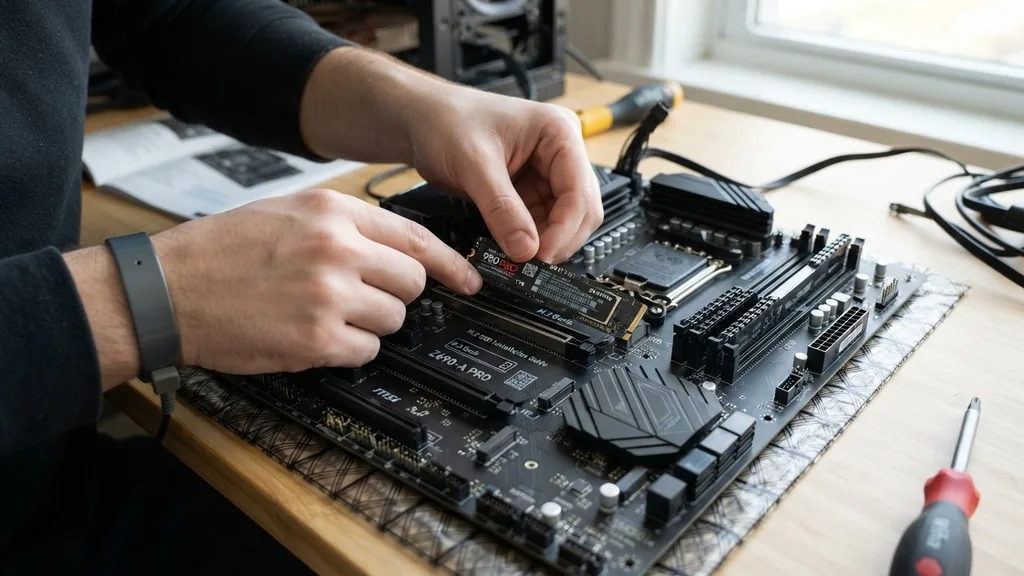
The M.2 installation process is remarkably clean because it requires no wires. First, locate the M.2 slot on your motherboard. It is typically positioned near the CPU socket or below the PCIe lanes for the graphics card.
Some modern boards have heat sinks covering these slots. If yours does, you will need to remove the heat sink screws first to expose the connector. Keep these parts organized so you can reassemble them afterward.
Once the slot is clear, insert the SSD into the connector at a 30-degree angle. You will feel it “seat” firmly into the pins. Do not force it; it should slide in with minimal resistance.
Once inserted, gently push the other end of the drive down toward the motherboard standoff. Align the notch on the end of the drive with the screw hole. Secure it using the tiny mounting screw.
If your motherboard uses a latching mechanism instead of a screw, simply rotate the plastic clip to lock the drive in place. If you are unsure about the specific orientation for your board, refer to the official hardware installation documentation for your chipset.
Mounting a 2.5-inch SATA SSD
Installing a 2.5-inch drive involves a bit more cable management than an M.2 drive. Most PC cases feature dedicated mounting trays or slots for 2.5-inch drives. Find an available tray, slide your drive in, and secure it with the provided screws.
Once the drive is physically mounted, you must connect the two cables. The data cable, which connects the drive to the motherboard, is narrow and typically has an L-shaped connector that matches the port on the drive.
The second cable is the power cable, which comes directly from your power supply. It is slightly wider than the data cable and also features an L-shaped notch to prevent incorrect insertion. Push both cables into their respective ports until you hear a soft click.
Ensure there is no significant tension on the cables, as this can cause the ports to loosen over time. If your case is cramped, route the cables behind the motherboard tray to keep the airflow clear and the interior of your machine looking tidy.
Managing Cables and Airflow After Installation
Proper cable management is not just about aesthetics; it is about protecting your components. When you install an SSD, you are adding new paths for air to travel.
If you have installed a SATA drive, the cables can obstruct the natural flow of air from your intake fans to your CPU or GPU. Use zip ties or Velcro straps to bundle excess cable length and pull them against the back wall of your computer case.
Avoid sharp bends in your SATA cables, as these can put stress on the internal wires and lead to intermittent data corruption. If you are using an M.2 drive, ensure it is not being blocked by a large GPU heat sink, which could cause the drive to throttle under heavy loads due to heat buildup. High-performance NVMe drives can get quite hot, so if your motherboard did not come with an integrated heat sink, consider purchasing a low-profile aftermarket M.2 heatsink to keep your drive operating within its optimal thermal range.
Verifying Hardware Recognition in BIOS
After you have physically secured the SSD, you need to ensure the motherboard recognizes it. Plug your power cable back in, turn on your monitor, and power up the computer. Immediately begin tapping the BIOS key—usually Delete, F2, or F12—to enter the firmware menu.
Once inside the BIOS, navigate to the “Storage” or “Boot” tab. You should see a list of connected devices, including your newly installed drive.
If the drive does not appear, check your connections. For M.2 drives, ensure it is pushed all the way into the slot. For SATA drives, ensure the cable is firmly seated on both the drive and the motherboard port.
Sometimes, installing an M.2 drive will automatically disable specific SATA ports on your motherboard due to shared bandwidth lanes. If your SATA drive suddenly stops working after an M.2 installation, check your manual to see which ports are disabled and move your SATA cable to a different header.
Initializing the SSD in the Operating System
Even if the BIOS sees your drive, it will not show up in your file explorer until you format it. Once you boot into your operating system, right-click the Start button and select “Disk Management.” A window will pop up asking you to initialize the disk.
Choose the GPT (GUID Partition Table) format, which is the modern standard for all current Windows and Linux installations. You will see your drive represented as “Unallocated Space” with a black bar above it.
Right-click this unallocated space and select “New Simple Volume.” Follow the on-screen wizard to assign a drive letter and format the partition. NTFS is the standard choice for Windows users.
Once the process completes, the black bar will turn blue, indicating the drive is active and ready to store your files. This final step is crucial; without it, the drive is effectively invisible to your applications despite being physically installed in the machine.
Addressing Common Installation Troubleshooting Issues
Even when you follow every step, things can occasionally go wrong. The most common issue is the drive not showing up in the OS. If you have verified the physical connection and the BIOS recognition, the next step is to update your motherboard drivers.
Chipset drivers often manage how the motherboard communicates with storage controllers. Visit the manufacturer’s website to download the latest support packages for your specific board model.
Another issue involves “Legacy” versus “UEFI” boot modes. If you are trying to install an operating system onto your new SSD, ensure your BIOS is set to UEFI mode. Older legacy settings can cause the drive to be ignored by the Windows installer.
Furthermore, if you are using an M.2 drive, ensure that you have not accidentally placed it in a slot meant only for Wi-Fi modules. While they look similar, the keying on the pins differs, and a drive will not work in a non-storage M.2 slot. Always verify the slot labels printed directly onto the motherboard PCB.
Frequently Asked Questions
- Does it matter which M.2 slot I use? Yes, some slots are wired for faster PCIe speeds while others are limited to SATA. Check your manual to ensure you are using the slot that maximizes your drive’s performance potential.
- Do I need to install drivers for my new SSD? Generally, no. Modern operating systems have built-in drivers for NVMe and SATA drives. However, updating your motherboard chipset drivers can sometimes improve stability and performance.
- Can I use a screwdriver with a magnetic tip? Yes, using a magnetic screwdriver is highly recommended when installing M.2 drives, as the screws are extremely small and can easily fall into the deep recesses of the motherboard if dropped.
- Why is my SSD not showing up in Windows? It likely needs to be initialized. Open Disk Management, locate the unallocated disk, and create a new partition to assign it a drive letter so the system can access it.


