

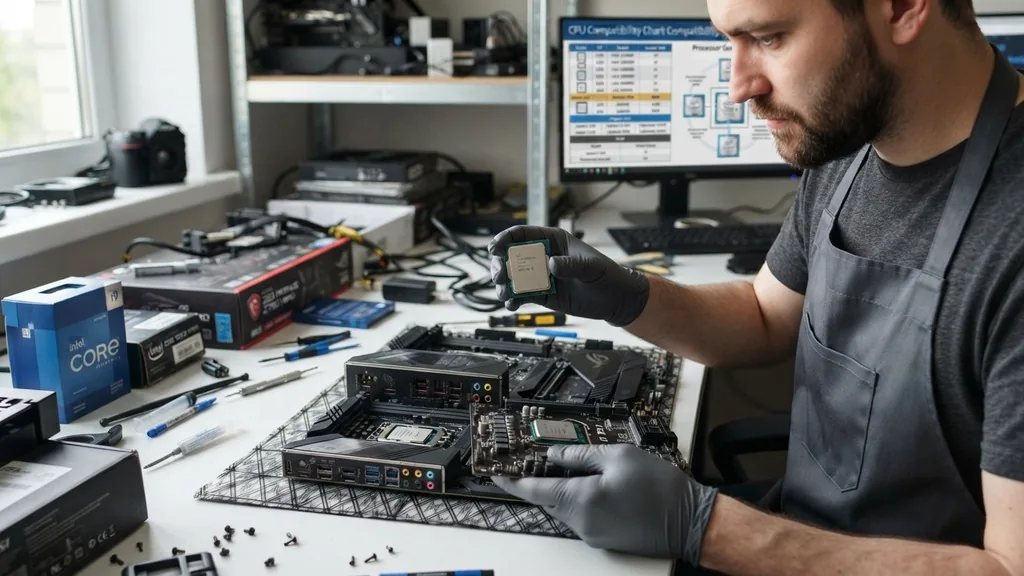
Deciding whether you need a new motherboard for a new CPU is one of the most common dilemmas faced by PC builders and enthusiasts looking to boost their system performance. It is rarely a simple yes or no answer, as it depends entirely on the specific generation of your current hardware and the architecture of the processor you intend to install. If you are planning an upgrade, the compatibility between your processor and the mainboard is the single most critical factor that will determine if your project succeeds or ends in a boot failure.
Understanding Socket Compatibility and Processor Generations
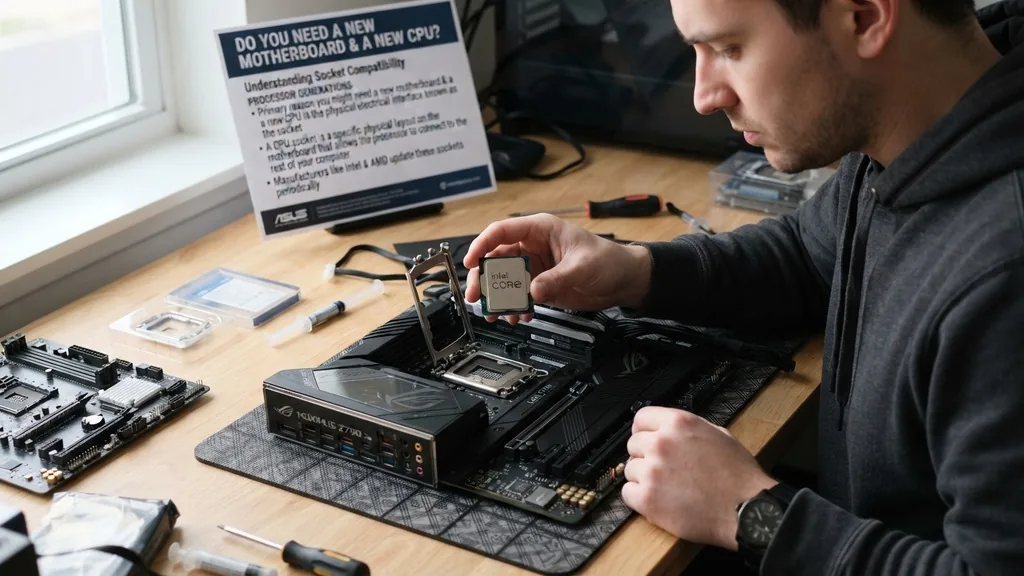
The primary reason you might need a new motherboard for a new CPU is the physical and electrical interface known as the socket. A CPU socket is the specific physical layout on the motherboard that allows the processor to connect to the rest of your computer. Manufacturers like Intel and AMD update these sockets periodically to accommodate changes in pin counts, voltage requirements, and communication protocols with other components like your RAM and graphics cards.
When you look at a CPU, you are looking at a piece of silicon that requires a specific electrical environment. If the socket on your existing board was designed for a previous generation of chips, it may lack the necessary pins to power the latest processor. Even if the chip physically fits into the socket, the board might not recognize the new hardware due to a lack of microcode support in the BIOS.
This is why checking the manufacturer’s CPU support list for your specific board model is the first step any builder should take before purchasing new parts. If your current board’s socket is different from what the new CPU requires, you have no choice but to replace the motherboard.
The Role of Chipsets in Hardware Compatibility
Beyond the physical socket, the chipset serves as the brain of your motherboard, acting as a communication hub between the CPU, memory, and storage devices. You might have a motherboard with a socket that technically accepts a new chip, but if the chipset does not support that specific CPU generation, the system will not function.
For example, a motherboard might feature an AM4 socket, but an older B350 chipset might require a BIOS update to recognize a newer Ryzen 5000 series processor. In some instances, even with a BIOS update, the chipset may not support advanced features like PCIe 4.0 or faster memory speeds, which could bottleneck your new hardware.
When you decide to upgrade, you should verify that the chipset version is compatible with the processor’s architecture. Manufacturers often release multiple chipset tiers, such as budget, mainstream, and enthusiast-grade.
Upgrading to a new CPU often justifies moving to a newer chipset to take advantage of improved power delivery systems, better cooling for voltage regulator modules (VRMs), and more integrated USB or M.2 storage connectivity. If your current chipset is two or three generations old, it is often more efficient to swap the motherboard to ensure the new CPU can operate at its full potential without being held back by outdated bus speeds or limited power overhead.
BIOS Updates and Firmware Requirements
Sometimes, you do not need a completely new motherboard, but you do need to perform a critical BIOS update. A BIOS update is a software-level modification to the motherboard’s firmware that teaches it how to communicate with newer hardware.
This is a common scenario when a manufacturer releases a new CPU that uses the same socket as the previous generation. The motherboard manufacturer will typically release a firmware patch that enables support for the newer processor.
However, this process is not without risks. If you do not have an older, compatible CPU to boot the system and perform the update, you will be stuck with a non-functional machine. Many modern high-end motherboards include a “BIOS Flashback” feature, which allows you to update the firmware using only a USB drive and a power supply, without needing a processor installed at all.
If your motherboard lacks this feature and you do not have a compatible older CPU on hand, you are effectively forced to buy a new motherboard. Always check the official Intel support documentation or the equivalent AMD resources to confirm whether your specific board model is eligible for a firmware update that supports your planned CPU upgrade.
Evaluating Power Delivery and Thermal Constraints
Even if a CPU fits and the BIOS recognizes it, you must consider the power delivery subsystem of your board. Modern high-performance CPUs can draw significant amounts of current, especially under heavy load.
The voltage regulator modules, or VRMs, on your motherboard are responsible for converting your power supply’s output into stable electricity for the processor. If you install a top-tier, power-hungry CPU into an entry-level motherboard designed for mid-range chips, the VRMs may overheat and throttle the CPU’s performance, or in extreme cases, fail entirely.
When you upgrade your CPU, look at the TDP (Thermal Design Power) of your new processor. Compare this to the capabilities of your motherboard’s VRM heatsinks. If you are moving from a low-power quad-core chip to a high-end eight- or twelve-core processor, your current motherboard might be physically insufficient to handle the increased thermal and electrical load.
This is a common pitfall for those who try to reuse an old, budget-oriented motherboard for a high-performance build. Ensuring your board can provide clean, stable power is essential for the longevity of your new investment.
Memory Speed and RAM Compatibility
RAM is another critical factor that often dictates whether you should stick with your current board or move to a new one. Each CPU generation is designed to work with specific types of memory, such as DDR4 or the newer, faster DDR5. If your current motherboard only supports DDR4, but your new CPU requires or performs significantly better with DDR5, you are essentially forced to upgrade the motherboard to accommodate the new memory standard.
Furthermore, even within the same memory generation, there are limits to the speed (measured in MHz or MT/s) that a motherboard can support. An older motherboard might cap your RAM speed at 2666MHz, while your new CPU is optimized for 3600MHz or higher.
If you want to take full advantage of your new processor’s capabilities, you need a motherboard that supports high-frequency XMP or EXPO profiles. If your motherboard cannot handle the speeds your new CPU demands, you will see a measurable decrease in performance, particularly in memory-intensive tasks like video editing or gaming.
Physical Form Factor and Case Constraints
The physical size of your motherboard, known as its form factor, is a practical consideration that often gets overlooked. Common sizes include ATX, Micro-ATX, and Mini-ITX.
If you are looking at a new motherboard to accommodate a new CPU, you must ensure that the new board will fit inside your existing case. While most cases support standard ATX boards, if you are currently using a small-form-factor build, you might find that the best motherboards for your new CPU are only available in larger sizes.
Additionally, consider the layout of the headers on the board. A new motherboard might have different placements for the CPU power connector, front panel headers, or USB ports.
While these are usually standardized, moving to a different brand or a different generation of board can sometimes lead to cable management issues. If your current case is cramped or lacks proper airflow, upgrading to a new motherboard can be a good time to reconsider your entire enclosure setup to ensure your new components stay cool and operate optimally.
Comparative Analysis of Upgrade Scenarios
To help visualize when you truly need a new motherboard, we have summarized the most common upgrade scenarios below. Use this as a reference when evaluating your specific hardware situation.
| Scenario | Do You Need a New Motherboard? | Reasoning |
|---|---|---|
| Same socket, same generation | No | Direct drop-in replacement. |
| Same socket, new generation | Maybe | Requires BIOS update or chipset support. |
| Different socket architecture | Yes | Physical incompatibility. |
| New DDR5 memory requirement | Yes | Memory slots are physically different. |
| Significant TDP increase | Recommended | Prevents VRM overheating and throttling. |
Addressing Common Misconceptions and User Questions
Many users post comments and replies on forums asking if they can just “swap in” a new chip without doing anything else. The most frequent question centers on whether a new CPU will automatically work with an old board. The answer is almost always dependent on the chipset and BIOS.
It is a mistake to assume that because a CPU is made by the same company, it will work in any board from that manufacturer. Intel and AMD change their physical pin layouts frequently, specifically to prevent users from accidentally installing incompatible chips that could cause electrical shorts.
Another point of confusion is the software side. People often worry about whether they need to reinstall their operating system when changing a motherboard. In many modern versions of Windows, the OS is smart enough to detect the new hardware and load the necessary drivers automatically.
However, for the best stability, a clean install is often recommended to avoid residual driver conflicts from your old chipset. Don’t be discouraged by these technical hurdles; they are part of the process of building a high-performance machine that lasts for years. By doing your research beforehand, you can avoid the frustration of a system that fails to post, ensuring your upgrade is a success.
FAQ Section
- How do I check if my motherboard is compatible with a new CPU? Visit the manufacturer’s website and search for your specific motherboard model. Look for the “Support” or “CPU Compatibility List” section. This document will list every processor the board supports, often noting the minimum required BIOS version for each chip.
- Can I swap a CPU without updating the BIOS? Only if the motherboard already has a BIOS version installed that supports the new CPU. If the motherboard was manufactured before the CPU was released, it will not recognize the chip unless you perform a firmware update first.
- Is it worth upgrading my motherboard just for a new CPU? It is worth it if you are moving to a new platform that offers faster RAM, better PCIe support, or improved power delivery. If your current board is already compatible via a simple BIOS update, you may prefer to save your budget for a better GPU or more storage.


